
1. Ifihan
The Renkchip Wireless HDMI Transmitter and Receiver system provides a convenient solution for wirelessly transmitting 1080P/60Hz video and audio signals from your laptop, PC, or smartphone to an HDTV or projector. This plug-and-play device eliminates the need for lengthy HDMI cables, offering flexibility for home theater, conferences, office presentations, and educational settings.

Aworan 1.1: Pariview of the Renkchip Wireless HDMI Transmitter and Receiver Kit.
Important Note: The transmitter is compatible only with laptops featuring a USB-C type output port that supports USB-C 3.1 or Thunderbolt 3/4 interfaces with DisplayPort Alternate Mode.
2. Ohun ti o wa ninu Apoti
Jọwọ rii daju pe gbogbo awọn paati wa ninu package rẹ:
- USB C Atagba
- HDMI olugba
- Okun USB (fun agbara)
- HDMI cable (for receiver connection)
- VGA cable (for receiver connection, if needed)

Image 2.1: The Renkchip Wireless HDMI Transmitter and Receiver components.
3. Awọn ilana iṣeto
Follow these steps to set up your Renkchip Wireless HDMI system:
3.1 Sísopọ̀ Olùgbà (RX)
- Connect the HDMI Receiver to your display device (HDTV, monitor, or projector) using either the HDMI or VGA port.
- Connect the provided USB cable to the receiver's power input and then to a 5V/2A USB power adapter (not included) or a powered USB port on your display device. Ensure the receiver receives stable power.

Aworan 3.1: Ẹyin view of the receiver showing HDMI and VGA output ports.
3.2 Sísopọ̀ ẹ̀rọ ìfọ̀rọ̀wérọ̀ (TX)
- Plug the USB-C Transmitter into the USB-C port of your source device (laptop, PC, or smartphone).
- Ensure your source device's USB-C port supports USB-C 3.1 or Thunderbolt 3/4 with DisplayPort Alternate Mode for proper functionality.
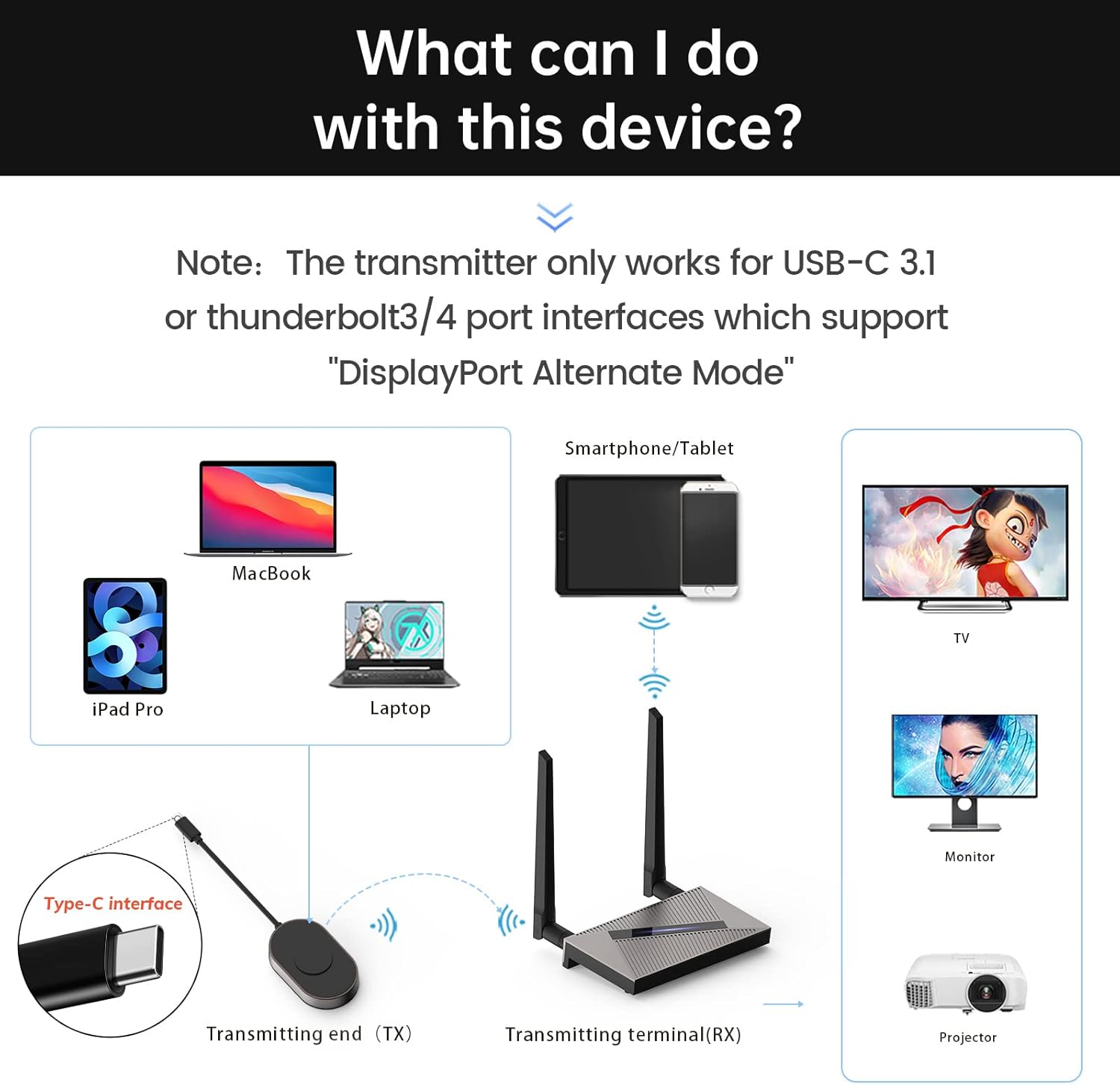
Image 3.2: Connection diagram illustrating transmitter and receiver setup with various devices.
3.3 Sísopọ̀ ẹ̀rọ agbéròyìnjáde àti ẹ̀rọ agbéròyìnjáde
The transmitter and receiver are pre-paired from the factory. If re-pairing is necessary:
- Insert a thin object (like a pin) into the receiver's "RESET" position and hold for 5 seconds to enter pairing mode.
- Press and hold the transmitter button for 3 seconds. The indicator light will flash quickly.
- After approximately 20 seconds, the screen will show that pairing is successful.
4. Awọn ilana Iṣiṣẹ
Once connected and paired, the system operates on a plug-and-play basis:
- Ensure both the transmitter and receiver are powered on and connected as described in Section 3.
- The display device connected to the receiver should automatically detect the incoming signal and mirror the content from your source device.
- The system supports 1080P/60Hz HD signal transmission with real-time audio synchronization and a delay of less than 0.1 seconds.
- The dual high-gain antennas (2.4G+5G) ensure a strong and stable transmission signal.

Aworan 4.1: Example of a laptop wirelessly mirroring its display to a large screen for a meeting.

Aworan 4.2: Example of a smartphone wirelessly mirroring video content to a television.
The system supports various operating systems including Windows, Mac OS/iPad OS/iOS, and Android, utilizing technologies like Airplay, DLNA, and Miracast for seamless mirroring.

Image 4.3: Compatibility details for different operating systems and mirroring protocols.
5. Itọju
To ensure the longevity and optimal performance of your Renkchip Wireless HDMI system, consider the following:
- Jeki awọn ẹrọ naa di mimọ ati ofe kuro ninu eruku. Lo asọ asọ ti o gbẹ fun mimọ.
- Yago fun ṣiṣafihan awọn ẹrọ si awọn iwọn otutu to gaju, ọriniinitutu, tabi oorun taara.
- Do not attempt to disassemble or repair the devices yourself. Refer to qualified service personnel if issues arise.
6. Laasigbotitusita
Ti o ba ni awọn iṣoro, jọwọ tọka si awọn solusan ti o wọpọ wọnyi:
- No Signal/No Display:
- Ensure the receiver is properly powered (5V/2A).
- Verify that the HDMI/VGA cable is securely connected between the receiver and the display device.
- Confirm that your source device's USB-C port supports DisplayPort Alternate Mode.
- Check if the transmitter and receiver are successfully paired (refer to Section 3.3).
- Try connecting the transmitter to a different USB-C port on your source device, if available.
- Intermittent Connection/Signal Drop:
- Reduce the distance between the transmitter and receiver. The theoretical maximum transmission distance is 98 feet, but environmental factors like walls and air humidity can affect performance.
- Ensure there are no significant obstructions between the transmitter and receiver.
- Minimize interference from other wireless devices operating on 2.4G or 5G frequencies.
- Device Heats Up During Use:
- It is normal for the device to generate some heat due to signal decoding. The product is designed with ventilation holes to manage heat and will not affect product life during long-term use.
- Driver/APP Installation:
- This product is designed for plug-and-play operation and does not require driver or APP installation.

Image 6.1: Common questions and answers regarding the Renkchip Wireless HDMI system.
7. Awọn pato
| Ẹya ara ẹrọ | Ẹ̀kúnrẹ́rẹ́ |
|---|---|
| Awoṣe | Z08 |
| Ipinnu | 1080P/60Hz |
| Awọn ibaraẹnisọrọ I / O | Audio, Type-C, VGA, HDMI |
| Agbara Input | 5V2A |
| Nẹtiwọọki | 2.4G/5G Dual Antenna |
| Ohun elo | Zinc Alloy + ABS |
| Àwọ̀ | Dudu |
| Ọja Mefa | 9 x 6 x 2 inches (approximate packaging) |
| Iwọn Nkan | 1.23 iwon |
| Asopọmọra Technology | HDMI, USB, VGA |
| Pataki Awọn ẹya ara ẹrọ | DLNA, Miracast |
| Awọn ẹrọ ibaramu | Smartphone, Laptop, PC, Projector, HDTV |

Image 7.1: Physical dimensions and key parameters of the transmitter and receiver.
8. Atilẹyin ọja ati Support
Renkchip products are designed for reliability and performance. For warranty information or technical support, please contact Renkchip customer service through the retailer where the product was purchased or visit the official Renkchip webojula.