
1. Ifihan
This manual provides detailed instructions for the setup, operation, and maintenance of your MageGee Star98 Mechanical Keyboard. Designed for gaming and daily use, this 98-key wired keyboard features blue mechanical switches, customizable backlighting, and a hot-swappable design for personalized key switch replacement.
2. Package Awọn akoonu
- MageGee Star98 Mechanical Keyboard
- Okun USB
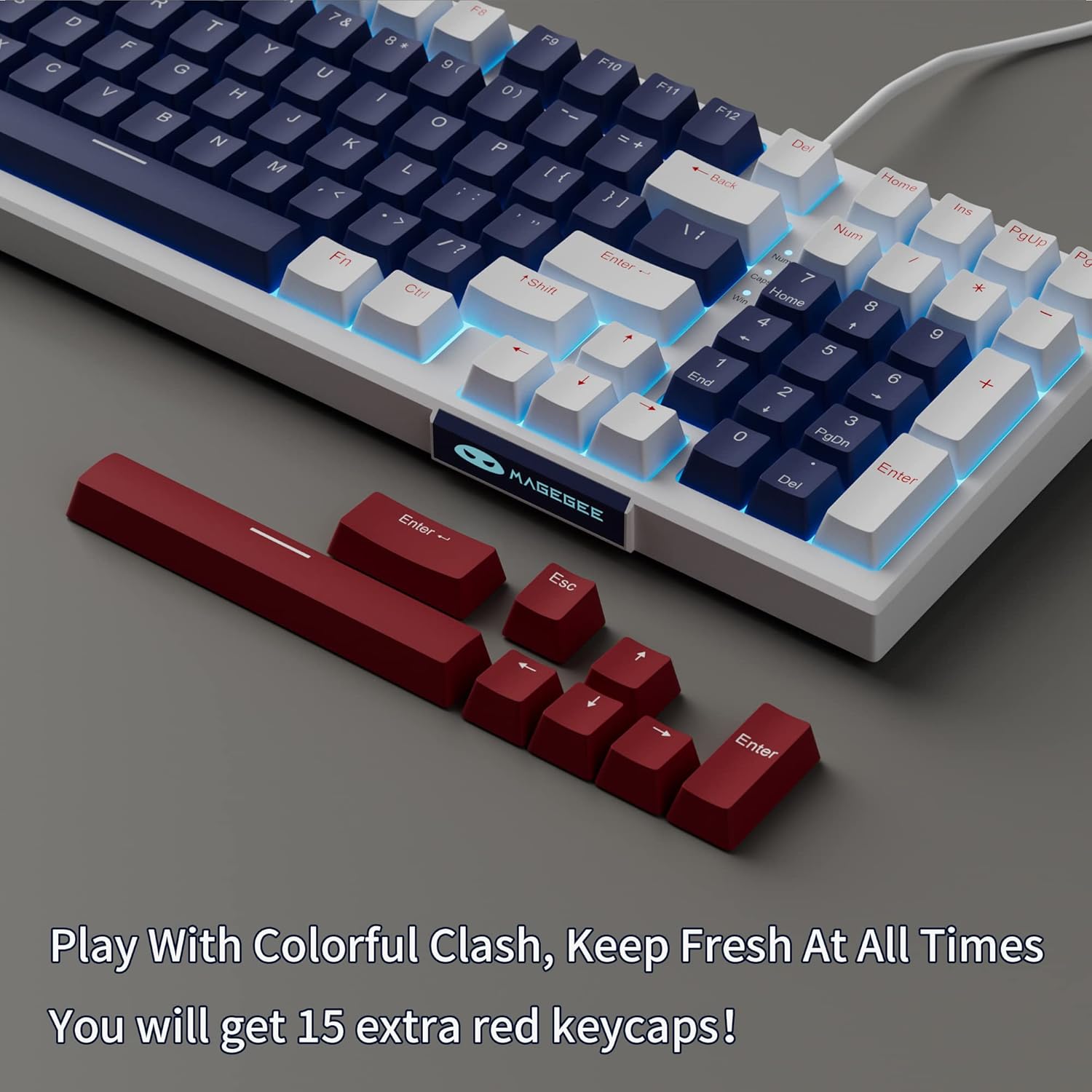
- Additional Red Keycaps (15 pieces)

Image: The MageGee Star98 keyboard displayed with a set of 15 additional red keycaps, highlighting the customization option.
3. Awọn ẹya Ọja
- Comfortable Typing Experience: Equipped with blue mechanical switches for tactile feedback and a stepped layout for ergonomic typing.
- 98-Kọtini Anti-Ghosting: All 98 keys can be pressed simultaneously without conflict, ensuring fast and accurate input.
- Mixed Keycaps & Adjustable Tilt Legs: Features 3-color mixed double injection keycaps for clear backlighting and foldable brackets for adjustable typing angles.
- Apẹrẹ Gbona-Swappable: Compatible with most 3-pin and 5-pin mechanical switches, allowing for easy customization and replacement.
- Solid Sea Blue Backlight: Multiple backlight modes with a solid sea blue color, which can also be turned off.
- Ibamu gbooro: Supports Win2000, Win XP, Win ME, Vista, Win7, Win8, Win10, Android, Linux, Mac operating systems. Plug and play functionality via USB.

Image: A diagram illustrating the compact 98-key layout of the MageGee Star98 keyboard, highlighting its space-saving design while retaining full functionality.
4. Awọn ilana iṣeto
- So Keyboard pọ: Locate the USB cable provided in the package. Plug one end into the USB port on the back of the keyboard and the other end into an available USB port on your computer.
- Idanimọ eto: Your operating system should automatically detect and install the necessary drivers for the keyboard. This is a plug-and-play device, so no additional software installation is typically required.
- Adjust Tilt Legs: For ergonomic comfort, unfold the adjustable tilt legs located on the underside of the keyboard to achieve your preferred typing angle.

Image: The MageGee Star98 keyboard connected to a laptop, demonstrating the USB connection point and overall setup.
5. Awọn ilana Iṣiṣẹ
5.1 Backlight Iṣakoso
The keyboard features a solid sea blue backlight with multiple operating modes. Use the following key combinations to control the backlighting:
- Fn + [bọtini]: Specific key combinations for changing backlight modes are typically indicated on the keycaps themselves (e.g., Fn + Ins, Fn + Home, Fn + PgUp, Fn + Del, Fn + End, Fn + PgDn). Refer to the keycap legends for exact functions.
- Fn + Oke/isalẹ: Satunṣe imọlẹ backlight.
- Fn + Osi/Ọfà ọtun: Adjust backlight speed (for dynamic modes).
- Fn + Gba: Ó tii bọtini Windows láti dènà àwọn ìtẹ̀sí àìròtẹ́lẹ̀ nígbà tí a bá ń ṣeré.
5.2 Gbona-Swappable Yipada
The MageGee Star98 keyboard supports hot-swappable mechanical switches, allowing you to change switches without soldering. This feature is compatible with most 3-pin and 5-pin mechanical switches on the market.
- Yọ bọtini bọtini kuro: Use a keycap puller (not included) to gently remove the desired keycap.
- Yọ Yipada: Use a switch puller (not included) to carefully grip the switch and pull it straight up.
- Fi Yipada Tuntun sii: Align the pins of the new switch with the holes on the PCB. Press down firmly until the switch clicks into place. Ensure the pins are not bent.
- Rọpo bọtini bọtini: Place the keycap onto the new switch stem and press down.
Aworan: A sunmọ-soke view of the keyboard demonstrating the hot-swappable switch feature, with several keycaps and switches removed to show the underlying mechanism.
Video: An official video demonstrating the features of the MageGee Sky98 Mechanical Gaming Keyboard, including its hot-swappable switches and design.
6. Itọju
- Awọn bọtini mimọ: Lo asọ, damp cloth to wipe down keycaps. For deeper cleaning, keycaps can be removed using a keycap puller (not included) and washed with mild soap and water. Ensure they are completely dry before reattaching.
- Àwọn Ìyípadà Mímọ́: Use compressed air to remove dust and debris from between the switches. Avoid spraying liquids directly into the switches.
- Itọju USB: Yago fun awọn atunse didasilẹ tabi kọnks ninu okun USB lati yago fun ibajẹ.
- Ibi ipamọ: Tọ́jú bọ́tìnnì náà sí ibi tí ó mọ́ tónítóní tí ó sì gbẹ, tí kò sí ibi tí ó le koko jù àti oòrùn tààrà.
7. Laasigbotitusita
- Keyboard Ko Dahun:
Ensure the USB cable is securely connected to both the keyboard and the computer. Try plugging the keyboard into a different USB port or a different computer to rule out port issues.
- Awọn bọtini Ko Ṣiṣẹ:
If individual keys are not responding, check if any debris is lodged under the keycap or switch. For hot-swappable switches, try removing and re-inserting the switch, or replacing it with a known working switch.
- Backlight Not Working/Flickering:
Ensure the backlight is not turned off (check Fn key combinations). Try adjusting brightness. If flickering persists, ensure the keyboard is connected to a stable USB port providing sufficient power.
- Ti ti bọtini Windows pa:
Tẹ Fn + Gba to toggle the Windows key lock function.
8. Awọn pato
| Ẹya ara ẹrọ | Ẹ̀kúnrẹ́rẹ́ |
|---|---|
| Brand | MageGee |
| Nọmba awoṣe | Irawo98 |
| Apejuwe Keyboard | Ẹ̀rọ |
| Nọmba ti Awọn bọtini | 98 |
| Yipada Iru | Tactile (Blue Switches) |
| Asopọmọra Technology | Firanṣẹ (USB) |
| Imọlẹ afẹyinti | Single Color (Sea Blue), Multiple Modes |
| Gbona-Swappable | Yes (3-pin and 5-pin switches) |
| Awọn ẹrọ ibaramu | PC, Kọǹpútà alágbèéká |
| OS ibaramu | Win2000, Win XP, Win ME, Vista, Win7, Win8, Win10, Android, Linux, Mac |
| Ohun elo | Acrylonitrile Butadiene Styrene (ABS) |
| Pataki Ẹya | Ergonomic, Anti-Ghosting |
9. Atilẹyin ọja ati Support
The MageGee Star98 Mechanical Keyboard comes with a 1-odun atilẹyin ọja lati ọjọ ti o ra. Atilẹyin ọja yi ni wiwa awọn abawọn iṣelọpọ ati awọn ọran ti o dide lati lilo deede.
For technical support, warranty claims, or any questions regarding your product, please contact MageGee customer service through the retailer's platform or the official MageGee website. Please have your purchase receipt and product model number (Star98) ready when contacting support.