
Ọrọ Iṣaaju
This manual provides detailed instructions for the installation, operation, and maintenance of your EZoneTronics PCD001 Portable Wireless Car Stereo. Please read this manual thoroughly before using the device to ensure proper functionality and to prevent damage.
Ọja Pariview
Key Awọn ẹya ara ẹrọ
- 7-Inch Touchscreen Display: Provides a clear and responsive interface for navigation and media control.
- Wireless Apple CarPlay & Android Auto: Seamlessly integrates with Apple and Android smartphones for navigation, music, and communication.
- Atagba FM: Connects to your vehicle's original radio system via AUX Out or FM Out for audio output.
- Pulọọgi ati Ṣiṣẹ fifi sori ẹrọ: Designed for easy setup without modifying existing car equipment.
- Awọn aṣayan Iṣagbesori Wapọ: Can be mounted on the dashboard or windshield using a suction cup holder.
- Awọn iṣẹ afikun: Supports Bluetooth connectivity, hands-free calling, voice control (Siri/Google Assistant), video playback, and music streaming.
- Ibamu Media: Supports SD card and USB devices for media playback.
Ohun ti o wa ninu Apoti
Rii daju pe gbogbo awọn paati wa lori ṣiṣi silẹ:
- 1 x EZoneTronics PCD001 Portable Wireless Car Stereo Unit
- 1 x Mounting Bracket (for dash or windshield)
- 1 x Car Charger (power adapter)
- 1 x Driving Recorder (if included in your package)
- 1 x SD Card (if included in your package)
- 1 x Webcam (if included in your package)
Note: The inclusion of the Driving Recorder, SD Card, and Webcam may vary by package.
Eto ati fifi sori
Gbigbe Ẹrọ naa
The device can be mounted on your car's dashboard or windshield. Choose a location that does not obstruct your view tabi dabaru pẹlu awọn iṣakoso ọkọ.
- Mọ Ilẹ-ilẹ: Ensure the chosen mounting surface (dashboard or windshield) is clean and dry.
- So Cup Famu naa: Press the suction cup firmly onto the surface and engage the locking mechanism to secure it.
- Ṣatunṣe Igun: Use the adjustable arm and swivel joint to position the screen for optimal viewing. The mount allows for 360-degree rotation and 180-degree angle adjustment.
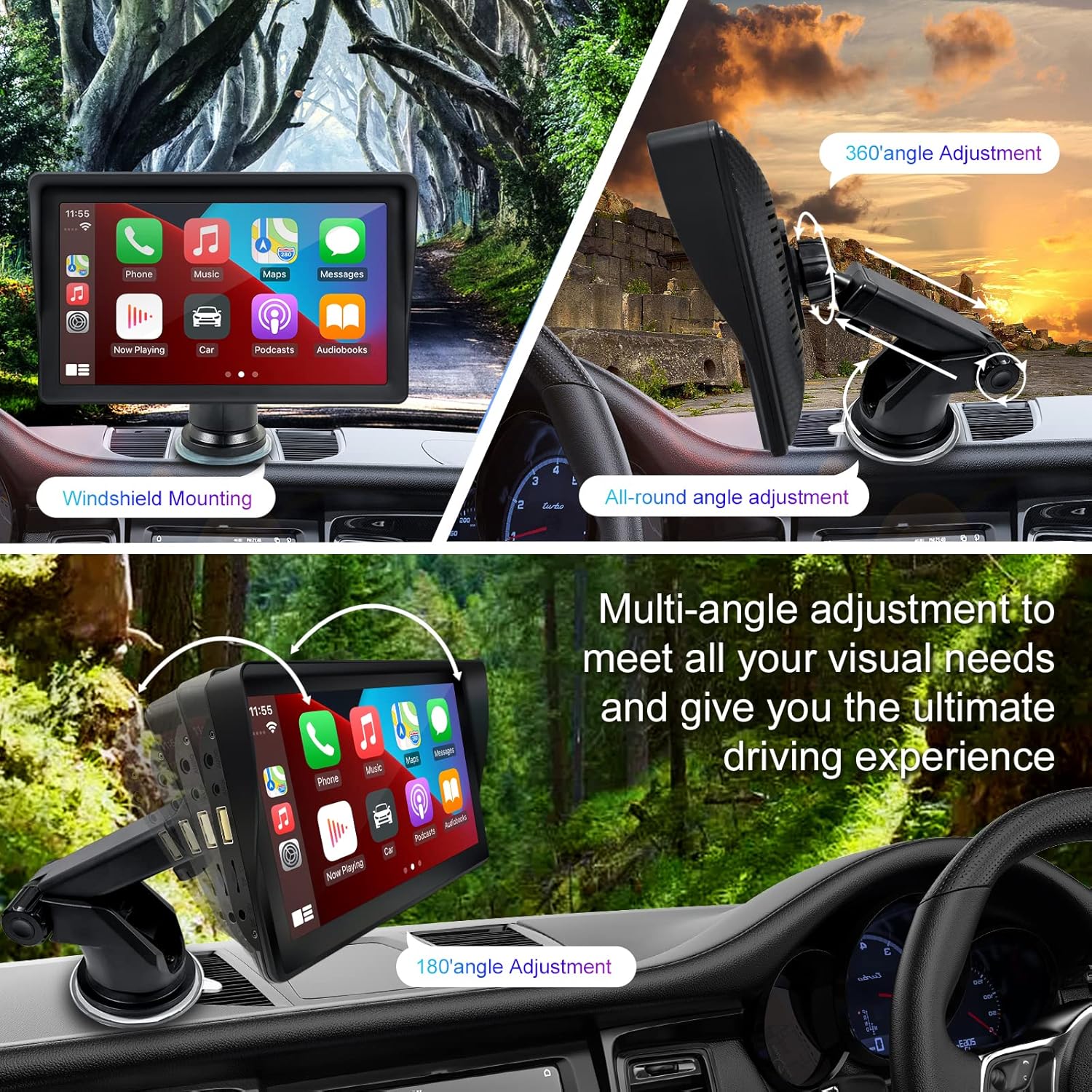
Figure 1: Mounting options and angle adjustments for the portable car stereo.
Asopọ agbara
Connect the provided car charger to the device's power input port and then into your vehicle's 12V power outlet (cigarette lighter socket). The device supports 12-24V power input.
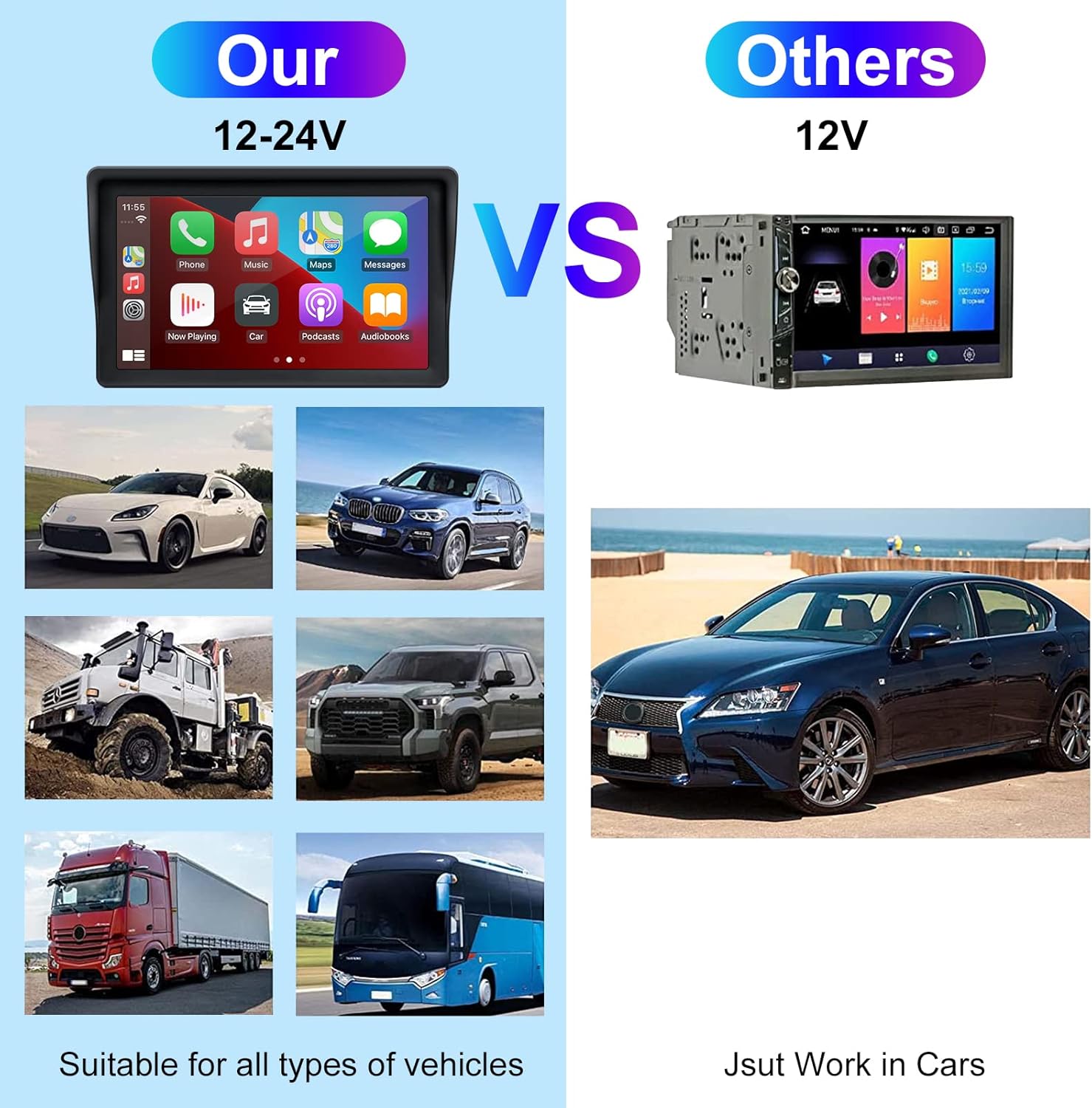
Figure 2: The EZoneTronics unit is compatible with 12-24V vehicle power systems.
Awọn ilana Iṣiṣẹ
Initial Power On and Interface
Once powered, the device will boot up and display the main interface. This interface provides access to Apple CarPlay, Android Auto, and other functions.

Figure 3: Main interface displaying Apple CarPlay.
Connecting to Apple CarPlay or Android Auto
The device supports wireless connection for both Apple CarPlay and Android Auto.
- Mu Bluetooth ati Wi-Fi ṣiṣẹ: Lori foonu alagbeka rẹ, rii daju pe Bluetooth ati Wi-Fi ti ṣiṣẹ.
- Ohun elo Pàpọ: On the car stereo, navigate to the Bluetooth settings and pair with your smartphone.
- Asopọmọra Aifọwọyi: Once paired, the device should automatically prompt you to connect to Apple CarPlay or Android Auto. Follow the on-screen instructions on both the car stereo and your phone to complete the setup.
- Ọna asopọ Digi: For devices not supporting CarPlay or Android Auto, or if you prefer, you can use the Mirror Link function to display your phone's screen on the unit.

Figure 4: Wireless connection for Apple CarPlay and Android Auto.
Audio Output (FM Transmitter / AUX Out)
To output audio from the car stereo to your vehicle's sound system, you have two primary options:
- Atagba FM:
- On the EZoneTronics unit, select the FM Transmitter function.
- Yan igbohunsafẹfẹ FM ti a ko lo.
- Tune your vehicle's FM radio to the same frequency. Audio from the portable stereo will now play through your car's speakers.
- AUX Jade:
- Connect an AUX cable from the AUX Out port on the EZoneTronics unit to your vehicle's AUX In port.
- Select AUX input on your vehicle's audio system.


Figure 5: FM Transmitter and other core functions.
Iṣakoso Ohun (Siri / Oluranlọwọ Google)
Once connected to Apple CarPlay or Android Auto, you can activate your smartphone's voice assistant (Siri or Google Assistant) for hands-free control. This allows you to make calls, send messages, get directions, and play music using voice commands.
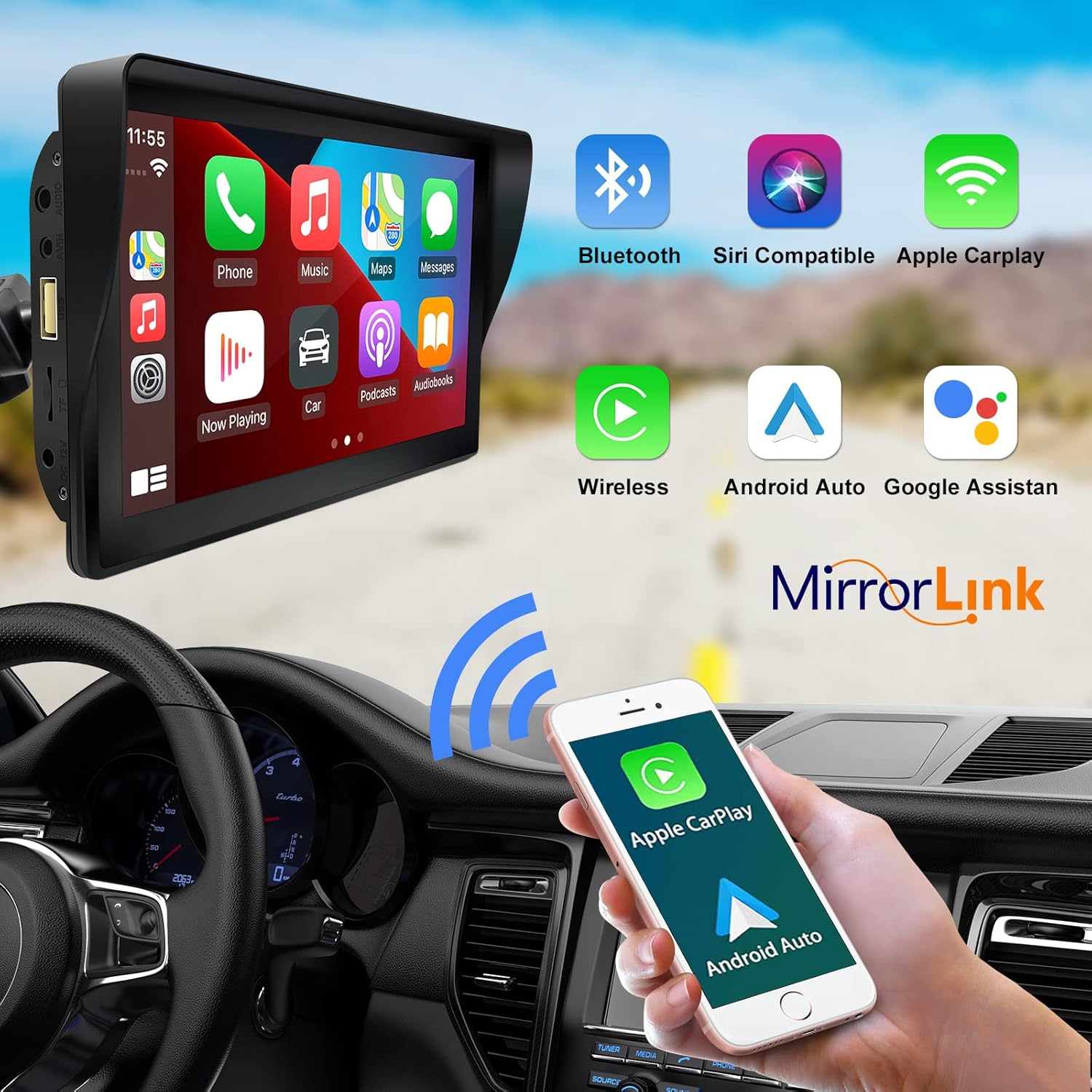
Figure 6: Voice control and connectivity features.
Media Playback (SD Card / USB)
The unit supports media playback from SD cards and USB devices.
- Insert an SD card into the designated slot or a USB drive into the USB port.
- Navigate to the media player application on the car stereo.
- Select the desired audio or video files fun ṣiṣiṣẹsẹhin.


Figure 7: USB and SD card media playback options.
Laasigbotitusita
If you encounter issues with your EZoneTronics PCD001, refer to the following common problems and solutions:
| Isoro | Owun to le Fa / Solusan |
|---|---|
| Ẹrọ naa ko ṣiṣẹ. |
|
| Cannot connect to Apple CarPlay / Android Auto wirelessly. |
|
| No audio output from car speakers. |
|
| Iboju ifọwọkan ko dahun. |
|
| GPS navigation is inaccurate or not working. |
|
Awọn pato
| Ẹya ara ẹrọ | Ẹ̀kúnrẹ́rẹ́ |
|---|---|
| Orukọ awoṣe | PCD001 |
| Brand | EZoneTronics |
| Iwon iboju | 7 inches |
| Ifihan Iru | IPS |
| Fọwọkan Iboju Iru | Capacitive |
| Eto isesise | Android (Internal OS for unit functions, supports CarPlay/Android Auto) |
| Asopọmọra Technology | Wireless CarPlay, Wireless Android Auto, Bluetooth, FM Transmitter, AUX Out |
| Ipo Ijade Ohun | AUX, Stereo |
| Eto Lilọ kiri Satẹlaiti atilẹyin | GPS (via connected smartphone) |
| Iṣagbesori Iru | Dáṣíbọ́ọ̀dì fíìmù, fíìmù ìbòjú |
| Awọn ẹrọ ibaramu | Smartphones (Apple iOS and Android) |
| Ọkọ Iṣẹ Iru | Car (Universal 12-24V compatibility) |
Itoju
Proper maintenance ensures the longevity and optimal performance of your EZoneTronics PCD001.
- Ninu iboju: Lo asọ rirọ, ti ko ni lint lati pa iboju naa rọra. Fun agidi smudges, die-die dampen awọn asọ pẹlu omi tabi a iboju-ailewu regede. Yago fun awọn kẹmika lile tabi awọn ohun elo abrasive.
- Iṣakoso USB: Ensure all cables are neatly routed and secured to prevent entanglement or damage.
- Iwọn otutu: Yẹra fún fífi ẹ̀rọ náà sí ojú otútù tó le koko, yálà gbígbóná tàbí òtútù, fún ìgbà pípẹ́.
- Awọn imudojuiwọn sọfitiwia: Lorekore ṣayẹwo olupese ká website or device settings for any available software updates to improve performance and add features.
Atilẹyin ọja ati Support
Alaye atilẹyin ọja
The EZoneTronics PCD001 Portable Wireless Car Stereo comes with a ọkan-odun atilẹyin ọja lati ọjọ ti o ra. Atilẹyin ọja yi ni wiwa awọn abawọn iṣelọpọ ati ailagbara labẹ lilo deede. Ko bo ibajẹ to ṣẹlẹ nipasẹ ilokulo, awọn ijamba, awọn iyipada laigba aṣẹ, tabi fifi sori ẹrọ aibojumu.
Jọwọ ṣe idaduro ẹri rira rẹ fun awọn iṣeduro atilẹyin ọja.
Onibara Support
For technical assistance, warranty claims, or further inquiries, please contact EZoneTronics customer support:
- Webojula: www.ezonetronics.com
- Imeeli: support@ezonetronics.com
When contacting support, please provide your product model (PCD001) and a detailed description of the issue.