
1. Ifihan
Thank you for choosing the SURFOU Smart WiFi Plug. This device allows you to control your electrical appliances remotely, set schedules, monitor energy consumption, and integrate with smart home systems like Amazon Alexa and Google Home. Please read this manual carefully before use to ensure proper operation and safety.
2. Alaye Aabo pataki
- Má ṣe ju ẹrù tó pọ̀ jù lọ lọ ti 16A / 3680W.
- Fun lilo inu ile nikan.
- Ma ṣe tuka tabi yi ẹrọ naa pada.
- Pa mọ kuro ninu omi ati awọn agbegbe ọriniinitutu giga.
- Rí i dájú pé a ti fi pulọọgi náà sínú ihò ògiri pátápátá.
- Yọọ ẹrọ naa kuro ni iṣan agbara ṣaaju ṣiṣe mimọ.
- Ẹrọ yii kii ṣe nkan isere. Tọju kuro ni arọwọto awọn ọmọde.
3. Package Awọn akoonu
- SURFOU Smart WiFi Plug (2 units)
- Ilana itọnisọna
4. Ọja Ipariview
The SURFOU Smart WiFi Plug is designed for convenience and energy efficiency. It features an Italian Type L socket, a physical power button, and an LED indicator. Its compact design allows it to fit into standard wall outlets without obstructing adjacent sockets.

Aworan: Iwaju view of the SURFOU Smart WiFi Plug, showing the Italian Type L socket and power button.
5. Awọn pato
| Paramita | Iye |
|---|---|
| Nọmba awoṣe | BSD60 |
| Brand | SURFOU |
| Awọn ọna Voltage | 230 Volts |
| Ti isiyi Rating | 16 A |
| Agbara | 3680 Wattis |
| Ilana Asopọmọra | 2.4 GHz WiFi (not 5 GHz) |
| Ọna Iṣakoso | Application, Voice Control |
| Ibamu | Amazon Alexa, Oluranlọwọ Google, SmartThings |
| Ohun elo | Acrylonitrile Butadiene Styrene (ABS), Stainless Steel (contact) |
| Awọn iwọn (L x W x H) | 36 x 34 x 36 millimeters (approx. 3.6 x 3.4 x 3.6 cm) |
| IP Rating | IP55 |
| Awọn iwe-ẹri | CE, RoHS, TÜV |

Image: Diagram showing the dimensions of the smart plug.
6. Awọn ilana iṣeto
6.1. Gba awọn App
The SURFOU Smart WiFi Plug works with the Smart Life or Tuya Smart app. Download the app from the App Store (iOS) or Google Play Store (Android).
6.2. Register and Log In
Ṣí àpù náà kí o sì forúkọ sílẹ̀ àkọọ́lẹ̀ tuntun tàbí kí o wọlé pẹ̀lú èyí tó wà tẹ́lẹ̀.
6.3. Connect to 2.4 GHz WiFi Network
Ensure your smartphone is connected to a 2.4 GHz WiFi network. The smart plug does not support 5 GHz WiFi networks.

Image: Illustration of the smart plug connecting to a 2.4 GHz WiFi router.
6.4. Fi ẹrọ
- Plug the SURFOU Smart WiFi Plug into a wall socket.
- Press and hold the power button on the plug for 5-10 seconds until the LED indicator blinks rapidly. This indicates it's in pairing mode.
- Open the Smart Life/Tuya Smart app, tap the "+" icon in the top right corner to add a device.
- Select "Electrical Outlet" or "Socket (WiFi)" from the device list.
- Rí i dájú pé ìmọ́lẹ̀ àmì náà ń tàn kánkán nínú àpù náà.
- Enter your 2.4 GHz WiFi network password.
- Wait for the app to connect to the device. Once connected, you can rename the plug.
7. Awọn ilana Iṣiṣẹ
7.1. Iṣakoso Afowoyi
Press the physical power button on the smart plug to manually turn the connected appliance on or off.
7.2. App Isakoṣo latọna jijin
Once connected to the app, you can remotely control the plug from anywhere with an internet connection. Tap the device icon in the app to turn it on or off.
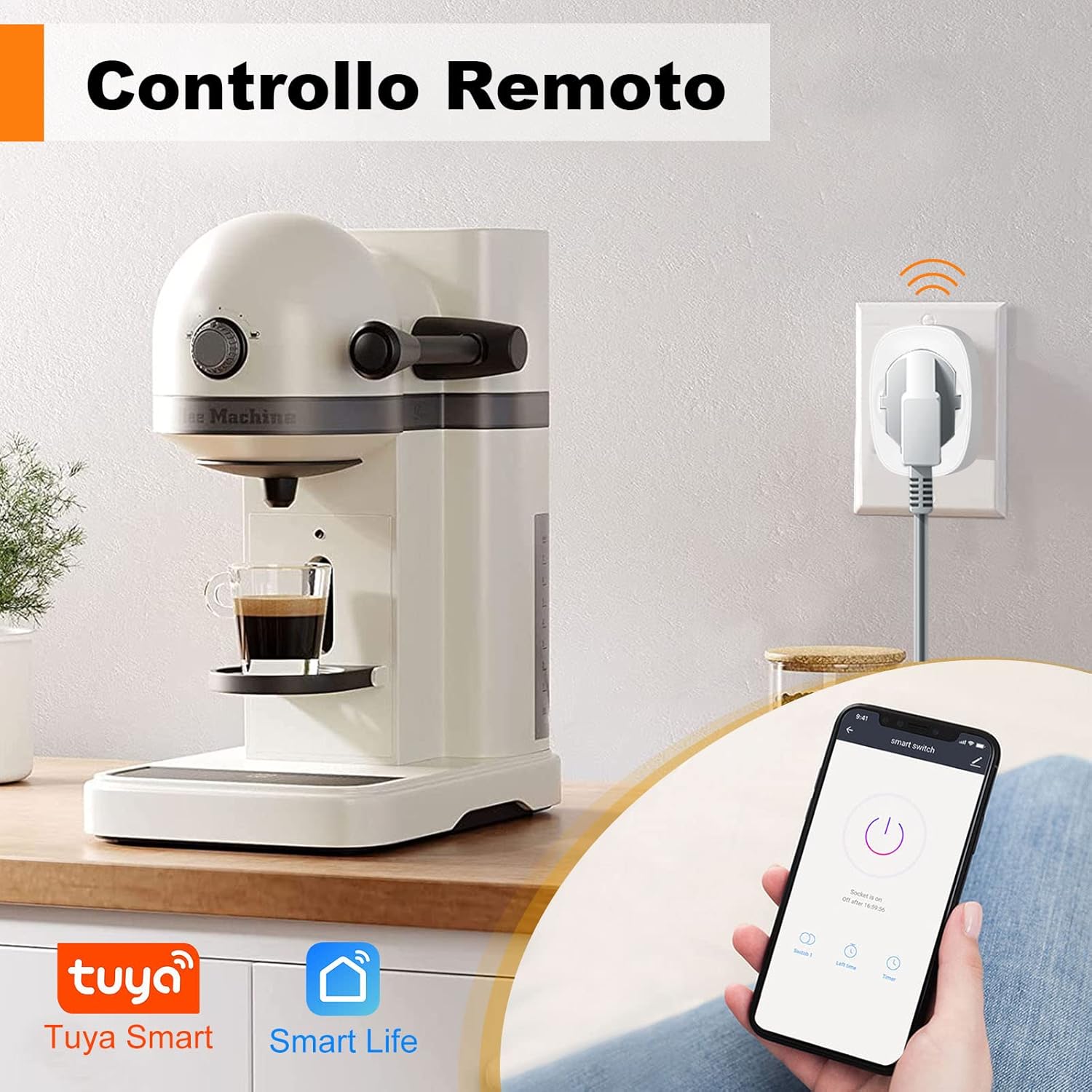
Image: A smartphone displaying the Smart Life app, used to remotely control a coffee machine connected to the smart plug.
7.3. Iṣẹ Aago
Set schedules or timers to automatically turn appliances on or off at specific times. This is useful for lights, coffee makers, or other devices.

Image: A kitchen scene with various appliances and a smartphone displaying the app's scheduling interface, showing set times for power on/off.
7.4. Agbara Abojuto
The smart plug can track the power consumption of connected devices, displaying total energy (kWh), voltage, and current. This feature helps in understanding and managing energy usage.

Image: A bedroom scene with a lamp connected to the smart plug, and a graph illustrating daily energy consumption (kWh) over several days.
7.5. Iṣakoso Ohun (Alexa & Ile Google)
Integrate the smart plug with Amazon Alexa or Google Home for convenient voice control. Follow the instructions in your Alexa or Google Home app to link your Smart Life/Tuya Smart account.
- Example commands: "Alexa, turn on the lamp." or "Hey Google, turn off the fan."
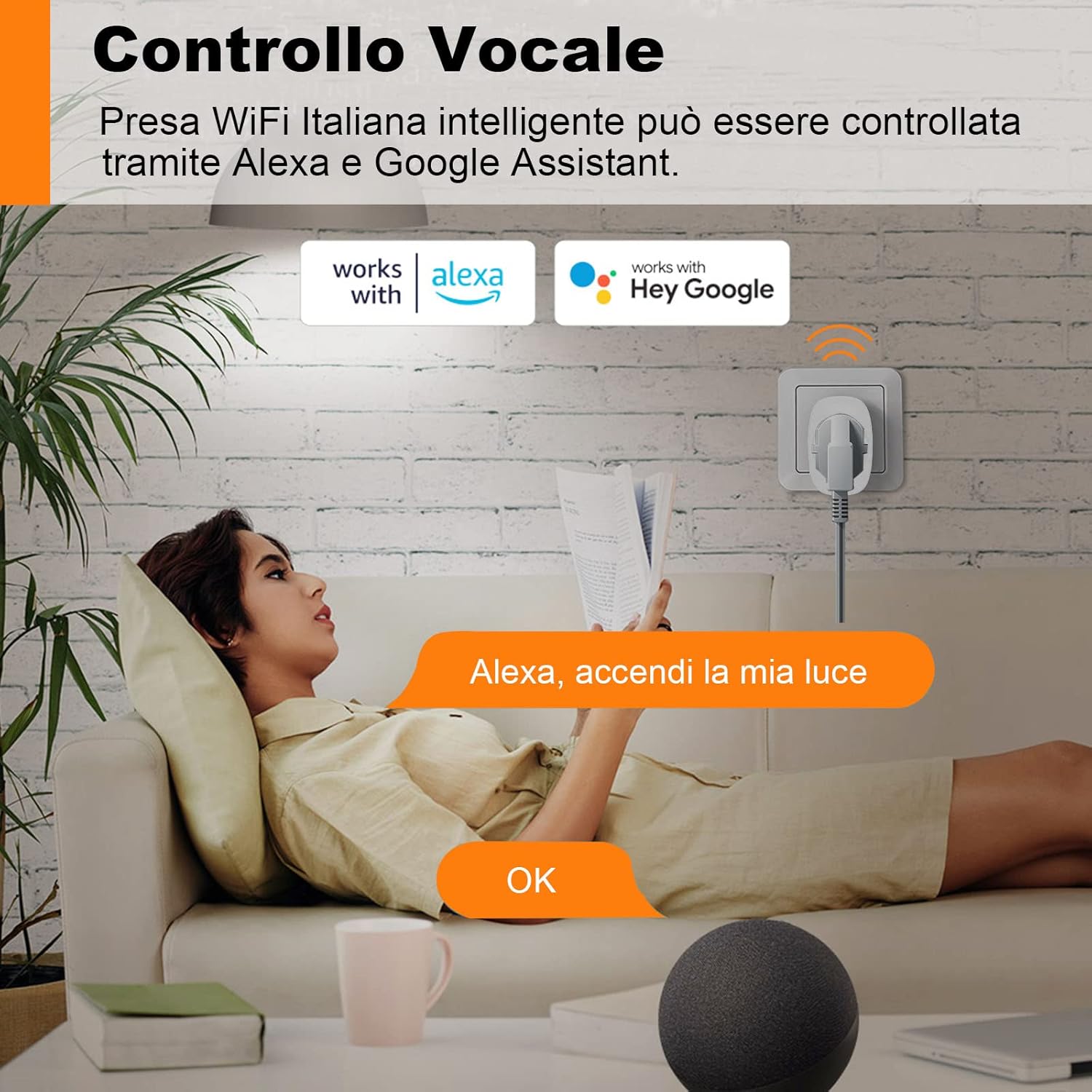
Image: A person relaxing on a sofa, using an Amazon Echo device to control a lamp connected to the smart plug via voice command.
7.6. Pipin ẹrọ
Share control of your smart plug with family members. They can access the same account on their phones to manage smart devices.

Image: A family looking at a smartphone screen showing the device sharing feature within the app, allowing multiple users to control smart devices.
7.7. Child Protection
The smart plug is designed with child protection features to prevent accidental contact with live parts.

Image: A baby reaching towards a smart plug, illustrating the child protection design. Icons indicate protection against short circuits, overvoltage, overheating, and lightning.
8. Itọju
- Fi aṣọ gbígbẹ tí ó rọ, fọ pulọọgi onímọ̀-ẹ̀rọ náà. Má ṣe lo àwọn ohun ìfọmọ́ omi.
- Tọju ẹrọ naa ni itura, aye gbigbẹ nigbati o ko ba wa ni lilo.
- Yago fun ṣiṣafihan ẹrọ naa si imọlẹ orun taara tabi awọn iwọn otutu to gaju.
9. Laasigbotitusita
- Ẹ̀rọ náà kò sopọ̀ mọ́ WiFi: Ensure your router is broadcasting a 2.4 GHz network. Check your WiFi password. Move the plug closer to the router. Reset the plug by holding the power button until it blinks rapidly and try pairing again.
- Ẹ̀rọ tí kò ń tan/pa: Check if the smart plug is receiving power. Verify the appliance is properly plugged into the smart plug and is functional.
- Iṣakoso ohun ko ṣiṣẹ: Ensure your smart home assistant (Alexa/Google Home) is properly linked to your Smart Life/Tuya Smart account. Check your internet connection.
- Àìṣeéṣe ìṣàyẹ̀wò agbára: Ensure the connected appliance is within the specified power limits of the smart plug.
10. Atilẹyin ọja ati Support
SURFOU products are designed for reliability and performance. For warranty information or technical support, please refer to the purchase platform or contact SURFOU customer service directly. Keep your proof of purchase for warranty claims.