
Ọrọ Iṣaaju
The Solid State Logic SSL 12 is a high-performance 12-in/8-out USB audio interface designed for professional recording and mixing environments. It features studio-quality audio conversion, robust preamps, and flexible monitoring options to enhance your audio production workflow. This manual provides essential information for setting up, operating, maintaining, and troubleshooting your SSL 12 interface.

olusin 1: Iwaju view of the Solid State Logic SSL 12 USB Audio Interface.
Ṣeto
Follow these steps to set up your SSL 12 audio interface:
- Fifi sori ẹrọ software: Before connecting the hardware, download and install the latest drivers and SSL 360° software from the official Solid State Logic website. This software is essential for full control and functionality of your interface.
- Sopọ si Kọmputa: Connect the SSL 12 to your computer using the provided USB cable. The interface is bus-powered via USB.
- Agbara Tan: Press the power button located on the rear panel of the unit. The power indicator LED on the front panel will illuminate.
- So Microphone/Àwọn Ohun Èlò Pọ̀: Use XLR or 1/4-inch TRS cables to connect your microphones or instruments to the combo inputs (1-4) on the rear panel. For instruments, use the dedicated 1/4-inch instrument inputs (INST 1, INST 2) on the front panel for optimal impedance matching.
- Connect Monitors/Headphones: Connect your studio monitors to the 1/4-inch TRS outputs (1-4) on the rear panel. Plug your headphones into the dedicated 1/4-inch headphone outputs (A, B) on the front panel.
- ADAT and MIDI Connections (Optional): If expanding your setup, connect ADAT compatible devices to the ADAT IN port and MIDI devices to the MIDI IN/OUT ports on the rear panel.

Figure 2: SSL 12 with various cables connected for a typical studio setup.
Awọn ilana Iṣiṣẹ
Understanding the controls and connections of your SSL 12 is crucial for effective operation.
Iwaju Panel idari

olusin 3: Top view of the SSL 12, highlighting front panel controls.
- Awọn ikanni 1-4: Each channel features a GAIN knob to adjust input level, a +48V button for phantom power (for condenser microphones), and a LINE button to switch between microphone/instrument and line-level inputs. The LED meters provide visual feedback on input levels.
- Legacy 4K Buttons: These buttons activate the '4K' mode, which emulates the sound characteristics of the classic SSL 4000 series console, adding harmonic enhancement and a high-frequency boost.
- Ipele Atẹle: The large blue knob controls the overall output level to your main studio monitors.
- Headphone Outputs (A & B): Two independent headphone outputs with individual level controls allow for separate monitoring mixes.
- Ọrọ sisọ: The built-in talkback microphone allows communication with artists in a separate recording space. Use the TALK button to activate, CUT to mute, and ALT to switch between alternative monitor outputs.
Ru Panel Awọn isopọ
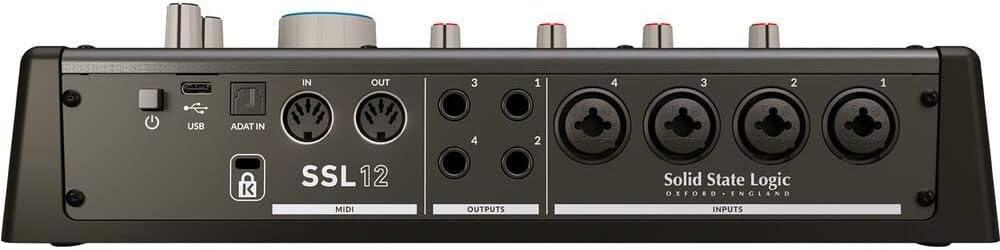
olusin 4: Ẹyìn view of the SSL 12, showing input and output connections.
- Awọn igbewọle 1-4: Combo XLR/TRS jacks for connecting microphones and line-level sources.
- Awọn abajade 1-4: 1/4-inch TRS balanced outputs for connecting studio monitors or other outboard gear.
- MIDI Ninu/Jade: Standard 5-pin DIN connectors for connecting MIDI controllers or other MIDI-enabled devices.
- ADAT In: Optical input for expanding your input count with an ADAT-compatible device, providing up to 8 additional channels.
- USB: USB-C port for connection to your computer.
- Agbara: On/Off switch for the unit.
Itoju
To ensure the longevity and optimal performance of your SSL 12, follow these maintenance guidelines:
- Ninu: Use a soft, dry cloth to clean the exterior of the unit. Avoid abrasive cleaners or solvents. For stubborn dirt, a slightly damp cloth can be used, ensuring no moisture enters the unit.
- Idaabobo eruku: Keep the unit covered when not in use to prevent dust accumulation, which can affect internal components and ventilation.
- Afẹfẹ: Rí i dájú pé afẹ́fẹ́ tó wà ní àyíká ẹ̀rọ náà tó. Má ṣe dí àwọn ihò afẹ́fẹ́.
- Iṣakoso USB: Ṣeto awọn kebulu daradara lati ṣe idiwọ igara lori awọn asopọ ati awọn ge asopọ lairotẹlẹ.
- Awọn imudojuiwọn sọfitiwia: Ṣe àyẹ̀wò ìlànà ìpìlẹ̀ tó dájú nígbà gbogbo website for firmware and software updates to ensure compatibility and access to the latest features and bug fixes.
Laasigbotitusita
If you encounter issues with your SSL 12, refer to the following common problems and solutions:
- Ko si Agbara: Ensure the USB cable is securely connected to both the interface and your computer. Verify the power button on the rear panel is in the 'On' position. Try a different USB port or cable.
- Ko si Ijade ohun: Check that your monitors and headphones are correctly connected and powered on. Verify the Monitor Level and Headphone Level knobs are turned up. Ensure the correct output device is selected in your computer's sound settings and your Digital Audio Workstation (DAW).
- Ko si Ifihan Inuwọle: Confirm that microphones/instruments are properly connected to the correct inputs. Check the GAIN knob for the respective channel is turned up. Ensure +48V phantom power is enabled for condenser microphones. Verify the correct input is selected in your DAW.
- Audio Clipping/Distortion: Reduce the GAIN on the input channel. Ensure your input source is not sending an excessively hot signal. Check your DAW's input levels. The 32-bit float converters offer high dynamic range, but extreme input levels can still cause clipping.
- Awọn ọran aipe: Adjust the buffer size in your DAW's audio settings. Lower buffer sizes reduce latency but require more processing power. Ensure your computer meets the minimum system requirements.
- Software Not Recognizing Interface: Reinstall the SSL 360° software and drivers. Try connecting the interface to a different USB port. Restart your computer.
Awọn pato
| Ẹya ara ẹrọ | Sipesifikesonu |
|---|---|
| Brand | Ri to State kannaa |
| Nọmba awoṣe | 726705X1 |
| Asopọmọra Technology | USB |
| Nọmba ti awọn ikanni | 14 (12-in, 8-out) |
| O pọju Sample Oṣuwọn | 192 kHz |
| Bit Ijinle | 32-bit |
| Gbohungbo Gba | 62dB |
| Awọn ẹrọ ibaramu | Headphone, Personal Computer |
| Software atilẹyin | SSL 360 degrees (DAW) |
| Eto isesise | Windows (and macOS, though not explicitly listed in provided data, it's standard for audio interfaces) |
| Iwọn Nkan | 1.43 kilo |
| UPC | 878076001678 |
Atilẹyin ọja ati Support
The Solid State Logic SSL 12 USB Audio Interface comes with a 1-odun atilẹyin ọja láti ọjọ́ tí a rà á. Àtìlẹ́yìn yìí bo àwọn àbùkù iṣẹ́ ṣíṣe, ó sì ń rí i dájú pé ọjà rẹ ń ṣiṣẹ́ bí a ṣe fẹ́ lábẹ́ lílò déédéé.
For technical support, warranty claims, or additional product information, please visit the official Solid State Logic webojula tabi kan si wọn onibara iṣẹ Eka. Jeki ẹri rira rẹ fun eyikeyi awọn ibeere ti o ni ibatan atilẹyin ọja.