
1. Ọja Ipariview
The GIGABYTE G24F 2 is a 23.8-inch gaming monitor designed for an immersive visual experience. It features a Super Speed IPS panel, Full HD (1920 x 1080) resolution, and a high refresh rate for smooth gameplay.

olusin 1.1: Iwaju view of the GIGABYTE G24F 2 gaming monitor.
Awọn ẹya pataki:
- Ìwọ̀n Ìgbìmọ̀: 23.8-inch SS IPS display
- Ipinnu: 1920 x 1080 (FHD)
- Akoko Idahun: 1ms MPRT
- Oṣuwọn isọdọtun: 165Hz (Overclockable to 180Hz)
- Igbawọ awọ 95% DCI-P3, 125% sRGB
- Imọlẹ: 300 cd/m2 (TYP)
- Ipin Itansan: 1100:1
- Asopọmọra: 2 x HDMI 2.0, 1 x DisplayPort 1.2 (HDR capable), 2 x USB 3.2 Gen 1 Downstream, 1 x USB 3.2 Gen 1 Upstream, 1 x Earphone Jack
- Awọn ẹya pataki: OSD Sidekick, Aim Stabilizer, Black Equalizer, Dashboard, Crosshair, Timer, Counter, Auto-Update, Smart OD, HDR Ready, Flicker-free, Kensington lock
2. Alaye Aabo
Jọ̀wọ́ ka gbogbo ìtọ́ni dáadáa kí o tó lo àtẹ̀gùn náà. Pa ìwé ìtọ́ni yìí mọ́ fún ìtọ́kasí ọjọ́ iwájú.
- Ma ṣe fi atẹle han si ojo tabi ọrinrin lati yago fun ina tabi awọn eewu mọnamọna.
- Maṣe ṣii atẹle casing. Ko si awọn ẹya ti olumulo-iṣẹ ninu. Tọkasi gbogbo iṣẹ si oṣiṣẹ oṣiṣẹ.
- Gbe atẹle naa sori iduro, dada alapin lati ṣe idiwọ fun isubu.
- Rii daju pe fentilesonu to dara ni ayika atẹle naa. Ma ṣe dina awọn ṣiṣi atẹgun.
- Lo adapter agbara ati awọn okun waya ti olupese pese nikan.
- Yọ monitor kuro ninu ibudo agbara nigba iji manamana tabi nigbati a ko ba lo o fun igba pipẹ.
- Clean the screen with a soft, lint-free cloth. Avoid using liquid cleaners directly on the screen.
3. Package Awọn akoonu
Daju pe gbogbo awọn nkan wa ninu apo rẹ:
- GIGABYTE G24F 2 Monitor
- Iduro Iduro (Ipilẹ ati Ọrun)
- Okun agbara
- Okun HDMI
- USB Cable (Upstream)
- Itọsọna Ibẹrẹ Yara (QSG)
- Kaadi atilẹyin ọja

olusin 3.1: Ẹyìn view of the monitor, illustrating the stand attachment area.
4. Eto
4.1 Nto Iduro
- Fara yọ atẹle naa kuro ki o duro awọn paati lati apoti.
- So ọrun imurasilẹ si nronu atẹle. Rii daju pe o tẹ ni aabo sinu aaye tabi ti wa ni ṣinṣin pẹlu awọn skru ti o ba pese.
- Attach the stand base to the stand neck. Tighten the thumb screw or screws at the bottom of the base.
- Gbe atẹle ti o pejọ sori iduro, dada alapin.
4.2 Nsopọ Atẹle
Connect the monitor to your computer and other devices using the appropriate cables.

Figure 4.1: Monitor connectivity ports.
- Asopọ agbara: So okùn agbára náà mọ́ ibi tí monitor náà ti ń lo agbára, lẹ́yìn náà so mọ́ ibi tí electrical outlet ti ń lo agbára.
- Asopọ fidio:
- For optimal performance, use the DisplayPort 1.2 cable to connect to your computer's graphics card.
- Alternatively, use one of the two HDMI 2.0 ports.
- Isopọ oke USB: Connect the provided USB 3.2 Gen 1 Upstream cable from your computer to the monitor's upstream USB port to enable the monitor's downstream USB ports.
- USB Downstream Connections: Connect USB devices (e.g., keyboard, mouse) to the monitor's two USB 3.2 Gen 1 Downstream ports.
- Ijade ohun: So olokun tabi agbohunsoke ita si Jack Earphone.
5. Ṣiṣẹ Atẹle
5.1 Agbara Tan / Pa
Press the power button, usually located on the bottom or rear of the monitor, to turn the monitor on or off. The power indicator light will show the monitor's status.
5.2 Lori-iboju Ifihan (OSD) Akojọ aṣyn
The OSD menu allows you to adjust various monitor settings. Navigate the OSD using the joystick or buttons typically found on the rear of the monitor.

Figure 5.1: OSD Sidekick software for convenient monitor control.
For advanced control, install the OSD Sidekick software on your PC. This utility allows you to adjust monitor settings directly from your desktop.
5.3 ayo Awọn ẹya ara ẹrọ
The GIGABYTE G24F 2 includes several features to enhance your gaming experience:
- Aim Stabilizer: Reduces motion blur and improves visual clarity in fast-paced games.
- Oludogba Dudu: Enhances visibility in dark areas of the game without overexposing bright areas.

Figure 5.2: Black Equalizer in action.
- Dasibodu: Displays real-time hardware information (e.g., CPU/GPU temperature, usage) directly on the screen.

Figure 5.3: Dashboard displaying system metrics.
- Crosshair: Provides a customizable on-screen crosshair to assist with aiming.

Figure 5.4: On-screen Crosshair.
- Aago/Kànkà: On-screen timers and counters for in-game tracking.
- Smart OD: Optimizes overdrive settings for the best response time.
- Imudojuiwọn Aifọwọyi: Ensures the monitor's firmware and OSD Sidekick software are up-to-date.
5.4 Ifihan Eto
- Oṣuwọn isọdọtun: The monitor supports up to 165Hz, with an overclock option to 180Hz, for fluid motion.
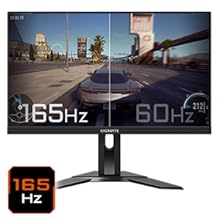
Figure 5.5: Visual comparison of 165Hz vs. 60Hz refresh rate.
- Akoko Idahun: Enjoy a 1ms MPRT (Moving Picture Response Time) for minimal ghosting.
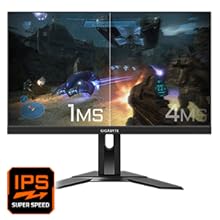
Figure 5.6: Visual comparison of 1ms vs. 4ms response time.
- Awọ awọ: The monitor covers 95% DCI-P3 and 125% sRGB for vibrant and accurate colors.
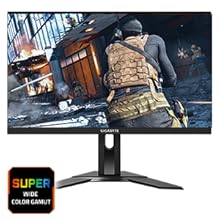
Figure 5.7: Wide color gamut for rich visuals.
- Imọlẹ Buluu Kekere: Reduces blue light emissions to protect your eyes during extended use.
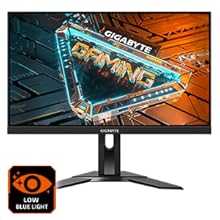
Figure 5.8: Low Blue Light feature for reduced eye strain.
- Ọfẹ Flicker: Imukuro iboju yiyi fun itunu diẹ sii viewiriri iriri.

Figure 5.9: Flicker-Free technology for comfortable viewing.
Fídíò Ẹ̀yà Ara Ọjà 5.5
Fidio 5.1: Ipariview of the GIGABYTE G24F 2 monitor's features and specifications.
6. Itọju
Proper maintenance ensures the longevity of your monitor.
- Ninu iboju: Rọra nu iboju naa pẹlu asọ, gbẹ, asọ ti ko ni lint. Fun awọn ami alagidi, fẹẹrẹ dampfi omi tàbí ohun èlò ìfọmọ́ ìbòjú pàtàkì kan aṣọ náà (fi sí aṣọ náà, kìí ṣe sí aṣọ náà tààrà).
- Ninu ile Casing: Lo asọ ti o rọ, ti o gbẹ lati nu atẹle naa casing. Yago fun abrasive ose.
- Afẹfẹ: Ensure the ventilation openings on the monitor are clear of dust and obstructions.
- Agbara Pa: Turn off and unplug the monitor when not in use for extended periods.
7. Laasigbotitusita
Ti o ba ba pade awọn ọran pẹlu atẹle rẹ, tọka si tabili atẹle fun awọn iṣoro ati awọn solusan ti o wọpọ.
| Isoro | Owun to le Fa | Ojutu |
|---|---|---|
| Ko si aworan loju iboju | Power cable not connected; Video cable not connected; Incorrect input source selected | Check power and video cable connections; Select correct input source via OSD. |
| Aworan jẹ blur tabi daru | Incorrect resolution; Loose video cable | Set display resolution to 1920x1080; Ensure video cable is securely connected. |
| Ko si ohun lati olokun/agbohunsoke | Audio cable not connected; Volume too low; Incorrect audio output selected on PC | Check audio cable connection; Adjust volume; Select monitor as audio output on PC. |
| Awọn ebute oko USB ko ṣiṣẹ | USB upstream cable not connected | Connect the USB 3.2 Gen 1 Upstream cable from the monitor to your PC. |
| Iboju ti n tan imọlẹ | Refresh rate issue; Faulty cable | Ensure refresh rate is set correctly; Try a different video cable. |
8. Awọn pato
Detailed technical specifications for the GIGABYTE G24F 2 monitor.

Àwòrán 8.1: Àwọn ìwọ̀n àyẹ̀wò.
| Ẹya ara ẹrọ | Ẹ̀kúnrẹ́rẹ́ |
|---|---|
| Brand | GIGABYTE |
| Orukọ awoṣe | G24F 2 |
| Nọmba awoṣe | 9DG24F2-00-1ABIN |
| Iwon iboju | 23.8 inches |
| Ipinnu | Awọn piksẹli 1920 x 1080 (FHD 1080p) |
| Apakan Ipin | 16:9 |
| Ifihan Iru | LCD (SS IPS Panel) |
| Oṣuwọn sọtun | 165 Hz (180Hz OC) |
| Akoko Idahun | 1 Milliseconds (MPRT) |
| Imọlẹ | 300 candela_per_square_meter (TYP) |
| Ipin Itansan | 1100:1 |
| Ikunrere awọ | 95% DCI-P3, 125% sRGB |
| Viewigun igun | Awọn iwọn 178 |
| Asopọmọra | 2 x HDMI 2.0, 1 x DisplayPort 1.2, 2 x USB 3.2 Gen 1 Downstream, 1 x USB 3.2 Gen 1 Upstream, 1 x Earphone Jack |
| Amuṣiṣẹpọ Adaptive | Ere FreeSync |
| Agbara agbara | 17.5 Wattis |
| Iwọn Nkan | 3.2 kilo |
| Awọn iwọn Nkan (D x W x H) | 5.3D x 54.1W x 32.6H |
| Iṣagbesori Iru | Ògiri Ògiri |
| Ọja Awọn ẹya ara ẹrọ | Flicker-Free, Height Adjustment, High Dynamic Range, Tilt Adjustment |
9. Atilẹyin ọja ati Support
The GIGABYTE G24F 2 monitor comes with a 3-odun atilẹyin ọja lati olupese.
For technical support, warranty claims, or further inquiries, please contact GIGABYTE customer service:
- Olupese: GIGABYTE Technology (India) Pvt Ltd
- Adirẹsi: B-808, Naman Midtown, Elphinstone Road, Mumbai – 400013 – INDIA
- Foonu: + 91-22-40633222
Jọwọ ṣe idaduro ẹri rira rẹ fun iṣẹ atilẹyin ọja.