
1. Ifihan
This manual provides detailed instructions for the HPRT N80 Barcode Scanner. It covers the scanner's features, setup, operation, maintenance, and troubleshooting. Please read this manual carefully before using the product to ensure proper and safe operation.

Image: HPRT N80 Barcode Scanner, USB cable, and included instruction manual.
2. Awọn ẹya Ọja
- 1D & 2D Scanning: Supports a wide range of 1D and 2D codes including UPC, UCC/EAN-128, ISBN/ISSN, Code 39, Code 128, Interleaved 2 of 5, QR Code, Data Matrix, and Postal Codes.
- Screen and Paper Scanning: Capable of scanning barcodes from both printed labels and digital screens.
- Ibamu gbooro: Works with Windows, iOS, Android, Linux, and Mac OS. Connects to PCs, laptops, and iPads. (Note: Mac OS requires a USB wired connection).
- Fast and Precise Scan: Utilizes a superior CMOS sensor and image scanning technology for quick decoding. Achieves recognition precision up to 4 mil.
- Ọpọlọpọ Awọn Ipo Ayẹwo: Offers manual trigger mode, continuous scan mode, and auto-sensing mode.
- Apẹrẹ Ergonomic: Features a comfortable grip and durable ABS plastic construction, designed to withstand drops from up to 3.93ft.

Image: The HPRT N80 barcode scanner demonstrating its ability to decode a wide range of 1D and 2D barcode formats, including QR codes, Data Matrix, and Aztec Code.

Image: Illustration showing the HPRT N80 barcode scanner's capability to read damaged, blurred, and stained barcodes effectively.

Image: The HPRT N80 barcode scanner being applied in various environments, including a supermarket, hospital, warehouse, and library.
3. Eto ati Asopọ
The HPRT N80 Barcode Scanner is designed for plug-and-play functionality, requiring no driver installation for most operating systems.
3.1 Ti firanṣẹ USB Asopọ
- So okun USB pọ mọ ibudo ẹrọ ayẹwo naa.
- Plug the USB connector into an available USB port on your computer or device.
- The scanner will be automatically recognized by your system. No additional drivers are typically needed.
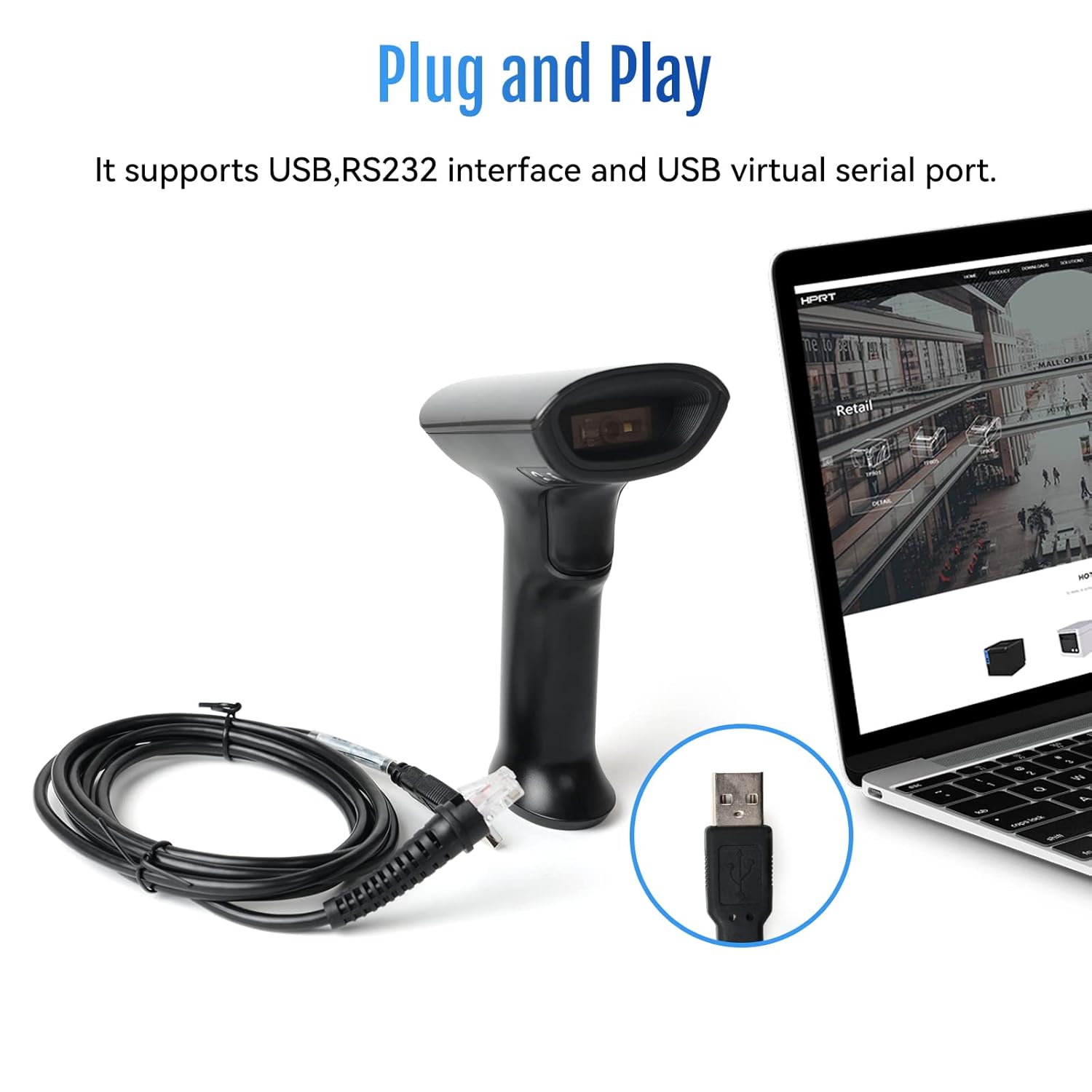
Image: The HPRT N80 barcode scanner with its USB cable, illustrating the plug-and-play connection to a laptop.

Image: A close-up of the HPRT N80 barcode scanner being connected to a laptop, demonstrating the plug-and-play functionality.
4. Isẹ
The HPRT N80 Barcode Scanner offers various modes for efficient scanning.
4.1 Ṣíṣe àyẹ̀wò àwọn kọ́ọ̀dù
- Di ẹ̀rọ ìwádìí náà mú pẹ̀lú fèrèsé ìwádìí tí ó kọjú sí àmì ìdámọ̀ náà.
- Press the trigger button to activate the scan beam.
- Ensure the scan beam covers the entire barcode. A successful scan is usually indicated by an audible beep and/or a visual indicator.
- The decoded data will appear on your connected device.
4.2 Àwọn Ìgbésẹ̀ Ṣíṣàyẹ̀wò
- Ipo Ìfàmọ́ra Ọwọ́: Tẹ ohun tí ó ń fa ìwádìí náà fún gbogbo ìwòran.
- Ipo Ṣiṣayẹwo Tesiwaju: Ẹ̀rọ ìwádìí náà máa ń gbé ìtànṣán ìwádìí jáde nígbà gbogbo, ó sì máa ń ṣe àyẹ̀wò èyíkéyìí àmì ìṣàfihàn tí ó bá rí.
- Ipo Wiwa Aifọwọyi: The scanner activates the scan beam automatically when a barcode is presented within its field of view.

Image: The HPRT N80 barcode scanner performing a fast scan of both 1D and QR codes displayed on a smartphone screen.

Image: The HPRT N80 barcode scanner accurately scanning a barcode even in a dark environment, highlighting its low-light performance.
4.3 Fídíò Ìṣiṣẹ́
Video: Demonstrates the HPRT N80 barcode scanner's fast scanning capabilities for both 1D and 2D barcodes on paper and screens, highlighting its plug-and-play setup and ergonomic design.
5. Itọju
To ensure the longevity and optimal performance of your HPRT N80 Barcode Scanner, follow these maintenance guidelines:
- Ninu: Lo aṣọ rirọ ati gbigbẹ lati nu ita ẹrọ ayẹwo naa. Fun ferese ayẹwo, lo aṣọ ti ko ni lint diẹ.ampYẹra fún àwọn kẹ́míkà líle tàbí àwọn ohun èlò ìfọ́mọ́ra.
- Ibi ipamọ: Tọ́jú ẹ̀rọ ìwádìí náà sí ibi tí ó tutù tí ó sì gbẹ, tí kò sí ìmọ́lẹ̀ oòrùn tààrà àti igbóná tó le koko.
- Mimu: While the scanner is designed to be durable, avoid unnecessary drops or impacts.
- Itọju USB: Do not bend or twist the USB cable excessively. Always grasp the plug, not the cable, when disconnecting.
6. Laasigbotitusita
If you encounter issues with your HPRT N80 Barcode Scanner, please refer to the following common troubleshooting steps:
- Scanner Kò Dáhùn:
- Rí i dájú pé okùn USB náà so mọ́ ẹ̀rọ scanner àti ẹ̀rọ olùgbàlejò náà dáadáa.
- Try plugging the scanner into a different USB port.
- Tun kọmputa rẹ tabi ẹrọ alejo rẹ bẹrẹ.
- A ko le ṣe ayẹwo awọn koodu barcode:
- Verify that the barcode is not excessively damaged, blurred, or stained.
- Ensure the scanning window is clean and free of obstructions.
- Check if the scanner is in the correct scanning mode (e.g., manual trigger, continuous, auto-sensing).
- Ensure sufficient lighting for the barcode.
- Ijade data ti ko tọ:
- Confirm that the correct keyboard layout or input method is selected on your host device.
- Refer to the full product manual (if available) for advanced configuration barcodes to reset settings or adjust data formatting.
If the problem persists, please contact HPRT customer support.
7. Awọn pato
| Ẹya ara ẹrọ | Ẹ̀kúnrẹ́rẹ́ |
|---|---|
| Brand | HPRT |
| Awoṣe | N80 |
| Asopọmọra Technology | Okun USB |
| Orisun agbara | Agbara Batiri |
| Awọn ẹrọ ibaramu | Laptop (Windows, iOS, Android, Linux, Mac OS) |
| Agbara Ayẹwo | 1D & 2D (UPC, EAN, QR, Data Matrix, etc.) |
| Iduroṣinṣin | Withstands drops from up to 3.93ft |
8. Atilẹyin ọja ati Support
For warranty information or technical support, please contact HPRT customer service.
- Imeeli Iṣẹ Onibara: pravin.m@hprt.com
- Osise Webojula: https://www.hprt.com

Image: HPRT customer service contact details, including email and official webojula.