
1. Ifihan
The Divoom Ditoo-Mic is an innovative Bluetooth speaker that combines high-quality audio with a unique pixel art display and a functional mechanical keyboard. It comes equipped with a mini karaoke microphone, making it perfect for entertainment. Beyond music, it offers various smart features and customization options through its dedicated mobile application.
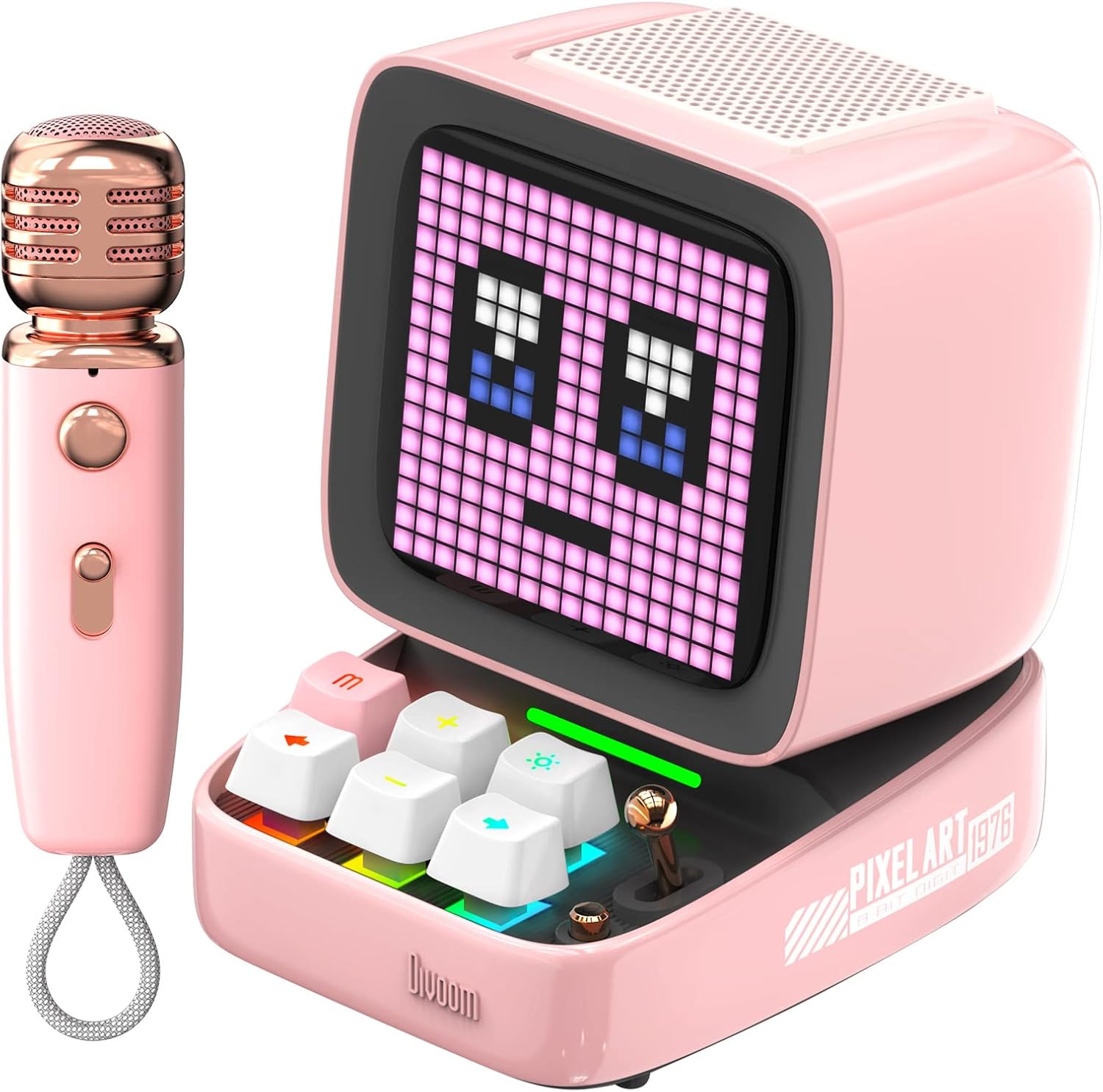
Figure 1: Divoom Ditoo-Mic Speaker and Microphone
2. Eto
2.1 Unboxing ati Ni ibẹrẹ idiyele
Carefully remove all components from the packaging. Before first use, fully charge the Ditoo-Mic speaker and the mini microphone using the provided USB cable. The speaker requires 4 hours of charging for 8 hours of playtime.

Figure 2: Divoom Ditoo-Mic in its packaging
2.2 Agbara Tan / Pa
Locate the power switch on the back of the Ditoo-Mic speaker. Slide the switch to the 'ON' position to power on the device. The pixel display will light up. To power off, slide the switch to the 'OFF' position.
2.3 Sisopọ Bluetooth
Once powered on, the Ditoo-Mic will automatically enter Bluetooth pairing mode. On your smartphone or other Bluetooth-enabled device, search for 'Ditoo-Mic' in the Bluetooth settings and select it to connect. A confirmation sound will indicate successful pairing.
3. Awọn ilana Iṣiṣẹ
3.1 Divoom Mobile Application
For full functionality and customization, download the 'Divoom' app from your device's app store. The app allows you to control pixel art animations, music playback, alarm settings, and access various other features.
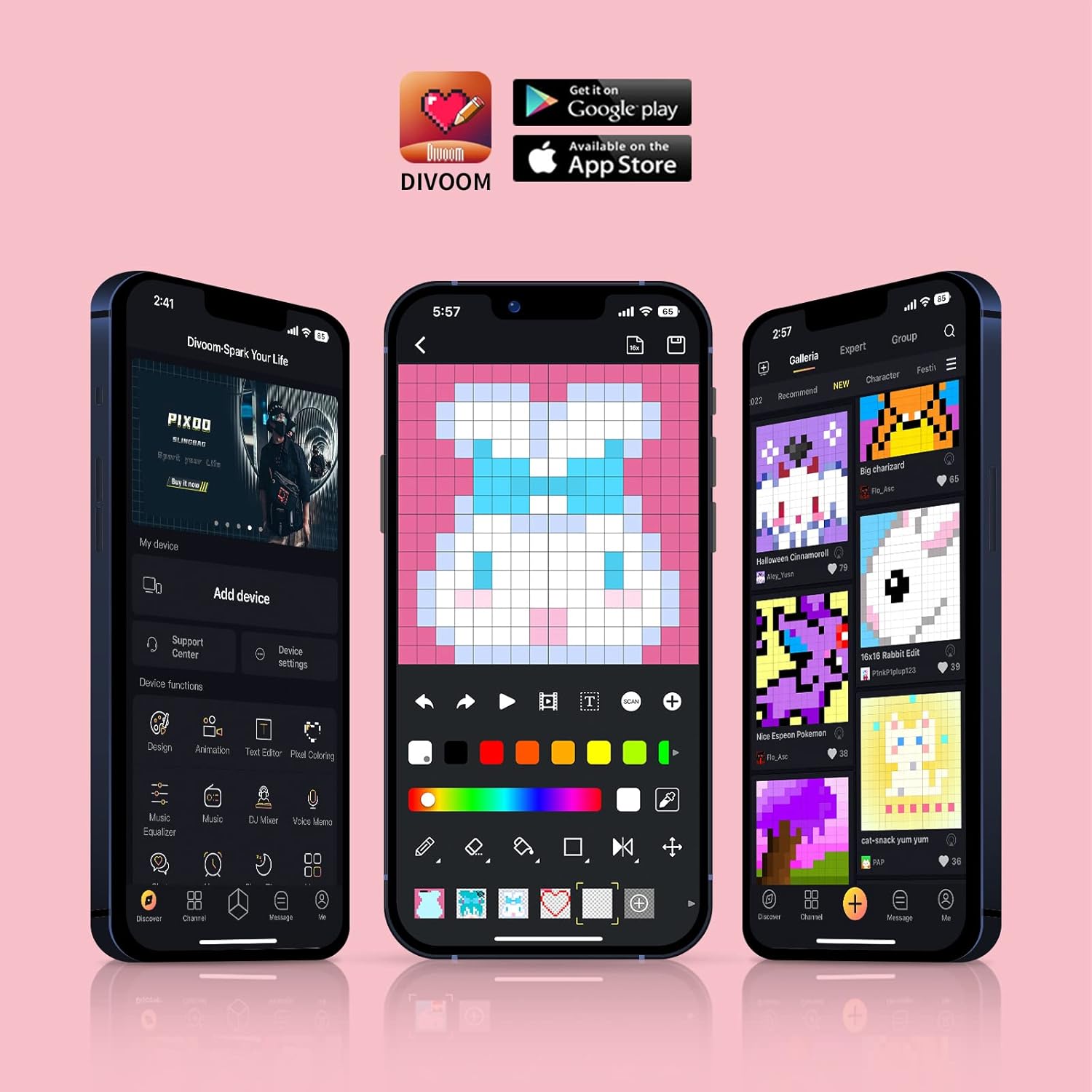
Figure 3: Divoom Mobile Application Interface
3.2 Karaoke Iṣẹ
Connect the mini microphone to the Ditoo-Mic speaker via Bluetooth. The speaker supports various karaoke profiles, allowing for different vocal effects. Adjust volume and effects directly on the microphone or through the Divoom app.

Figure 4: Using the Karaoke Microphone
3.3 Pixel Art Display & Creation
The Ditoo-Mic features a customizable pixel art display. You can select from a vast gallery of existing pixel art designs within the Divoom app or create your own unique animations and images in real-time using your finger on the app interface. The display on the speaker will update instantly.

Figure 5: Real-time Pixel Art Creation

Figure 6: Explore the Divoom Pixel Art Community
3.4 Pixel Mini Games
The Ditoo-Mic includes several built-in pixel mini-games that can be played directly on the device using its mechanical keyboard. These games provide an interactive and nostalgic experience.
3.5 Smart Alarm and Notifications
Utilize the Divoom app to set smart alarms, manage your planner, and receive social media notifications directly on the Ditoo-Mic's pixel display. It can also show weather information and act as a noise meter.

Figure 7: Smart Alarm Features

Figure 8: Social Media Notifications
3.6 Osise Video ọja
Video 1: Ditoo Mic Speaker with microphone - This official video from Divoom showcases the various features and uses of the Ditoo-Mic speaker and its accompanying microphone, including music playback, karaoke, and pixel art display.
4. Itọju
To ensure the longevity of your Divoom Ditoo-Mic, follow these maintenance guidelines:
- Jeki ẹrọ naa di mimọ nipa fifẹ rẹ pẹlu asọ ti o gbẹ. Yago fun lilo abrasive ose tabi epo.
- Ma ṣe fi ẹrọ naa han si awọn iwọn otutu to gaju, imọlẹ orun taara, tabi ọriniinitutu giga.
- Tọju ẹrọ naa ni itura, aye gbigbẹ nigbati o ko ba wa ni lilo.
- Yago fun sisọ ẹrọ naa silẹ tabi fifisilẹ si awọn ipa to lagbara.
5. Laasigbotitusita
If you encounter issues with your Divoom Ditoo-Mic, try the following steps:
- Ko si Agbara: Rí i dájú pé ẹ̀rọ náà ti gba agbára tán pátápátá. So ó pọ̀ mọ́ orísun agbára kí o sì ṣàyẹ̀wò àmì ìgba agbára náà.
- Awọn oran Asopọ Bluetooth: Make sure Bluetooth is enabled on your device and the Ditoo-Mic is in pairing mode. Try unpairing and re-pairing the device. Ensure no other devices are interfering with the Bluetooth signal.
- Ko si Ohun: Check the volume levels on both the Ditoo-Mic and your connected device. Ensure the microphone is properly connected and powered on if using the karaoke function.
- Aṣiṣe ifihan: Restart the device. If the issue persists, check the Divoom app for any firmware updates.
6. Awọn pato
| Ẹya ara ẹrọ | Ẹ̀kúnrẹ́rẹ́ |
|---|---|
| Ọja Mefa | 7.5 x 7.5 x 10.2 inches |
| Iwọn Nkan | 1.18 iwon |
| Nọmba awoṣe | Ditoo-Mic |
| Awọn batiri | Batiri litiumu polima 1 nilo (pẹlu) |
| Brand | Divoom |
| Pataki Ẹya | Gbohungbohun ti a ṣe sinu |
| Àwọ̀ | Pink |
| Awọn irinše to wa | Mini Gbohungbo |
| Niyanju Lilo | Ile |
7. Atilẹyin ọja ati Support
For warranty information and technical support, please refer to the official Divoom webojula tabi kan si wọn onibara iṣẹ taara. Tọju iwe-ẹri rira rẹ bi ẹri rira fun eyikeyi awọn ibeere atilẹyin ọja.
Ṣabẹwo si Divoom Store on Amazon fun alaye ọja diẹ sii ati awọn orisun atilẹyin.