
1. Ọja Ipariview
The DPVR E3 4K Gaming Combo provides an immersive virtual reality experience, featuring the E3 4K VR Gaming Headset and NOLO Controller system. This PC-tethered VR device is designed for gaming, entertainment, and various applications, offering high-resolution visuals and precise positional tracking.
1.1 Kini ni Apoti
- DPVR E3 4K VR Gaming Headset
- NOLO Controllers (2 units)
- NOLO Base Station
- NOLO HMD Tracker

Image 1.1: The DPVR E3 4K VR Gaming Combo, showing the headset, two NOLO controllers, and the NOLO base station.
2. Awọn ilana iṣeto
Follow these steps to set up your DPVR E3 4K Gaming Combo.
2.1 System Awọn ibeere
- Eto iṣẹ: Windows
- Compatible PC with HDMI and USB ports
2.2 Nsopọ Agbekọri
- Connect the HDMI cable from the DPVR E3 headset to your PC's graphics card HDMI port.
- Connect the USB cable from the DPVR E3 headset to an available USB port on your PC.

Image 2.1: Connection diagram for the DPVR E3 headset, illustrating HDMI and USB connections to a PC, and the NOLO tracker attachment point.
2.3 NOLO Tracking System Setup
- Attach the NOLO HMD tracker to the designated area on the top of your DPVR E3 headset.
- Place the NOLO Base Station in a stable position within your play area, ensuring it has a clear line of sight to your headset and controllers.
- Power on the NOLO Base Station and controllers.
2.4 Software fifi sori
- Download and install the DPVR Assistant software from the official DPVR webojula.
- Install SteamVR from the Steam platform to access a wide range of VR content.
- Follow the on-screen instructions within DPVR Assistant to complete the initial setup and calibration.
3. Awọn ilana Iṣiṣẹ
This section details how to use your DPVR E3 4K Gaming Combo for an optimal VR experience.
3.1 Wọ Agbekọri
- Adjust the ergonomic rubber head belt and spring to comfortably fit your head.
- Ensure the leather face sponge rests gently around your eyes, blocking external light.
- Adjust the headset position for the clearest visual experience.

Image 3.1: The DPVR E3 4K VR headset, highlighting its design for comfort and secure fit.
3.2 Using NOLO Controllers
The NOLO controllers provide 6 degrees of freedom (6DoF) for interactive virtual reality. Hold one controller in each hand.
- Gbigbe: Use the joystick or trackpad on the controllers for in-game locomotion.
- Ibaṣepọ: Utilize the buttons and triggers for selecting objects, firing weapons, or other in-application actions.
- Positional Tracking: The controllers, in conjunction with the HMD tracker and base station, provide room-scale tracking, allowing you to move physically within your designated play space.
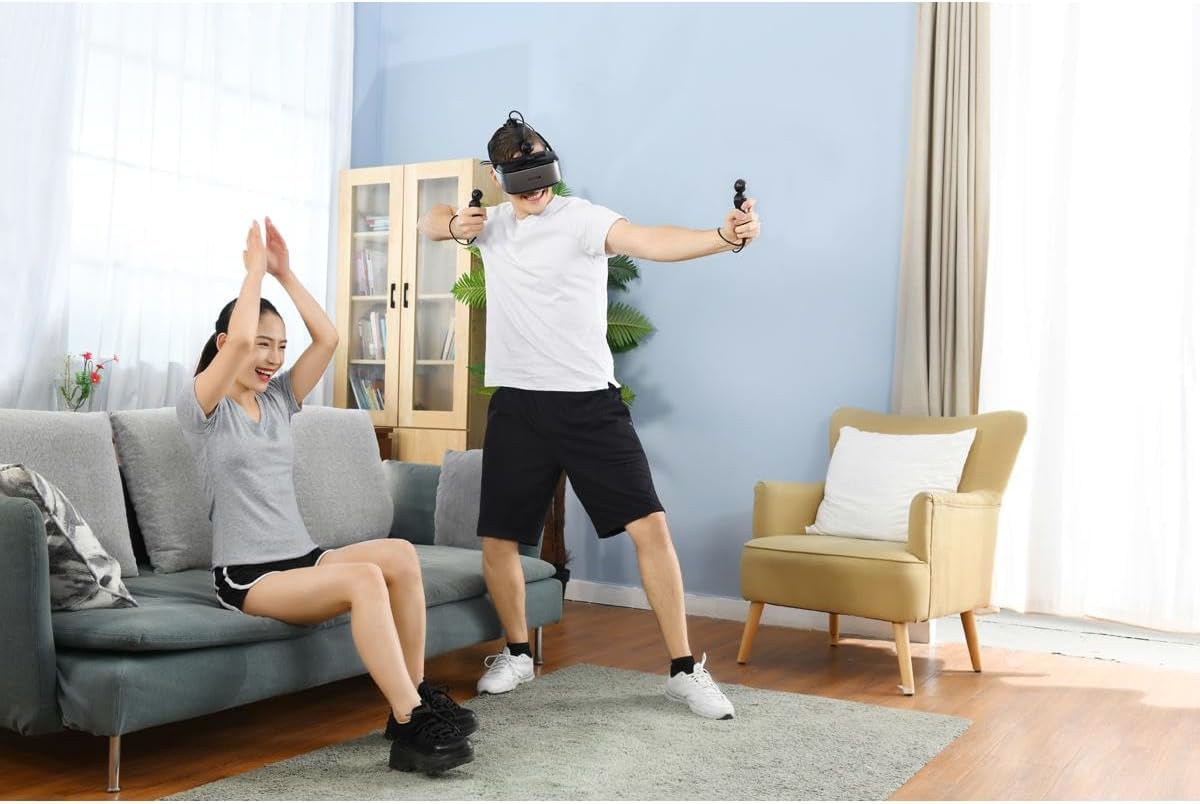
Image 3.2: A user demonstrating active engagement with the DPVR E3 headset and NOLO controllers during a VR session.
3.3 Accessing VR Content
The DPVR E3 headset is compatible with SteamVR, providing access to thousands of VR games and applications.
- Launch SteamVR from your PC.
- Navigate through the SteamVR home environment using your NOLO controllers.
- Select and launch your desired VR game or application.
3.4 Adjusting Visual Settings
You can adjust brightness and angle of view through the DPVR Assistant software or within specific VR applications for an optimized viewiriri iriri.
4. Itọju
Proper maintenance ensures the longevity and performance of your DPVR E3 4K Gaming Combo.
4.1 Cleaning the Headset and Lenses
- Use a soft, dry microfiber cloth to gently wipe the headset's exterior.
- For lenses, use a specialized lens cleaning cloth. Avoid abrasive materials or harsh chemicals, as these can damage the lens coating.
- The leather face sponge can be wiped with a damp cloth and mild soap, then air-dried. Ensure it is completely dry before reattaching.

Aworan 4.1: Ti abẹnu view of the DPVR E3 headset, showing the lenses and facial interface, which require careful cleaning.
4.2 Ibi ipamọ
Store the headset and controllers in a cool, dry place away from direct sunlight and extreme temperatures. Use the original packaging or a protective case to prevent dust accumulation and physical damage.
5. Laasigbotitusita
Tọkasi apakan yii fun awọn ojutu si awọn ọran ti o wọpọ.
5.1 No Display in Headset
- Ensure all HDMI and USB cables are securely connected to both the headset and the PC.
- Verify that your PC's graphics drivers are up to date.
- Check the DPVR Assistant software for any error messages or connection status indicators.
5.2 Tracking Issues with NOLO Controllers
- Ensure the NOLO Base Station has a clear line of sight to the headset tracker and controllers. Obstructions can interfere with tracking.
- Check that the NOLO Base Station and controllers are fully charged and powered on.
- Recalibrate the NOLO system through the DPVR Assistant or NOLO software.
5.3 Low Performance or Lag
- Confirm your PC meets the minimum system requirements for the VR application you are running.
- Close any unnecessary background applications on your PC to free up resources.
- Ṣe imudojuiwọn awọn awakọ kaadi eya rẹ.
6. Awọn pato
| Brand | DPVR |
| Nọmba awoṣe | E3 |
| Ifihan Iru | JDI LCD |
| Ipinnu | 3840 x 2160 (4K) |
| Oṣuwọn sọtun | 75Hz |
| Aaye ti View (FOV) | Awọn iwọn 110 |
| Eto titele | NOLO 6DoF (Degrees of Freedom) |
| Yiye Itọpa | <2mm position accuracy |
| Titele Lairi | <20ms |
| Asopọmọra | HDMI, USB |
| Ibaramu Awọn ọna System | Windows |
| Platform Ibamu | SteamVR, DK1/DK2 (DK mode) |
| Pataki Awọn ẹya ara ẹrọ | TUV Rheinland Low-Blue-Light certificated |
| Iwọn agbekọri | 300 giramu (tó súnmọ́) |
7. Atilẹyin ọja ati Support
7.1 atilẹyin ọja Alaye
The DPVR E3 4K Gaming Combo is covered by a 1 Odun Atilẹyin ọja Lopin from the date of purchase. This warranty covers manufacturing defects and workmanship under normal use. Please retain your proof of purchase for warranty claims.
7.2 Onibara Support
For technical assistance, troubleshooting, or warranty inquiries, please contact DPVR customer support. Refer to the official DPVR webAaye fun alaye olubasọrọ lọwọlọwọ julọ ati awọn orisun atilẹyin.
DPVR partners with industry leaders to provide comprehensive support and customization for its VR headset products.