
1. Ifihan
This manual provides detailed instructions for the installation, operation, and maintenance of the Supermicro X13SEI-F Server Motherboard. This motherboard is designed for high-performance server applications, supporting Intel Xeon processors with an LGA4677 socket and DDR5 memory.
Please read this manual thoroughly before attempting to install or operate the motherboard to ensure proper setup and to prevent damage to the components.
2. Alaye Aabo
Ṣe akiyesi awọn iṣọra ailewu atẹle lati yago fun ipalara ati ibajẹ si ohun elo:
- Always disconnect the power cord from the power supply before installing or removing any components.
- Wear an anti-static wrist strap when handling the motherboard and other components to prevent electrostatic discharge (ESD).
- Ensure the installation environment is dry and free from static electricity.
- Ma ṣe fi modaboudu han si ọrinrin tabi awọn iwọn otutu to gaju.
- Mu modaboudu nipasẹ awọn egbegbe rẹ lati yago fun fifọwọkan awọn paati ifura.
- Refer to the power supply unit's manual for specific safety guidelines related to power connections.
3. Package Awọn akoonu
Verify that all items are present and in good condition. If any items are damaged or missing, contact your vendor.
- Supermicro X13SEI-F Server Motherboard
- I / O Shield
- Awọn okun SATA (iye le yatọ)
- Quick Reference Guide / User Manual (this document)
- CD/DVD awakọ tabi awakọ USB (tabi awọn ilana igbasilẹ)
4. Ọja Ipariview
The Supermicro X13SEI-F is a high-performance server motherboard featuring the LGA4677 socket, designed to support Intel Xeon Scalable processors. It offers robust memory capabilities with 8 DDR5 DIMM slots, supporting up to 4800MHz memory speed. The board also includes multiple PCIe slots for expansion.
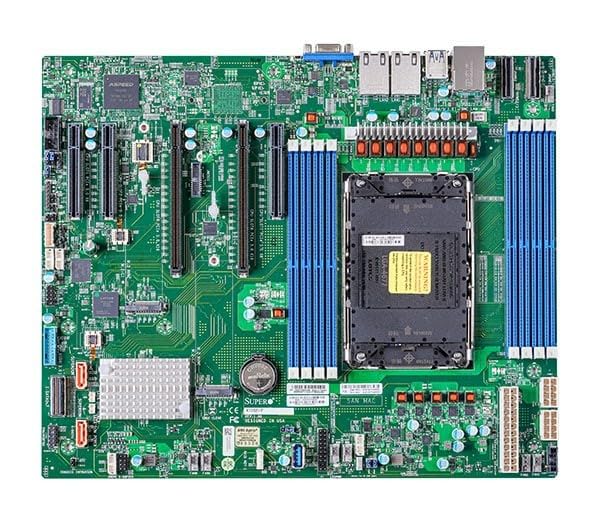
Figure 1: Supermicro X13SEI-F Server Motherboard. This image displays the overall layout of the motherboard, including the CPU socket, DIMM slots, and various connectors.
4.1 Key Awọn ẹya ara ẹrọ
- Sipiyu Socket: LGA4677 for Intel Xeon Scalable Processors
- Chipset: Intel C621
- Iranti: 8x DDR5 DIMM slots, up to 4800MHz
- Awọn Iho Imugboroosi: Multiple PCIe slots (specific configuration depends on model variant)
- Ibi ipamọ: Support for various storage interfaces (SATA, NVMe - specific details in specifications)
- Nẹtiwọki: Integrated LAN controllers
5. Eto ati fifi sori
Before beginning installation, ensure your system case is compatible with the motherboard's form factor and that you have all necessary components.
5.1 CPU Installation (LGA4677)
- Wa iho LGA4677 lori modaboudu.
- Carefully open the CPU socket retention mechanism according to the instructions provided with your CPU or motherboard.
- Align the CPU with the socket, ensuring the triangular mark on the CPU matches the mark on the socket. Do not force the CPU into the socket.
- Rọra sọkalẹ Sipiyu sinu iho.
- Close the CPU socket retention mechanism until it locks securely.
- Fi Sipiyu kula ni ibamu si awọn ilana olupese rẹ.
5.2 Ramu fifi sori (DDR5)
- Locate the 8 DDR5 DIMM slots on the motherboard.
- Open the retention clips at both ends of the DIMM slot.
- Parapọ ogbontarigi lori DDR5 iranti module pẹlu awọn bọtini ni DIMM Iho.
- Insert the memory module firmly into the slot until the retention clips snap into place. Ensure both clips are closed.
- For optimal performance, refer to the motherboard's manual for recommended memory population order.
5.3 PCIe kaadi fifi sori
- Identify the appropriate PCIe slot for your expansion card (e.g., GPU, RAID card).
- Remove the corresponding expansion slot cover from your chassis.
- Align the PCIe card with the slot and press down firmly until it is fully seated.
- Secure the card with a screw or retention clip to the chassis.
5.4 Fifi sori ẹrọ Ibi ipamọ
- Awọn awakọ SATA: Connect SATA data cables from the motherboard's SATA ports to your SATA hard drives or SSDs. Connect power cables from the PSU to the drives.
- NVMe M.2 Drives: Locate the M.2 slots. Insert the M.2 drive at an angle, then push it down and secure it with the provided screw or retention mechanism.
5.5 Awọn isopọ agbara
- So asopo agbara ATX 24-pin lati ipese agbara rẹ si iho agbara akọkọ lori modaboudu.
- Connect the 8-pin (or 4+4 pin) EPS 12V CPU power connector(s) to the corresponding sockets near the CPU.
- Rii daju pe gbogbo awọn asopọ agbara wa ni aabo.
5.6 Iwaju Panel Awọn isopọ
Connect the front panel cables (Power LED, HDD LED, Power Switch, Reset Switch, USB, Audio) from your chassis to the corresponding headers on the motherboard. Refer to the motherboard's silkscreen labels or the detailed manual for exact pin configurations.
6. Awọn ilana Iṣiṣẹ
6.1 akọkọ Boot
- After completing all hardware installations, connect the monitor, keyboard, and mouse.
- Connect the power cord to the power supply and turn on the power switch on the PSU.
- Press the power button on your chassis.
- The system should power on, and you should see the BIOS/UEFI POST screen.
6.2 BIOS / UEFI Oṣo
Láti tẹ ohun elo iṣeto BIOS/UEFI sinu, tẹ bọtini naa DEL or F2 key repeatedly during the POST process. Within the BIOS/UEFI, you can configure:
- Ibere bata
- System akoko ati ọjọ
- Eto Sipiyu ati iranti
- Storage configurations (RAID, AHCI)
- Fan iyara Iṣakoso
- Awọn eto aabo
Save changes before exiting the BIOS/UEFI.
6.3 Fifi sori ẹrọ eto
Insert your operating system installation media (USB drive or DVD) and set it as the primary boot device in the BIOS/UEFI. Follow the on-screen instructions to install your preferred operating system. After installation, install all necessary drivers from the Supermicro website or the provided driver media.
7. Itọju
7.1 Ninu
- Regularly clean dust from the motherboard and system components using compressed air.
- Rii daju pe eto naa ti wa ni pipa ati yọọ kuro ṣaaju ṣiṣe mimọ.
- Yago fun lilo awọn olutọpa omi taara lori awọn paati.
7.2 famuwia imudojuiwọn
Periodically check the Supermicro website for updated BIOS/UEFI firmware. Firmware updates can improve system stability, performance, and compatibility. Follow the specific instructions provided by Supermicro for updating the firmware to avoid system damage.
8. Laasigbotitusita
Abala yii n pese awọn ojutu si awọn ọran ti o wọpọ ti o le ba pade.
8.1 Kò sí Agbára / Kò sí Ìfìwéránṣẹ́ (Àtúnyẹ̀wò Ara-ẹni-Pada-Lórí)
- Ṣayẹwo Awọn isopọ Agbara: Ensure the 24-pin ATX and 8-pin EPS 12V power connectors are securely seated.
- Verify PSU: Test the power supply unit (PSU) with another system or a PSU tester.
- Tun awọn eroja pada: Reseat the CPU, RAM modules, and any expansion cards.
- Ko CMOS kuro: Refer to the motherboard manual for instructions on how to clear the CMOS (Complementary Metal-Oxide-Semiconductor) settings, which can resolve boot issues.
- Iṣeto ti o kere julọ: Try booting with only the CPU, one RAM stick, and the necessary power connections.
8.2 Ko si Abajade Ifihan
- Abojuto Asopọ: Ensure the monitor is properly connected to the graphics output (either integrated or discrete GPU) and is powered on.
- Kaadi eya aworan: If using a discrete graphics card, ensure it is fully seated in its PCIe slot and has all necessary power connectors from the PSU.
- Awọn Eya Ajọpọ: If your CPU supports integrated graphics, try connecting the monitor to the motherboard's video output to rule out a discrete GPU issue.
8.3 Operating System Not Booting
- Bere fun bata: Check the BIOS/UEFI settings to ensure the correct boot device (e.g., SSD, HDD) is selected as the primary boot option.
- Drive Connections: Verify that your storage drives are properly connected (data and power).
- Fifi sori ẹrọ OS: If the OS is newly installed, ensure the installation process completed successfully and all drivers are installed.
9. Awọn pato
| Ẹya ara ẹrọ | Ẹ̀kúnrẹ́rẹ́ |
|---|---|
| Brand | Supermicro |
| Orukọ awoṣe | MBD-X13SEI-F-B |
| Sipiyu Socket | LGA 4677 |
| Awọn isise ibaramu | Intel Xeon Scalable |
| Chipset Iru | Intel C621 |
| Ramu Memory Technology | DDR5 |
| Iyara Iranti | 4800 MHz |
| Iho Ramu | 8x DDR5 DIMM slots |
| Awọn iwọn Ọja (LxWxH) | 16 x 12 x 5 inches |
| Iwọn Nkan | 3.19 iwon |
| Akọkọ Wa Ọjọ | Oṣu Kẹta Ọjọ 20, Ọdun 2023 |
Note: Specifications are subject to change without notice. For the most current information, please refer to the official Supermicro product page.
10. Atilẹyin ọja ati imọ Support
10.1 atilẹyin ọja Alaye
Supermicro products are covered by a limited warranty. For detailed warranty terms and conditions, including duration and coverage, please visit the official Supermicro website or consult the warranty card included with your product. Keep your proof of purchase for warranty claims.
10.2 Imọ Support
For technical assistance, driver downloads, BIOS updates, and further product information, please visit the official Supermicro support webojula:
https://www.supermicro.com/support
Before contacting support, please have your motherboard model number (MBD-X13SEI-F-B) and serial number ready.