
1. Ifihan
This manual provides instructions for the Unitek USB-C to USB-C Cable, Model C14091ABK. This cable is designed for high-speed data transfer, 4K video output, and efficient power delivery between compatible USB-C devices. Please read this manual carefully before using the product.
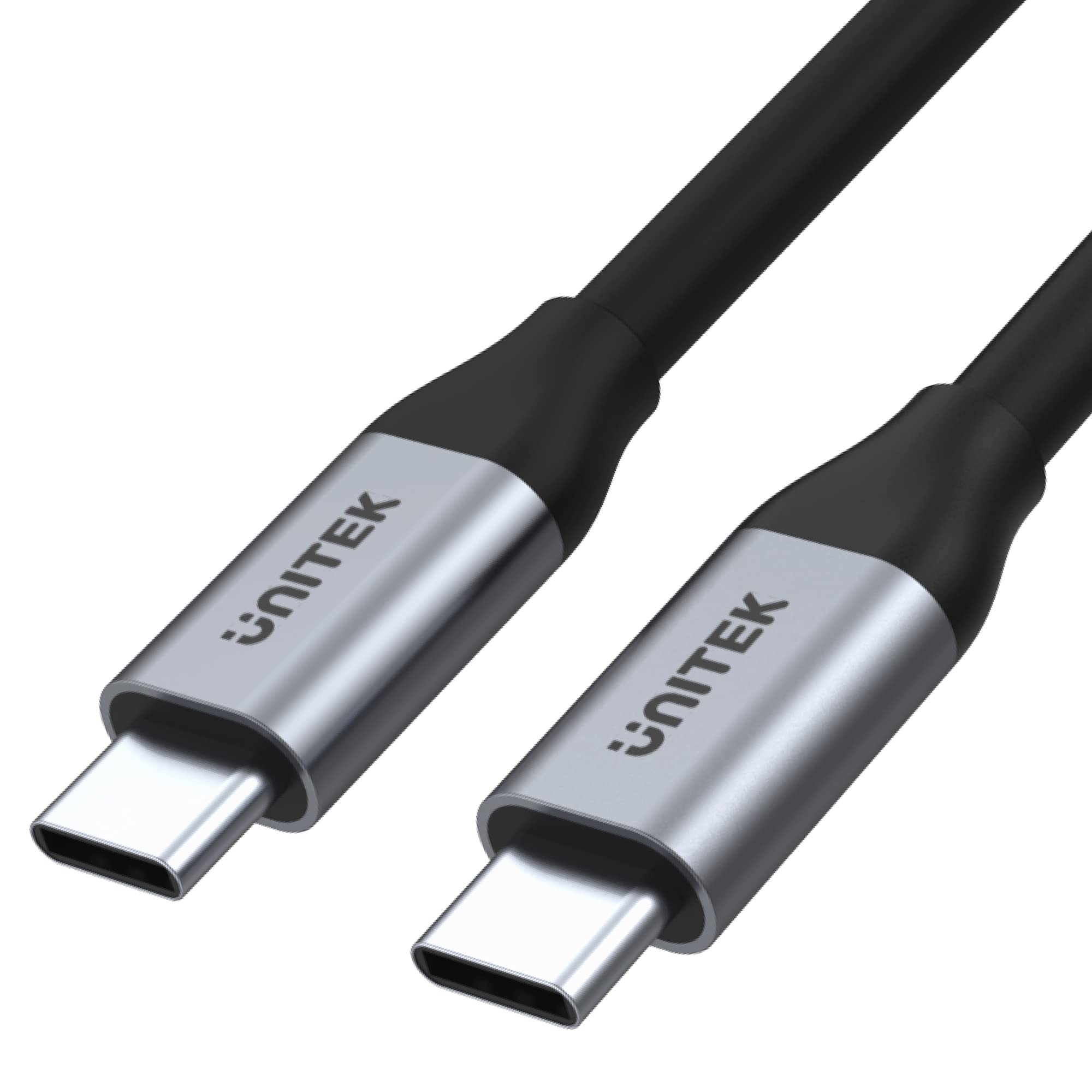
Nọmba 1: Unitek USB-C to USB-C Cable (Model C14091ABK). This image shows the cable with its two USB-C connectors, highlighting its sleek design and robust construction.
2. Awọn ẹya Ọja
The Unitek USB-C to USB-C Cable (C14091ABK) offers the following key features:
- Gbigbe Data Iyara Giga: Supports ultra-fast data transfer rates up to 5 Gbps, compliant with USB SuperSpeed 3.1 Gen 1 specification.
- Ijade fidio 4K: Capable of transmitting 4K or 2K resolution video at 60Hz, suitable for connecting to compatible monitors or displays.
- Ifijiṣẹ Agbara 100W: Provides up to 100 watts (20V/5A) of power, supporting fast charging for laptops, tablets, and smartphones that utilize USB Power Delivery (PD) protocols, including Quick Charge 3.0 and above.
- Ikole ti o tọ: Features robust aluminum housings for the connectors, ensuring longevity and reliable performance.
- Integrated E-MARK Chip: An internal E-MARK chip manages power parameters for safe and efficient power delivery, especially crucial for high-wattage gbigba agbara.

Nọmba 2: Visual representation of the cable's key features, including 100W USB PD, USB-C connectivity, aluminum construction, 5Gbps USB 3.1 Gen 1 data transfer, 4K 60Hz video support, and E-Mark Chip for safe charging.
3. Eto
This USB-C cable is designed for plug-and-play functionality. No software installation or drivers are typically required.
- Ṣe idanimọ Awọn ibudo: Ensure both your source device (e.g., laptop, charger) and target device (e.g., monitor, smartphone, external drive) have compatible USB-C ports.
- Okun So pọ: Insert one end of the USB-C cable into the USB-C port of your source device.
- Connect to Target: Insert the other end of the USB-C cable into the USB-C port of your target device.
- Jẹrisi Asopọmọra: The devices should automatically detect the connection and begin data transfer, video output, or charging as applicable.
4. Awọn ilana Iṣiṣẹ
The Unitek USB-C to USB-C Cable supports multiple functions:
- Gbigbe Data: Connect two USB-C devices to transfer files at speeds up to 5 Gbps. Ensure both devices support USB 3.1 Gen 1 or higher for optimal performance.
- Ijade fidio: Connect a USB-C enabled laptop or tablet to a USB-C monitor or display for video output up to 4K at 60Hz. The source device's USB-C port must support DisplayPort Alternate Mode (Alt Mode).
- Power Delivery (Charging): Use the cable with a compatible USB-C power adapter and device to charge at up to 100W. The charging speed depends on the capabilities of both the charger and the device being charged.
5. Itọju
To ensure the longevity and optimal performance of your Unitek USB-C to USB-C Cable, follow these maintenance guidelines:
- Ibi ipamọ: Store the cable in a cool, dry place away from direct sunlight and extreme temperatures. Avoid tightly coiling or bending the cable at sharp angles.
- Ninu: Lo aṣọ rírọrùn tí ó gbẹ láti nu okùn àti àwọn asopọ̀ náà. Má ṣe lo àwọn ohun ìfọmọ́ omi tàbí àwọn ohun èlò ìfọ́mọ́.
- Mimu: Always grasp the connector housing when plugging or unplugging the cable. Avoid pulling directly on the cable itself, as this can damage the internal wires.
- Ayewo: Periodically inspect the cable for any signs of damage, such as frayed insulation, bent pins, or cracked connectors. Discontinue use if damage is observed.
6. Laasigbotitusita
If you encounter issues with your Unitek USB-C to USB-C Cable, consider the following troubleshooting steps:
- No Connection/Detection:
- Ensure both devices are powered on and their USB-C ports are clean and free of debris.
- Try unplugging and re-plugging the cable firmly into both devices.
- Test the cable with different USB-C ports on your devices, if available.
- Test the cable with other known working USB-C devices to isolate if the issue is with the cable or the connected devices.
- Gbigbe Data lọra:
- Verify that both connected devices support USB 3.1 Gen 1 (5 Gbps) or higher. Older USB 2.0 ports will limit speeds.
- Ensure no other high-bandwidth operations are running simultaneously.
- Ko si Ijade fidio:
- Confirm that your source device's USB-C port supports DisplayPort Alt Mode. Not all USB-C ports support video output.
- Check the display settings on your source device to ensure the external monitor is detected and configured correctly.
- Ensure the monitor's input is set to the correct USB-C input.
- Ko si gbigba agbara/gbigba agbara lọra:
- Verify that both your power adapter and the device being charged support USB Power Delivery (PD) and the desired wattage (to 100W).
- Ensure the power adapter is connected to a working power outlet.
- Diẹ ninu awọn ẹrọ le nilo awọn ilana gbigba agbara kan pato; rii daju ibamu.
7. Awọn pato
| Sipesifikesonu | Ẹ̀kúnrẹ́rẹ́ |
|---|---|
| Brand | Unitek |
| Nọmba awoṣe | C14091ABK |
| Olupese | UNITEK |
| Asopọmọra Iru | USB Iru C |
| USB Iru | USB |
| Asopọmọra Iwa | Okunrin-to-Okunrin |
| Iyara Gbigbe Data | Titi di 5 Gbps (USB 3.1 Jẹn 1) |
| Atilẹyin ipinnu ipinnu fidio | 4K @ 60Hz |
| Ifijiṣẹ Agbara | Titi di 100W (20V / 5A) |
| Pataki Awọn ẹya ara ẹrọ | E-MARK Chip, Aluminium Connectors |
| Awọn ẹrọ ibaramu | Devices with USB-C Port |
| Àwọ̀ | Dudu |
| Ọja Mefa | 11.5 x 6.83 x 4.04 cm; 200 g (Packaging/Cable) |
8. Atilẹyin ọja ati Support
For warranty information and technical support, please refer to the documentation provided with your purchase or visit the official Unitek webojula. Jeki ẹri rira rẹ fun awọn iṣeduro atilẹyin ọja.