
1. Ifihan
This manual provides detailed instructions for the installation, operation, and maintenance of your TP-Link Deco X50-Outdoor AX3000 Whole Home Mesh WiFi 6 Unit. The Deco X50-Outdoor is designed to extend your mesh WiFi network to outdoor and indoor spaces, providing robust and stable wireless connectivity. Please read this manual thoroughly before using the device to ensure proper setup and optimal performance.
2. Alaye Aabo
Nigbagbogbo tẹle awọn iṣọra aabo ipilẹ lati dinku eewu ina, mọnamọna, ati ipalara:
- Maṣe fi ẹrọ yii han si omi tabi ọrinrin.
- Ma ṣe gbiyanju lati ṣajọ, tunṣe, tabi tunse ẹrọ naa.
- Lo oluyipada agbara nikan ti a pese pẹlu ẹrọ naa.
- Ensure the device is installed in a stable location to prevent it from falling.
- Jeki ẹrọ naa kuro ni awọn orisun ooru ati oorun taara.
- For outdoor installation, ensure all cable connections are properly sealed to prevent water ingress.
3. Package Awọn akoonu
Jẹrisi pe package rẹ ni awọn nkan wọnyi ninu:
- 1 x TP-Link Deco X50-Outdoor Unit
- 1 x Agbara Adapter
- 1 x Okun Ethernet
- Mounting Kit (includes mounting bracket, screws, and wall plugs)
- Awọn ọna fifi sori Itọsọna

Image: The retail packaging for the TP-Link Deco X50-Outdoor unit, showing the device and its key features.
4. Ọja Ipariview
The Deco X50-Outdoor is a cylindrical, white unit designed for both outdoor and indoor use. It features an IP65 rating for waterproof and dustproof protection, making it suitable for various weather conditions.
4.1 Ifilelẹ ẹrọ

Aworan: Iwaju view of the TP-Link Deco X50-Outdoor unit, showcasing its sleek, cylindrical design and 'deco outdoor' branding.

Image: The bottom of the Deco X50-Outdoor unit, revealing the port cover and the attachment point for the mounting bracket.
4.2 Àwọn Ibudo àti Bọ́tìnì
Under the protective cover at the bottom of the unit, you will find the following:
- Poe Port: Used for Power over Ethernet (PoE) connection, providing both power and data through a single Ethernet cable.
- LAN Ports (2): For connecting wired devices or for backhaul connection to other Deco units.
- Ibudo Agbara: For connecting the included power adapter when not using PoE.
- Bọtini atunto: A small button to reset the device to factory settings.

Aworan: A sunmọ-soke view of the PoE and AC power supply ports located at the base of the Deco X50-Outdoor unit, with labels indicating their functions.
5. Eto
Follow these steps to set up your Deco X50-Outdoor unit. It is recommended to use the TP-Link Deco app for a guided setup process.
5.1 Download the Deco App
- Scan the QR code in the Quick Installation Guide or search for "TP-Link Deco" in the App Store or Google Play.
- Ṣe igbasilẹ ati fi ohun elo Deco sori ẹrọ foonuiyara tabi tabulẹti rẹ.
5.2 Fifi sori ti ara
The Deco X50-Outdoor can be mounted on a pole, wall, or placed on a tabletop.
- Yan Ibi kan: Select a location that provides optimal WiFi coverage and is within range of your existing Deco network (if extending). For outdoor use, ensure it's protected from direct impact and accessible for power/Ethernet.
- Iṣagbesori:
- Òkè òpó: Use the provided straps to secure the mounting bracket to a pole.
- Odi Odi: Drill holes, insert wall plugs, and screw the mounting bracket to the wall.
- Tabili: Simply place the unit on a flat, stable surface.
- So agbara:
- Lilo Adapter Agbara: Connect the provided power adapter to the power port and plug it into an electrical outlet.
- Lilo PoE: Connect an Ethernet cable from a PoE-enabled switch or injector to the PoE port on the Deco unit.
- Connect to Existing Network (Optional): If you are using the Deco X50-Outdoor as a satellite unit, it will connect wirelessly to your main Deco unit. For a wired backhaul, connect an Ethernet cable from one of the LAN ports to your main Deco unit or network switch.

Image: The Deco X50-Outdoor unit securely mounted on an outdoor pole, demonstrating a typical installation scenario.
5.3 App-Guided Setup
- Open the Deco app and log in with your TP-Link ID. If you don't have one, create an account.
- Tap the "+" icon in the top right corner to add a new Deco unit.
- Select your Deco model (X50-Outdoor) and follow the on-screen instructions to complete the setup. The app will guide you through connecting the unit and integrating it into your existing Deco mesh network.
6. Ṣiṣẹ
Once set up, your Deco X50-Outdoor unit will automatically integrate into your mesh network, providing seamless WiFi coverage. You can manage your network using the TP-Link Deco app.
6.1 Deco App Features
The Deco app allows you to:
- View connected devices and their status.
- Ṣeto nẹtiwọki alejo kan.
- Manage parental controls.
- Prioritize devices for optimal performance (QoS).
- Access HomeShield Security features.
- Ṣe imudojuiwọn famuwia.
- Monitor network health and usage.
6.2 LED Atọka Ipo
The LED on your Deco unit indicates its status:
- Alawọ ewe ri to: Deco is working properly.
- Pulsing Green: Deco n bẹrẹ.
- Pupa ti o lagbara: Deco has an issue (e.g., no internet connection).
- Pulsing Puling: Deco is disconnected from the main Deco unit.
- Ri to Blue: Deco ti šetan fun iṣeto.
- Pulsing Blue: Deco is pairing via Bluetooth.
7. Itọju
Regular maintenance ensures the longevity and optimal performance of your Deco X50-Outdoor unit.
7.1 famuwia imudojuiwọn
Keep your Deco's firmware updated to benefit from the latest features, security enhancements, and bug fixes. You can check for and install updates via the Deco app.
7.2 Ninu
Wipe the device with a soft, dry cloth. Do not use liquid cleaners or chemical sprays.
7.3 Ayika riro
Despite its outdoor rating, avoid placing the unit in locations where it is constantly submerged in water or exposed to extreme physical impact.
8. Laasigbotitusita
If you encounter issues with your Deco X50-Outdoor, try the following solutions:
8.1 Ko si Asopọ Ayelujara
- Check the LED status. If solid red, ensure your main Deco unit has an internet connection.
- Verify that the Ethernet cable (if used) is securely connected.
- Restart your modem, main Deco unit, and then the X50-Outdoor unit.
8.2 Deco X50-Outdoor Disconnected
- Ensure the unit is within range of your main Deco or another satellite Deco.
- Ṣayẹwo asopọ agbara.
- Try relocating the unit to a closer position to the main Deco.
8.3 Slow WiFi Speed
- Ensure the unit is placed in an open area, free from obstructions.
- Ṣayẹwo fun awọn imudojuiwọn famuwia.
- Use the Deco app to run a network optimization test.
8.4 Atunto ile-iṣẹ
If issues persist, you may need to perform a factory reset. With the Deco unit powered on, use a pin to press and hold the Reset button until the LED turns solid red (approximately 1 second), then release. The unit will restart with factory default settings.
9. Awọn pato
Technical details for the TP-Link Deco X50-Outdoor unit:
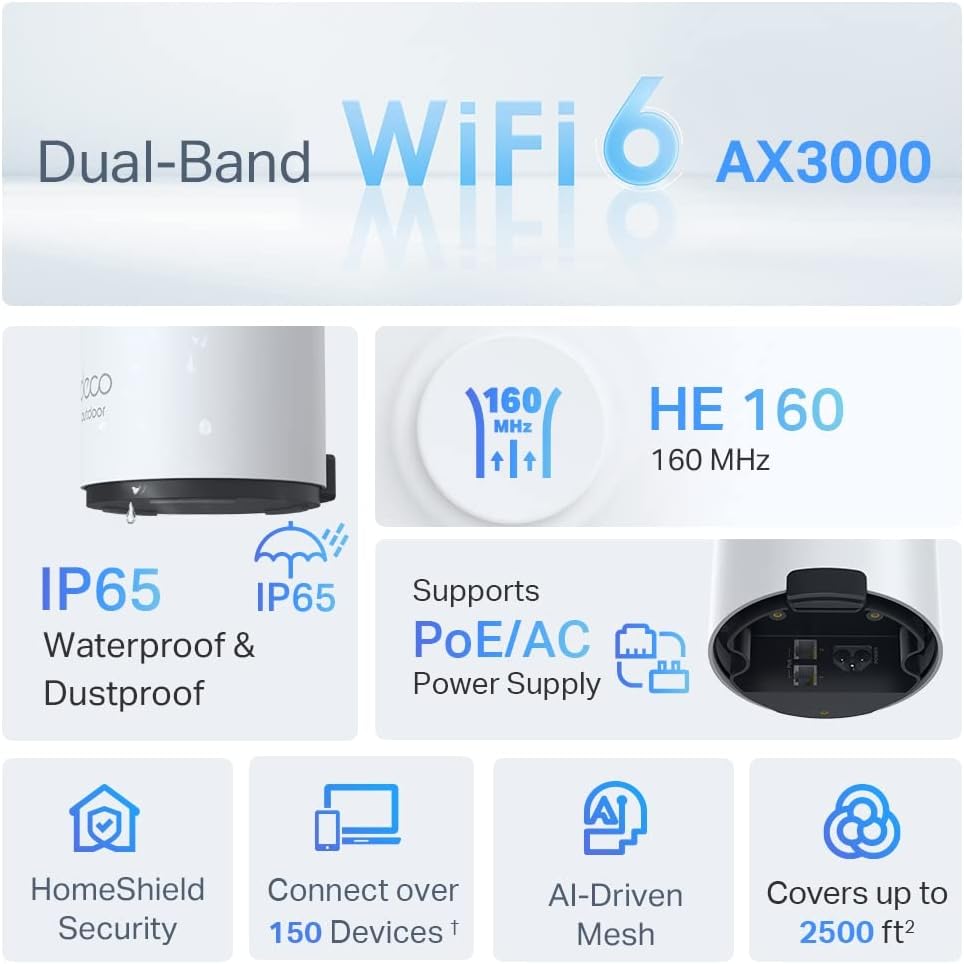
Image: An infographic highlighting key features of the Deco X50-Outdoor, including Dual-Band WiFi 6, AX3000 speeds, IP65 rating, PoE/AC power support, HomeShield Security, support for over 150 devices, AI-Driven Mesh, and up to 2500 sq ft coverage.
| Ẹya ara ẹrọ | Ẹ̀kúnrẹ́rẹ́ |
|---|---|
| Orukọ awoṣe | AX3000 Outdoor Whole Home Mesh WiFi 6 Unit |
| Boṣewa alailowaya | Wi-Fi 6 (802.11ax) |
| Igbohunsafẹfẹ Band Class | Meji-Band |
| Data Gbigbe Oṣuwọn | Up to 2402 Mbps (5 GHz) + 574 Mbps (2.4 GHz) |
| Ibiti Asopọmọra | Up to 2000 Square Feet (per unit) |
| Awọn ibudo | 2 x Gigabit Ethernet Ports (Auto-sensing WAN/LAN) |
| Ibi ti ina elekitiriki ti nwa | PoE (802.3at) or AC Power Adapter (240V AC) |
| Resistance Oju ojo | IP65 (Mabomire & Ko eruku) |
| Aabo Ilana | WPA, WPA2, WPA3 |
| Ọna Iṣakoso | TP-Link Deco App |
| Iwọn Nkan | 0.9 kilo |
10. Atilẹyin ọja ati Support
Fun alaye atilẹyin ọja ati atilẹyin imọ-ẹrọ, jọwọ tọka si TP-Link osise webojula tabi kan si wọn onibara iṣẹ.
- TP-Link Official Webojula: www.tp-link.com
- Oluranlowo lati tun nkan se: Visit the support section on the TP-Link webAaye fun FAQs, awọn itọnisọna laasigbotitusita, ati alaye olubasọrọ.