
UGREEN 15598
UGREEN Revodok 6-in-1 USB C Hub Gigabit Ethernet Adapter Instruction Manual
awoṣe: 15598 | Brand: UGREEN
Ọja Pariview
The UGREEN Revodok 6-in-1 USB C Hub is a versatile multiport adapter designed to expand the connectivity of your USB-C enabled devices. It transforms a single USB-C port into multiple essential ports, enhancing productivity and convenience for laptops, tablets, and smartphones.
Awọn ẹya pataki:
- 6-ni-1 Asopọmọra: Integrates 4K@30Hz HDMI, Gigabit Ethernet, 100W Power Delivery (PD) charging, and three USB-A 3.0 data ports.
- 4K HD Visuals: Supports video output up to 4K at 30Hz via the HDMI port for clear display mirroring or extension. (Note: Does not support HDR/3D).
- Gigabit Ethernet tó dúró ṣinṣin: Provides a reliable 1000Mbps wired network connection for faster and more stable internet access compared to Wi-Fi.
- Ifijiṣẹ Agbara 100W: Offers up to 85W pass-through charging for your laptop via the Type-C port, with 15W reserved for hub operations. (Note: USB-C port supports charging only, no data or video).
- Gbigbe Data Yara: Three USB-A 3.0 ports allow data transfer speeds up to 5Gbps, ideal for connecting peripherals like external hard drives, USB flash drives, mice, and keyboards.
- Ibamu Agbaye: Compatible with a wide range of devices including MacBook Neo/Pro/Air M1, M2, M3, M4, M5, iPad, iPhone 16 Pro/Pro Max, Steam Deck, and various laptops, smartphones, and tablets running macOS, Windows, Chrome OS, and iPadOS.
- Apẹrẹ ti o tọ: Features a metallic finish and aluminum alloy construction for efficient heat dissipation and enhanced durability.
Package Awọn akoonu
- UGREEN Revodok 6-in-1 USB C Hub (Model: 15598)
- Itọsọna olumulo
Awọn ilana iṣeto
- So Ipele pọ mọ Ẹrọ Rẹ:
Plug the integrated USB-C cable of the UGREEN Revodok hub into an available USB-C port on your laptop, tablet, or smartphone. Ensure the connection is secure.

Image: The UGREEN Revodok 6-in-1 USB C Hub connected to a laptop, showcasing apẹrẹ kekere rẹ ati awọn ibudo pupọ.
- Ifijiṣẹ Agbara (Aṣayan):
If your device requires charging or if you are connecting power-intensive peripherals, connect your original USB-C power adapter to the PD 100W USB-C port on the hub. This will provide pass-through charging to your host device.

Image: A laptop connected to the UGREEN Revodok hub, which is then connected to a 100W power adapter for fast charging.
- So Ifihan Ita pọ (Aṣayan):
For video output, connect an HDMI cable from your monitor or TV to the 4K@30Hz HDMI port on the hub. Your device should automatically detect the external display. Adjust display settings (mirror or extend) as needed in your operating system settings.
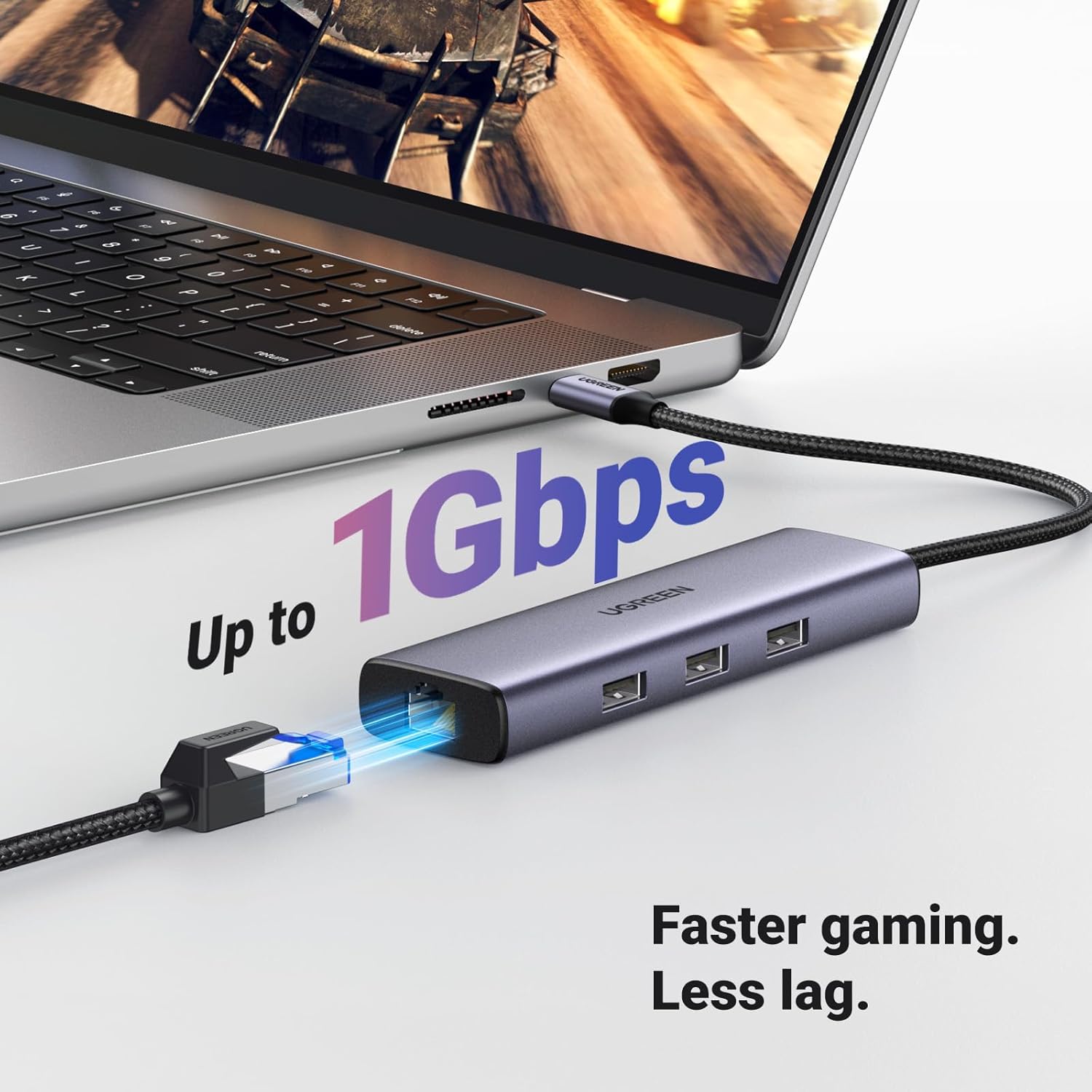
Image: A laptop connected to the UGREEN Revodok hub, which is displaying content on an external 4K monitor via HDMI.
- So okun Ethernet pọ (Aṣayan):
For a wired network connection, plug an Ethernet cable into the Gigabit Ethernet (RJ45) port on the hub. Connect the other end of the Ethernet cable to your router or modem. The connection should be established automatically.

Image: The UGREEN Revodok hub connected to a laptop, with an Ethernet cable plugged into its RJ45 port, indicating a stable network connection.
- So Awọn Agbeegbe USB pọ (Aṣayan):
Plug your USB-A devices (e.g., mouse, keyboard, USB flash drive, external hard drive) into the three USB-A 3.0 ports on the hub.

Image: A laptop connected to the UGREEN Revodok hub, with various USB devices like a flash drive and external hard drive plugged into its USB-A ports.
Awọn ilana Iṣiṣẹ
The UGREEN Revodok 6-in-1 USB C Hub is designed for plug-and-play functionality, requiring no additional drivers for most operating systems.
- Wiwa Aifọwọyi:
Once connected, your operating system (macOS, Windows, Chrome OS, iPadOS) should automatically detect the hub and its connected peripherals. You can verify this in your device's system settings or device manager.
- Using HDMI Output:
After connecting an HDMI display, navigate to your device's display settings to configure the external monitor. Options typically include "Mirror Displays" (duplicate your primary screen) or "Extend Displays" (use the external monitor as an additional workspace).
- Utilizing Ethernet:
When the Ethernet cable is connected, your device should prioritize the wired connection over Wi-Fi for internet access. Check your network settings to confirm the Gigabit Ethernet connection is active.
- Gbigbe Data USB:
Files can be transferred to and from connected USB-A devices at speeds up to 5Gbps. Ensure your connected devices and cables support USB 3.0 for optimal performance.
- Agbara ẹrọ rẹ:
The 100W PD port allows you to charge your host device while using the hub. Connect your original power adapter to the hub's PD port. The hub will draw power for its own operation and pass the remaining power to your device.
Itoju
- Ninu: Use a soft, dry cloth to clean the hub. Avoid liquid cleaners or aerosols.
- Ibi ipamọ: Tọju ibudo naa ni itura, aye gbigbẹ kuro lati orun taara ati awọn iwọn otutu to gaju.
- Mimu: Avoid dropping the device or subjecting it to strong impacts. Do not attempt to disassemble the hub.
- Itọju USB: Do not bend or twist the integrated USB-C cable excessively to prevent damage.
Laasigbotitusita
| Isoro | Ojutu |
|---|---|
| Kò sí ìfihàn lórí àtẹ ìta. |
|
| Asopọ Ethernet ko duro ṣinṣin tabi ko ṣiṣẹ. |
|
| Awọn ẹrọ USB ko mọ. |
|
| Device is not charging via PD port. |
|
| Ibudo naa gbona nigba lilo. |
|
Awọn pato
| Ẹya ara ẹrọ | Ẹ̀kúnrẹ́rẹ́ |
|---|---|
| Brand | UGREEN |
| Nọmba awoṣe | 15598 |
| Àwọ̀ | Grẹy |
| Ni wiwo Hardware | Ethernet, HDMI, USB, USB Type C |
| Pataki Awọn ẹya ara ẹrọ | Fast Data Transfer, Heat Resistant, Lightweight, Plug and Play, Portable |
| Awọn ẹrọ ibaramu | Laptops, MacBook Neo, Macbook M5/M4/M3/M2/M1, Smartphones, Tablets |
| Lapapọ Awọn ibudo USB | 3 (USB-A 3.0) |
| Data Gbigbe Oṣuwọn | 5 Gigabits fun keji |
| Nọmba ti Ports | 6 |
| HDMI Ijade | 4K@30Hz |
| Àjọlò Port | Gigabit (1000Mbps) RJ45 |
| Ifijiṣẹ Agbara (PD) | 100W (85W to host, 15W for hub) |
| Minimum Required Operating System | Windows 7 |
| Ibamu System isẹ | Mac OS 9, Windows 10, Windows 7, Chrome OS, iPadOS |
| Ohun elo apade | Plastic (with Aluminum Alloy for heat dissipation) |
| Iwọn Nkan | 140 giramu |
Atilẹyin ọja & Atilẹyin
Atilẹyin ọja: Ọja yii wa pẹlu atilẹyin ọja 24-osu lati ọjọ rira.
Atilẹyin Onibara: For technical assistance, troubleshooting, or warranty claims, please contact UGREEN customer support through their official webAaye ayelujara tabi olutaja ti a ti ra ọja naa. Jọwọ mu nọmba awoṣe rẹ (15598) ati ẹri rira naa ṣetan.
Awọn fidio ọja
UGREEN USB C Adapter Overview
Video: A seller-created overview of the UGREEN USB C Adapter, highlighting its various ports and functionalities. This video demonstrates the adapter's use with a tablet, showing how multiple USB devices and charging can be managed simultaneously.
UGREEN Revodok 6-in-1 USB C Hub Features
Fídíò: Ìfihàn fídíò olùtajà kanasing the UGREEN Revodok 6-in-1 USB C Hub. It details the product's design, port types (HDMI, USB-A, USB-C PD, Ethernet), and its compatibility with various devices, emphasizing its utility for expanding connectivity.
Ask a question about this manual
Ask about setup, troubleshooting, compatibility, parts, safety, or missing instructions. Manuals+ will review the question and use this page’s manual context to help answer it.