
Ọrọ Iṣaaju
This manual provides essential information for the safe and efficient use of your ONN 42-Inch Full HD LED Smart TV, Model 100018254. Please read these instructions thoroughly before operating your television and retain them for future reference.
Ohun ti o wa ninu Apoti
Daju pe gbogbo awọn paati wa ṣaaju ki o to tẹsiwaju pẹlu iṣeto.
- ONN 42-Inch Full HD LED Smart TV
- Isakoṣo latọna jijin
- Iduro TV (awọn ege 2)
- Skru fun TV Imurasilẹ
- Okun agbara
- Itọsọna Ibẹrẹ kiakia (ko si ninu iwe afọwọkọ yii)

Aworan: Iwaju view of the ONN 42-inch Smart TV displaying the Roku TV home screen with various streaming app icons like Netflix, Disney+, Apple TV, Hulu, Peacock, and Roku Channel. The TV is black with slim bezels and two stand feet.
Ṣeto
1. So Iduro TV
- Fi ìbòjú tẹlifíṣọ̀n náà sí orí ilẹ̀ tó mọ́ tónítóní kí ó má baà bàjẹ́.
- Mö kọọkan imurasilẹ nkan pẹlu awọn ti o baamu dabaru ihò lori isalẹ ti awọn TV.
- Ṣe aabo nkan iduro kọọkan pẹlu awọn skru ti a pese. Rii daju pe wọn ti di ṣinṣin.

Image: A diagram illustrating the dimensions of the ONN 42-inch TV, showing its width as 43 inches and height as 37 inches when placed on its stand.
2. Iṣagbesori odi (aṣayan)
This TV is compatible with VESA standard wall mounts. Refer to your wall mount's instructions for proper installation. Ensure the wall mount can support the weight of the television.

Aworan: Ẹyin view of the ONN 42-inch TV, highlighting the VESA mounting screw holes in a square pattern and various input ports on the side and bottom right.
3. Nsopọ Awọn ẹrọ
So àwọn ẹ̀rọ ìta rẹ pọ̀ bí àpótí okùn, àwọn ẹ̀rọ eré ìdárayá, tàbí àwọn ẹ̀rọ orin Blu-ray mọ́ àwọn ibi tí tẹlifíṣọ̀n náà wà.
- HDMI: For high-definition audio and video. Use an HDMI cable to connect devices like set-top boxes, game consoles, or streaming sticks.
- USB: Fun sisopọ awọn ẹrọ ipamọ USB lati mu media ṣiṣẹ files.
- Wi-Fi: For internet connectivity to access smart TV features and streaming services.
4. Agbara akọkọ Tan ati oluṣeto iṣeto
- Pulọọgi okun agbara sinu TV ati lẹhinna sinu iṣan odi.
- Tẹ bọtini agbara lori isakoṣo latọna jijin tabi lori TV funrararẹ.
- Follow the on-screen instructions to complete the initial setup, including language selection, network connection (Wi-Fi), channel scanning, and linking to your Roku account (if applicable).
Ṣiṣẹ TV
1. Latọna jijin Iṣakoso Loriview
The remote control allows you to navigate the TV's interface and control various functions.
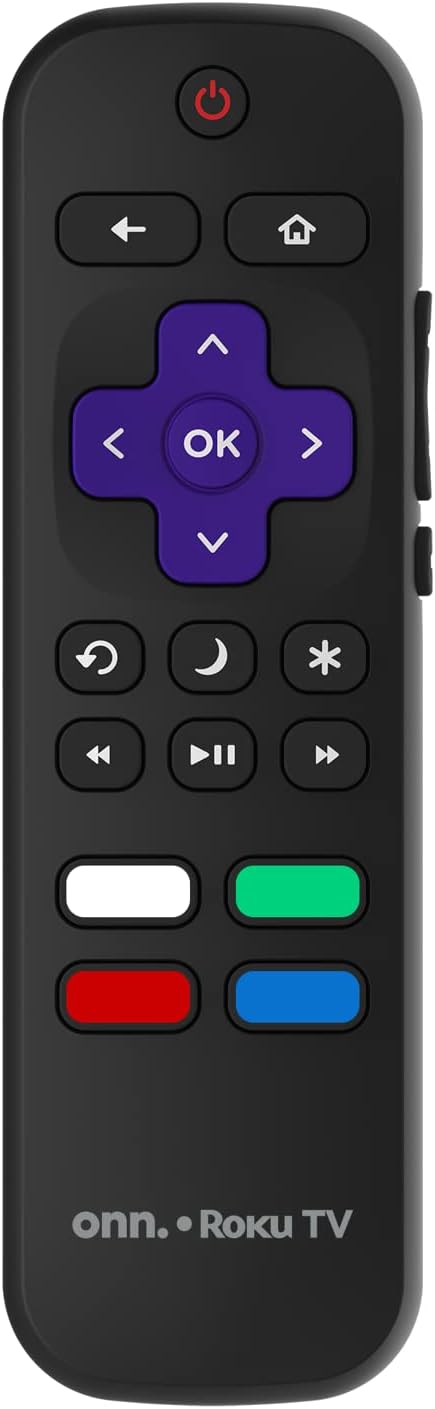
Image: The ONN Roku TV remote control, featuring a power button, directional pad, OK button, home button, back button, volume controls, and dedicated buttons for popular streaming services.
- Bọtini agbara: Tan TV si tan tabi paa.
- Directional Pad (D-Pad) & OK: Lilọ kiri awọn akojọ aṣayan ati jẹrisi awọn aṣayan.
- Bọtini Ile: Returns to the Roku TV home screen.
- Bọtini Pada: Pada si iboju iṣaaju tabi akojọ aṣayan.
- Iwọn didun Soke/Isalẹ: Ṣe atunṣe iwọn didun ohun.
- Bọtini Mute: Mu ohun naa mu tabi mu ohun kuro.
- Ikanni Soke/Isalẹ: Changes channels (for antenna/cable inputs).
- Awọn bọtini ohun elo ti o yasọtọ: Quick access to popular streaming services like Netflix, Hulu, etc.
2. Smart TV Awọn ẹya ara ẹrọ
Your ONN Smart TV provides access to a wide range of streaming content and smart functionalities.
- Awọn iṣẹ ṣiṣanwọle: Access pre-installed apps like Netflix, YouTube, and many more through the Roku Channel Store.
- Iṣakoso ohun: Compatible with Alexa and Google Assistant for hands-free control (requires a separate compatible voice assistant device).
- Awọn imudojuiwọn sọfitiwia aifọwọyi: The TV will automatically update its software when connected to the internet, ensuring you have the latest features and security.
3. Aṣayan Input
To switch between connected devices (e.g., cable box, game console), use the Iṣawọle button on your remote or select the desired input from the Roku TV home screen.
4. Aworan ati Ohun Eto
Access the TV's settings menu to customize picture and sound preferences. Navigate to Settings > TV picture settings or Eto> Ohun to adjust options like brightness, contrast, color, sound mode, and equalizer settings.
Itoju
1. Ninu iboju
- Pa TV nigbagbogbo ki o si yọ okun waya kuro ṣaaju ki o to nu.
- Lo asọ rirọ, ti ko ni lint, die-die dampened pẹlu omi tabi a specialized iboju regede.
- Maṣe fun sokiri regede taara sori iboju. Lo akọkọ si asọ.
- Yago fun lilo abrasive ose, oti, benzene, tabi tinrin, bi awọn wọnyi le ba iboju.
2. Software imudojuiwọn
Ensure your TV is connected to the internet to receive automatic software updates. These updates improve performance, add features, and enhance security. You can manually check for updates in the Eto> Eto> Imudojuiwọn eto akojọ aṣayan.
Laasigbotitusita
Ti o ba pade awọn ọran pẹlu TV rẹ, tọka si awọn solusan ti o wọpọ wọnyi:
Ko si Agbara
- Ṣayẹwo boya okun agbara ti wa ni edidi ni aabo sinu TV mejeeji ati iṣan ogiri.
- Rii daju pe iṣan ogiri ti n ṣiṣẹ nipa pilogi sinu ẹrọ miiran.
- Gbiyanju titẹ bọtini agbara lori TV funrararẹ, kii ṣe latọna jijin nikan.
Ko si Aworan / Aworan Daru
- Rii daju pe orisun titẹ sii to pe ti yan (fun apẹẹrẹ, HDMI 1, HDMI 2).
- Ṣayẹwo gbogbo awọn asopọ okun laarin TV ati awọn ẹrọ ita.
- Try a different HDMI cable if possible.
- Ṣàtúnṣe àwọn ètò àwòrán (ìmọ́lẹ̀, ìyàtọ̀) nínú àkójọ TV.
Ko si Ohun / Low Ohun
- Check if the TV is muted or if the volume is turned down.
- Ensure external audio devices (soundbars, receivers) are properly connected and powered on.
- Ṣayẹwo awọn eto ohun ni akojọ TV.
Awọn oran Asopọ nẹtiwọki
- Verify your Wi-Fi router is powered on and functioning.
- Tun olulana ati modẹmu bẹrẹ.
- Lọ si Ètò > Nẹ́ẹ̀tìwọ́ọ̀kì > Ṣàyẹ̀wò ìsopọ̀ lórí TV rẹ láti mọ ìṣòro náà.
- Rii daju pe o n tẹ ọrọ igbaniwọle Wi-Fi to tọ sii.
Awọn pato
| Ẹya ara ẹrọ | Ẹ̀kúnrẹ́rẹ́ |
|---|---|
| Nọmba awoṣe | 100018254 |
| Iwon iboju | 42 inches |
| Ifihan ọna ẹrọ | LED |
| Ipinnu | 1080p (HD ni kikun) |
| Oṣuwọn sọtun | 60 Hz |
| Asopọmọra | USB, Wi-Fi |
| Awọn iṣẹ Intanẹẹti atilẹyin | Netflix, YouTube (and others via Roku platform) |
| Ọna Iṣakoso | Voice (via Alexa & Google Assistant compatible devices), Remote Control |
| Iṣagbesori Iru | Ògiri Ògiri (VESA ibaramu) |
| Àwọ̀ | Dudu |
| UPC | 671227025567 |

Image: Energy Guide label for Television Model 100018254, indicating an estimated yearly energy cost of $11 based on 12 cents per kWh and 5 hours use per day.
Atilẹyin ọja ati Support
For warranty information and technical support, please refer to the documentation included with your purchase or visit the official ONN support webojula. Tọju iwe-ẹri rira rẹ fun awọn ẹtọ atilẹyin ọja.