
1. Ifihan
This manual provides detailed instructions for the ENDORFY Thock Wireless Mechanical Keyboard, model EY5A078. It covers setup, operation, maintenance, and troubleshooting to ensure optimal performance and longevity of your device. Please read this manual thoroughly before using the keyboard.

Image 1.1: The ENDORFY Thock Wireless Mechanical Keyboard EY5A078. This image displays the full QWERTY layout with illuminated keys, showcasing the keyboard's design and RGB capabilities.
2. Package Awọn akoonu
Jẹrisi pe gbogbo awọn ohun kan wa ninu package:
- ENDORFY Thock Wireless Mechanical Keyboard EY5A078
- USB-C to USB-A Cable (detachable)
- 2.4 GHz USB olugba
- Keycap Puller
- Yipada Puller
- Afowoyi Olumulo (iwe-ipamọ yii)
3. Eto ati Asopọ
The ENDORFY Thock Wireless Mechanical Keyboard offers three connection modes: wired, 2.4 GHz wireless, and Bluetooth.
3.1. Ti firanṣẹ Asopọ
- Locate the USB-C port on the keyboard (typically on the back or top edge).
- Connect the provided USB-C to USB-A cable to the keyboard.
- So opin okun USB-A pọ si ibudo USB ti o wa lori kọnputa rẹ.
- A ó rí kiibọọdù náà láìfọwọ́sí, yóò sì ti ṣetán fún lílò.
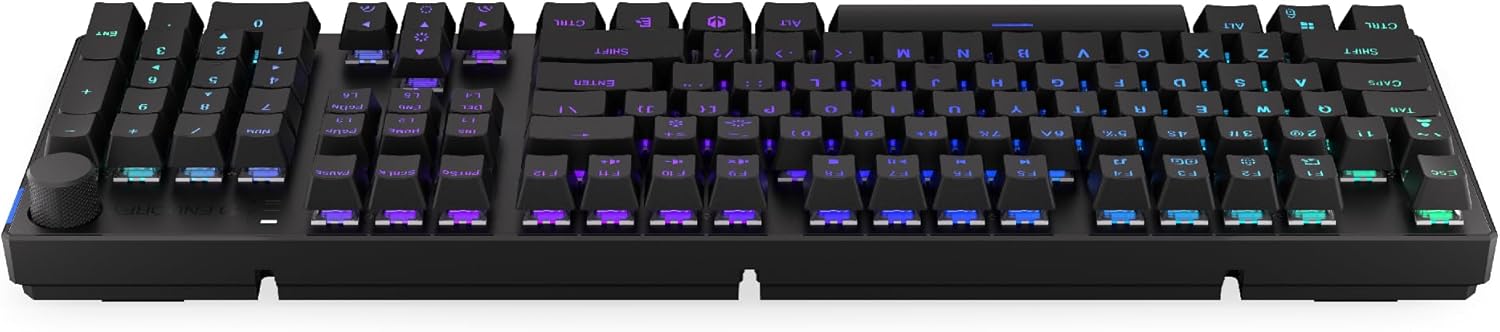
Aworan 3.1: Apa view ti awọn keyboard, fifi awọn USB-C ibudo fun ti firanṣẹ asopọ ati ki o gbigba agbara.
3.2. Ìsopọ̀ Aláìlókùn 2.4 GHz
- Locate the 2.4 GHz USB receiver. It may be stored in a compartment on the underside of the keyboard.
- Plug the 2.4 GHz USB receiver into an available USB port on your computer.
- On the keyboard, locate the mode switch (usually on the back or side) and set it to the 2.4 GHz wireless mode (often indicated by a specific icon or "2.4G").
- The keyboard should automatically connect. An indicator light may confirm the connection.

Image 3.2: Underside of the keyboard, showing the compartment for storing the 2.4 GHz USB receiver and adjustable feet.
3.3. Asopọ Bluetooth
- On the keyboard, set the mode switch to Bluetooth mode (often indicated by a Bluetooth icon or "BT").
- The keyboard may have multiple Bluetooth profiles (e.g., BT1, BT2, BT3). Select one by pressing Fn + 1, Fn + 2, or Fn + 3. The corresponding indicator light will flash.
- Lori kọmputa rẹ tabi ẹrọ, ṣii awọn eto Bluetooth ki o wa awọn ẹrọ titun.
- Select "ENDORFY Thock Wireless" (or similar name) from the list of available devices.
- Tẹle eyikeyi awọn ilana loju iboju lati pari ilana sisopọ.
- Ni kete ti a ba so pọ, ina Atọka lori bọtini itẹwe yoo da didan duro yoo duro ṣinṣin.
4. Isẹ
4.1. Key Functions and Shortcuts
The keyboard features various function key combinations (Fn + Key) for multimedia control, lighting adjustments, and other settings.
- Fn + F1-F12: Multimedia and system functions (e.g., volume control, media playback, calculator). Refer to the keycap legends for specific functions.
- Fn + Awọn bọtini itọka: Adjust RGB lighting effects (e.g., brightness, speed, direction).
- Fn + 1/2/3: Switch between Bluetooth profiles.
- Fn + 4: Switch to 2.4 GHz wireless mode.
- Fn + 5: Yipada si ipo onirin.
4.2. RGB Lighting Iṣakoso
The ENDORFY Thock keyboard features programmable RGB backlighting. Use the following combinations to customize the lighting:
- Fn + Ọfà Ọtun: Change lighting effect.
- Fn + Ọfà osi: Yi ipa ọna itanna pada.
- Fn + Ọfà oke: Mu imọlẹ pọ si.
- Fn + Ọfà isalẹ: Din imọlẹ.
- Fn + Ins: Yi awọ pada.
- Fn + Del: Adjust effect speed.
4.3. Iwọn didun Knob
The dedicated volume knob located on the top right of the keyboard allows for quick audio adjustments.
- Yiyi lọna aago: Mu iwọn didun pọ si.
- Yipada Loju-aago: Din iwọn didun silẹ.
- Tẹ isalẹ: Mu ohùn náà gbó/Mu ohùn náà gbó.

Image 4.1: Detail of the volume knob and status indicator lights, located on the upper right side of the keyboard.
4.4. Gbona-Swappable Yipada
The ENDORFY Thock keyboard features hot-swappable switches, allowing you to change mechanical switches without soldering. This enables customization of typing feel.
- Yọ bọtini bọtini kuro: Lo fifa bọtini bọtini ti a pese lati rọra yọ bọtini bọtini ti o fẹ kuro.
- Yọ Yipada: Lo ohun tí a fi ń fa ìfàsẹ́yìn náà láti fi pẹ̀lẹ́pẹ̀lẹ́ di àwọn gíláàsì òkè àti ìsàlẹ̀ ti ìfàsẹ́yìn náà mú kí ó sì fà á sókè tààrà.
- Fi Yipada Tuntun sii: Align the pins of the new switch with the holes on the PCB. Press the switch firmly until it clicks into place. Ensure pins are not bent.
- Rọpo bọtini bọtini: Fi ideri bọtini pada si ori ọpa iyipada tuntun.

Aworan 4.2: A sunmọ-soke view of the Kailh Box Brown mechanical switches, demonstrating the hot-swappable design.
5. Itọju
5.1. Ninu Keyboard
Ninu deede ṣe iranlọwọ lati ṣetọju iṣẹ ṣiṣe ati irisi keyboard.
- Ge asopọ keyboard kuro lati kọnputa rẹ ṣaaju ṣiṣe mimọ.
- Lo fifa bọtini bọtini lati yọ awọn bọtini bọtini kuro fun mimọ ni kikun.
- Lo afẹfẹ fisinuirindigbindigbin lati yọ eruku ati idoti kuro laarin awọn bọtini.
- Nu awọn bọtini itẹwe ati oju keyboard pẹlu asọ, damp asọ. Yago fun awọn kẹmika lile.
- Rí i dájú pé kíábọ́ọ̀dì náà ti gbẹ pátápátá kí o tó tún so pọ̀ mọ́ ara rẹ.
5.2. Keycap ati Yipada Rirọpo
Refer to Section 4.4 for detailed instructions on replacing keycaps and switches. Use only compatible keycaps and switches to avoid damage.
6. Laasigbotitusita
| Isoro | Owun to le Fa | Ojutu |
|---|---|---|
| Keyboard ko dahun (Ti firanṣẹ) | Asopọ okun alaimuṣinṣin, ibudo USB ti ko tọ. | Rii daju pe okun USB-C ti sopọ ni aabo. Gbiyanju ibudo USB miiran tabi okun USB. |
| Keyboard ko dahun (Ailowaya) | Low battery, incorrect mode, receiver not plugged in, pairing issue. | Charge the keyboard. Ensure mode switch is set correctly (2.4G or BT). Re-pair Bluetooth or re-insert 2.4 GHz receiver. |
| Imọlẹ RGB ko ṣiṣẹ | Lighting turned off, low battery, software issue. | Check lighting controls (Fn + Arrow keys). Charge the keyboard. Restart computer. |
| Keys double-typing or not registering | Dust/debris under switch, faulty switch. | Clean under keycaps with compressed air. If issue persists, replace the switch (refer to Section 4.4). |
7. Awọn pato
- Awoṣe: EY5A078
- Brand: ENDORFY
- Asopọmọra: Onísòfò (USB-C), Aláìlókùn 2.4 GHz, Bluetooth
- Yipada Iru: Kailh Box Brown (Hot-swappable)
- Awọn bọtini bọtini: PBT Double shot
- Ilana: Full-size QWERTY
- Imọlẹ afẹyinti: RGB eto
- Awọn ọna ṣiṣe: Linux, Mac OS X 10.12 Sierra, Windows 10
- Àwọ̀: Dudu
- Ohun elo: Polybutylene terephthalate (PBT)
- Awọn ẹya pataki: Detachable cable, Volume knob with mute, Hot-swappable switches
- Batiri: Lithium-ion (pẹlu)
8. Atilẹyin ọja ati Support
ENDORFY products are covered by a manufacturer's warranty. For detailed warranty information, please refer to the warranty card included with your product or visit the official ENDORFY website. For technical support, product inquiries, or service requests, please contact ENDORFY customer support through their official channels.
Osise Webojula: www.endorfy.com
9. Alaye Aabo
- Pa keyboard kuro lati awọn olomi ati ọrinrin pupọ.
- Yago fun ṣiṣafihan bọtini itẹwe si awọn iwọn otutu to gaju.
- Do not attempt to disassemble or modify the keyboard beyond hot-swapping switches and keycaps, as this may void the warranty and cause damage.
- Lo okun gbigba agbara ti a pese tabi niyanju nikan.
- Dispose of the battery and electronic components responsibly according to local regulations.


