
1. Ifihan
Thank you for choosing the BYINTEK U70 Pro Portable 4K 3D DLP Projector. This manual provides essential information for the safe and efficient operation of your device. Please read it thoroughly before use and retain it for future reference.

Image 1.1: The BYINTEK U70 Pro Portable Projector and its remote control.
2. Alaye Aabo
- Ma wo taara sinu pirojekito lẹnsi nigbati awọn lamp wa lori.
- Rii daju pe fentilesonu to dara lati ṣe idiwọ igbona. Ma ṣe dina awọn ṣiṣi atẹgun.
- Lo oluyipada agbara ti a pese nikan.
- Jeki ẹrọ naa kuro ni omi, ọrinrin, ati awọn iwọn otutu to gaju.
- Maṣe gbiyanju lati ṣajọpọ tabi tun ẹrọ pirojekito naa funrararẹ. Kan si oṣiṣẹ iṣẹ ti o peye.
- Jeki kuro ni arọwọto awọn ọmọde.
3. Package Awọn akoonu
Daju pe gbogbo awọn nkan wa ninu apo rẹ:
- 1 x BYINTEK U70 Pro Projector
- 1 x Isakoṣo latọna jijin
- 1 x HD Okun
- 1 x Itọsọna olumulo (iwe yii)
- 1 x DC 19V 3.42A Power Adapter
4. Ọja Ipariview
Familiarize yourself with the projector's components and interfaces.
Aworan 4.1: Iwaju ati ẹhin views of the BYINTEK U70 Pro Projector, highlighting its various ports and controls.
Awọn eroja pataki:
- Lẹnsi: Projection output.
- Bọtini foonu: Manual control buttons on top.
- Olugba IR: Fun awọn ifihan agbara iṣakoso latọna jijin.
- DC 12V-in: Ibudo titẹ agbara.
- USB 3.0 / USB 2.0: For connecting USB storage devices, mouse, or keyboard.
- Agbara Yi pada: Láti tan/pa pirojekito naa.
- Audio-out (3.5mm Jack): For external speakers or headphones.
- HD-in (HDMI): Fun sisopọ awọn orisun fidio ita.
- 5W Speakers: Awọn agbohunsoke sitẹrio ti a ṣe sinu.
- Detachable Dust Filter: Fun rọrun ninu ati itọju.
- Universal Bracket Hole (d=1/4inch, 6mm): For mounting on tripods or ceiling mounts.
5. Eto
5.1 Titan / Pa a
- Connect the DC 19V 3.42A Power Adapter to the projector's DC 12V-in port.
- Press the Power Switch to turn the projector on. The indicator light will illuminate.
- To power off, press the Power Switch again.
5.2 Placement and Projection
The BYINTEK U70 Pro supports a projection size of 30-300 inches with a projection distance of 1-8 meters. The optimal aspect ratio is 16:9, but 16:10 and 4:3 are also supported.
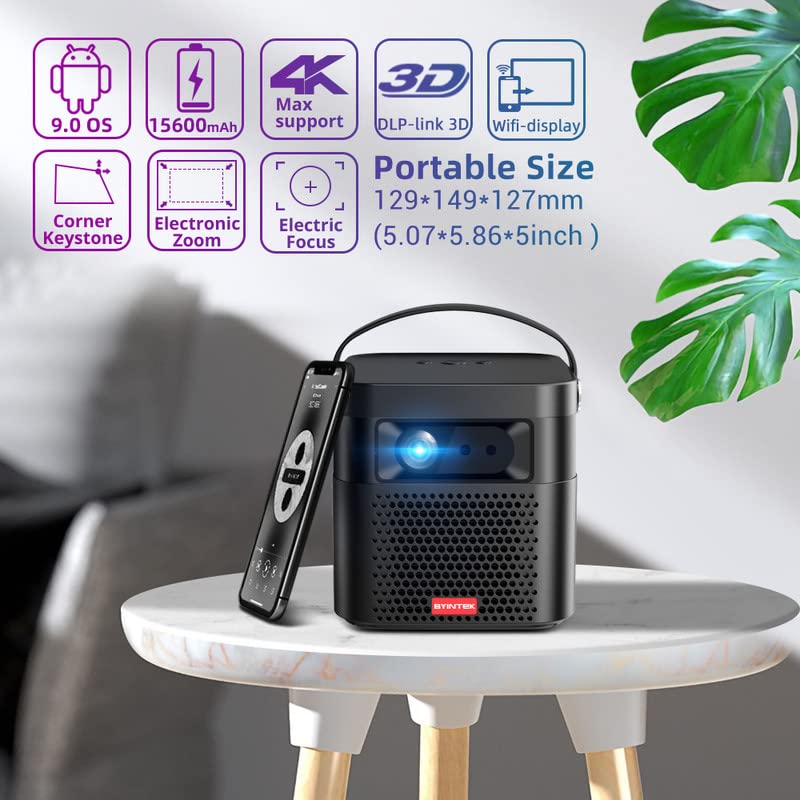
Image 5.1: The BYINTEK U70 Pro Projector highlighting its portable size and advanced features.
5.3 Idojukọ ati Atunse Keystone
- Awọn ẹya ara ẹrọ pirojekito Idojukọ aifọwọyi for quick image clarity.
- For fine-tuning, use the Itanna Idojukọ function via the remote control or on-device keypad.
- Auto Manual Vertical Keystone Correction is available to adjust image distortion when the projector is not perfectly perpendicular to the screen.
- Corner Keystone correction allows for individual corner adjustments.
5.4 Asopọmọra
The projector offers various connection options:
- HDMI: Connect external devices like TV sticks, X-BOX, PS4, PCs, or laptops using the provided HD Cable.
- USB: Insert USB sticks or SSD hard drives for media playback. Supports USB 2.0 and USB 3.0.
- Wi-Fi: Connect to your wireless network for online content and wireless projection.
- Bluetooth: For connecting external Bluetooth speakers or headphones (if supported by the Android OS).
6. Awọn ilana Iṣiṣẹ
6.1 Android 9.0 Smart OS
The BYINTEK U70 Pro runs on Android 9.0, providing a smart interface with 32GB internal storage. Navigate the interface using the remote control or by connecting a USB mouse/keyboard.

Image 6.1: The Android 9.0 operating system interface, allowing access to various applications.
6.2 Alailowaya asọtẹlẹ
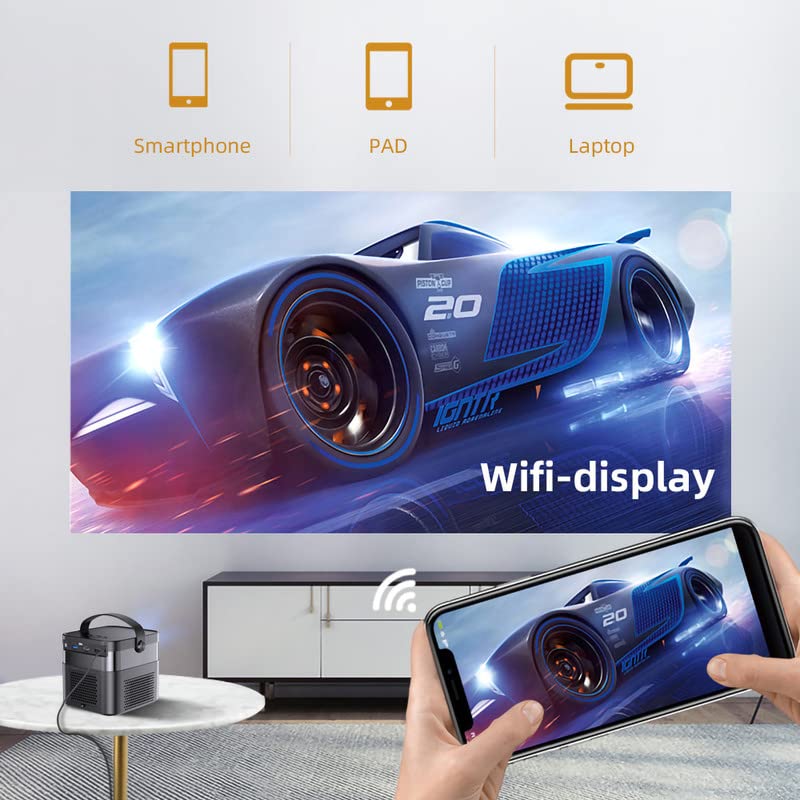
Wirelessly connect your Android or iOS devices for screen mirroring.

Image 6.2: Wireless display functionality, enabling screen mirroring from smartphones, tablets, and laptops.
- Rí i dájú pé ẹ̀rọ àgbékalẹ̀ àti ẹ̀rọ alágbèéká rẹ so pọ̀ mọ́ nẹ́tíwọ́ọ̀kì Wi-Fi kan náà.
- Select the appropriate wireless projection app (e.g., Airplay, Miracast, DLNA, Eshare) on the projector's home screen.
- Follow the on-screen instructions to connect your smartphone, tablet, or laptop.
Iṣẹ́ 3D 6.3
Awọn pirojekito atilẹyin Real 3D content for an immersive viewiriri iriri.
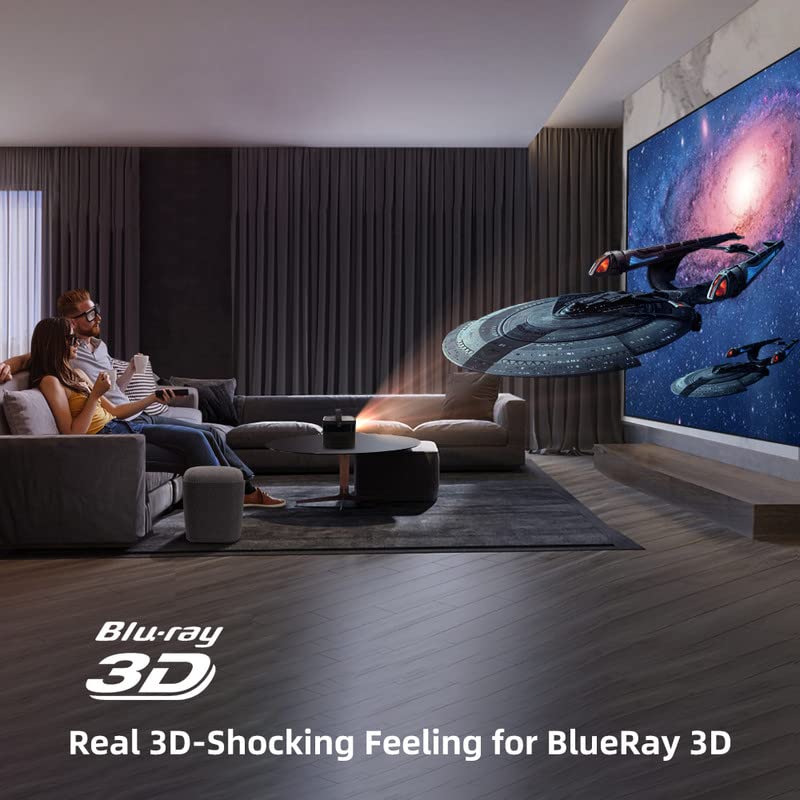
Image 6.3: The projector displaying 3D content for an immersive home theater experience.
- To enjoy 3D content, you will need compatible 3D glasses (sold separately).
- Play 3D-enabled media (e.g., Blu-ray 3D) through a connected device.
- Activate the 3D mode on the projector via the settings menu.
6.4 Audio wu
The projector has built-in 2 x 5W speakers. For enhanced audio, connect external speakers or headphones via the 3.5mm Audio Jack or Bluetooth.
7. Itọju
7.1 Ninu awọn lẹnsi
Lo asọ, asọ ti ko ni lint ti a ṣe apẹrẹ pataki fun awọn lẹnsi opiti. Maṣe lo awọn afọmọ abrasive tabi agbara ti o pọ ju.
7.2 Ninu eruku Ajọ
The projector features a detachable dust filter. Regularly remove and clean it to maintain optimal performance and prevent overheating. Refer to Image 4.1 for the location of the detachable dust filter.
7.3 batiri Itọju
The projector includes a rechargeable battery. To prolong battery life:
- Yago fun gbigba agbara si batiri ni kikun nigbagbogbo.
- Tọ́jú ẹ̀rọ ìfihàn náà sí ibi tí ó tutù tí ó sì gbẹ tí a kò bá lò ó fún ìgbà pípẹ́.
- Charge the battery periodically if stored for a long time.
8. Laasigbotitusita
Ti o ba pade awọn ọran, tọka si awọn iṣoro ti o wọpọ ati awọn ojutu wọnyi:
| Isoro | Owun to le Fa | Ojutu |
|---|---|---|
| Ko si aworan han | Power cable loose, input source incorrect, lens cap on | Check power connection, select correct input source, remove lens cap |
| Aworan blurry | Focus not adjusted, keystone incorrect | Adjust focus using remote/keypad, correct keystone settings |
| Ko si ohun | Volume too low, external audio device not connected, source audio issue | Increase volume, check external audio connections, verify source audio output |
| Isakoṣo latọna jijin ko ṣiṣẹ | Batteries dead, IR receiver blocked | Replace batteries, ensure clear line of sight to IR receiver |
| Ikilọ igbona pupọ | Blocked ventilation, dusty filter | Ensure clear ventilation, clean dust filter |
9. Awọn pato
Detailed technical specifications for the BYINTEK U70 Pro Projector:
| Ẹya ara ẹrọ | Sipesifikesonu |
|---|---|
| Brand | BYINTEK |
| Awoṣe | BYINTEK-UFO-U70-PRO |
| Ifihan ọna ẹrọ | DLP (LED) |
| Imọlẹ Aworan | 500 ANSI Lumens |
| Ipinnu abinibi | 1280 x 800 (supports 1080p Full HD Pixels, Max supports 4K signal input) |
| Eto Itansan Aworan | 15000:1 |
| Apakan Ipin | 16:9 (also 16:10, 4:3) |
| Iwọn Isọtẹlẹ | 30-300 inches |
| Ijinna asọtẹlẹ | 1-8 mita |
| Eto isesise | Android 9.0 |
| Ibi ipamọ inu | 32GB |
| Pataki Awọn ẹya ara ẹrọ | Built-In 3D, Auto Focus, Short Throw, Built-in Speakers, Rechargeable Battery, Wireless Projection |
| Ni wiwo Hardware | HDMI, USB 2.0, USB 3.0 |
| Asopọmọra Technology | Wi-Fi |
| Ijade ohun | 3.5mm Audio Jack, Built-in 2 x 5W Speakers |
| Orisun agbara | DC 19V 3.42A, Rechargeable Battery |
| Wattage | 65 Wattis |
| Ọja Mefa | 12.9 x 14.9 x 12.7 cm |
| Iwọn Nkan | 1.36 kg |
| Odun awoṣe | 2023 |
10. Atilẹyin ọja ati Support
10.1 atilẹyin ọja Alaye
The BYINTEK U70 Pro Projector comes with a 1 Odun atilẹyin ọja lati ọjọ ti o ra. Jọwọ ṣe idaduro ẹri rira rẹ fun awọn iṣeduro atilẹyin ọja. Atilẹyin ọja ni wiwa awọn abawọn iṣelọpọ labẹ awọn ipo lilo deede.
10.2 Onibara Support
For technical assistance, warranty claims, or any other inquiries, please contact BYINTEK customer support:
- Nomba fonu: + 91 8885241706
- Imeeli: care@justshop24x7.com