
1. Ifihan
This manual provides detailed instructions for the installation, operation, and maintenance of the PeakDo Wireless HDMI Transmitter and Receiver P3 S. This device is designed to wirelessly transmit uncompressed 1080P Full HD video and digital audio with zero latency, making it ideal for various applications including gaming, home entertainment, and professional presentations. The P3 S model features a USB-C port on the receiver for compatibility with AR smart glasses and portable monitors, in addition to standard HDMI output.

Figure 1: PeakDo Wireless HDMI Transmitter (left) and Receiver (right).
2. Ọja Ipariview
2.1 Key Awọn ẹya ara ẹrọ
- Wireless AR Smart Glasses Setup: Features a Type-C port on the Receiver for direct connection to AR smart glasses (e.g., XREAL Air, Rokid Max/Air, RayNeo, VITURE One) and portable monitors, enabling cable-free AR experiences.
- Uncompressed FHD Video & Digital Audio: Transmits 1080P Full HD video and digital audio without compression, ensuring high-quality output.
- Zero Latency Transmission: Provides 0 latency for real-time applications such as live sports, synchronized gaming, and interactive meetings.
- Pulọọgi ati Ṣiṣẹ Ṣiṣẹ: Requires no Wi-Fi connection or app installation for setup.
- Ibamu gbooro: Transmitter (TX) connects to PC, Laptop, Xbox, PlayStation, Nintendo Switch, TV Box. Receiver (RX) connects to TVs, monitors, projectors via HDMI, and AR smart glasses/portable monitors via USB-C.
- Ibi gbigbe: Effective wireless transmission up to 100 feet (approximately 30 meters).
2.2 Package Awọn akoonu
Jọwọ rii daju pe gbogbo awọn nkan wa ninu package:
- PeakDo Wireless HDMI Transmitter (TX)
- PeakDo Wireless HDMI Receiver (RX)
- USB Power Cable(s)
- Afowoyi Olumulo (iwe-ipamọ yii)
3. Awọn ilana iṣeto
3.1 Sísopọ̀ ẹ̀rọ ìfọ̀rọ̀wérọ̀ (TX)
- Connect the HDMI end of the Transmitter (TX) to the HDMI output port of your source device (e.g., PC, laptop, game console, TV box).
- Connect the USB power cable to the TX unit and plug the other end into a USB power source (e.g., a USB port on your source device, a USB wall adapter). Ensure the TX receives at least 5V 2A power supply.

Figure 2: Compatible input (TX) and output (RX) devices.
3.2 Sísopọ̀ Olùgbà (RX)
- Pataki: First, connect the USB power cable to the RX unit and plug the other end into a USB power source (e.g., a USB wall adapter). Ensure the RX receives at least 5V 2A power supply. The RX unit requires sufficient power to function correctly.
- For HDMI displays (TV, Monitor, Projector): Connect an HDMI cable from the HDMI output port of the Receiver (RX) to the HDMI input port of your display device.
- For AR Smart Glasses or Portable Monitors: Connect a USB-C cable from the Type-C port on the Receiver (RX) to the USB-C input port of your AR smart glasses or portable monitor.
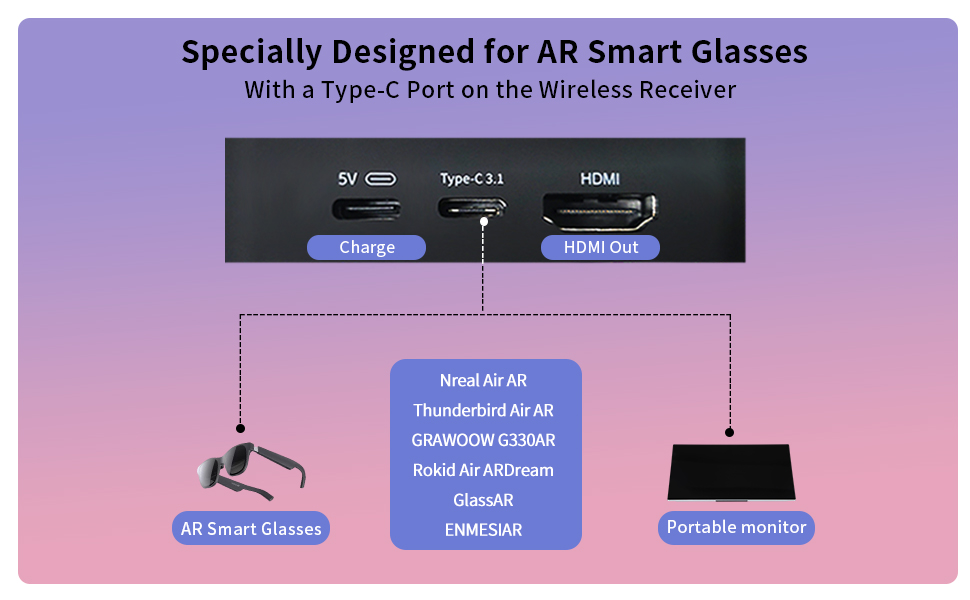
Figure 3: Receiver ports (5V power, Type-C 3.1, HDMI) and AR glasses compatibility.
Akiyesi: For certain AR glasses like Nreal, you may need to upgrade their firmware for optimal compatibility. Refer to your AR glasses manufacturer's instructions for firmware updates.
4. Awọn ilana Iṣiṣẹ
4.1 Agbara Lori ati Sisopọ
Once both the Transmitter (TX) and Receiver (RX) units are connected to their respective power sources and devices, they will automatically power on and attempt to pair. The system is designed for plug-and-play operation, requiring no manual pairing steps or software installation.

Figure 4: Plug and Play setup in a meeting environment.
4.2 Awọn oju iṣẹlẹ lilo
- Ere: Experience zero-latency gaming on a large screen or through AR glasses.
- Idaraya Ile: Stream movies, TV shows, or other media from your PC or TV box to any display.
- Presentations/Meetings: Share content wirelessly from your laptop to a projector or large monitor in a conference room.
- AR Experiences: Connect directly to compatible AR smart glasses for immersive gaming or productivity.
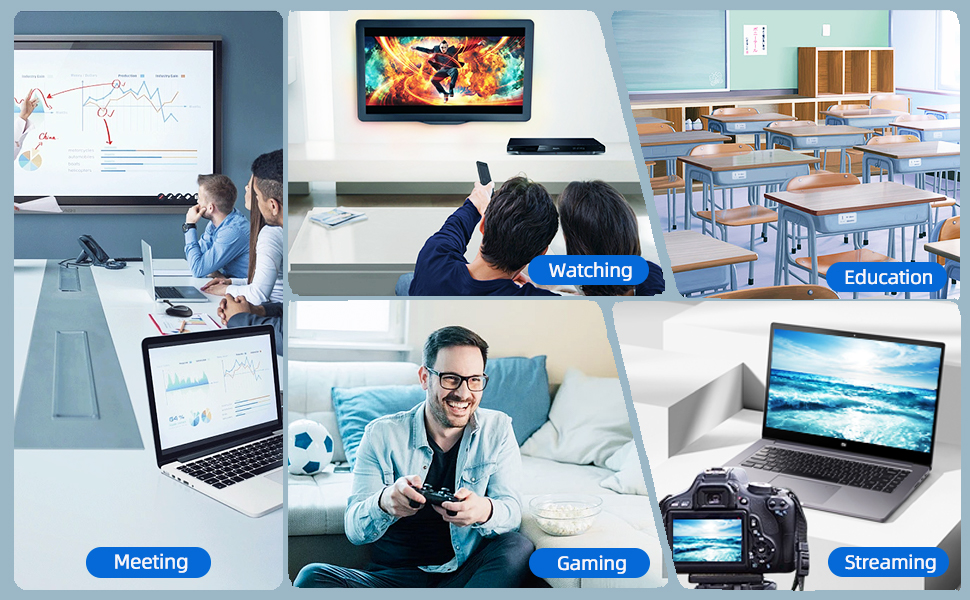
Figure 5: Diverse applications of the PeakDo Wireless HDMI system.

Olusin 6: Example of a wireless AR gaming setup.
5. Itọju
The PeakDo Wireless HDMI Transmitter and Receiver P3 S requires minimal maintenance.
- Ninu: Use a soft, dry cloth to clean the exterior of the units. Do not use liquid cleaners or aerosols.
- Ibi ipamọ: Nigbati o ko ba wa ni lilo fun awọn akoko ti o gbooro sii, tọju awọn ẹrọ naa ni itura, aye gbigbẹ kuro lati orun taara ati awọn iwọn otutu to gaju.
- Ibi ti ina elekitiriki ti nwa: Always ensure both TX and RX units receive adequate power (5V 2A) from a stable power source.
6. Laasigbotitusita
6.1 No Signal / Black Screen
- Ṣayẹwo Agbara: Ensure both the Transmitter (TX) and Receiver (RX) units are properly powered. The RX unit specifically requires sufficient power (5V 2A) and should be powered first before connecting the HDMI/USB-C cable to the display.
- Awọn Isopọ USB: Verify that all HDMI and USB-C cables are securely connected to their respective ports on the devices and displays.
- Ìjáde Ẹ̀rọ Orísun: Confirm that your source device (PC, game console) is outputting video correctly. Try connecting the source device directly to the display with a cable to rule out issues with the source.
- Iṣafihan Iṣafihan: Ensure your display (TV, monitor, projector, AR glasses) is set to the correct input source (e.g., HDMI 1, USB-C).
- Tun awọn ẹrọ bẹrẹ: Disconnect power from both TX and RX units, then reconnect. Also, restart your source device and display.
6.2 Intermittent Signal / Flickering
- Ijinna ati Idiwo: Reduce the distance between the TX and RX units. Ensure there are no significant physical obstructions (walls, large furniture) between them that could interfere with the wireless signal.
- Ìjánu: Keep the units away from other wireless devices (e.g., Wi-Fi routers, cordless phones, microwave ovens) that operate on similar frequencies.
- Ibi ti ina elekitiriki ti nwa: Ensure stable and sufficient power supply to both units. Fluctuations in power can affect signal stability.
6.3 Ko si Audio
- Ètò Ohùn Orísun: Check the audio output settings on your source device to ensure audio is being sent via HDMI.
- Display Audio: Verify that the audio on your display device (TV, monitor, AR glasses) is not muted and the volume is turned up.
- Iduroṣinṣin USB: Ensure the HDMI or USB-C cable connecting the RX to the display is not damaged.
6.4 AR Glasses Compatibility Issues
- Imudojuiwọn famuwia: As mentioned in the setup, some AR glasses (e.g., Nreal) may require a firmware update to work correctly with external video sources. Consult your AR glasses manufacturer's support.
- Power to RX: Ensure the RX unit is adequately powered, especially when connecting to power-hungry AR glasses.
- Okun USB-C: Use a high-quality USB-C cable that supports video transmission.
7. Awọn pato
| Ẹya ara ẹrọ | Apejuwe |
|---|---|
| Nọmba awoṣe | P3 S |
| Fidio fifi koodu | YUV422 or RGB444 (uncompressed 1080P) |
| Atilẹyin ipinnu | Titi di 1080P Full HD |
| Lairi | 0 Lairi |
| Asopọmọra Technology | Wireless (Millimeter Wave) |
| Gbigbe Range | Titi di 100 ẹsẹ (isunmọ 30 mita) |
| Compatible Transmitter Devices | PC, Laptop, Xbox, PS4, PS5, Switch, PS3, TV Box, etc. |
| Compatible Receiver Devices | TV, Monitor, Projector (via HDMI); AR Smart Glasses, Portable Monitor (via USB-C) |
| Lapapọ HDMI Ports | 1 (on Receiver) |
| Asopọmọra Iru | HDMI, Micro USB (for power), USB-C (on Receiver) |
| Ipo Ijade Ohun | Mono (Digital Audio) |
| Kakiri Ohun ikanni iṣeto ni | 2.0 |
| Ibi ti ina elekitiriki ti nwa | 5V 2A (for both TX and RX units) |
| Iwọn Nkan | 1.08 poun (isunmọ 0.49 kg) |
| Package Mefa | 6.73 x 5.83 x 2.48 inches (iwọn 17.1 x 14.8 x 6.3 cm) |
8. Atilẹyin ọja ati Support
For warranty information and technical support, please refer to the official PeakDo webojula tabi kan si wọn onibara iṣẹ taara. Tọju iwe-ẹri rira rẹ fun awọn ẹtọ atilẹyin ọja.
- Olupese: PeakDo
- Ọjọ Akọkọ Wa: Oṣu Kẹta Ọjọ 16, Ọdun 2023
- Onibara Reviews: 3.3 out of 5 stars (based on 6 ratings at time of data extraction)