
Ọrọ Iṣaaju
O ṣeun fun riraasing the HOU FY-10 Keyboard Case. This manual provides essential information for setting up, operating, and maintaining your new keyboard case. Please read it thoroughly to ensure proper use and to maximize your product's lifespan.
Ibamu
The HOU FY-10 Keyboard Case is designed for specific iPad models:
- iPad 10th Generation (10.9-inch, 2022): Models A2757, A2777, A2696
- iPad 11th Generation (11-inch, A16, 2025)
Please verify your iPad model before use. This keyboard case is not compatible with other iPad models.

Package Awọn akoonu
Rii daju pe gbogbo awọn nkan wa ninu package:
- HOU FY-10 Keyboard Case
- Okun Ngba agbara USB
- Afowoyi Olumulo (iwe-ipamọ yii)

Ṣeto
1. Attaching rẹ iPad
Align your compatible iPad with the magnetic back panel of the case. The strong magnets will securely hold the iPad in place. No force is required; simply place the iPad onto the case.

2. Sisopọ Bluetooth
- Ensure your iPad's Bluetooth is turned on.
- On the keyboard, long-press the Fn + Iṣakoso + R awọn bọtini ni nigbakannaa.
- Continue holding until the red indicator light on the keyboard begins to flash. This indicates the keyboard is in pairing/reset mode.
- On your iPad, go to Bluetooth settings and select the HOU keyboard from the list of available devices.
- Once connected, the keyboard is ready for use.
3. Ngba agbara si Keyboard
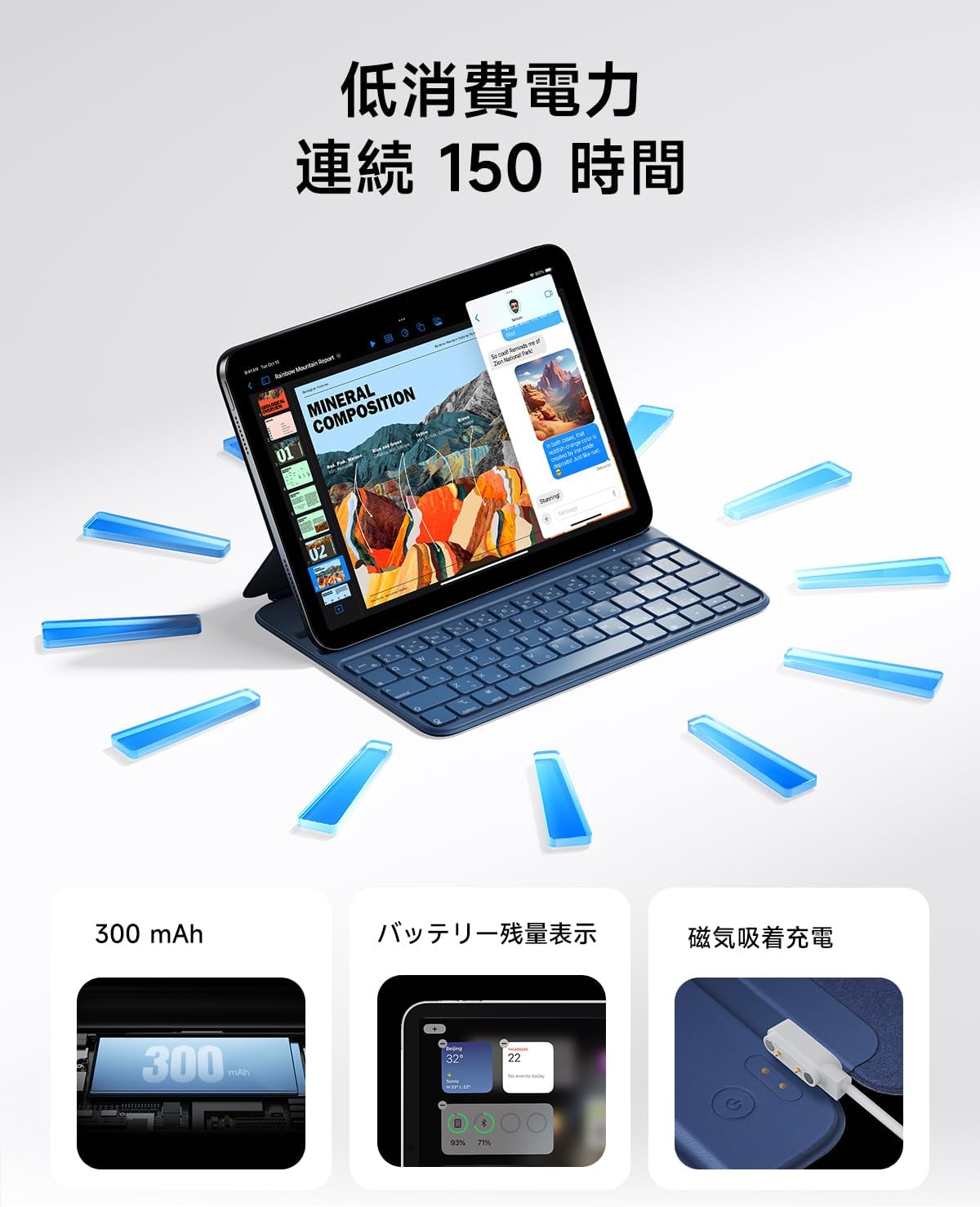
The keyboard features magnetic charging. Connect the provided USB charging cable to the magnetic charging port on the keyboard and to a suitable USB power source. The keyboard's battery level can be displayed on your iPad.


Awọn ilana Iṣiṣẹ
1. Ṣíṣe àtúnṣe Viewing Awọn igun
The keyboard case offers two adjustable viewing angles: 115° and 125°. These angles are designed to provide optimal comfort for various tasks, such as typing, watching videos, or drawing.


2. Lilo Awọn bọtini Ọna abuja
The keyboard features large keycaps and sufficient key travel for a comfortable typing experience. It also includes dedicated shortcut keys to enhance productivity:
- Atunse iwọn didun: Control audio output directly from the keyboard.
- Atunṣe Imọlẹ: Adjust screen brightness for optimal viewawọn ipo jijẹ.
- Iṣẹ wiwa: Quickly access your iPad's search feature.
- Home Iboju Mosi: Navigate to the home screen with a dedicated key.

3. Iṣẹ́ Ìsùn/Jí Àdáni
The keyboard case supports the iPad's auto sleep/wake feature. Closing the case will automatically turn off your iPad screen, and opening it will wake the screen, helping to conserve battery life.
Itoju
1. Ninu
The case is made from durable PU material, which is resistant to dirt, wear, and yellowing. To clean, gently wipe the surface with a soft, slightly damp asọ. Yago fun lilo awọn kẹmika lile tabi awọn ohun elo abrasive.
2. Ibi ipamọ
When not in use, store the keyboard case in a cool, dry place away from direct sunlight and extreme temperatures to prevent damage and prolong its lifespan.
Laasigbotitusita
- Keyboard ko sopọ nipasẹ Bluetooth: Ensure the keyboard is charged. Repeat the Bluetooth pairing process by long-pressing Fn + Iṣakoso + R until the red indicator light flashes, then re-pair with your iPad.
- Àwọn kọ́kọ́rọ́ kò dáhùn: Check the keyboard's battery level. If low, recharge the keyboard using the provided USB cable.
- iPad not entering sleep/wake mode: Ensure the iPad is correctly seated in the case and that the case is fully closed/opened.
Awọn pato
| Brand | HOU |
| Awoṣe | FY-10 |
| Awọn ẹrọ ibaramu | iPad 10th Gen (10.9-inch, 2022: A2757/A2777/A2696), iPad 11th Gen (11-inch, A16, 2025) |
| Apejuwe Keyboard | Standalone, Dual Angle Adjustment |
| Awọn ẹya ara ẹrọ | Key combination function, Smart Wake, Dual Angle Adjustment, Ultra-thin bezel full flap |
| Color (This Variant) | Buluu |
| Awọn iwọn Ọja (L x W x H) | 25.1 x 18.2 x 0.9 cm |
| Awọn irinše to wa | Okun USB |
| Operating System Family | iPadOS |
| Iwọn Nkan | 423.8 giramu |
| Ohun elo | PU Alawọ |
Atilẹyin ọja ati Support
HOU products come with a standard manufacturer's warranty. For warranty claims, technical support, or any inquiries regarding your HOU FY-10 Keyboard Case, please contact our customer service team through the retailer where you purchased the product or visit the official HOU webojula fun alaye olubasọrọ.