
AVARRO 0E-HDMIMX4
AVARRO 0E-HDMIMX4 HDMI Switcher User Manual
Model: 0E-HDMIMX4
1. Ifihan
The AVARRO 0E-HDMIMX4 is a high-performance 4x4 HDMI matrix switcher designed to route any of four HDMI input sources to any of four HDMI output displays. It supports 4K Ultra HD resolutions, HDCP 2.2, and advanced features like Smart EDID Management and a built-in 4K-1080P downscaler. This manual provides detailed instructions for installation, operation, and troubleshooting to ensure optimal performance of your device.
2. Alaye Aabo
- Ka gbogbo awọn ilana ni pẹkipẹki ṣaaju ṣiṣe ẹrọ naa.
- Má ṣe fi ẹ̀rọ yìí hàn sí òjò, ọrinrin, tàbí ọ̀rinrin tó pọ̀ jù.
- Do not place any objects filled with liquids on the unit.
- Maṣe ṣe idiwọ awọn ṣiṣi eefin.
- Lo oluyipada agbara ti a pese nikan.
- Ma ṣe gbiyanju lati ṣe iṣẹ fun ẹyọkan funrararẹ. Tọkasi gbogbo iṣẹ si oṣiṣẹ oṣiṣẹ.
- Rí i dájú pé gbogbo ohun èlò tí a so pọ̀ mọ́ ilẹ̀ náà ní ìpìlẹ̀ tó yẹ.
3. Package Awọn akoonu
Rí i dájú pé gbogbo ohun kan wà kí o tó fi sori ẹrọ:
- AVARRO 0E-HDMIMX4 HDMI Switcher Unit
- IR Isakoṣo latọna jijin
- DC 12V Power Adapter
- Afowoyi Olumulo (iwe-ipamọ yii)
- Mounting Brackets (if applicable, not explicitly mentioned but common for such devices)
4. Ọja Ipariview
4.1 Igbimọ iwaju

Aworan: Iwaju view of the AVARRO 0E-HDMIMX4 HDMI Switcher, showing the IR receiver and output selector buttons.
- Olugba IR: Receives signals from the IR remote control.
- Output Selectors (1-4): Buttons to select the input source for each corresponding HDMI output. Each output has its own set of source selection buttons (1, 2, 3, 4).
- Awọn itọkasi LED: Indicate the currently selected input for each output.
4.2 ru Panel
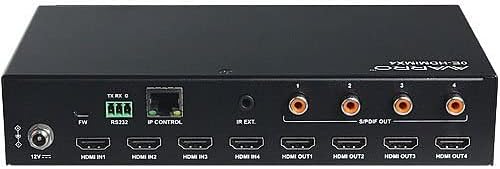
Aworan: Ẹyin view of the AVARRO 0E-HDMIMX4 HDMI Switcher, displaying all input/output ports and control interfaces.
- DC 12V NINU: Ibudo titẹ agbara.
- FW (Micro USB): Micro-USB port for firmware upgrades.
- GBU232: Serial port for control via RS232 commands.
- IP CONTROL (RJ45): Ethernet port for network control and Web UI wiwọle.
- IR EXT: Port for connecting an external IR receiver.
- HDMI IN (1-4): HDMI input ports for connecting source devices (e.g., Blu-ray player, game console).
- HDMI OUT (1-4): HDMI output ports for connecting display devices (e.g., TV, projector).
- S/PDIF OUT (1-4): Digital audio output ports for each HDMI output, supporting PCM 2.0/5.1, Dolby Digital, and DTS up to 5.1 Channel.
5. Eto ati Asopọ
- Pa gbogbo awọn ẹrọ kuro: Before making any connections, ensure all source devices, displays, and the switcher are powered off.
- So awọn orisun HDMI pọ: Connect your HDMI source devices (e.g., media players, gaming consoles) to the HDMI IN 1-4 ports on the switcher using high-quality HDMI cables.
- Sopọ awọn ifihan HDMI: Connect your HDMI display devices (e.g., TVs, projectors) to the HDMI OUT 1-4 ports on the switcher using high-quality HDMI cables.
- Connect Audio Outputs (Optional): If desired, connect external audio systems to the S/PDIF OUT ports for digital audio extraction.
- Nẹtiwọọki Sopọ (Aṣayan): For IP control and Web UI access, connect an Ethernet cable from your network router/switch to the IP CONTROL (RJ45) port.
- So agbara: Connect the provided DC 12V power adapter to the DC 12V IN port on the switcher, then plug the adapter into a power outlet.
- Agbara Lori Awọn ẹrọ: Power on the switcher, then your display devices, and finally your source devices.
Akiyesi: For optimal performance with 4K content, use certified High-Speed HDMI cables.
6. Awọn ilana Iṣiṣẹ
6.1 Iṣakoso Paneli Iwaju
To switch an input source for a specific output:
- Locate the "SELECTOR" buttons for the desired OUTPUT (1-4).
- Press the corresponding "SOURCE" button (1, 2, 3, or 4) below the "SELECTOR" button to route the desired input to that output. The LED indicator will illuminate to show the active input.
6.2 Iṣakoso latọna jijin IR
The included IR remote control allows for convenient switching from a distance. Point the remote towards the IR receiver on the front panel of the switcher.
- Àwọn bọ́tìnì ìtẹ̀síwájú (1-4): Yan orisun igbewọle.
- Output Buttons (A-D or 1-4): Selects the output to control.
- Iyipada Matrix: Typically, you would press an Output button, then an Input button to route that input to the selected output. Refer to the remote's specific layout for exact button functions.
6.3 Web UI Iṣakoso
Awọn Web UI provides a graphical interface for advanced control and configuration.
- Ensure the switcher is connected to your network via the IP CONTROL port.
- Obtain the IP address of the switcher (refer to network settings or device documentation for default IP or discovery method).
- Ṣii a web kiri lori kọmputa kan ti a ti sopọ si kanna nẹtiwọki.
- Enter the switcher's IP address into the browser's address bar.
- Log in using the default credentials (if prompted, refer to device documentation for default username/password).
- Lo awọn Web UI to manage input/output routing, EDID settings, and other advanced features.
6.4 RS232 Iṣakoso
The RS232 port allows for integration with control systems using serial commands. Refer to the detailed RS232 command set documentation (usually available from the manufacturer's website) for specific protocols and commands.
7. Smart EDID Management
The 0E-HDMIMX4 features Smart EDID Management to ensure compatibility between source devices and displays. EDID (Extended Display Identification Data) communicates display capabilities to the source. The switcher can automatically manage EDID or allow manual configuration via the Web UI to optimize video and audio formats for connected devices.
8. Igbegasoke famuwia
Firmware updates can improve performance, add new features, or resolve issues. The 0E-HDMIMX4 supports firmware upgrading via both the Micro-USB port and the Web UI.
- Micro-USB: Connect a computer to the FW (Micro USB) port and use the manufacturer's provided upgrade tool.
- Web UI: Wọle si Web UI and navigate to the firmware upgrade section.
Always download the latest firmware and instructions from the official AVARRO website before attempting an upgrade.
9. Awọn pato
| Ẹya ara ẹrọ | Ẹ̀kúnrẹ́rẹ́ |
|---|---|
| Awoṣe | 0E-HDMIMX4 |
| Awọn igbewọle | 4 x HDMI IN |
| Awọn abajade | 4 x HDMI OUT, 4 x S/PDIF OUT (Digital) |
| Awọn ibudo Iṣakoso | 1 x RS232, 1 x IP CONTROL (RJ45), 1 x FW (Micro USB) |
| HDMI Ibamu | 4K Ultra HD, HDCP 2.2 compliant |
| Atilẹyin ipinnu ipinnu fidio | VESA: 800x600 to 1920x1200; SMPTE: 720x576P to 4096x2160 |
| HDR atilẹyin | HDR 10, HLG, DOLBY VISION up to 4K60 444 |
| Downscaler | Built-in 4K-1080P downscaler |
| O pọju Data Rate | 18 Gbps |
| Aago Pixel ti o pọju | 600 MHz |
| Awọn ọna kika ohun (HDMI) | PCM 2.0/5.1/7.1, Dolby TrueHD, Dolby Atmos, DTS HD Master Audio, DTS:X |
| Audio Formats (S/PDIF) | PCM 2.0/5.1, Dolby Digital, DTS up to 5.1 Channel |
| ESD Idaabobo | ± 8kV (Isisọ aafo-afẹfẹ) / ± 4kV (Idasilẹ olubasọrọ) |
| Aabo Idaabobo | Voltage: ±1 Kv |
| Ibi ti ina elekitiriki ti nwa | DC 12V 2A |
| Agbara Agbara (max) | 10.8W |
| Device Dimensions (L x W x H) | 8.46 ”x 4.73” x 1.65 ”(21.49 cm x 12.01 cm x 4.19 cm) |
| Iwọn Ọja | 1.19 lbs (0.54 kg) |
10. Laasigbotitusita
Tí o bá ní ìṣòro, wo àwọn ìṣòro àti ìdáhùn tó wọ́pọ̀ wọ̀nyí:
- Ko si fidio/Ijade ohun:
- Rii daju pe gbogbo awọn kebulu HDMI ti sopọ ni aabo.
- Verify the power adapter is correctly connected and the unit is powered on.
- Check that the correct input source is selected for the desired output.
- Ṣe idanwo pẹlu awọn okun HDMI oriṣiriṣi.
- Bypass the switcher to confirm source and display functionality.
- Check EDID settings, especially with mixed resolution displays.
- Intermittent Signal/Flickering:
- Use high-quality, certified HDMI cables, especially for longer runs or 4K content.
- Ensure cables are not excessively bent or damaged.
- Check for potential electromagnetic interference from other devices.
- Iṣakoso latọna jijin Ko Ṣiṣẹ:
- Ensure there are no obstructions between the remote and the switcher's IR receiver.
- Rọpo awọn batiri isakoṣo latọna jijin.
- Verify the remote is pointed directly at the IR receiver.
- Web UI/IP Control Issues:
- Confirm the Ethernet cable is properly connected.
- Verify the switcher's IP address and ensure your computer is on the same network subnet.
- Check firewall settings on your computer or network.
11. Itọju
- Ninu: Lo aṣọ rírọrùn tí ó gbẹ láti nu ìta ẹ̀rọ náà. Má ṣe lo àwọn ohun èlò ìfọmọ́ omi tàbí aerosol.
- Afẹfẹ: Rii daju pe awọn šiši fentilesonu ko o ati pe ko ni idiwọ lati ṣe idiwọ igbona.
- Ibi ipamọ: If storing the unit for an extended period, disconnect power and store in a cool, dry place.
12. Atilẹyin ọja ati Support
AVARRO products are designed for reliability and performance. For specific warranty information, please refer to the warranty card included with your product or visit the official AVARRO website. For technical support, product registration, or to download the latest drivers and firmware, please visit www.avarrus.com or contact AVARRO customer service.