
1. Ifihan
The Yitouniu TYTE-D1 Tuya WiFi Smart 16A Temperature Controller Switch Sensor is designed for precise temperature monitoring and control of various electrical appliances. It integrates seamlessly with the Tuya Smart Life app, offering remote control, energy consumption monitoring, and voice control capabilities. This device is suitable for applications such as seedling heat mats, terrestrial heat control, heating pumps, and more.
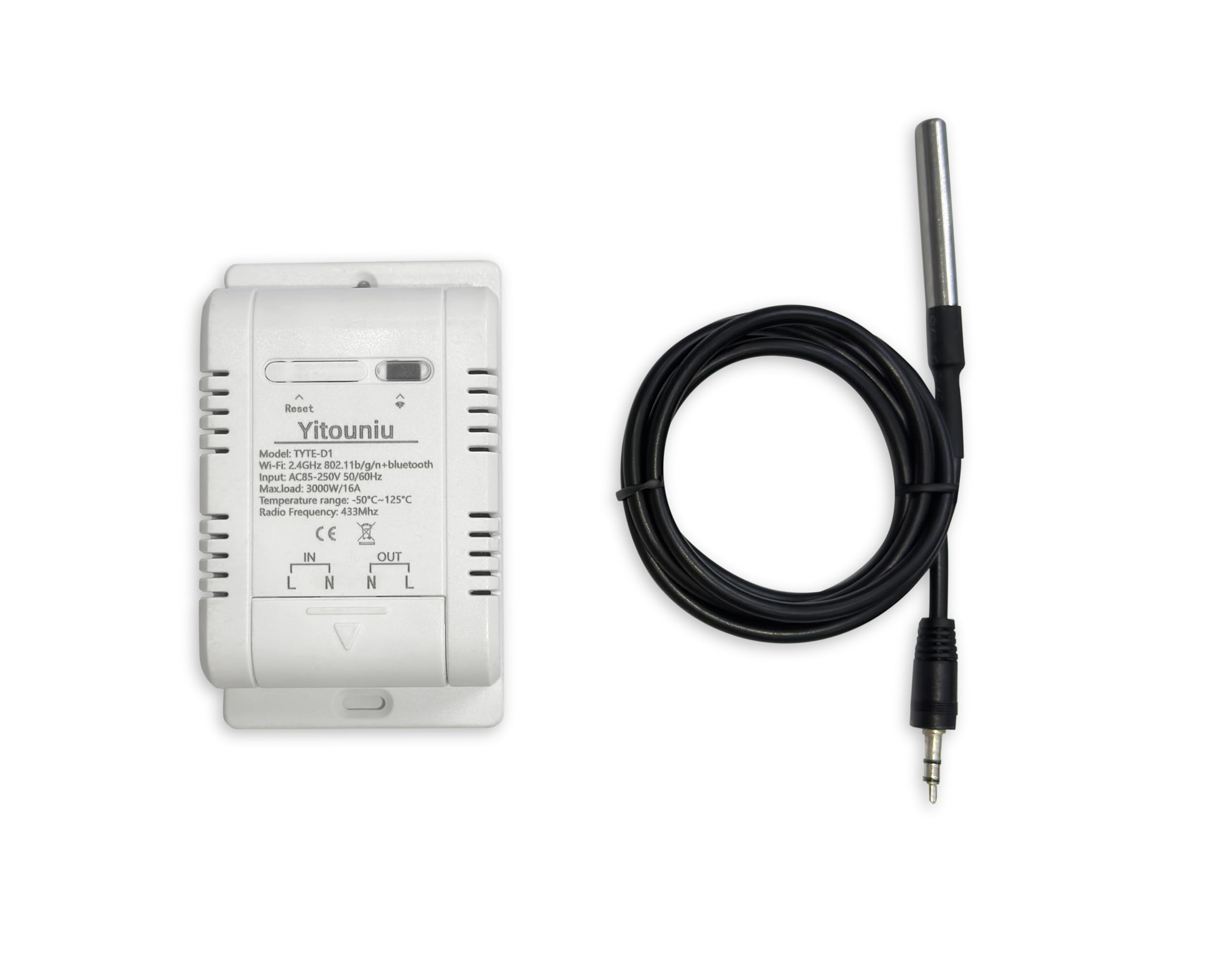
Figure 1: Yitouniu TYTE-D1 Smart Switch with key features and app compatibility.

Olusin 2: Pariview of Smart Temperature Control features including WiFi, voice control, remote access, temperature monitoring, and electricity statistics.
2. Eto
2.1 Awọn itọnisọna Wiring
Proper wiring is crucial for safe and effective operation. Please follow the diagram below carefully.

Figure 3: Wiring diagram for the Yitouniu Smart Switch. Connect AC 85-250V input to 'IN' (L and N) and the appliance to 'OUT' (L and N).
2.2 App Connection (Tuya Smart Life)
To connect your device to the Tuya Smart Life app, follow these steps:
- Gba agbara si Ẹrọ naa: First, ensure the device is powered on.
- Imọlẹ Atọka: Observe the indicator light on the device. If it is not flashing quickly, press and hold the button for a few seconds until it blinks rapidly.
- Open Tuya App: Open the Tuya Smart Life app on your smartphone.
- Fi ẹrọ kun: Click the '+' sign in the top right corner of the app to add a new device.
- Mu Bluetooth ṣiṣẹ: If the device is not automatically discovered, ensure your phone's Bluetooth is enabled. The app should then detect the device.
- Tẹ alaye Wi-Fi sii: Select the discovered device, enter your Wi-Fi network password, and confirm.
- Eto pipe: Follow any remaining on-screen prompts to complete the device addition.
Video 1: Demonstrates the process of connecting a Yitouniu device to the Tuya Smart Life app, including charging, indicator light status, and adding the device via Bluetooth and Wi-Fi.
3. Awọn ilana Iṣiṣẹ
3.1 Remote Temperature Monitoring and Control
Once connected to the Tuya Smart Life app, you can remotely monitor the temperature and control your connected appliances.
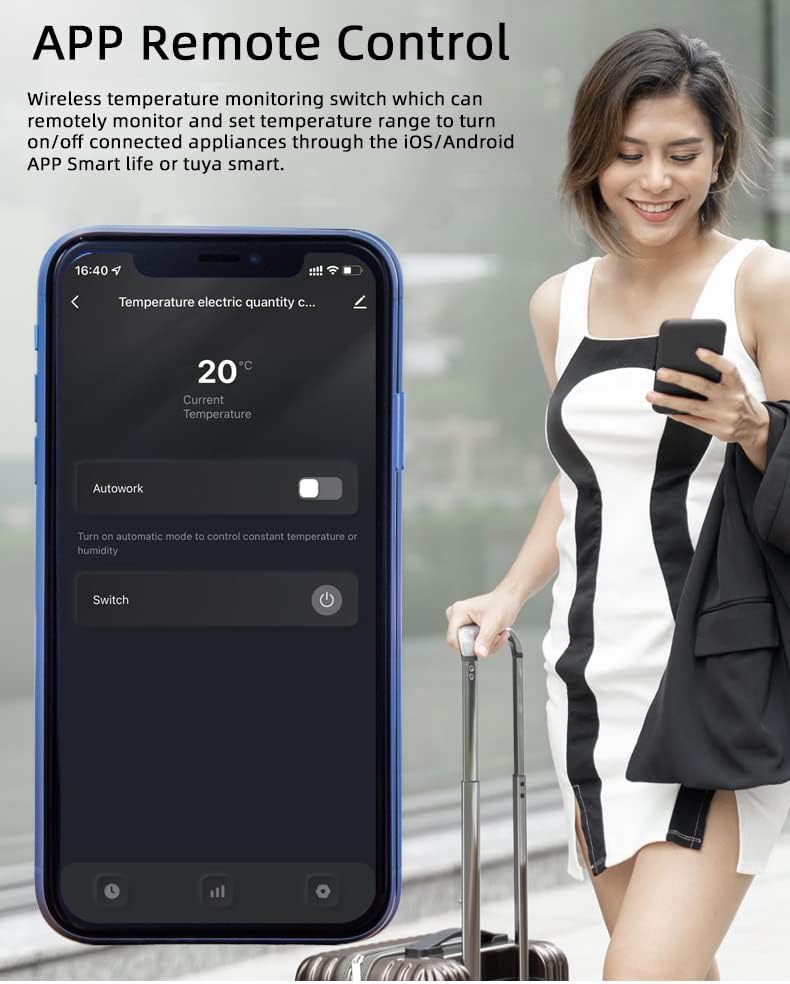
Figure 4: App interface for remote temperature monitoring and manual switch control.
3.2 Automatic Mode and Timing
Set the device to automatic mode to turn your appliances on or off based on a specified temperature range. You can also set scheduled, countdown, or loop timers.
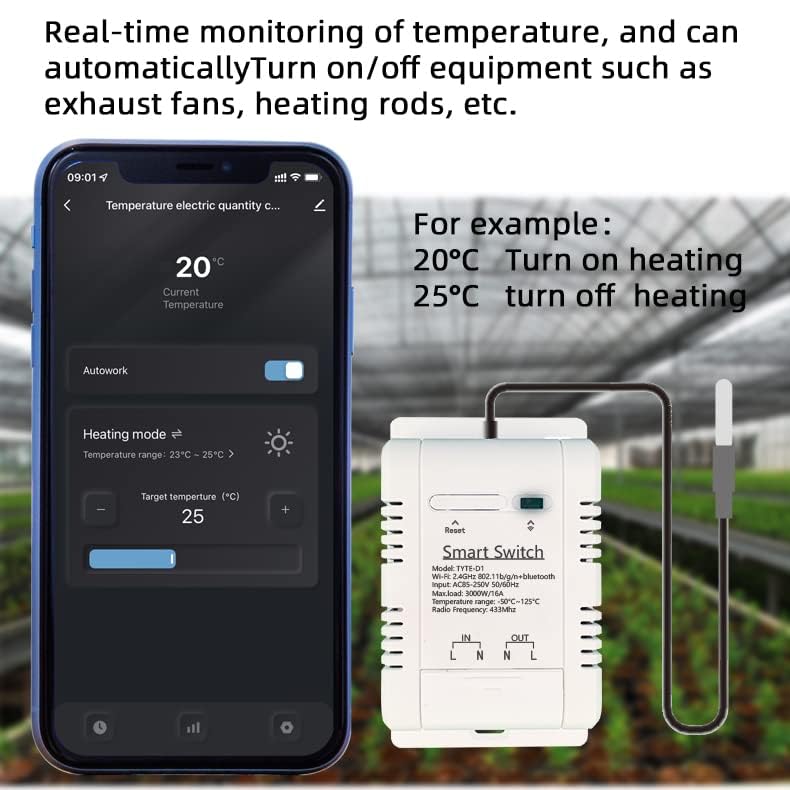
Figure 5: Real-time temperature monitoring with automatic heating mode settings (e.g., turn on heating at 20°C, turn off at 25°C).
3.3 Energy Consumption Monitoring and History
The app provides real-time monitoring of energy consumption and allows you to view historical temperature and power data by year, month, and day.
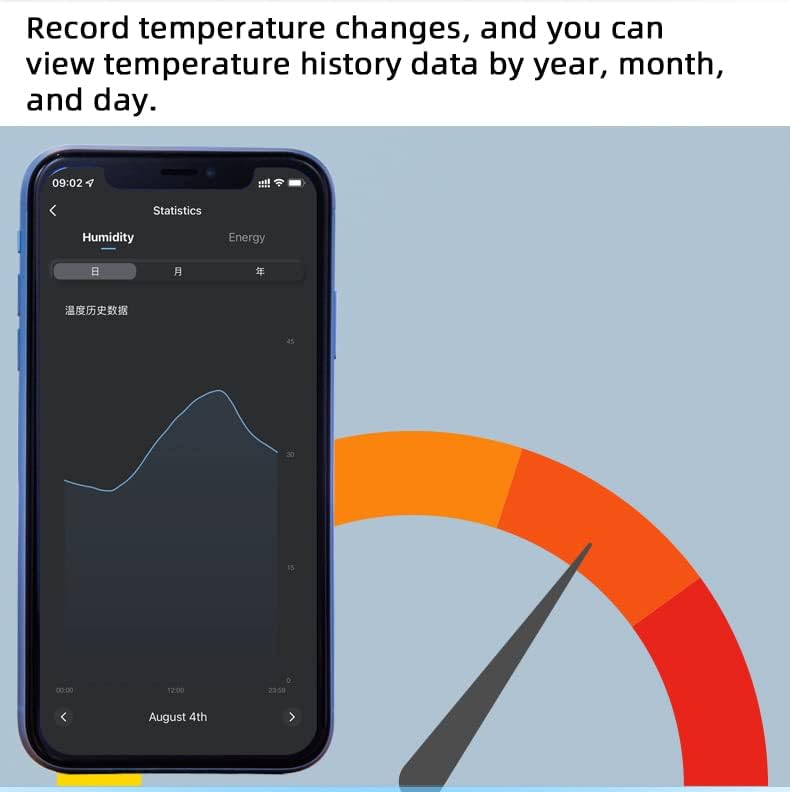
Nọmba 6: View historical temperature data to track changes over time.
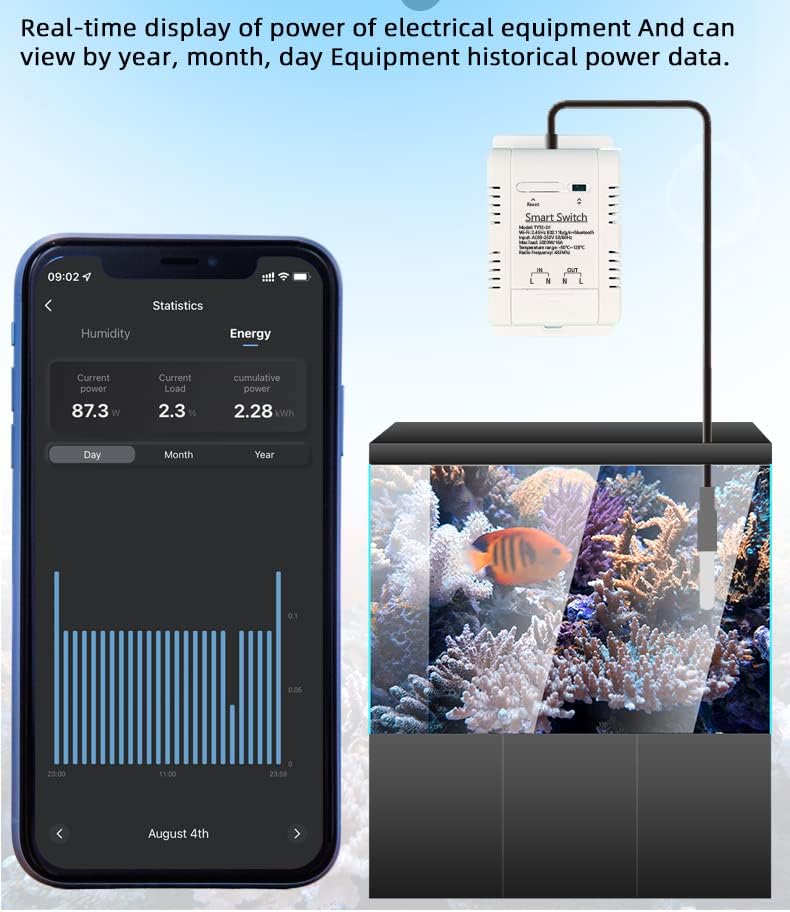
Figure 7: Real-time display of electrical equipment power and historical power data.
3.4 Iṣakoso ohun
The device is compatible with smart speakers such as Amazon Echo, Echo Dot, Amazon Tap, and Google Home. You can manage your devices through voice commands by creating smart scenes in the Smart Life app.
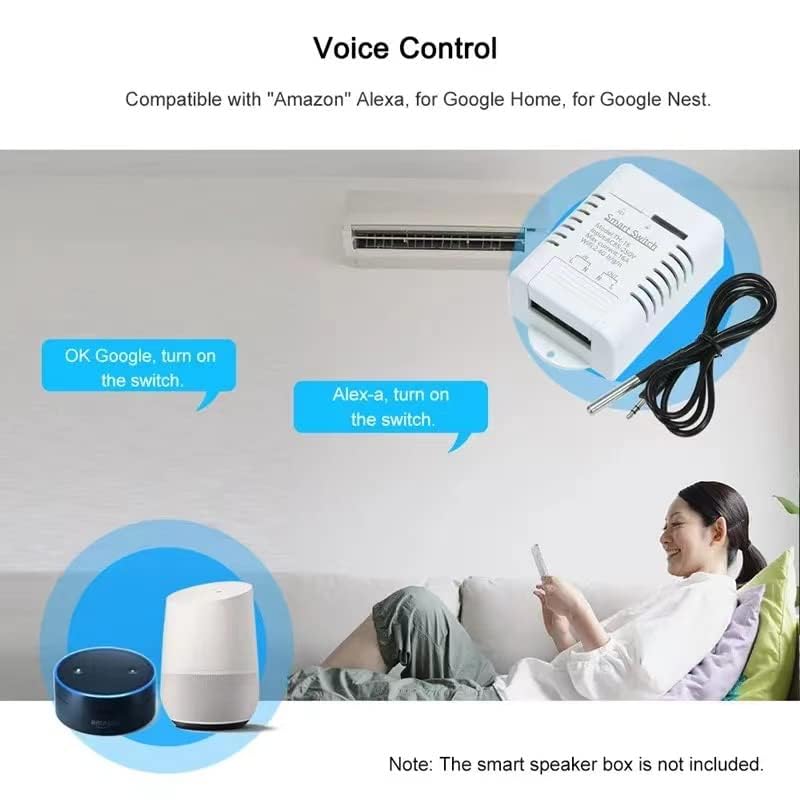
Figure 8: Voice control integration with Amazon Alexa and Google Home for convenient operation.
3.5 Pin Iṣakoso
Easily share control of your smart home devices with family members through the Wi-Fi app.
4. Itọju
To ensure the longevity and optimal performance of your Yitouniu TYTE-D1 Temperature Controller, follow these maintenance guidelines:
- Ninu: Regularly wipe the device with a dry, soft cloth. Avoid using harsh chemicals or abrasive cleaners.
- Itọju Iwadii: Keep the temperature probe clean and free from debris. Although waterproof, avoid unnecessary prolonged immersion in liquids.
- Awọn ipo Ayika: Ensure the device is operated within its specified operating temperature range (-20°C to 70°C) and away from excessive moisture or direct sunlight.
- Awọn imudojuiwọn famuwia: Check the Tuya Smart Life app periodically for any available firmware updates to ensure your device has the latest features and security enhancements.
5. Laasigbotitusita
If you encounter issues with your Yitouniu TYTE-D1 Temperature Controller, refer to the following common troubleshooting steps:
- Ẹrọ Ko Sopọ si Wi-Fi:
- Rí i dájú pé nẹ́tíwọ́ọ̀kì Wi-Fi rẹ jẹ́ 2.4GHz. Ẹ̀rọ náà kò ṣe àtìlẹ́yìn fún àwọn nẹ́tíwọ́ọ̀kì 5GHz.
- Jẹrisi ọrọ igbaniwọle Wi-Fi ti a tẹ sinu app naa tọ.
- Rii daju pe ẹrọ naa wa laarin aaye ti olulana Wi-Fi rẹ.
- Reset the device by pressing and holding the button until the indicator light flashes rapidly, then attempt to re-pair.
- Awọn kika iwọn otutu ti ko pe:
- Check if the temperature probe is securely connected to the device.
- Ensure the probe is placed correctly in the environment you wish to monitor and is not obstructed.
- Avoid placing the probe near heat sources or cold drafts that could affect readings.
- Iṣakoso Ohun elo ko dahun:
- Check your internet connection and ensure the device is online in the app.
- Restart the Tuya Smart Life app.
- If the issue persists, try restarting the temperature controller by unplugging and re-plugging it.
- Awọn oran Iṣakoso ohun:
- Ensure the device is properly linked to your Amazon Alexa or Google Home account.
- Verify the device name used in voice commands matches the name set in the Smart Life app.
- Check the internet connection of your smart speaker.
Tí àwọn ìgbésẹ̀ wọ̀nyí kò bá yanjú ìṣòro náà, jọ̀wọ́ kan sí ìrànlọ́wọ́ oníbàárà.
6. Awọn pato

Ṣe nọmba 9: Awọn ipilẹ ọja alaye ati awọn iwọn.
| Ẹya ara ẹrọ | Sipesifikesonu |
|---|---|
| Nọmba awoṣe | TYTE-D1 |
| Ibi ti ina elekitiriki ti nwa | 85-250V AC |
| O pọju. Lọwọlọwọ | 16A |
| O pọju. Fifuye | 3000W |
| Boṣewa alailowaya | Wi-Fi 2.4GHz b/g/n |
| Aabo Mechanism | WEP/WPA-PSK/WPA2-PSK |
| Awọn iwọn otutu ti nṣiṣẹ | -20°C si 70°C |
| Temperature Range (Probe) | -50°C si 125°C |
| Ohun elo | RF-ABS |
| Awọn iwọn | 9.4 x 5.84 x 3.3 cm (3.7 x 2.3 x 1.3 inches) |
| Awọn irinše to wa | Relay housing, relay module, temperature probe sensor cable |
| Awọn iwe-ẹri | CE, FCC |
7. Atilẹyin ọja ati Support
For warranty information or technical support, please refer to the product packaging or contact the seller directly through your purchase platform. Ensure you have your product model number (TYTE-D1) and purchase details available when seeking support.