
1. Alaye Aabo pataki
Please read all safety instructions carefully before using the BYINTEK P70 Smart WiFi Projector. Keep this manual for future reference.
- Orisun Agbara: Lo adapter agbara ti a pese nikan. Rii daju pe iwọn didun naa wa.tage bá àwọn ohun tí olùwòran náà béèrè mu.
- Aabo Batiri: The projector contains a built-in lithium-ion battery. Do not expose to extreme temperatures, puncture, or disassemble.
- Afẹfẹ: Rii daju pe fentilesonu to dara ni ayika pirojekito lati ṣe idiwọ igbona. Ma ṣe dina awọn ṣiṣi atẹgun.
- Ooru: The projector may become warm during operation. This is normal. Avoid touching the lens or vents immediately after use.
- Ifihan Imọlẹ: Ma wo taara sinu pirojekito lẹnsi nigbati awọn lamp ó ń ṣiṣẹ́, nítorí pé ìmọ́lẹ̀ tó mọ́lẹ̀ lè fa ìfúnpá ojú tàbí ìbàjẹ́.
- Omi ati Ọrinrin: Keep the projector away from water, rain, and excessive humidity. Do not operate with wet hands.
- Ninu: Ge asopọ agbara ṣaaju ṣiṣe mimọ. Lo asọ asọ ti o gbẹ. Ma ṣe lo olomi tabi awọn olutọpa aerosol.
- Awọn ọmọde: Keep the projector and its accessories out of reach of children.
2. Ọja Ipariview
The BYINTEK P70 is a portable smart DLP projector designed for versatile entertainment and presentation needs. It features an 8000mAh built-in battery, Android 9.0 operating system, auto-focus, and 3D support.
2.1 Package Awọn akoonu
- BYINTEK P70 Projector x 1
- Iṣakoso latọna x 1
- Adapter agbara x 1
- Mini Tripod x 1
- Apo Ipamọ x 1
- Ilana olumulo x 1
2.2 Key Awọn ẹya ara ẹrọ
- Apẹrẹ to gbe: Iwapọ ati iwuwo fẹẹrẹ fun gbigbe irọrun.
- Batiri ti a ṣe sinu: 8000mAh battery provides 1.5 to 3 hours of playback.
- Smart Android OS: Android 9.0 for app downloads, online streaming, and gaming.
- Idojukọ aifọwọyi: Automatic focus adjustment for clear images.
- Atunse okuta bọtini 6D: Advanced keystone correction for flexible placement.
- Atilẹyin 3D: Enjoy immersive 3D content.
- Asopọ Alailowaya: Supports wireless screen mirroring from Android, iOS, and PC devices.
- Asopọmọra Alailowaya: USB data cable sync for iOS and select Android devices.
- Ìwọ̀n Ìsọtẹlẹ Nla: Up to 200 inches.
- 4K Playback: Supports up to 4K video input.
- Long LED Lamp Igbesi aye: wakati meji 30,000.
- Àwọn Agbọrọsọ Sitẹrio Meji: Integrated 2x5W speakers for clear audio.

Image: Infographic detailing the BYINTEK P70's features including 4K support, DLP display, 6D keystone, 8000mAh battery, 3D, Type-C charge, 2G+32G memory, Android OS, and stereo speakers.
3. Eto
3.1 Gbigba agbara si ẹrọ ifihan
Before first use, fully charge the projector. Connect the provided power adapter to the projector's Type-C port and plug it into a power outlet. The charging indicator will show the charging status.

Image: The BYINTEK P70 projector connected to a power bank via a Type-C cable, illustrating its portable charging capability.
3.2 Ibẹrẹ Ibẹrẹ
Gbe awọn pirojekito lori kan idurosinsin, alapin dada. Fun aipe viewing, position it directly in front of your projection screen or wall. The included mini tripod can be used for angle adjustments.
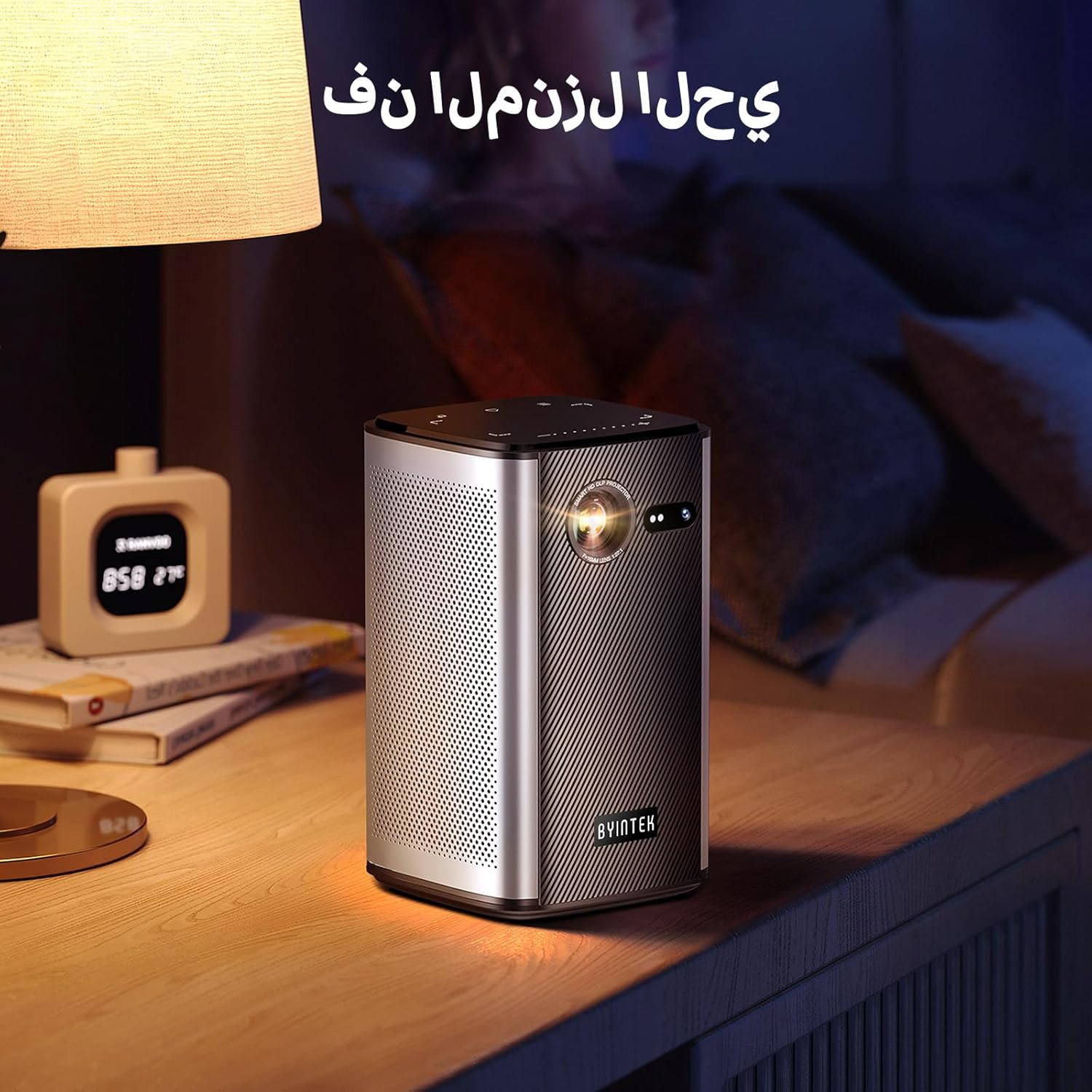
Image: The BYINTEK P70 projector placed on a bedside table, ready for indoor use.
3.3 Titan / Pa a
Press and hold the power button on the projector or remote control to turn the device on or off.
3.4 Idojukọ ati Atunse Keystone
The BYINTEK P70 features automatic focus. For keystone correction, navigate to the settings menu using the remote control. The 6D keystone correction allows for precise image adjustment, even with side projection.

Image: A visual representation of the projector's auto-focus feature, showing a clear image projected onto a wall.
4. Awọn ilana Iṣiṣẹ
4.1 Lilọ kiri lori ẹrọ Android
Use the remote control to navigate the Android 9.0 interface. The home screen provides access to pre-installed apps and settings. You can download additional applications from the app store.

Image: The projector displaying its Android operating system interface with various application icons like Miracast, Settings, AirPlay, Market, File Explorer, YouTube, and Netflix.
4.2 Wireless Screen Mirroring
The projector supports wireless screen mirroring for Android, iOS, and PC devices. Access the 'Miracast' or 'AirPlay' app on the projector's home screen and follow the on-screen instructions to connect your device.
4.3 Wired Screen Mirroring
For iOS devices and some Android devices, you can use a USB data cable for wired screen synchronization. Connect your device to the projector's USB port using its original data cable.
4.4 3D Sisisẹsẹhin
The BYINTEK P70 supports 3D content. To enjoy 3D movies, ensure your media file is in a compatible 3D format (e.g., Blu-ray 3D, SBS, TNB) and use active shutter 3D glasses (sold separately).

Image: A family wearing 3D glasses, enjoying a 3D movie projected by the BYINTEK P70, showcasing its 3D capability.
4.5 Digital Sún
Adjust the image size from 50% to 100% using the digital zoom function on the remote control. This allows you to fit the image perfectly to your screen without moving the projector.
5. Itọju
5.1 Ninu awọn lẹnsi
Lo aṣọ rirọ, tí kò ní àwọ̀ tí a ṣe pàtó fún àwọn lẹ́nsì ojú láti fi fọ lẹ́nsì àwòjìji náà pẹ̀lú ìrọ̀rùn. Yẹra fún lílo àwọn ohun èlò ìfọ́ tàbí àwọn kẹ́míkà líle.
5.2 Ninu Ode
Fi aṣọ rírọrùn àti gbígbẹ nu ìta ẹ̀rọ ìfọ́mọ́ra náà. Má ṣe lo àwọn ohun ìfọ́mọ́ra omi tàbí ìfọ́mọ́ra taara lórí ẹ̀rọ náà.
5.3 Ibi ipamọ
When not in use, store the projector in a cool, dry place, away from direct sunlight and extreme temperatures. Use the provided storage bag to protect it from dust and scratches.
5.4 batiri Itọju
Láti mú kí batiri pẹ́ sí i, má ṣe jẹ́ kí batiri náà máa jáde nígbà gbogbo. Tí o bá ń tọ́jú rẹ̀ fún ìgbà pípẹ́, gba agbára batiri náà sí nǹkan bí 50% kí o sì gba agbára padà ní gbogbo oṣù díẹ̀.
6. Laasigbotitusita
| Isoro | Owun to le Fa | Ojutu |
|---|---|---|
| Ko si aworan akanṣe | Projector not powered on; input source not selected; cable not connected. | Ensure projector is on. Select correct input source (HDMI, USB, Wireless). Check cable connections. |
| Aworan jẹ blurry | Out of focus; projector too close/far from screen; lens dirty. | Allow auto-focus to adjust. Adjust projector distance. Clean the lens. |
| Isakoṣo latọna jijin ko ṣiṣẹ | Batteries low/dead; remote not paired; obstruction. | Replace remote batteries. Ensure line of sight to projector's IR receiver. Re-pair remote if necessary (refer to specific pairing instructions in the full manual). |
| Ko si ohun | Volume too low; external audio device connected; audio format not supported. | Increase projector volume. Disconnect external audio devices. Check audio format compatibility. |
| Awọn iṣoro mirroring alailowaya | Poor Wi-Fi signal; device compatibility; firewall settings. | Ensure strong Wi-Fi signal. Check device compatibility with Miracast/AirPlay. Disable firewalls temporarily for testing. |
| Pirojekito overheats | Blocked ventilation; prolonged use in hot environment. | Ensure vents are clear. Operate in a well-ventilated area. Allow projector to cool down. |
7. Awọn pato
| Ẹya ara ẹrọ | Sipesifikesonu |
|---|---|
| Brand | BYINTEK |
| Nọmba awoṣe | P70 |
| Ọja Mefa | 8.2 x 8.2 x 14.2 cm |
| Iwọn Nkan | 1.58 kilo |
| Batiri | 1 Lithium Ion battery (included), 8000mAh, 29.6 Wh |
| Eto isesise | Android |
| Ipinnu Ifihan | 960 x 540 |
| Ìpinnu Ìfihàn Púpọ̀ Jùlọ | 4K Ultra HD Megapixel |
| Asopọmọra Technology | Wi-Fi |
| Pataki Awọn ẹya ara ẹrọ | Auto-focus, 3D Ready, Built-in Wi-Fi Receiver |
| Niyanju Lilo | Ile sinima ile |
| Ifihan Iru | DLP |
| Fọọmù ifosiwewe | Gbigbe |
| Iṣagbesori Iru | Tripod Oke |
| Awọn ibudo USB 3.0 | 1 |
| Awọn ibudo HDMI | 1 |
| Voltage | 12 Volts |
| Wattage | 25 Wattis |
| Orisun agbara | AC & Batiri |
8. Atilẹyin ọja ati Support
The BYINTEK P70 Smart WiFi Projector comes with a standard manufacturer's warranty. For specific warranty details, please refer to the warranty card included in your product packaging or contact BYINTEK customer support.
If you encounter any issues or have questions regarding your projector, please contact BYINTEK customer support through their official website or the contact information provided in your product documentation. Please have your model number (P70) and purchase details ready when contacting support.