
SHANREN MAX 30
Shanren MAX 30 Bicycle Computer User Manual
Awoṣe: Max 30
1. Ọja Ipariview
The Shanren MAX 30 is an advanced GPS smart bike computer designed to provide comprehensive cycling data and control capabilities. Featuring a clear 3-inch display, it offers accurate speed measurement, power estimation, and seamless integration with the ShanrenSport application. It also includes unique control over the RazPro Tail Light and automatic data synchronization with platforms like StravaTrip.
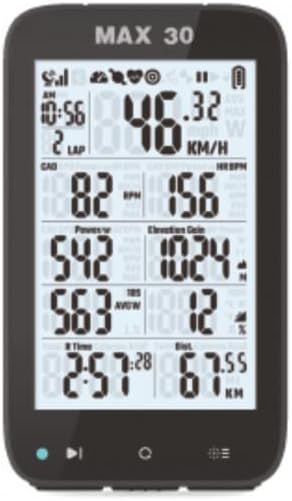
Aworan 1.1: Iwaju view of the Shanren MAX 30 Bicycle Computer displaying speed, cadence, heart rate, power, elevation gain, time, and distance.
2. Package Awọn akoonu
Jọwọ rii daju pe gbogbo awọn ohun kan wa ninu apo rẹ:
- MAX30 bicycle counter
- Ngba agbara USB
- Steering wheel holder
3. Key Awọn ẹya ara ẹrọ
- Easy to read 3" display
- Control from ShanrenSport app
- Power estimation
- GPS titele
- RazPro Tail Light Control
- Asefara àpapọ
- Automatic route download
- Auto-sync with StravaTrip
- Loop page switching
- Full colour LED indicator
4. Eto
4.1 Iṣagbesori ẹrọ
Attach the provided steering wheel holder securely to your bicycle's handlebars or stem. Ensure it is tightened sufficiently to prevent movement during rides. Once the holder is in place, align the MAX 30 bicycle computer with the mount and twist it until it clicks securely into position.
4.2 Ibẹrẹ Agbara Lori
To power on the device for the first time, press and hold the power button (usually located on the side or bottom) for a few seconds until the display illuminates.
4.3 Gbigba agbara
Before first use, it is recommended to fully charge the MAX 30. Connect the provided charging cable to the device's charging port and plug the other end into a standard USB power adapter (not included) or a computer USB port. The device will indicate charging status on its display.

Image 4.1: The Shanren MAX 30 Bicycle Computer shown on a flat surface, indicating its compact size and readiness for charging or setup.
5. Awọn ilana Iṣiṣẹ
5.1 Ipilẹ Lilọ kiri
The MAX 30 features intuitive buttons for navigation. Typically, there are buttons for power/menu, selection, and page switching. Refer to the on-screen prompts for specific functions.
5.2 GPS Iṣẹ
Upon powering on, the device will automatically search for a GPS signal. For best results, ensure you are in an open area with a clear view of the sky. Once a signal is acquired, the GPS icon on the display will become solid, indicating readiness for tracking.
5.3 Sensor Pairing (ANT+/BLE)
The MAX 30 supports ANT+ and Bluetooth Low Energy (BLE) sensors. To pair a sensor (e.g., heart rate monitor, cadence sensor, power meter):
- Ensure the sensor is active and within range of the MAX 30.
- Navigate to the 'Sensor Pairing' menu on the device.
- Yan iru sensọ ti o fẹ lati so pọ.
- The MAX 30 will scan for available sensors. Select your sensor from the list to complete pairing.
5.4 ShanrenSport App Integration
Download the ShanrenSport app from your smartphone's app store. Connect your MAX 30 to the app via Bluetooth. The app allows for device configuration, data review, firmware updates, and more.

Image 5.1: Cyclists interacting with the ShanrenSport app on a smartphone, demonstrating the app's ability to display ride data and maps, complementing the MAX 30 computer.
5.5 RazPro Tail Light Control
The MAX 30 can control compatible RazPro Tail Lights. Once paired, you can manage light modes and settings directly from your bike computer, enhancing safety and convenience.
5.6 Ifihan isọdi
The MAX 30 allows for customization of its display fields. Through the device settings or the ShanrenSport app, you can select which data metrics are shown on each screen, arranging them to your preference for optimal readability during rides.
5.7 Data Sync with StravaTrip
After completing a ride, you can automatically sync your ride data to StravaTrip (and other compatible platforms) via the ShanrenSport app. Ensure your accounts are linked within the app settings for seamless uploads.
6. Itọju
6.1 Ninu
Wipe the device regularly with a soft, damp cloth. Avoid using harsh chemicals or abrasive cleaners, which can damage the display or casing.
6.2 batiri Itọju
To prolong battery life, avoid exposing the device to extreme temperatures. Charge the device regularly, even if not in frequent use, to maintain battery health.
6.3 famuwia imudojuiwọn
Periodically check for firmware updates via the ShanrenSport app. Updates can provide new features, performance improvements, and bug fixes. Follow the app's instructions carefully during the update process.
7. Laasigbotitusita
- Ko si ifihan agbara GPS: Ensure you are in an open area. Allow several minutes for the device to acquire a signal.
- Sensor Not Connecting: Check if the sensor's battery is charged and if it's active. Ensure the sensor is within range and try re-pairing it through the device settings.
- Awọn oran Ifihan: If the display is unresponsive or frozen, try restarting the device by holding the power button until it turns off, then power it back on.
- Data Sync Problems: Verify your internet connection and ensure the ShanrenSport app is updated. Check linked accounts within the app settings.
8. Awọn pato
| Iwa | Ẹ̀kúnrẹ́rẹ́ |
|---|---|
| Nọmba awoṣe | Max 30 |
| Brand | SHANREN |
| Àwọ̀ | Dudu |
| Iwọn Ifihan | 3 inches |
| Ifihan Iru | LCD |
| Ohun elo Iru | Polypropylene |
| Awọn irinše to wa | Steering wheel holder, Charging Cable, MAX30 bicycle counter |
| Sensor Types Supported | Power, NP power, power 3s/10s/30s, LR balance, calories, speed, cadence, heart rate, ascend, inclination, lap distancing (travel/total), cycling time (travel/total) |
| Package Mefa | 12 x 6 x 5 cm |
| Iwọn Nkan | 100 g |
| Akọkọ Wa Ọjọ | Oṣu kọkanla ọjọ 13, ọdun 2023 |
9. Atilẹyin ọja ati Support
For detailed warranty information, technical support, and customer service, please refer to the official SHANREN website or contact their authorized distributors. Keep your proof of purchase for any warranty claims.
You can visit the SHANREN store for more information: SHANREN Store on Amazon
Ask a question about this manual
Ask about setup, troubleshooting, compatibility, parts, safety, or missing instructions. Manuals+ will review the question and use this page’s manual context to help answer it.