
THOMSON B206
THOMSON Sound Bar B206 User Manual
Awoṣe: B206
Ọrọ Iṣaaju
O ṣeun fun riraasing the THOMSON Sound Bar B206. This sound bar is designed to enhance your audio experience for television, music, and gaming, featuring multiple connectivity options and two wireless microphones for karaoke. This manual provides essential information for safe and efficient use of your device. Please read it thoroughly before operation and retain it for future reference.
Alaye Aabo
- Ma ṣe fi ẹrọ naa han si ojo, ọrinrin, tabi awọn iwọn otutu to gaju.
- Ensure proper ventilation around the sound bar to prevent overheating.
- Maṣe ṣii casing; tọka gbogbo iṣẹ si oṣiṣẹ ti o peye.
- Lo oluyipada agbara ti a pese nikan.
- Jeki ẹrọ naa kuro ni awọn aaye oofa ti o lagbara.
- Avoid placing heavy objects on the sound bar.
Package Awọn akoonu
Daju pe gbogbo awọn nkan ti a ṣe akojọ rẹ si isalẹ wa ninu package rẹ:
- THOMSON Sound Bar (B206) x 1
- Iṣakoso latọna x 1
- Gbohungbohun Alailowaya x 2
- Adapter agbara x 1
- Okun ohun x1
- Coaxial Cable x 1
- Optical Fiber Cable x 1
- Wall Mounting Kit x 1 (includes padlocks, gel column, screws)
- Ilana olumulo x 1

Nọmba 1: Awọn ẹya ẹrọ ti o wa pẹlu
This image displays the complete set of items provided with your THOMSON Sound Bar B206, including the sound bar unit, remote control, two wireless microphones, power adapter, user manual, audio cable, coaxial cable, optical fiber cable, and wall mounting kit components.
Ọja Pariview
Sound Bar Components
The THOMSON Sound Bar B206 features a sleek design with integrated controls and various input ports for versatile connectivity.

Figure 2: Sound Bar, Microphones, and Remote
This image shows the main sound bar unit, two wireless microphones, and the remote control, providing a complete view of the primary components.
Internal Speaker Design
The sound bar is equipped with four large dual drive units, delivering a maximum output power of 200 Watts for HiFi sound quality, including dual bass and clear mid-range frequencies for a 3D surround sound effect.

Figure 3: Internal Speaker Structure
This diagram illustrates the internal construction of the sound bar's speakers, emphasizing the dual drive units responsible for audio output, alongside the Bluetooth connectivity symbol.
Rear Panel Connections and Remote Control
The rear panel provides various input options, while the remote control offers full command over the sound bar's functions.

Figure 4: Rear Panel Ports and Remote Control
This image details the connectivity options on the sound bar's rear panel, including the power switch, HDMI ARC, power input, subwoofer output, coaxial, optical, and AUX inputs. The accompanying remote control is also shown, indicating various function buttons.
Ṣeto
1. Placement Aw
The THOMSON Sound Bar B206 can be placed on a desktop or mounted on a wall. A wall mounting kit is included for convenient installation.
- Ibi tabili: Place the sound bar on a stable, flat surface in front of your TV.
- Iṣagbede ogiri: Use the provided wall mounting kit (padlocks, gel column, screws) to securely attach the sound bar to a wall below your TV. Ensure the wall material can support the weight of the sound bar.
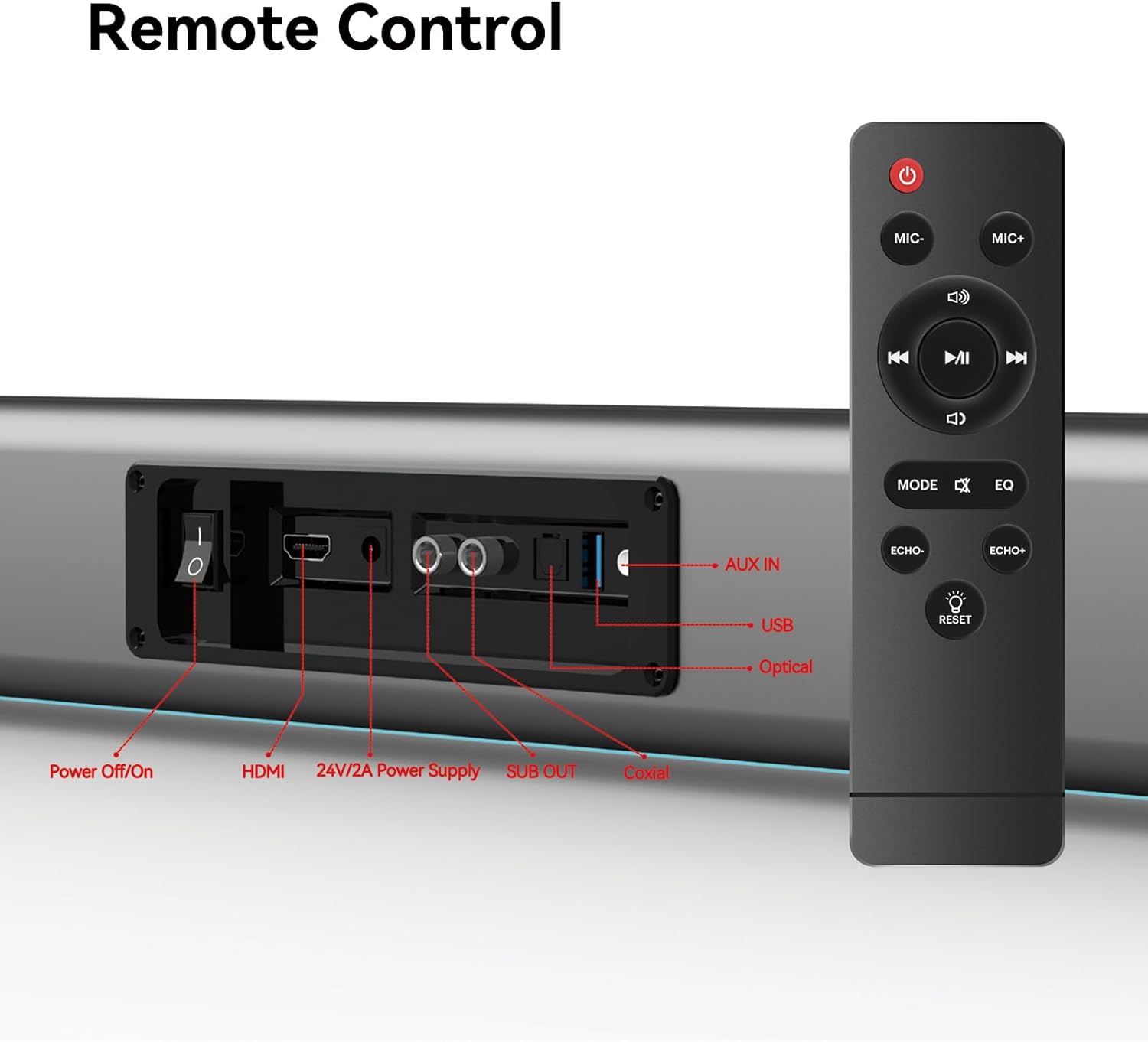
Figure 5: Placement Options (Wall Mount and Desktop)
This image illustrates the versatility of the sound bar's placement, showing it both mounted on a wall beneath a television and resting on a media console, highlighting the included wall mount kit for an elegant setup.
2. Nsopọ si Agbara
- Connect the power adapter to the "24V/2A Power Supply" port on the sound bar's rear panel.
- Pulọọgi ohun ti nmu badọgba agbara sinu iṣan ogiri kan.
3. Awọn isopọ Audio
Choose one of the following methods to connect the sound bar to your audio source (e.g., TV, smartphone, tablet, laptop):
- HDMI ARC:
Connect an HDMI cable (not included) from the HDMI ARC port on your TV to the HDMI port on the sound bar. Ensure your TV's HDMI ARC function is enabled in its settings.
- Ojú:
Connect the provided optical fiber cable from your TV's optical output to the "Optical" port on the sound bar. Select "Optical" as the input source on the sound bar.
- AUX (3.5mm Audio Jack):
Connect the provided audio cable from your device's headphone jack or audio output to the "AUX IN" port on the sound bar. Select "AUX" as the input source.
- Coaxial:
Connect the provided coaxial cable from your TV's coaxial output to the "Coaxial" port on the sound bar. Select "Coaxial" as the input source.
- USB:
Fi awakọ USB kan ti o ni ohun ti o ni ninu files into the "USB" port. The sound bar will automatically switch to USB mode and begin playback.
- Bluetooth:
Wo apakan "Bluetooth Souring" labẹ Awọn Itọsọna Iṣiṣẹ fun awọn igbesẹ alaye.
Awọn ilana Iṣiṣẹ
1. Agbara Tan / Paa
Tẹ awọn Agbara Pa/Tan -an button on the sound bar's rear panel or the Agbara button on the remote control to turn the unit on or off.
2. Aṣayan Orisun Input
Tẹ awọn MODE button on the remote control to cycle through available input sources: HDMI ARC, Optical, AUX, Coaxial, USB, and Bluetooth. The LED display on the sound bar will indicate the currently selected mode.
3. Iṣakoso iwọn didun
Lo awọn Iwọn didun + ati Iwọn didun - buttons on the remote control or the physical controls on the right side of the sound bar to adjust the volume. The sound bar supports 8 levels of bass and treble adjustment.
4. Awọn ọna EQ
The sound bar offers 5 Equalizer (EQ) modes to optimize audio for different content types. Press the EQ button on the remote control to switch between modes:
- Ipo Fiimu: Enhances cinematic sound effects and dialogue.
- Ipo Orin: Nmu ohun ohun dara julọ fun ṣiṣiṣẹsẹhin orin.
- Ipo iroyin: Clarifies spoken dialogue for news and talk shows.
- Additional modes may be available for specific audio profiles.

Figure 6: EQ Modes
This image illustrates the three primary equalizer modes (News, Movie, Music) available on the sound bar, demonstrating how each mode is tailored for different audio experiences.
5. Sisopọ Bluetooth
- Turn on the sound bar and select Bluetooth mode using the MODE button on the remote. The LED display will show "BT" and flash, indicating pairing mode.
- Lori ẹrọ rẹ (foonuiyara, tabulẹti, ati bẹbẹ lọ), mu Bluetooth ṣiṣẹ ki o wa awọn ẹrọ to wa.
- Select "THOMSON B206" from the list. Once connected, the sound bar's LED display will stop flashing.
6. Wireless Microphones
The sound bar comes with two wireless microphones for karaoke or vocal use.
- Ensure the microphones have fresh batteries (AAA, not included).
- Turn on the microphones. They should automatically pair with the sound bar.
- Lo awọn MIC+ ati MIC- buttons on the remote to adjust microphone volume.
- Lo awọn ECHO+ ati ECHO- buttons to adjust the echo effect.

Figure 7: Karaoke Functionality
This image depicts two individuals enjoying a karaoke session, utilizing the THOMSON sound bar and its wireless microphones connected to a large display, showcasing the product's entertainment capabilities.
Laasigbotitusita
| Isoro | Owun to le Fa | Ojutu |
|---|---|---|
| Ko si agbara | Okùn agbára kò sopọ̀ mọ́ra; ibi tí agbára ń jáde kò ṣiṣẹ́. | Rí i dájú pé okùn agbára so pọ̀ dáadáa. Ṣàyẹ̀wò bóyá ibi tí agbára agbára náà ń ṣiṣẹ́. |
| Ko si ohun | Incorrect input source selected; Volume too low; Cables not connected properly. | Select the correct input source (HDMI, Optical, AUX, etc.). Increase volume. Check all audio cable connections. |
| Sisopọ Bluetooth kuna | Sound bar not in pairing mode; Device too far; Bluetooth disabled on device. | Ensure sound bar is in Bluetooth mode and flashing. Move device closer. Enable Bluetooth on your device. |
| Awọn gbohungbohun ko ṣiṣẹ | Microphone batteries low/dead; Microphones not turned on. | Replace microphone batteries. Ensure microphones are switched on. |
| Volume jumps too much with one press | This can be a characteristic of the sound bar's volume control sensitivity. | Adjust volume carefully. Consider using the TV's volume control if connected via HDMI ARC, as it may offer finer adjustments. |
Awọn pato
| Ẹya ara ẹrọ | Ẹ̀kúnrẹ́rẹ́ |
|---|---|
| Orukọ awoṣe | THOMSON Sound Bar B206 |
| Agbọrọsọ Iru | Pẹpẹ ohun |
| Agbọrọsọ Agbara Ijade ti o pọju | 200 Wattis |
| Kakiri Ohun ikanni iṣeto ni | 2.0 |
| Asopọmọra Technology | Auxiliary, Bluetooth, Coaxial, HDMI ARC, Optical, USB |
| Imọ-ẹrọ Ibaraẹnisọrọ Alailowaya | Bluetooth |
| Ọna Iṣakoso | Latọna jijin |
| Ọja Mefa | 37"D x 3.35"W x 2.9"H |
| Iwọn Nkan | 8.63 iwon |
| Ohun elo | Ṣiṣu |
| Orisun agbara | Okun Itanna |
| Pataki Ẹya | Awọn gbohungbohun Alailowaya |
Itoju
- Ninu: Lo asọ ti o rọ, ti o gbẹ lati nu dada ti ọpa ohun. Ma ṣe lo awọn olutọpa omi tabi awọn ohun elo abrasive.
- Ibi ipamọ: When not in use for extended periods, store the sound bar in a cool, dry place, away from direct sunlight and extreme temperatures.
- Itọju Gbohungbohun: Remove batteries from the wireless microphones if they will not be used for a long time to prevent leakage.
Atilẹyin ọja ati Support
THOMSON products are designed and manufactured to the highest quality standards. For warranty information and customer support, please refer to the warranty card included in your package or visit the official THOMSON webojula. Tọju iwe-ẹri rira rẹ bi ẹri rira.
Alaye ibamu
This device complies with relevant regulations for electronic equipment. Any changes or modifications not expressly approved by the manufacturer could void the user's authority to operate the equipment.
Ask a question about this manual
Ask about setup, troubleshooting, compatibility, parts, safety, or missing instructions. Manuals+ will review the question and use this page’s manual context to help answer it.