
Sharp 2TC40EF4UR
Sharp 40-inch Full HD Smart LED Roku TV User Manual
Model: 2TC40EF4UR
Ọrọ Iṣaaju
This manual provides comprehensive instructions for the installation, operation, maintenance, and troubleshooting of your Sharp 40-inch Full HD Smart LED Roku TV. Please read this manual thoroughly before using your television to ensure proper setup and functionality. Keep this manual for future reference.

Aworan: Iwaju view of the Sharp 40-inch Full HD Smart LED Roku TV.
Ṣeto
1. Unboxing ati Package Awọn akoonu
Ni ifarabalẹ yọ gbogbo awọn paati kuro ninu apoti. Rii daju pe gbogbo awọn nkan ti o wa ni isalẹ wa:
- Sharp 40-inch Full HD Smart LED Roku TV
- Iṣakoso Latọna jijin (nilo awọn batiri AAA 2, ko si ninu rẹ)
- Table Stand with Screws
- Afowoyi Olumulo (iwe-ipamọ yii)
- Alaye atilẹyin ọja
2. So Iduro TV
If you are placing the TV on a table or entertainment unit, you will need to attach the included stand. Place the TV screen-down on a soft, clean surface to prevent scratches. Align the stand legs with the mounting holes on the bottom of the TV and secure them using the provided screws.

Image: The Sharp Roku TV displayed on its table stand in a room.
3. Nsopọ Ita Awọn ẹrọ
Your Sharp Roku TV offers various ports for connecting external devices such as cable boxes, gaming consoles, and USB drives.
- Awọn ibudo HDMI: Connect high-definition devices using HDMI cables. This TV features 3 HDMI inputs.
- Ibudo USB: Connect USB storage devices for media playback. This TV features 1 USB input.
- Iṣawọle Fidio Apapo: For older devices, use the composite video (AV) input.
- Ijade ohun Opiti: Fun sopọ si ita ohun awọn ọna šiše.

Image: Rear panel of the TV illustrating the power connector and various input/output ports (HDMI, USB, Optical, AV).
4. Asopọ agbara
Connect the power cord to the TV's power input and then plug it into a standard electrical outlet (120V AC, 60Hz).
5. Iṣeto akọkọ ati Asopọ nẹtiwọki
Upon first power-on, the TV will guide you through the initial setup process. This includes selecting your language, connecting to your Wi-Fi network, and activating your Roku account. A stable Wi-Fi connection is required to access smart TV features and streaming content.
Awọn ilana Iṣiṣẹ
1. Awọn iṣẹ Iṣakoso latọna jijin
The included remote control uses infrared technology. Ensure there is a clear line of sight between the remote and the TV's IR receiver. Insert two AAA batteries into the remote control, observing polarity.
2. Roku OS Interface
Your TV operates on the Roku OS, providing a user-friendly interface for accessing streaming channels, live TV, and connected devices. The home screen displays your installed channels and input selections.

Image: The Roku TV home screen interface and a smartphone displaying the Roku mobile app remote control with voice search functionality.
3. Iṣakoso ohun
The Sharp Roku TV supports voice control through compatible devices like Amazon Alexa or Google Assistant. You can use voice commands to search for movies, change channels, switch inputs, and more.
4. Streaming and Apps
Access a wide variety of streaming services and applications through the Roku Channel Store. Many popular apps are pre-installed, and you can download additional ones to customize your viewiriri iriri.
5. Dolby Audio
This television features Dolby Audio technology, which enhances sound quality for a more immersive listening experience. Ensure your audio settings are configured to utilize this feature for optimal performance.
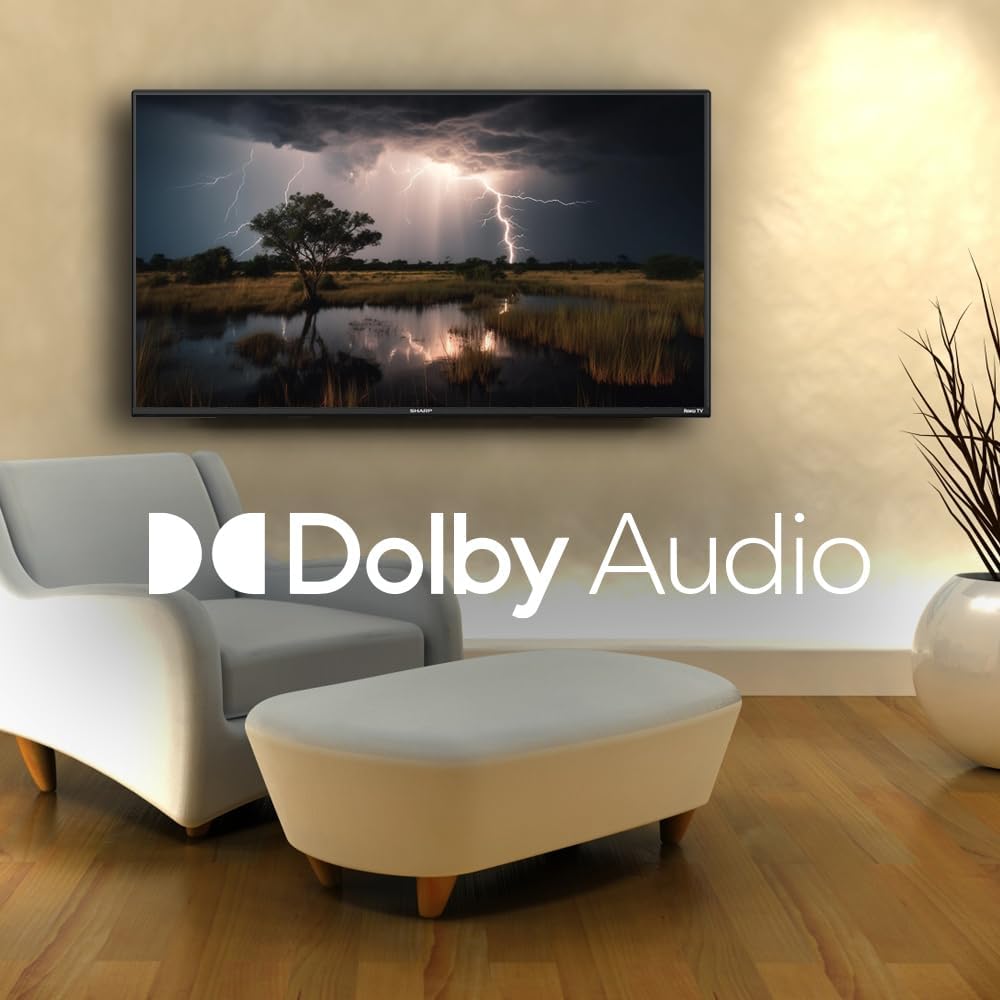
Image: A television screen displaying a dramatic scene with the Dolby Audio logo prominently featured.
Itoju
1. Cleaning the TV Screen
Lati nu iboju naa, rọra nu rẹ pẹlu asọ ti ko ni lint. Fun awọn ami alagidi, fẹẹrẹ dampen the cloth with water or a screen-specific cleaning solution. Avoid using harsh chemicals, abrasives, or direct spraying onto the screen.
2. Cleaning the TV Casing
Pa TV nu casing pẹ̀lú aṣọ rírọ̀ tí ó gbẹ. Má ṣe lo àwọn ohun ìfọmọ́ omi tààrà lórí casing.
3. Afẹfẹ
Ensure that the ventilation openings on the back of the TV are not blocked. Proper airflow is essential to prevent overheating.
Laasigbotitusita
Ti o ba pade awọn ọran pẹlu TV rẹ, tọka si awọn iṣoro ti o wọpọ ati awọn ojutu wọnyi:
| Isoro | Owun to le Solusan |
|---|---|
| Ko si Agbara | Check if the power cord is securely connected to both the TV and the electrical outlet. Ensure the outlet is functional. |
| Ko si Aworan, ṣugbọn Ohun ti wa ni Lọwọlọwọ | Daju pe orisun titẹ sii to pe ti yan. Ṣayẹwo awọn isopọ ẹrọ ita. |
| Ko si Ohun, ṣugbọn Aworan wa Bayi | Check the volume level and mute status. Ensure external audio systems are properly connected and powered on. |
| Isakoṣo latọna jijin Ko Ṣiṣẹ | Replace the batteries in the remote control. Ensure no obstructions are between the remote and the TV. |
| Ko le Sopọ si Wi-Fi | Verify your Wi-Fi password. Restart your router and the TV. Ensure the TV is within range of your Wi-Fi network. |
| Smart Awọn ẹya ara ẹrọ Ko fesi | Check your internet connection. Restart the TV by unplugging it for 30 seconds and plugging it back in. |
Awọn pato
| Ẹya ara ẹrọ | Ẹ̀kúnrẹ́rẹ́ |
|---|---|
| Nọmba awoṣe | 2TC40EF4UR |
| Iwon iboju | 40 inches (102 cm onirọsẹ ti o han) |
| Ifihan ọna ẹrọ | LED |
| Ipinnu | HD ni kikun (1920 x 1080) |
| Oṣuwọn sọtun | 60 Hz |
| Eto isesise | Roku OS |
| Àgbo | 512 MB |
| Audio wu Power | 16 Watts (2.0 Dolby) |
| Awọn ibudo HDMI | 3 |
| Awọn ibudo USB | 1 |
| Asopọmọra | HDMI, USB, Wi-Fi, Composite Video |
| Ibamu Iṣakoso ohun | Amazon Alexa, Google Iranlọwọ |
| Power Consumption (On Mode) | 65 Wattis |
| Voltage | 120 Volt (AC) |
| Awọn iwọn (pẹlu iduro) | 99 cm (W) x 12 cm (D) x 57 cm (H) |
| Iwọn | 5.7 kg |
| Isakoṣo latọna jijin Technology | Infurarẹẹdi |
| Atilẹyin Bluetooth | Rara |

Image: The Sharp Roku TV with its width, depth, and height dimensions indicated.
Atilẹyin ọja ati Support
Alaye atilẹyin ọja
Your Sharp 40-inch Full HD Smart LED Roku TV comes with a manufacturer's warranty. Please refer to the warranty document included in your product packaging for detailed terms, conditions, and registration information. Keep your proof of purchase for warranty claims.
Onibara Support
For technical assistance, troubleshooting beyond this manual, or warranty service, please contact Sharp customer support. Contact information can typically be found on the Sharp official webaaye tabi ninu iwe atilẹyin ọja rẹ.