
j5create JCC157-1N
J5create JCC157 USB-C to HDMI 2.1 8K Cable User Manual
Model: JCC157-1N
Ọrọ Iṣaaju
The J5create JCC157 USB-C to HDMI 2.1 8K Cable is designed to provide high-quality video and audio transmission from your USB-C enabled device to an HDMI display. Supporting resolutions up to 8K, this cable is ideal for gaming, professional presentations, and high-definition media consumption. It features a unique RGB indicator light, enhancing your setup's aesthetics and providing visual feedback.

Nọmba 1: The J5create JCC157 USB-C to HDMI 2.1 8K Cable, showcasing its sleek design and RGB indicator.
Awọn ẹya ara ẹrọ
- Atilẹyin ipinnu ipinnu 8K: Experience stunning visuals with support for resolutions up to 8K, ensuring crisp and clear images.
- USB-C to HDMI 2.1: Connects modern USB-C devices to HDMI 2.1 compatible displays for high-bandwidth video and audio.
- Ibamu gbooro: Fully compatible with Windows, MacOS, and Chrome OS operating systems.
- RGB Indicator Light: Features an integrated RGB light, providing visual flair and status indication, especially suited for gaming setups.
- Pulọọgi ati Ṣiṣẹ: No drivers required for most operating systems, allowing for easy setup and immediate use.
- Awọn ọna Ifihan to pọ: Supports both Extended and Mirror display modes for various productivity and entertainment needs.

Nọmba 2: The RGB indicator light on the JCC157 cable, capable of displaying various colors.
Awọn ilana iṣeto
- So Ipari USB-C pọ: Insert the USB-C connector of the JCC157 cable into a compatible USB-C port on your source device (e.g., laptop, computer). Ensure the port supports video output (DisplayPort Alternate Mode).
- So Ipari HDMI pọ: Insert the HDMI connector of the JCC157 cable into an available HDMI input port on your display device (e.g., monitor, TV, projector).
- Agbara Lori Awọn ẹrọ: Rí i dájú pé ẹ̀rọ orísun àti ẹ̀rọ ìfihàn rẹ ti ṣiṣẹ́.
- Yan Igbewọle: On your display device, select the correct HDMI input source that the cable is connected to.
- Jẹrisi Asopọmọra: The RGB indicator light on the cable will illuminate, indicating a successful connection and active signal. Your display should show the output from your source device.

Nọmba 3: A sunmọ-soke view of the JCC157 cable's connectors and the illuminated RGB indicator, demonstrating a ready state.
Awọn ilana Iṣiṣẹ
Once connected, your operating system will typically detect the external display automatically. You can configure the display settings to suit your needs.
- Ipo ti o gbooro sii: This mode allows you to extend your desktop across multiple screens, providing more workspace. To enable, go to your operating system's display settings and select "Extend these displays."
- Mirror Mode (Duplicate Mode): This mode duplicates your primary display onto the external monitor, showing the same content on both screens. To enable, go to your operating system's display settings and select "Duplicate these displays."

Nọmba 4: Visual representation of Extended Mode (left) and Mirror Mode (right) display configurations, illustrating how the JCC157 cable facilitates both.
The RGB indicator light will remain illuminated when a signal is active. Its color may vary based on the device's status or specific J5create software settings, if applicable.
Itoju
To ensure the longevity and optimal performance of your J5create JCC157 cable, follow these maintenance guidelines:
- Mu pẹlu Itọju: Avoid bending the cable sharply or pulling it by the cord. Always grasp the connector ends when plugging or unplugging.
- Jeki mimọ: Lo aṣọ rírọrùn tí ó gbẹ láti nu okùn àti àwọn asopọ̀ náà pẹ̀lú ìrọ̀rùn. Má ṣe lo àwọn ohun èlò ìfọmọ́ omi tàbí àwọn ohun èlò ìpara.
- Tọju daradara: When not in use, coil the cable loosely and store it in a cool, dry place away from direct sunlight and extreme temperatures.
- Yago fun Ọrinrin: Do not expose the cable to water or high humidity, as this can damage the internal components.
Laasigbotitusita
| Isoro | Owun to le Fa | Ojutu |
|---|---|---|
| Ko si ifihan lori atẹle. |
|
|
| Low resolution or flickering display. |
|
|
| RGB indicator not lighting up. |
|
|
Awọn pato
| Ẹya ara ẹrọ | Ẹ̀kúnrẹ́rẹ́ |
|---|---|
| Nọmba awoṣe | JCC157-1N |
| Asopọmọra Iru | USB-C Male to HDMI 2.1 Male |
| Àtìlẹ́yìn Ìpinnu Tó Pọ̀ Jùlọ | Up to 8K (7680x4320) |
| USB Ipari | 1.8 mita (6 ẹsẹ) |
| Ibamu Awọn ọna ṣiṣe | Windows, MacOS, Chrome OS |
| Pataki Awọn ẹya ara ẹrọ | Imọlẹ Atọka RGB |
| Awọn ẹrọ ibaramu | Kọ̀m̀pútà, Kọ̀m̀pútà alágbèéká |
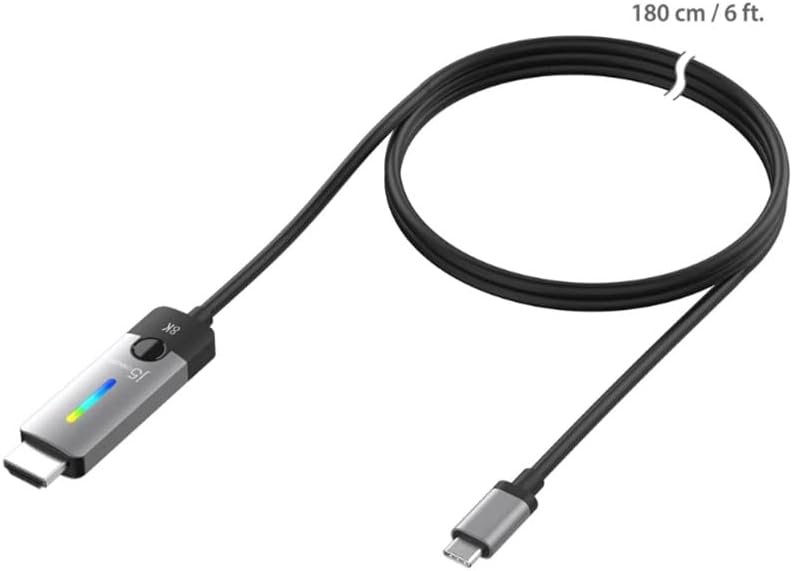
Nọmba 5: The JCC157 cable, illustrating its 180 cm (6 ft) length.
Atilẹyin ọja ati Support
For warranty information and technical support, please refer to the documentation included with your purchase or visit the official j5create webojula. Awọn ofin atilẹyin ọja le yatọ nipasẹ agbegbe ati alagbata.
Olupese: J5CREATE
Ask a question about this manual
Ask about setup, troubleshooting, compatibility, parts, safety, or missing instructions. Manuals+ will review the question and use this page’s manual context to help answer it.