Ọrọ Iṣaaju
Thank you for choosing the Agunto AGU-OC1 Outdoor Security Camera. This manual provides detailed instructions for setting up, operating, and maintaining your camera to ensure optimal performance and security for your property. The AGU-OC1 is designed for outdoor surveillance, featuring 1080p video resolution, advanced night vision, motion and sound detection, and seamless integration with smart home systems like Google Assistant.

olusin 1: Iwaju view of the Agunto AGU-OC1 Outdoor Security Camera.
Alaye Aabo
- Ensure the camera is installed in a location where it is protected from direct tampsisun.
- Use only the provided USB-C cable and power adapter.
- Má ṣe fi kámẹ́rà náà hàn sí iwọ̀n otútù tó le koko ju bó ṣe yẹ lọ níta ibi tí ó ti lè ṣiṣẹ́.
- Yẹra fún gbígbé kámẹ́rà sí ẹ̀gbẹ́ àwọn pápá oníná mànàmáná tó lágbára.
- Ge asopọ agbara ṣaaju ṣiṣe mimọ tabi ṣiṣe itọju.
Package Awọn akoonu
Jọwọ ṣayẹwo package fun awọn nkan wọnyi:
- Agunto AGU-OC1 Outdoor Security Camera
- USB-C Power Cable (3 meters)
- Iṣagbesori skru ati Wall Plugs
- Afowoyi Olumulo (iwe-ipamọ yii)
Ṣeto
1. Iṣagbesori Kamẹra
The Agunto AGU-OC1 is designed for wall mounting. Choose a location that provides the desired viewigun ing ati pe o wa laarin ibiti o ti le de ibudo agbara kan.
- Mark the drilling points on the wall using the camera's mounting base as a template.
- Drill holes at the marked points. Insert the wall plugs if necessary.
- Ṣe aabo ipilẹ iṣagbesori si odi nipa lilo awọn skru ti a pese.
- Attach the camera to the mounted base and adjust the angle as needed. The camera features a 180-degree rotatable function for optimal positioning.

olusin 2: Angled view of the Agunto AGU-OC1, showing its mounting bracket.

Figure 3: The camera installed outdoors, demonstrating its weather resistance.
2. Asopọ agbara
Connect the provided 3-meter USB-C cable to the camera's USB-C port and plug the other end into a suitable power adapter (not always included, but implied by "Elektrisch met snoer" and "USB-C").

Figure 4: USB-C power connection for the Agunto AGU-OC1 camera.
3. Fifi sori App ati Sisopọ
Lati ṣakoso ati view your camera, you will need to install the dedicated Agunto app on your smartphone or tablet. The app is available for both iOS and Android devices.
- Download the "Agunto Smart" app from the App Store (iOS) or Google Play Store (Android).
- Ṣii app naa ki o ṣẹda akọọlẹ tuntun tabi wọle ti o ba ti ni ọkan tẹlẹ.
- Follow the in-app instructions to add your new AGU-OC1 camera. This typically involves scanning a QR code on the camera or entering a device ID.
- Ensure your smartphone is connected to a 2.4GHz Wi-Fi network during the pairing process, as the camera uses Wi-Fi connectivity.
Ṣiṣẹ kamẹra
Gbe View ati Gbigbasilẹ
Once paired, you can access the live video feed from your camera through the Agunto Smart app. From the live view screen, you can:
- View gidi-akoko footage.
- Manually record video clips or capture screenshots.
- Access recorded events stored on a microSD card (if installed) or cloud storage (if subscribed).
Alẹ Iranran
The AGU-OC1 features advanced night vision capabilities, providing clear images even in low-light conditions. It supports color night vision for enhanced detail up to 10 meters.
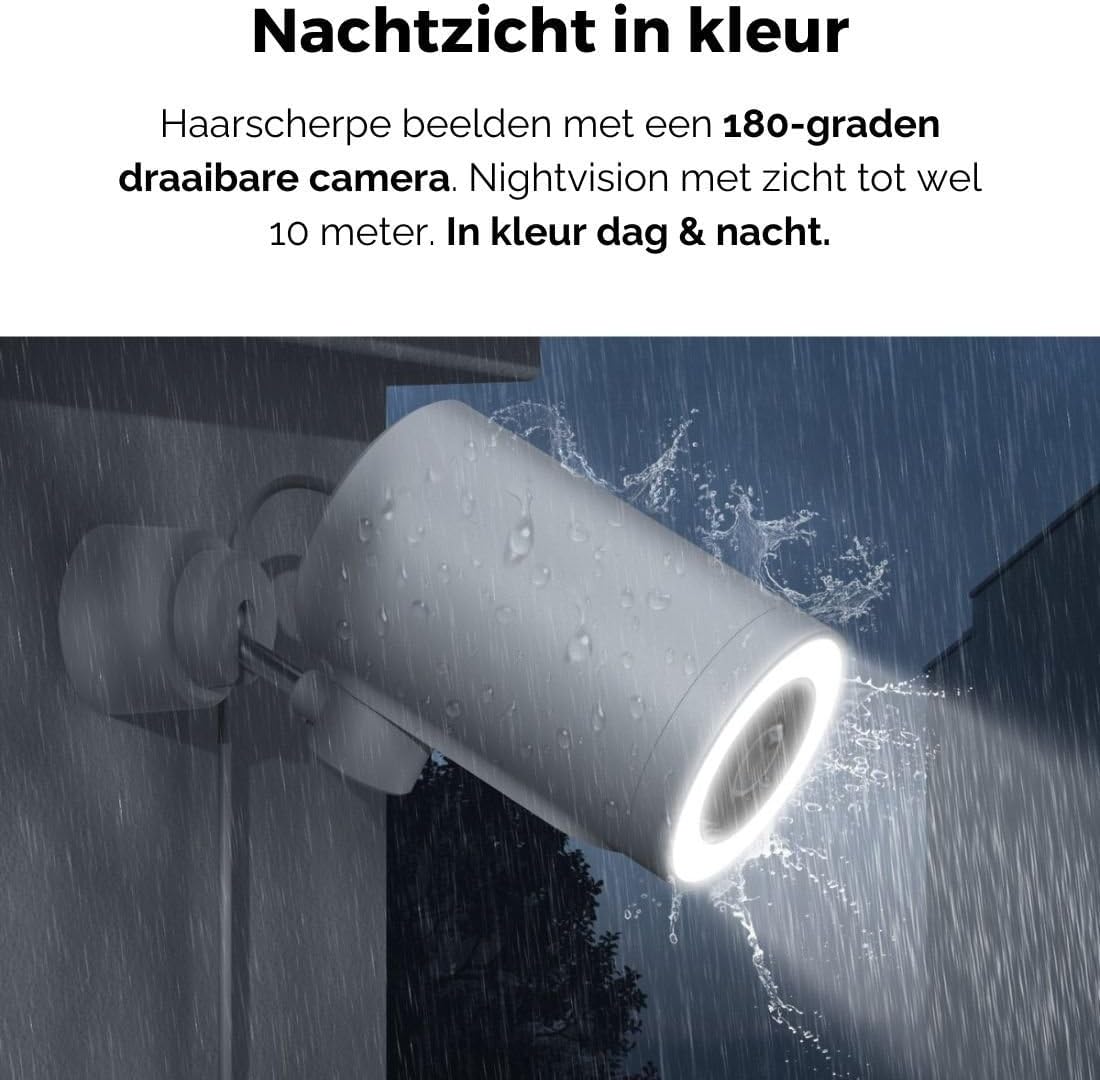
Figure 5: The camera's color night vision in action, providing clear images in the dark.
Išipopada ati Ohun erin
The camera is equipped with intelligent motion and sound detection. When activity is detected, you will receive instant notifications on your smartphone or tablet, allowing you to monitor your property effectively.
You can customize detection zones and sensitivity settings within the app to minimize false alarms.
Ìṣọ̀kan Olùrànlọ́wọ́ Google
The Agunto AGU-OC1 seamlessly integrates with Google Assistant. You can link your camera to Google Home and stream live footage to compatible devices such as Google Nest Hub or Chromecast-enabled displays by voice command.
Example aṣẹ: "Hey Google, fihan mi kamẹra ehinkunle."
Itoju
- Ninu: Fi rọra nu lẹnsi kamẹra ati ara pẹlu asọ ti o gbẹ. Maṣe lo awọn kẹmika ti o lewu tabi awọn afọmọ abrasive.
- Awọn imudojuiwọn sọfitiwia: Regularly check the Agunto Smart app for firmware updates. Keeping your camera's software up-to-date ensures optimal performance, security, and access to new features.
- Ayẹwo USB: Periodically inspect the USB-C cable for any signs of wear or damage, especially if exposed to outdoor elements.
Laasigbotitusita
| Isoro | Owun to le Solusan |
|---|---|
| Kamẹra ko ṣiṣẹ. | Check the USB-C cable connection and ensure the power adapter is plugged into a working outlet. Try a different outlet or adapter if available. |
| Ko le sopọ si Wi-Fi. | Ensure your Wi-Fi network is 2.4GHz. Check Wi-Fi signal strength at the camera's location. Restart your router and the camera. Re-attempt pairing through the app. |
| Didara fidio ti ko dara. | Clean the camera lens. Ensure adequate lighting. Check your internet connection speed. |
| Wiwa išipopada ko ṣiṣẹ. | Verify motion detection is enabled in the app settings. Adjust sensitivity and detection zones. Ensure there are no obstructions blocking the camera's view. |
| Awọn iwifunni ko gba. | Check app notification settings on your phone. Ensure the app has permission to send notifications. Verify your phone has an active internet connection. |
Awọn pato
| Ẹya ara ẹrọ | Ẹ̀kúnrẹ́rẹ́ |
|---|---|
| Nọmba awoṣe | AGU-OC1 |
| Ipinnu fidio ti o munadoko | 1080 awọn piksẹli |
| Ohun elo | Ṣiṣu |
| Wattage | 4 watt |
| Awọn Iwọn Nkan (L x W x H) | 10 x 4.4 x 7.3 centimeters |
| Iwọn Nkan | 78 giramu |
| Asopọmọra Technology | Wireless, Wired (USB-C) |
| Pataki Awọn ẹya ara ẹrọ | Night Vision (Color), Motion Detection, Sound Detection, 180-degree rotatable |
| Ayika Lilo | Ita gbangba |
| Awọn ẹrọ ibaramu | Smartphone (via Agunto Smart app), Google Assistant devices |
| Orisun agbara | Okun Itanna (USB-C) |
| Iṣagbesori Iru | Ògiri Ògiri |
Atilẹyin ọja ati Support
Agunto products are designed for reliability and performance. For information regarding warranty coverage, technical support, or service, please refer to the warranty card included with your product or visit the official Agunto website. You can also contact Agunto customer support through the contact information provided on their website or within the Agunto Smart app.
For the latest information and FAQs, please visit: Agunto Official Store