
1. Ifihan
Welcome to the Blackview Tab 16 user manual. This guide provides essential information for setting up, operating, maintaining, and troubleshooting your new Blackview Tab 16 Android tablet. Please read this manual carefully to ensure optimal performance and longevity of your device.

Àwòrán: Dúdúview Tab 16 tablet, showcasing awọn oniwe-aso oniru.
2. Ohun ti o wa ninu Apoti
Rii daju pe gbogbo awọn ohun kan wa ninu awọ dudu rẹview Tab 16 package:
- Duduview Tab 16 Tablet (x1)
- Itọsọna olumulo (x1)
- Ohun ti nmu badọgba agbara (x1)
- Okun USB (x1)
- Stylus (x1)
- TPU Protective Case (x1)
3. Ọja Ipariview
3.1 Ti ara Design
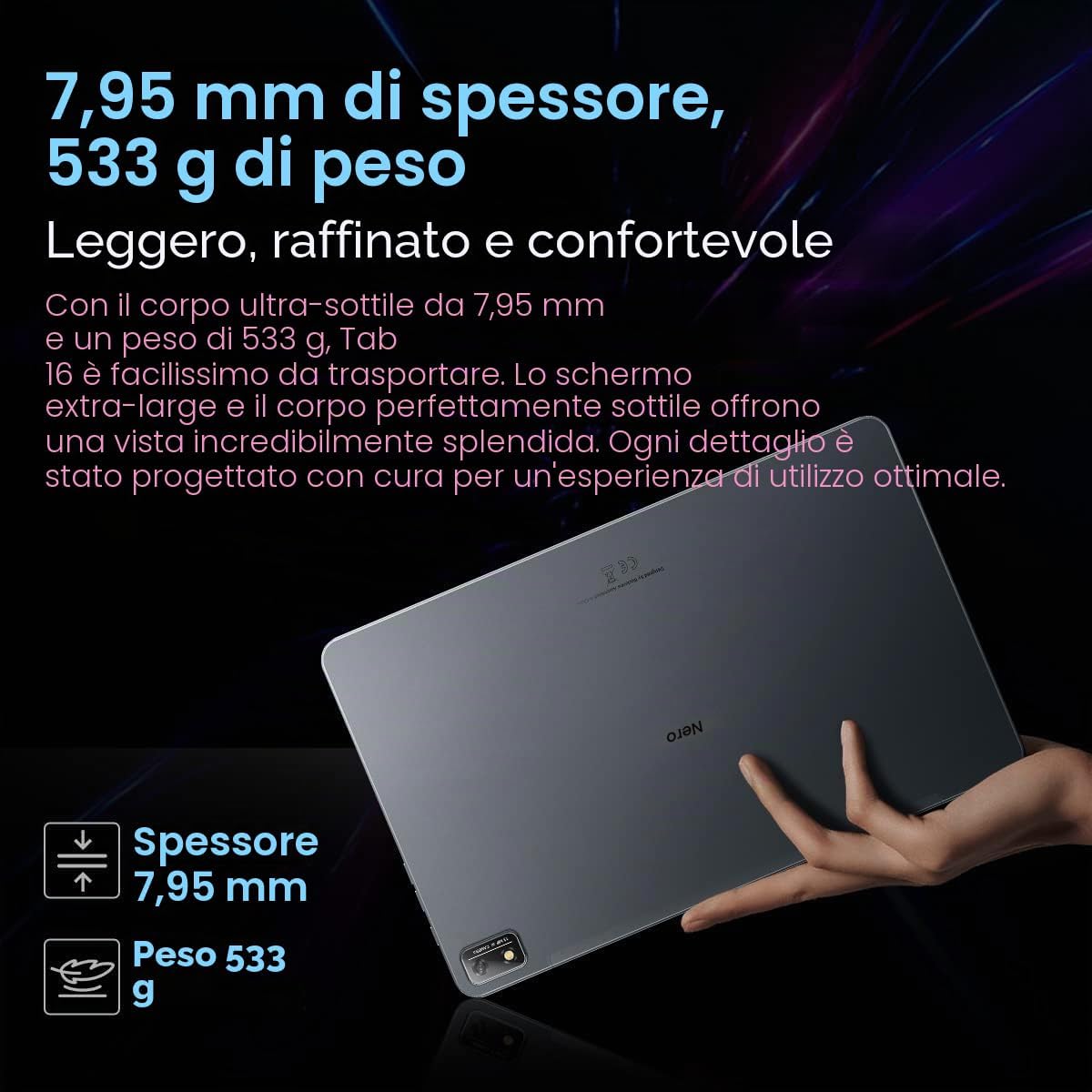
Awọn Blackview Tab 16 features a slim and lightweight design, making it highly portable for daily use.

Àwòrán: Dúdúview Tab 16, demonstrating its ultra-thin 7.95mm profile and light 533g weight.
3.2 Ifihan
Experience immersive visuals on the 11-inch 2K Full View IPS display, offering vibrant colors and wide viewing awọn igun.

Image: Visual representation of the 11-inch 2K Full View display, emphasizing its large screen for an enhanced viewiriri iriri.
3.3 Audio
The tablet is equipped with Quad-box Smart-K stereo speakers, providing rich and clear audio for all your multimedia needs.

Àwòrán: Dúdúview Tab 16 showcasing its Quad-box Smart-K speakers, designed for an immersive audio experience.
3.4 išẹ
Powered by an Octa-core Unisoc T616 processor, the Tab 16 ensures smooth operation and efficient multitasking.

Image: A visual representation of the Unisoc T616 Octa-core processor, highlighting its speed and efficiency.
3.5 Kamẹra
Capture moments with the 13MP AI rear camera and 8MP AI front camera. The integrated Google Smart Lens offers advanced scanning, detection, and translation features.

Àwòrán: Dúdúview Tab 16's camera system, featuring a 13MP AI camera and Google Smart Lens capabilities.
3.6 Batiri
The 7680mAh battery provides extended usage, supported by 18W fast charging for quick power-ups.

Image: Illustration of the Blackview Tab 16's 7680mAh battery and 18W fast charging capability.
4. Eto
4.1 Ngba agbara si Ẹrọ
Ṣaaju lilo akọkọ, gba agbara dudu rẹ ni kikunview Tab 16 using the provided power adapter and USB cable. Connect the USB cable to the tablet's Type-C port and the adapter to a power outlet. The charging indicator will show the charging status.
4.2 Titan / Pa a
- Lati Fi agbara: Tẹ bọtini agbara ki o si mu titi di duduview àmì náà yóò hàn lójú ìbòjú.
- Lati Paarẹ: Press and hold the Power button until a menu appears. Select "Power off" and confirm.
- Lati Tun bẹrẹ: Press and hold the Power button until a menu appears. Select "Restart" and confirm.
4.3 Ni ibẹrẹ Oṣo
Upon first power-on, follow the on-screen instructions to configure your tablet:
- Yan ede ti o fẹ.
- Sopọ si nẹtiwọki Wi-Fi kan.
- Wọle pẹlu akọọlẹ Google rẹ tabi ṣẹda tuntun kan.
- Set up screen lock (PIN, pattern, password, or facial recognition).
- Review ati ki o gba ofin ati ipo.
4.4 SIM and SD Card Installation
Awọn Blackview Tab 16 supports Dual SIM and an SD card for expanded storage up to 1TB.
- Locate the SIM/SD card tray on the side of the tablet.
- Lo ohun elo ejector SIM ti a pese lati ṣii atẹ.
- Carefully place your Nano-SIM cards and/or microSD card into the designated slots. Ensure correct orientation.
- Rọra Titari atẹ naa pada sinu tabulẹti titi ti o fi tẹ sinu aaye.
5. Awọn ilana Iṣiṣẹ
5.1 Ipilẹ Lilọ kiri
Awọn Blackview Tab 16 uses a touchscreen interface. Common gestures include:
- Fọwọ ba: Yan ohun kan tabi ṣii ohun elo kan.
- Ra: Yi lọ nipasẹ awọn oju-iwe tabi akoonu.
- Fun pọ: Sun-un sinu tabi jade lori awọn aworan ati web awọn oju-iwe.
- Long Tẹ: Wọle si awọn akojọ aṣayan ọrọ-ọrọ tabi gbe awọn aami.
5.2 Asopọmọra
- Wi-Fi: Lọ si Eto> Nẹtiwọọki & intanẹẹti> Wi-Fi lati sopọ si awọn nẹtiwọọki to wa.
- Mobile Data (4G/LTE): Ensure your SIM card is installed and mobile data is enabled in Settings > Network & internet > Mobile network.
- Bluetooth: Pair with Bluetooth devices (headphones, speakers) via Settings > Connected devices > Bluetooth.
5.3 kamẹra Lilo
Open the Camera app to take photos or record videos. Utilize the Google Smart Lens feature for advanced functions:
- Ṣayẹwo: Digitize documents or QR codes.
- Wadi: Identify objects, plants, or animals.
- Tumọ: Translate text in real-time.
5.4 Multimedia and Entertainment
Enjoy movies, music, and games on your Tab 16. The 11-inch 2K display and Quad-box speakers provide an engaging experience. The tablet supports Widevine L1 for high-definition streaming.
5.5 Productivity
Awọn Blackview Tab 16 is suitable for office work and online learning. It supports external accessories like keyboards and mice for a PC-like experience.
Àwòrán: Dúdúview Tab 16 paired with a keyboard and mouse, demonstrating its capability for a PC-like productivity experience.
5.6 Reading Modes
To reduce eye strain, the Tab 16 offers three eye protection modes, including a TÜV Rheinland Low Blue Light certified mode and a Dark Mode with 3 levels of darkness. Access these settings in the display options.
6. Itọju
6.1 Ninu ẹrọ naa
Lo aṣọ rirọ, ti ko ni lint lati nu iboju ati ara tabulẹti naa. Yẹra fun lilo awọn kemikali lile tabi awọn ohun elo ti o le ba oju naa jẹ.
6.2 batiri Itọju
Lati pẹ igbesi aye batiri:
- Yago fun awọn iwọn otutu to gaju.
- Má ṣe jẹ́ kí bátírì náà máa gbẹ pátápátá nígbà gbogbo.
- Lo ṣaja atilẹba ati okun.
6.3 Software imudojuiwọn
Regularly check for system updates to ensure your tablet has the latest features and security patches. Go to Settings > System > System update.
6.4 Ibi Management
Manage your 256GB internal storage and any installed microSD card by regularly deleting unnecessary files and uninstalling unused applications. Go to Settings > Storage.
7. Laasigbotitusita
Ti o ba pade awọn iṣoro pẹlu dudu rẹview Tab 16, refer to the following common solutions:
| Isoro | Owun to le Solusan |
|---|---|
| Ẹrọ naa ko ṣiṣẹ | Rii daju pe batiri ti gba agbara. Tẹ mọlẹ bọtini Agbara fun o kere ju 10-15 iṣẹju-aaya. |
| Tabulẹti ko gba agbara | Check the charging cable and adapter for damage. Try a different power outlet. Ensure the charging port is clean. |
| Awọn oran asopọ Wi-Fi | Restart the tablet and your Wi-Fi router. Forget the network and reconnect. Ensure you are within range. |
| Awọn ohun elo kọlu tabi didi | Close and reopen the app. Clear the app's cache (Settings > Apps > [App Name] > Storage & cache). Restart the tablet. |
| O lọra išẹ | Close background apps. Clear cache. Free up storage space. Restart the tablet. |
If problems persist, consider performing a factory reset (Settings > System > Reset options > Erase all data), but back up your data first as this will delete all personal information.
8. Awọn pato
Awọn alaye imọ-ẹrọ pataki fun Duduview Taabu 16:
- Orukọ awoṣe: Taabu 16
- Eto isesise: Android 12
- Olupilẹṣẹ: Unisoc T616 Octa-core (2 GHz)
- Ramu: 8 GB
- Ibi ipamọ inu: 256 GB
- Ibi ipamọ ti o gbooro: microSD soke si 1 TB
- Ifihan: 11-inch IPS 2K (2000 x 1200), 60 Hz, 16:10 aspect ratio
- Kamẹra Tẹhin: 13 MP
- Kamẹra iwaju: 8 MP
- Batiri: 7680 mAh (26 hours average duration)
- Gbigba agbara: 18W Yara Ngba agbara
- Asopọmọra: Wi-Fi, Bluetooth, 4G/LTE (Dual SIM), GPS
- Awọn ibudo: USB Iru-C
- Awọn iwọn: 26L x 16.5W x 0.8H cm
- Ìwúwo: 533 g
- Awọn ẹya pataki: Google Smart Lens, Widevine L1 1080P Support, 3 Reading Modes
9. Atilẹyin ọja ati Support
Dudu rẹview Tab 16 is covered by a manufacturer's warranty. Please refer to the warranty card included in your package for specific terms and conditions. For technical support or service inquiries, please visit the official Blackview webojula tabi kan si wọn onibara iṣẹ Eka. Tọju iwe-ẹri rira rẹ bi ẹri rira fun awọn iṣeduro atilẹyin ọja.
Fun alaye siwaju sii, o le ṣàbẹwò awọn Duduview Ṣọ́jà lórí Amazon.