
1. Ifihan
This manual provides essential instructions for setting up, operating, maintaining, and troubleshooting your Google Pixel 7 Pro GE2AE smartphone. Please read this guide thoroughly to ensure proper use and to maximize your device's capabilities.

Image: Google Pixel 7 Pro smartphone.
2. Ohun ti o wa ninu Apoti
Upon unboxing your Google Pixel 7 Pro, verify that the following items are included:
- Google Pixel 7 Pro Foonuiyara
- Adapter agbara
- SIM Atẹ ejector Ọpa
- Okun USB (USB-C si USB-C)
Note: As a renewed product, accessories may be generic but are fully functional.
3. Eto
3.1. Fi kaadi SIM sii
- Locate the SIM card tray on the side of your Pixel 7 Pro.
- Fi SIM atẹ ejector ọpa sinu kekere iho tókàn si awọn atẹ ki o si tẹ ṣinṣin titi ti atẹ yoo jade.
- Fi nano-SIM kaadi rẹ sinu atẹ pẹlu awọn ohun ti nmu badọgba ti nkọju si isalẹ.
- Fi iṣọra tun fi kaadi SIM sii sinu foonu naa.
3.2. Agbara Lori ati Eto Ibẹrẹ
- Tẹ mọlẹ bọtini agbara (ti o wa ni apa ọtun) titi aami Google yoo han.
- Tẹle awọn itọnisọna loju iboju lati yan ede rẹ, sopọ si nẹtiwọki Wi-Fi, ati gba awọn ofin ati ipo.
- Wọlé pẹ̀lú àkọọ́lẹ̀ Google rẹ tàbí ṣẹ̀dá tuntun kan. Èyí ṣe pàtàkì fún wíwọlé sí àwọn iṣẹ́ Google àti Play Store.
- Transfer data from an old device (optional) or set up as a new device.
- Set up security features such as fingerprint unlock or face unlock.
4. Ṣiṣẹ ẹrọ rẹ
4.1. Ipilẹ Lilọ kiri
- Iboju ile: Swipe up from the bottom to access the app drawer. Swipe left or right to navigate between home screens.
- Awọn iwifunni & Eto Yara: Ra isalẹ lati oke iboju si view awọn iwifunni ati wọle si awọn eto iyara toggles.
- Iṣẹ-ṣiṣe pupọ: Rọ sókè láti ìsàlẹ̀ kí o sì di mọ́ view recent apps. Swipe left or right to switch between them, or swipe up on an app to close it.
- Ìfarahàn ẹ̀yìn: Swipe inward from the left or right edge of the screen to go back.
4.2. Awọn ẹya ara ẹrọ kamẹra
The Pixel 7 Pro features an advanced camera system with a telephoto lens and various modes:
- Idojukọ Makiro: Automatically engages when you get close to a subject, allowing for detailed close-up shots.
- Idarudapọ Cinematic: Adds a shallow depth of field effect to videos, blurring the background for a professional look.
- Ìran Alẹ́: Ṣe ilọsiwaju awọn fọto ti o ya ni awọn ipo ina kekere.
- Photo Unblur: Improves blurry photos using Google Tensor G2 processing.
4.3. Iṣakoso batiri
The Pixel 7 Pro is equipped with a 5000 mAh battery. To optimize battery life:
- Enable Adaptive Battery in Settings > Battery.
- Din imọlẹ iboju tabi mu Imọlẹ Adaptive ṣiṣẹ.
- Limit background app activity for less frequently used applications.
- Use Battery Saver mode when battery is low.
5. Itọju
5.1. Ninu Rẹ Device
- Lo asọ ti ko ni lint lati nu iboju ati ara.
- Yago fun awọn ohun elo abrasive tabi awọn kemikali lile.
- Fun agidi smudges, die-die dampen awọn asọ pẹlu omi.
5.2. Software imudojuiwọn
Máa ṣàyẹ̀wò kí o sì fi àwọn àtúnṣe sọ́fítíwètì sí i déédéé láti rí i dájú pé ẹ̀rọ rẹ ní àwọn ẹ̀yà tuntun, àwọn àtúnṣe ààbò, àti àwọn àtúnṣe iṣẹ́. Lọ sí Ètò > Ètò > Àtúnṣe sọ́fíètì.
5.3. Itọju batiri
To prolong battery lifespan, avoid extreme temperatures and do not leave the device fully charged or fully discharged for extended periods.
6. Laasigbotitusita
6.1. Awọn ọrọ ti o wọpọ
- Ẹrọ Ko Dahun: Tẹ mọlẹ bọtini Agbara fun bii iṣẹju-aaya 30 lati fi ipa mu tun bẹrẹ.
- Connectivity Problems (Wi-Fi/5G): Try toggling Wi-Fi or cellular data off and on. Restart your device. For Wi-Fi, forget the network and reconnect.
- Ohun elo jamba: Ko kaṣe app ati data rẹ kuro ninu Eto> Awọn ohun elo. Ti ọrọ naa ba tẹsiwaju, yọ kuro ki o tun fi ohun elo naa sori ẹrọ.
- Sisun Batiri Ni kiakia: Review battery usage in Settings > Battery to identify apps consuming excessive power. Adjust settings as needed.
6.2. Atunto ile-iṣẹ
If you encounter persistent issues, a factory reset may resolve them. Ikilọ: This will erase all data on your device. Back up important information before proceeding. Go to Settings > System > Reset options > Erase all data (factory reset).
7. Awọn pato
| Ẹya ara ẹrọ | Ẹ̀kúnrẹ́rẹ́ |
|---|---|
| Orukọ awoṣe | Google Pixel 7 Pro |
| Eto isesise | Android |
| Iwon iboju | 6.7 inches |
| Ipinnu | 3120 x 1440 |
| Oṣuwọn sọtun | 120 Hz |
| Àgbo | 8 GB |
| Ibi ipamọ inu | 128 GB |
| Cellular Technology | 5G |
| Alailowaya ti ngbe | T-Mobile (Locked) |
| Batiri Power Rating | 5000 Milionuamp Awọn wakati |
| Foonu Ọrọ Time | Awọn wakati 31 |
| Awọn ọna ẹrọ Asopọmọra | Wi-Fi, GPS |
| Awọn ẹya ara ẹrọ kamẹra miiran | Front, Rear (with Telephoto lens, Macro Focus, Cinematic Blur) |
| Jack ohun | Ko si jaketi agbekọri |
| Fọọmù ifosiwewe | Foonuiyara |
| Àwọ̀ | Obsidian |
8. Product Condition (Renewed)
This Google Pixel 7 Pro is an Amazon Renewed product. All Amazon Renewed products are fully functional and come with generic or original accessories and packaging. The condition of renewed products is categorized as follows:
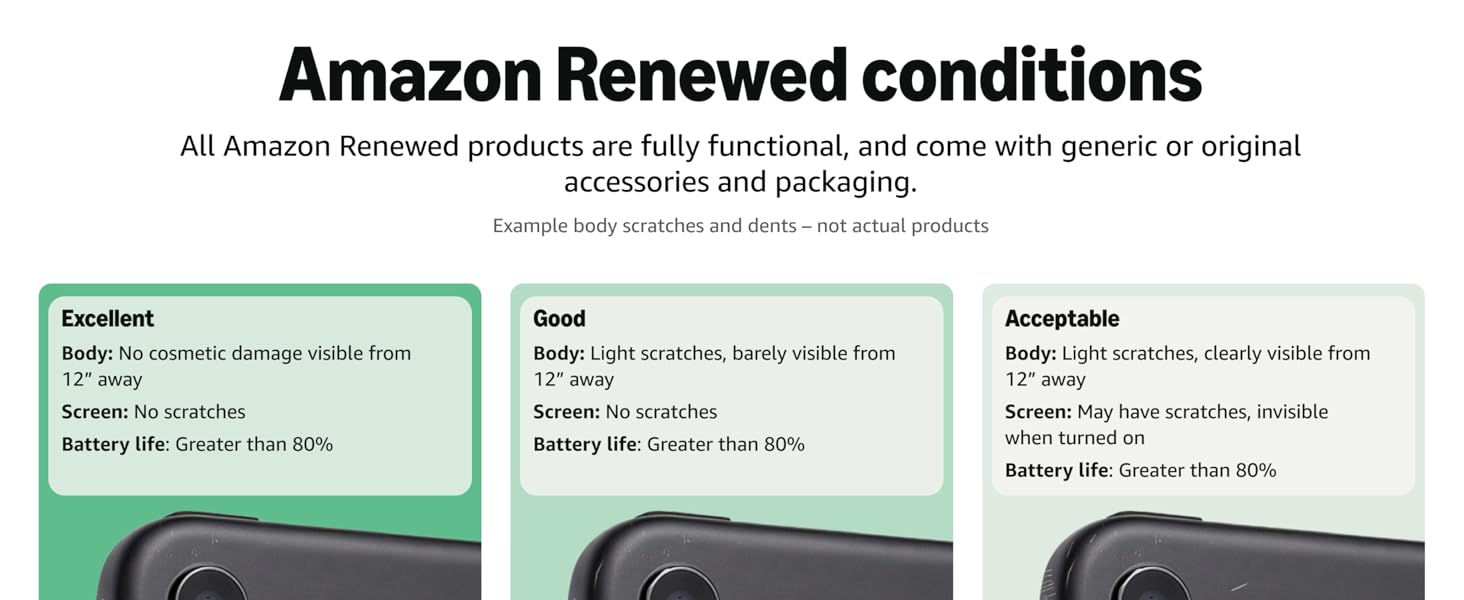
Image: Amazon Renewed conditions for electronic devices.
- O dara julọ: No cosmetic damage visible from 12 inches away. Screen has no scratches. Battery life is greater than 80%.
- O dara: Light scratches, barely visible from 12 inches away. Screen has no scratches. Battery life is greater than 80%.
- Itewogba: Light scratches, clearly visible from 12 inches away. Screen may have scratches, invisible when turned on. Battery life is greater than 80%.
9. Atilẹyin ọja ati Support
For information regarding warranty coverage for your renewed Google Pixel 7 Pro, please refer to the documentation provided at the time of purchase or contact the seller directly. For technical support and further assistance with your Google Pixel device, visit the official Google Support webojula.