
Mio MiVue 955W
Mio MiVue 955W Dashcam Olumulo olumulo
Model: MiVue 955W | Brand: Mio
Ọrọ Iṣaaju
This manual provides detailed instructions for the installation, operation, maintenance, and troubleshooting of your Mio MiVue 955W Dashcam. Designed for superior vehicle recording, this dashcam features 4K Ultra HD resolution, 2.5K HDR for enhanced clarity, integrated Wi-Fi for real-time data transfer, GPS for location tracking and speed camera alerts, and a Smart Parking Mode for continuous surveillance.

olusin 1: Iwaju view of the Mio MiVue 955W Dashcam, showcasing awọn oniwe-iwapọ oniru ati lẹnsi.
Package Awọn akoonu
Jọwọ rii daju pe gbogbo awọn ohun kan wa ninu apo rẹ:
- Mio MiVue 955W Dashcam Unit
- Vehicle Power Cable
- Mounting Bracket (Adhesive or Suction Cup, depending on model variant)
- Afowoyi Olumulo (iwe-ipamọ yii)
- Other accessories as specified on the product packaging

Figure 2: The retail packaging for the Mio MiVue 955W Dashcam, indicating included components.
Ṣeto
1. Fifi kaadi iranti sii
The MiVue 955W requires a microSD card (Class 10 or higher, U3 recommended) for recording. Insert the card into the designated slot until it clicks into place. Pataki: The dashcam supports memory cards up to 256GB. Using cards with higher capacities may lead to compatibility issues or data corruption.
2. Iṣagbesori Dashcam
Yan ipo kan lori ferese afẹfẹ rẹ ti ko ṣe idiwọ rẹ view ti opopona. Ni deede, eyi wa lẹhin ẹhinview mirror. Clean the windshield surface thoroughly before applying the adhesive mount. Ensure the lens has a clear view ti opopona wa niwaju.
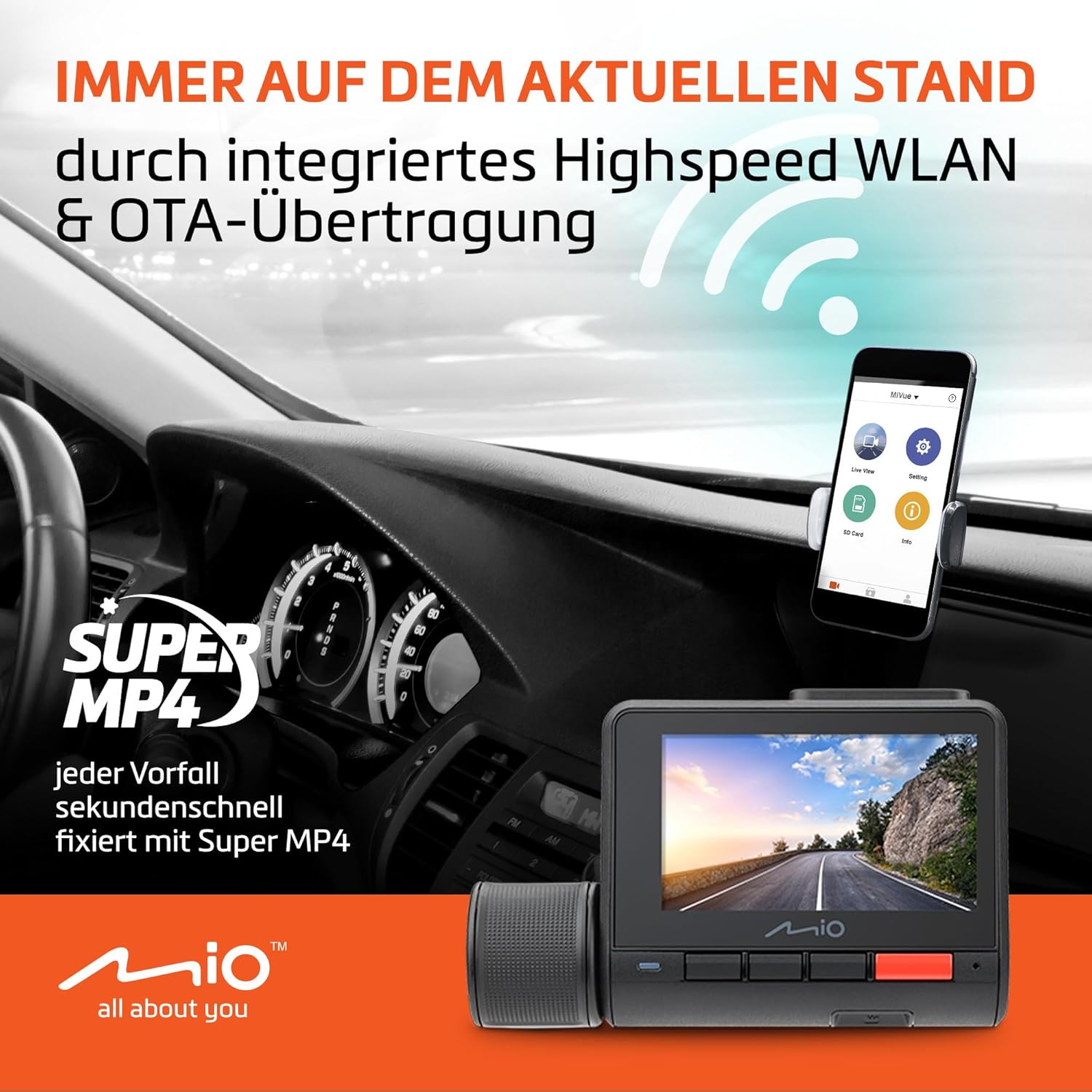
Figure 3: The dashcam installed on a vehicle's windshield, demonstrating its discreet placement and connectivity with a smartphone app.
3. Asopọ agbara
Connect the provided vehicle power cable to the dashcam's power input port and then to your vehicle's 12V power outlet (cigarette lighter socket). For optimal cable management, route the cable along the edge of the windshield and dashboard to avoid interference with driving controls.
Awọn ilana Iṣiṣẹ
1. Gbigbasilẹ laifọwọyi
Once connected to power, the MiVue 955W will automatically power on and begin recording when your vehicle starts. Recording will stop automatically when the vehicle is turned off and power is disconnected.
2. Dídára Fídíò àti Àwọn Ẹ̀yà Ara Rẹ̀
- 4K Ultra HD Ipinnu: Provides exceptionally clear and detailed video recordings, even in low-light conditions.
- 2.5K HDR: High Dynamic Range technology ensures balanced exposure, capturing crucial details in both bright and dark areas of the scene. The 140° wide-angle lens captures a broad view ti opopona.
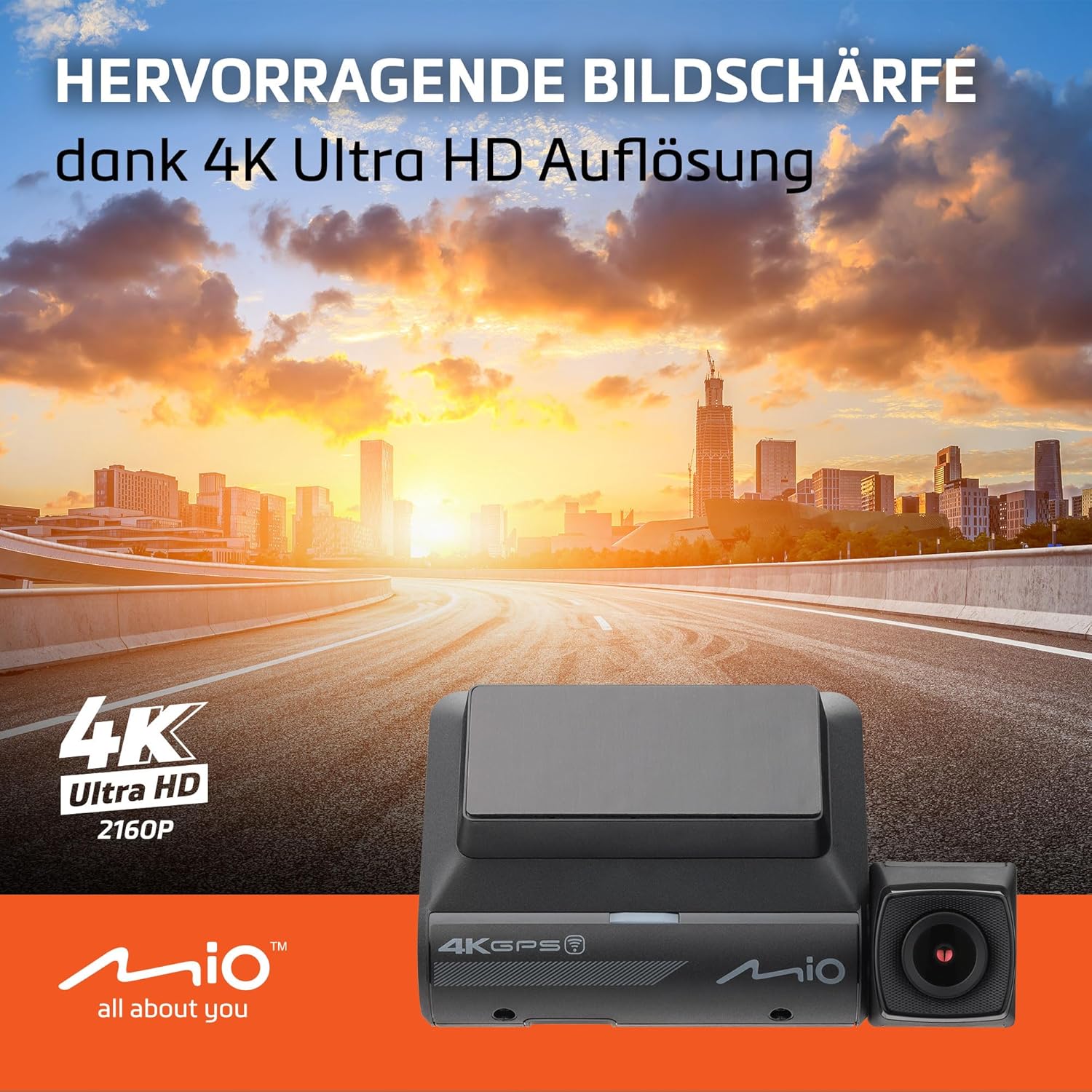
Figure 4: Illustrates the superior image sharpness achieved with 4K Ultra HD resolution, even in challenging lighting.

Figure 5: Demonstrates the comprehensive coverage of the 140° wide-angle lens and the clarity provided by 2.5K HDR technology.

Figure 6: Visual comparison showing the improvement in image clarity and detail when HDR+ is enabled, particularly in bright or low-light conditions.
3. Wi-Fi Connectivity and OTA Updates
The integrated high-speed Wi-Fi allows for real-time backup of recordings to your smartphone via the Mio MiVue app. Over-The-Air (OTA) updates ensure your dashcam's firmware is always current, providing the latest features and improvements.
4. GPS and Speed Camera Alerts
The built-in GPS tracker provides accurate location data for your recordings and enables precise speed camera alerts. This feature helps you stay aware of speed limits and potential hazards. Akiyesi: Speed camera alerts are not active in Germany, France, Switzerland, and Turkey due to local regulations.

Figure 7: Depicts the GPS functionality providing speed camera alerts, enhancing driver awareness.

Figure 8: An illustration demonstrating how the dashcam detects and alerts for speed cameras on the road.
5. Smart Parking Mode
When your vehicle is parked, the Smart Parking Mode provides continuous surveillance, recording events even in your absence. This feature requires the Mio SmartBox III (sold separately) for continuous power supply.

Figure 9: Illustrates the Smart Parking Mode, which monitors your vehicle while parked, requiring the SmartBox III for operation.

Figure 10: A visual representation of the parking mode warning, indicating active surveillance.
6. Iṣakoso ohun
The MiVue 955W supports voice commands, allowing you to control certain functions without taking your hands off the steering wheel. Refer to the on-screen prompts or the MiVue app for available voice commands.
Itoju
1. Iṣakoso kaadi iranti
Regularly format your microSD card (at least once a month) using the dashcam's menu to ensure optimal performance and prevent data corruption. Replace the memory card if you experience frequent errors or degraded performance.
2. Awọn imudojuiwọn famuwia
Keep your dashcam's firmware updated to benefit from the latest features, bug fixes, and performance enhancements. Firmware updates can be performed via the MiVue app (OTA) or by downloading the update file from the Mio website and installing it via the microSD card.
3. Ninu ẹrọ
Use a soft, dry cloth to clean the dashcam's body. For the lens, use a specialized lens cleaning cloth to avoid scratches. Do not use abrasive cleaners or solvents.
Laasigbotitusita
| Isoro | Owun to le Fa | Ojutu |
|---|---|---|
| Dashcam ko ni agbara lori. | No power supply; faulty cable; vehicle power outlet issue. | Check power cable connection. Test vehicle power outlet with another device. Try a different power cable if available. |
| "SD card too old" or "Card error" message. | Incompatible or corrupted memory card; card capacity too large. | Ensure card is Class 10/U3 and max 256GB. Format the card in the dashcam. Try a new, reputable brand microSD card. |
| Wi-Fi connection issues with app. | Incorrect Wi-Fi settings; app not updated; phone network interference. | Ensure dashcam Wi-Fi is enabled. Restart both dashcam and phone. Update MiVue app. Temporarily disable mobile data on phone during connection. |
| Didara fidio ti ko dara. | Dirty lens; incorrect settings; low light conditions. | Clean the lens. Check video resolution settings in the dashcam menu. Ensure HDR is enabled for challenging light. |
| GPS signal not found quickly. | Idilọwọ view of sky; initial cold start. | Ensure dashcam has clear view of the sky. Initial GPS lock can take a few minutes after first power-on or long periods of inactivity. |
Awọn pato
- Awoṣe: MiVue 955W
- Ipinnu fidio: 4K Ultra HD (2160P), 2.5K HDR (1440P)
- Lẹnsi: 140° Wide Igun
- Sensọ: Large sensor for enhanced low-light performance
- Asopọmọra: High-speed Wi-Fi, GPS
- Awọn ẹya: Smart Parking Mode (requires SmartBox III), Voice Control, Speed Camera Alerts (region-dependent)
- Awọn iwọn (L x W x H): 40 x 62 x 103 mm
- Ohun elo: Irin paati
- Awọn iwe-ẹri: CE
- Kaadi Iranti atilẹyin: MicroSD, Class 10/U3, up to 256GB

Figure 11: Illustrates the visual difference between various video resolutions, highlighting the clarity of 4K Ultra HD.
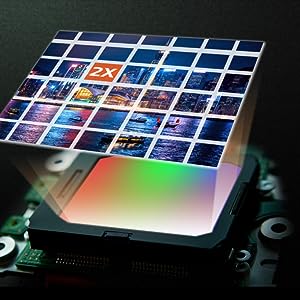
Figure 12: A diagram showing the larger sensor size, which contributes to improved image quality, especially in low light.
Atilẹyin ọja ati Support
Mio products are designed and manufactured to the highest quality standards. For information regarding warranty coverage, please refer to the warranty card included with your product or visit the official Mio website. For technical support, frequently asked questions, and driver/firmware downloads, please visit the Mio support page:
Please have your product model (MiVue 955W) and serial number ready when contacting support.
Ask a question about this manual
Ask about setup, troubleshooting, compatibility, parts, safety, or missing instructions. Manuals+ will review the question and use this page’s manual context to help answer it.