
1. Ifihan
This manual provides essential information for the proper installation, operation, and maintenance of your ENDORFY Arx 500 ARGB ATX Computer Case. Please read this manual thoroughly before beginning installation to ensure optimal performance and safety.
The ENDORFY Arx 500 ARGB is a high-performance ATX computer case designed for efficient cooling and spacious component compatibility. Key features include:
- Tempered glass side panel for showcasing awọn eroja inu.
- Spacious interior for easy component installation and cable management.
- Compatibility with various radiator sizes for advanced cooling solutions.
- Airy and easily accessible front panel for optimal airflow.
- Efficient cooling design to maintain low component temperatures.
- Convenient cable management features for a clean build.
2. Alaye Aabo
Please observe the following safety precautions to prevent damage to the product or injury to yourself.
- Ge asopọ agbara: Always disconnect the power supply from the wall outlet before installing or removing any components inside the computer case.
- Ina Aimi: Wear an anti-static wrist strap or frequently touch a grounded metal object to discharge static electricity before handling internal components.
- Awọn Ipari Din: Be cautious of sharp edges inside the case during installation.
- Gilasi ibinu: Handle the tempered glass side panel with care. It is fragile and can break if dropped or subjected to impact. Place it on a soft, flat surface when removed.
- Afẹfẹ: Ensure adequate ventilation around the case to prevent overheating. Do not block air vents.
- Olubasọrọ olomi: Keep the computer case away from liquids and moisture.
3. Package Awọn akoonu
Rí i dájú pé gbogbo àwọn ohun èlò wà nínú àpò rẹ. Tí àwọn ohun èlò kan bá sọnù tàbí tí wọ́n bá bàjẹ́, kan sí olùtajà rẹ.
- ENDORFY Arx 500 ARGB ATX Computer Case
- 4 x 140 mm ARGB Fans (pre-installed)
- Accessory Box (containing screws, cable ties, and other mounting hardware)
- Afowoyi Olumulo (iwe-ipamọ yii)

olusin 3.1: exploded view showing the computer case, fans, and various panels.
4. Eto ati fifi sori
Follow these steps to install your components into the ENDORFY Arx 500 ARGB case.
4.1 Ngbaradi Ọran naa
- Yọ Awọn Paneli ẹgbẹ kuro: Carefully remove the tempered glass side panel and the solid metal side panel. Place them on a soft, non-abrasive surface to prevent scratches.
- Apoti Ẹya: Locate the accessory box inside the case, which contains all necessary screws and mounting hardware.
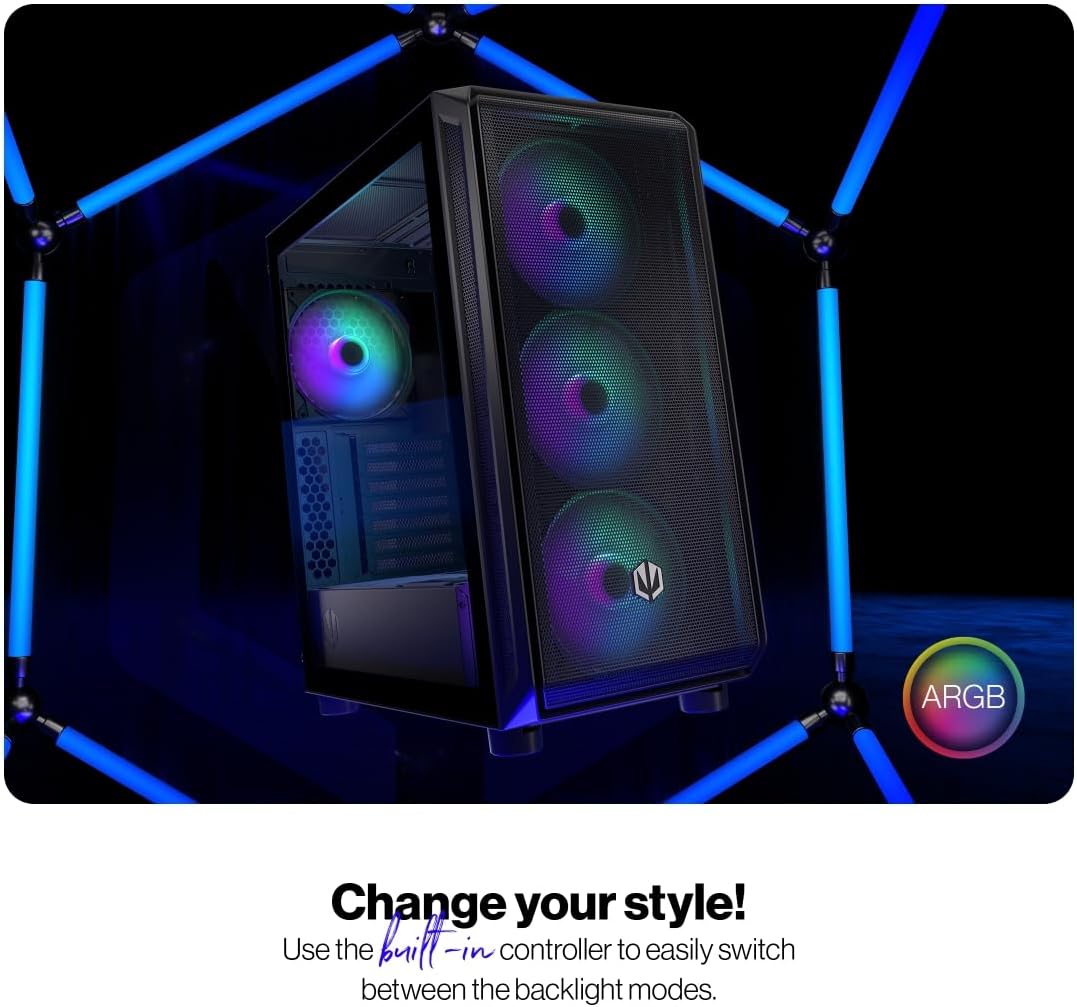
Figure 4.1: The tempered glass side panel allows for a clear view ti abẹnu irinše.
4.2 Fifi sori modaboudu
- Fi sori ẹrọ Awọn iduro: Ensure the correct standoffs are installed for your ATX motherboard. The case supports ATX motherboards.
- Modaboudu Oke: Carefully place your motherboard onto the standoffs and secure it with the provided screws.

Àwòrán 4.2: Inu ilohunsoke aláyè gbígbòòrò náà pese ample room for motherboard and other component installation.
4.3 Power Supply and Storage Installation
- Ibi ti ina elekitiriki ti nwa: Install your power supply unit (PSU) into the dedicated bottom mount area. Secure it with screws from the rear of the case.
- Awọn awakọ ipamọ: Install your 2.5" SSDs or 3.5" HDDs into the designated drive bays. Refer to the case's internal structure for specific mounting points.
4.4 Graphics Card and Expansion Cards
- Yọ Awọn ideri Iho kuro: Yọ awọn ideri iho PCI-E pataki kuro ni ẹhin apoti naa.
- Fi Awọn kaadi sii: Insert your graphics card and other expansion cards into the motherboard's PCI-E slots and secure them with screws.
4.5 Cooling System (Fans and Radiators)
The case comes with 4 pre-installed 140mm ARGB fans. Additional fans or radiators can be installed for enhanced cooling.
- Fan Capacity: The case accommodates up to 7 fans.
- Ibamu Radiator: The design supports various radiator sizes for liquid cooling solutions.

Figure 4.3: The case features pre-installed 140mm ARGB fans for optimal airflow.

Figure 4.4: Perforated front and top panels ensure maximum airflow and dust protection.
4.6 USB Management
Utilize the dedicated cable management space and tie-down points behind the motherboard tray to route and secure cables for a clean build and improved airflow.
4.7 Iwaju Mo / Eyin Panel Awọn isopọ
Connect the front panel cables (USB, audio, power, reset, LEDs) to the corresponding headers on your motherboard. Refer to your motherboard manual for header locations.

Figure 4.5: Front I/O panel with USB-C, USB-A, headphone, microphone, reset, and power buttons/LEDs.
- Ibudo USB-C: Connects to a USB 3.x Type-C header on your motherboard.
- Awọn ibudo USB-A: Connects to USB 3.x and USB 2.0 headers on your motherboard.
- Headphones Port: Connects to the audio header on your motherboard.
- Ibudo gbohungbohun: Connects to the audio header on your motherboard.
- Bọtini atunto: Connects to the reset header on your motherboard.
- LED agbara: Connects to the power LED header on your motherboard.
- Storage Activity LED: Connects to the HDD LED header on your motherboard.
- Bọtini agbara: Connects to the power switch header on your motherboard.
5. Awọn ilana Iṣiṣẹ
Ni kete ti gbogbo awọn paati ti fi sii ati ti sopọ, o le fi agbara sori ẹrọ rẹ.
- Agbara Tan: Press the Power Button on the front I/O panel to turn on your computer. The Power LED will illuminate.
- ARGB Fan Control: The pre-installed ARGB fans can be controlled via a built-in controller or synchronized with compatible motherboard software. Use the built-in controller to switch between various backlight modes.

Figure 5.1: The ARGB fans offer customizable lighting effects, controlled via the built-in controller.
6. Itọju
Regular maintenance helps ensure optimal performance and longevity of your computer case and components.
- Awọn Ajọ Eruku: Lokọọkan yọkuro ati nu awọn asẹ eruku ti o wa ni iwaju, oke, ati isalẹ ọran naa. Lo afẹfẹ fisinuirindigbindigbin tabi fẹlẹ rirọ lati yọ eruku ti a kojọpọ kuro.
- Ode Ninu: Nu awọn oju ita ti apoti naa pẹlu asọ ti o rọ, damp asọ. Yago fun abrasive ose tabi epo.
- Ninu inu: With the system powered off and unplugged, use compressed air to gently remove dust from internal components and fan blades.
- Gilasi ibinu: Clean the tempered glass panel with a microfiber cloth and a glass cleaner designed for electronics.
7. Laasigbotitusita
If you encounter issues with your computer case, refer to the following common troubleshooting steps.
- Eto Ko Titan:
- Ensure the power supply is properly connected to the wall outlet and switched on.
- Verify all power cables from the PSU are correctly connected to the motherboard and components.
- Check that the front panel power button cable is correctly connected to the motherboard's power header.
- Àwọn Fẹ́ẹ́rẹ́ Kò Ń Yí/ARGB Kò Ń Mọ́lẹ̀:
- Ensure fan power cables are securely connected to the fan hub or motherboard headers.
- Verify ARGB cables are connected to the built-in controller or motherboard ARGB header.
- Check the built-in controller or motherboard software for fan speed and lighting settings.
- Front USB/Audio Ports Not Working:
- Confirm that the front panel USB and audio cables are correctly connected to the corresponding headers on your motherboard.
- Ensure motherboard drivers for USB and audio are installed.
If problems persist, consult your motherboard manual or contact ENDORFY customer support.
8. Awọn pato
| Ẹya ara ẹrọ | Ẹ̀kúnrẹ́rẹ́ |
|---|---|
| Brand | ENDORFY |
| jara | Arx 500 ARGB |
| Nọmba awoṣe | EY2A011 |
| Iru Irú | Ile-iṣọ Midi |
| Modaboudu Ibamu | ATX |
| Awọn iwọn (LxWxH) | 16.89 x 8.98 x 19.13 inches (429 x 228 x 486 mm) |
| Iwọn Nkan | 16.5 iwon |
| Ohun elo | Tempered Glass (side panel) |
| Ọna Itutu | Afẹfẹ |
| Awọn onijakidijagan to wa | 4 x 140 mm ARGB fans |
| Fan Iwon | 140 millimeters |
| Agbara Ipese Iṣagbesori Iru | Isalẹ Oke |
| Iwaju Awọn Ibudo I / O | 2x USB 2.0, 1x USB-C, 1x Headphone, 1x Microphone, Reset Button, Power Button |

Figure 8.1: Front dimensions (228 mm width).

Figure 8.2: Side dimensions (429 mm depth, 486 mm height).
9. Atilẹyin ọja ati Support
For warranty information, technical support, or further assistance, please visit the official ENDORFY webaaye ayelujara tabi kan si alagbata agbegbe rẹ.