
1. Ifihan
The AUSDOM Airkey84 is a compact 75% mechanical keyboard designed for versatility and comfort. It features an 84-key layout, retaining essential arrow and function keys while saving desktop space. This keyboard offers triple connectivity modes: USB-C wired, Bluetooth 3.0/5.0, and 2.4GHz wireless, allowing connection to up to four devices. Equipped with low-profile brown switches, it provides a tactile typing experience suitable for both office work and gaming. The keyboard also includes 14 white LED backlight modes and is compatible with both Mac OS and Windows operating systems.
2. Ohun ti o wa ninu Apoti
- 1 x Low-profile Keyboard ẹrọ
- 1 x Okun USB
- 1 x Olugba USB
- 1 x Itọsọna olumulo
- 3 x Extra Keycaps for Windows
3. Eto
3.1 Awọn ọna Asopọmọra
The AUSDOM Airkey84 supports three connection methods: Bluetooth, 2.4GHz wireless, and USB-C wired. It can connect to up to four devices simultaneously and switch between them.

Image: The keyboard supports 2.4G, Bluetooth, and Wired connections, enabling multi-device pairing.
3.1.1 Bluetooth Connection Mode
- Turn the power button on the keyboard to ON.
- Tẹ mọlẹ Fn + BT1 keycaps for 3-5 seconds. The keyboard will enter pairing mode, and the keys' backlight indicator will flash rapidly.
- On your device (e.g., computer, tablet, smartphone), turn on its Bluetooth function. Wa fun and select "AUSDOM Airkey84" to pair.
- Repeat steps 2 and 3 for BT2 and BT3 to connect up to three Bluetooth devices.
3.1.2 2.4GHz USB Connection Mode
- Turn the power button on the keyboard to ON.
- Tẹ awọn fn+4 key once to switch to 2.4GHz USB connection mode.
- Plug the USB receiver into your device's USB port. The keyboard should connect automatically.
3.1.3 Ipo Asopọ USB-C
- Turn the power button on the keyboard to PAA.
- So keyboard pọ mọ ẹrọ rẹ nipa lilo okun USB-C ti a pese. Awọn bọtini itẹwe yoo yipada laifọwọyi si ipo ti firanṣẹ.

Image: The keyboard connected via USB-C cable, also showing its rechargeable capability.
3.2 Ibamu
The keyboard is compatible with both Mac OS and Windows operating systems. Three extra keycaps are provided for Windows users to customize their layout.
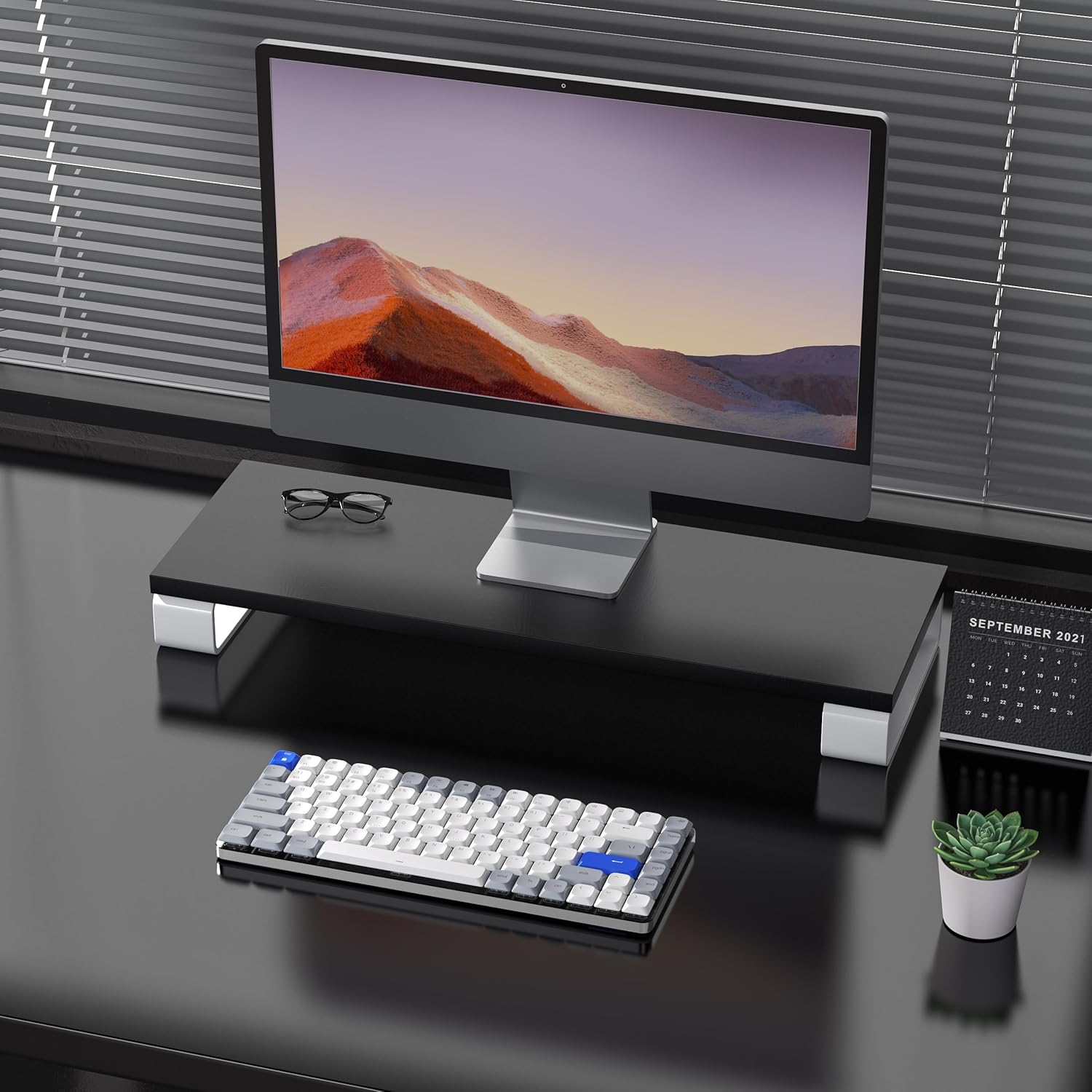
Image: The keyboard is compatible with both Mac and Windows systems, and includes extra keycaps for Windows users.
4. Awọn ilana Iṣiṣẹ
4.1 Backlight Iṣakoso
The keyboard features 14 different white LED backlight modes. To cycle through these modes, press the dedicated lightbulb button located in the top right corner of the keyboard. The keycaps are laser-engraved to ensure clear visibility of characters with the backlight on.

Image: The keyboard displaying its white backlight with 14 different lighting options.
4.2 Awọn iduro ti o le ṣatunṣe
The keyboard is equipped with two adjustable stands on the back. These stands allow you to set the keyboard at a comfortable typing angle (e.g., 3 or 6 degrees) to reduce wrist strain during extended use.

Image: The keyboard's ultra-slim aluminum frame and ergonomic design with adjustable feet.
4.3 Low-Profile Àwọn Ìyípadà Àwọ̀ Aláwọ̀
The keyboard utilizes low-profile brown switches, which offer a tactile bump without a loud click. This design provides a comfortable and responsive typing experience, ideal for both fast typing and gaming.

Image: A close-up of the low-profile brown switches, highlighting their design for comfortable and effortless typing.
5. Itọju
5.1 Ninu
- To clean the keyboard, power it off and disconnect any cables.
- Lo asọ asọ, ti ko ni lint die-die dampened pẹlu omi tabi a ìwọnba ninu ojutu lati mu ese awọn keycaps ati dada.
- Fun eruku ati idoti laarin awọn bọtini, lo afẹfẹ fisinuirindigbindigbin.
- Yẹra fún lílo àwọn kẹ́míkà líle tàbí àwọn ohun èlò ìfọ́, nítorí pé àwọn wọ̀nyí lè ba ìparí tàbí àmì ìbòrí bọ́tìnnì jẹ́.
5.2 batiri Itọju
- The keyboard has a built-in 2000 mAh rechargeable battery.
- Gba agbara si keyboard nipa lilo okun USB-C ti a pese.
- Lati pẹ aye batiri, yago fun gbigba agbara si batiri ni kikun nigbagbogbo.
- If storing the keyboard for an extended period, charge it to approximately 50% before storage.
6. Laasigbotitusita
6.1 Asopọ Oran
- Keyboard ko sopọ nipasẹ Bluetooth: Ensure the keyboard is in Bluetooth pairing mode (flashing backlight). Check your device's Bluetooth settings and ensure it's discoverable. Try forgetting the device and re-pairing.
- 2.4GHz wireless not working: Ensure the USB receiver is securely plugged into a working USB port. Confirm the keyboard is switched to 2.4GHz mode (Fn + 4). Try a different USB port.
- Wired connection issues: Ensure the USB-C cable is fully inserted into both the keyboard and the device. Try a different USB-C cable or port. Ensure the keyboard's power switch is in the OFF position for wired mode.
6.2 Ìmọ́lẹ̀ ẹ̀yìn kò ṣiṣẹ́
- Rí i dájú pé bátìrì kìíbọọ̀dù náà ní agbára tó tó.
- Press the backlight control button (lightbulb icon) to cycle through modes or turn the backlight on/off.
6.3 Àwọn kọ́kọ́rọ́ tí kò dáhùn
- Check the connection mode and ensure it's properly established.
- Tun agbara bọtìnnì náà ṣe tí bátìrì náà bá lọ sílẹ̀.
- Try connecting the keyboard via USB-C wired mode to rule out wireless interference or battery issues.
- If specific keys are not responding, gently remove the keycap and check for any obstructions or debris around the switch.
7. Awọn pato
| Ẹya ara ẹrọ | Ẹ̀kúnrẹ́rẹ́ |
|---|---|
| Nọmba awoṣe | Airkey84 |
| Ọja Mefa | 12.13 x 183070.97 x 0.94 inches |
| Iwọn Nkan | 1.03 iwon |
| Olupese | AUSDOM |
| Awọn batiri | Batiri litiumu polima 1 nilo (pẹlu) |
| Awọn ẹrọ ibaramu | Kọǹpútà alágbèéká, PC, Foonuiyara, Tabulẹti |
| Asopọmọra Technology | Bluetooth, Alailowaya 2.4GHz, Waya USB-C |
| Apejuwe Keyboard | Mechanical, Low Profile, 75% Layout |
| Pataki Ẹya | Backlit, Low-Profile Key, Rechargeable |
| Keyboard Backlighting | White LED, Single Color, 14 Modes |
| Ohun elo | Acrylonitrile Butadiene Styrene, Aluminum, Silicone |
8. Atilẹyin ọja ati Support
For warranty information, technical support, or any product-related inquiries, please contact AUSDOM customer service through the official AUSDOM store or the platform where the product was purchased. Please refer to your purchase documentation for specific warranty terms and conditions.
You can visit the official AUSDOM store for more information: AUSDOM Store