
1. Ọja Ipariview
The AZDOME M330 is a compact and feature-rich dash camera designed to record your journeys and provide surveillance for your vehicle. It features a 0.96-inch monitor, 1080P Full HD recording, WiFi connectivity, 24-hour parking surveillance, WDR technology, night vision, G-sensor, and loop recording, all powered by a durable supercapacitor.

Figure 1: AZDOME M330 Dash Cam mounted near a rearview mirror, highlighting its compact size and 0.96-inch monitor.
2. Package Awọn akoonu
Jọwọ ṣayẹwo package fun awọn nkan wọnyi:
- AZDOME M330 Dash Cam
- Type-C Cigarette Lighter Power Cord
- Aimi Sitika
- Àwọn Fíìpù Wáyà
- Ọpa Yiyọ Gee
- Ilana olumulo (Japanese)

Figure 2: Layout of the AZDOME M330 Dash Cam package contents.
3. Eto
3.1 fifi sori ẹrọ
- Nu agbegbe ferese oju ibi ti o pinnu lati gbe kamera dash naa.
- Attach the static sticker to the cleaned area on the windshield.
- Peel off the protective film from the adhesive mount and firmly press the dash cam onto the static sticker. Ensure the camera lens has a clear view ti opopona.
- Adjust the camera angle. The M330 allows for 150-degree rotation to achieve the optimal recording angle.
3.2 Asopọ agbara
- Connect the Type-C cigarette lighter power cord to the dash cam's power input.
- Plug the other end of the power cord into your vehicle's cigarette lighter socket.
- Route the power cable neatly along the windshield and dashboard using the provided wiring clips and trim removal tool to avoid obstructing your view.
- Kamera dash yoo tan laifọwọyi ati bẹrẹ gbigbasilẹ nigbati ọkọ rẹ ba bẹrẹ.
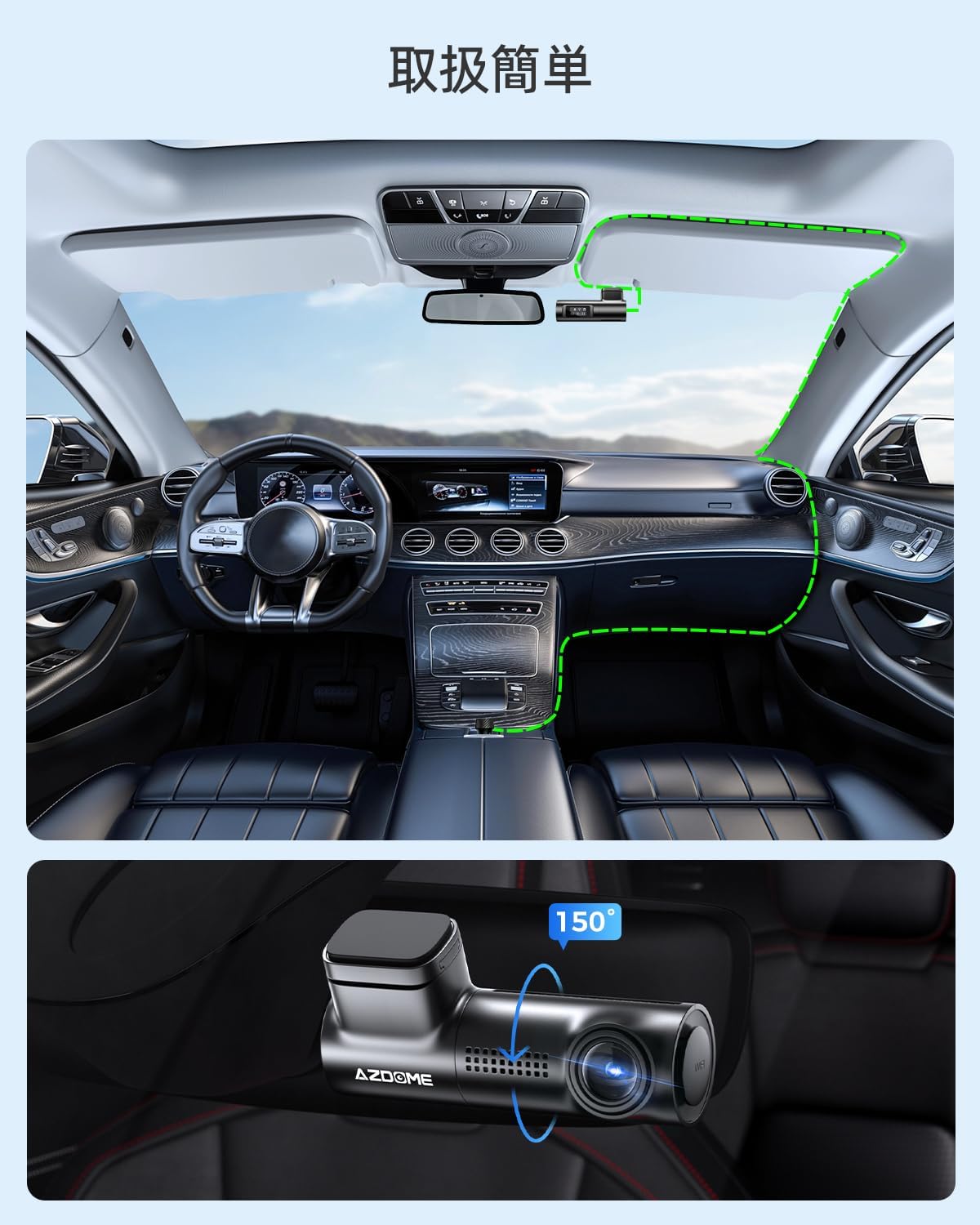
Figure 3: Recommended cable routing for AZDOME M330 Dash Cam installation. The inset shows the camera's 150-degree rotation capability.
4. Awọn ilana Iṣiṣẹ
4.1 Ipilẹ isẹ
- Gbigbasilẹ Aifọwọyi: The dash cam automatically starts recording when the vehicle's ignition is turned on and stops when the ignition is turned off.
- 0.96-inch Monitor: The small monitor displays the current recording status and WiFi connection status.
- G-Sensọ: In case of sudden impact or collision, the built-in G-sensor will automatically lock the current video file láti má ṣe kọ ọ́ sílẹ̀.
- Gbigbasilẹ Loop: When the memory card is full, the dash cam will automatically overwrite the oldest unlocked video files lati tesiwaju gbigbasilẹ.
4.2 Asopọmọra WiFi ati Lilo Ohun elo
The AZDOME M330 features built-in WiFi, allowing you to connect it to your smartphone via the dedicated AZDOME app for easy video management and settings adjustments.
- Download and install the AZDOME app from your smartphone's app store (available on App Store and Google Play).
- Turn on WiFi on your smartphone and connect to the dash cam's WiFi network (usually named 'AZDOME_M330_XXXX').
- Ṣii ohun elo AZDOME. O le view gbe footage, mu awọn fidio ti a gbasilẹ pada, gba lati ayelujara files to your phone, and adjust various settings.
- Ensure your smartphone is within 3 meters of the dash cam for a stable WiFi connection.

Figure 4: Using the AZDOME app to manage your dash cam via WiFi.
5. Awọn ẹya ara ẹrọ
5.1 1080P Full HD Recording & Wide Angle
The M330 records in 1080P Full HD, capturing clear and detailed footage. Its ultra-wide-angle lens provides a broad field of view, minimizing blind spots and ensuring comprehensive coverage of the road.

Olusin 5: Example of 1080P Full HD recording quality, clearly capturing license plates.
5.2 WDR and Night Vision
Equipped with Wide Dynamic Range (WDR) technology and enhanced night vision capabilities, the M330 automatically balances exposure in varying light conditions, ensuring clear images even in low-light environments or when transitioning between bright and dark areas.

Figure 6: Illustration of Super Night Vision and WDR technology providing balanced exposure in challenging night conditions.
5.3 G-Sensor and Loop Recording
The high-sensitivity G-sensor detects sudden movements or impacts and automatically locks the current video file, preventing it from being overwritten. Loop recording ensures continuous recording by automatically deleting the oldest unlocked files when the memory card reaches its capacity.

Figure 7: G-sensor automatically locks video files during impacts, while loop recording manages storage space.
5.4 24-Hour Parking Surveillance
The M330 offers 24-hour parking surveillance to protect your vehicle even when parked. This feature requires a separate Type-C step-down cable (not included) for continuous power supply.
- Impact Detection Parking Surveillance: The G-sensor detects impacts and automatically records a short video.
- Time-Lapse Parking Surveillance: Awọn igbasilẹ footage at a low frame rate to save storage space while providing continuous monitoring.
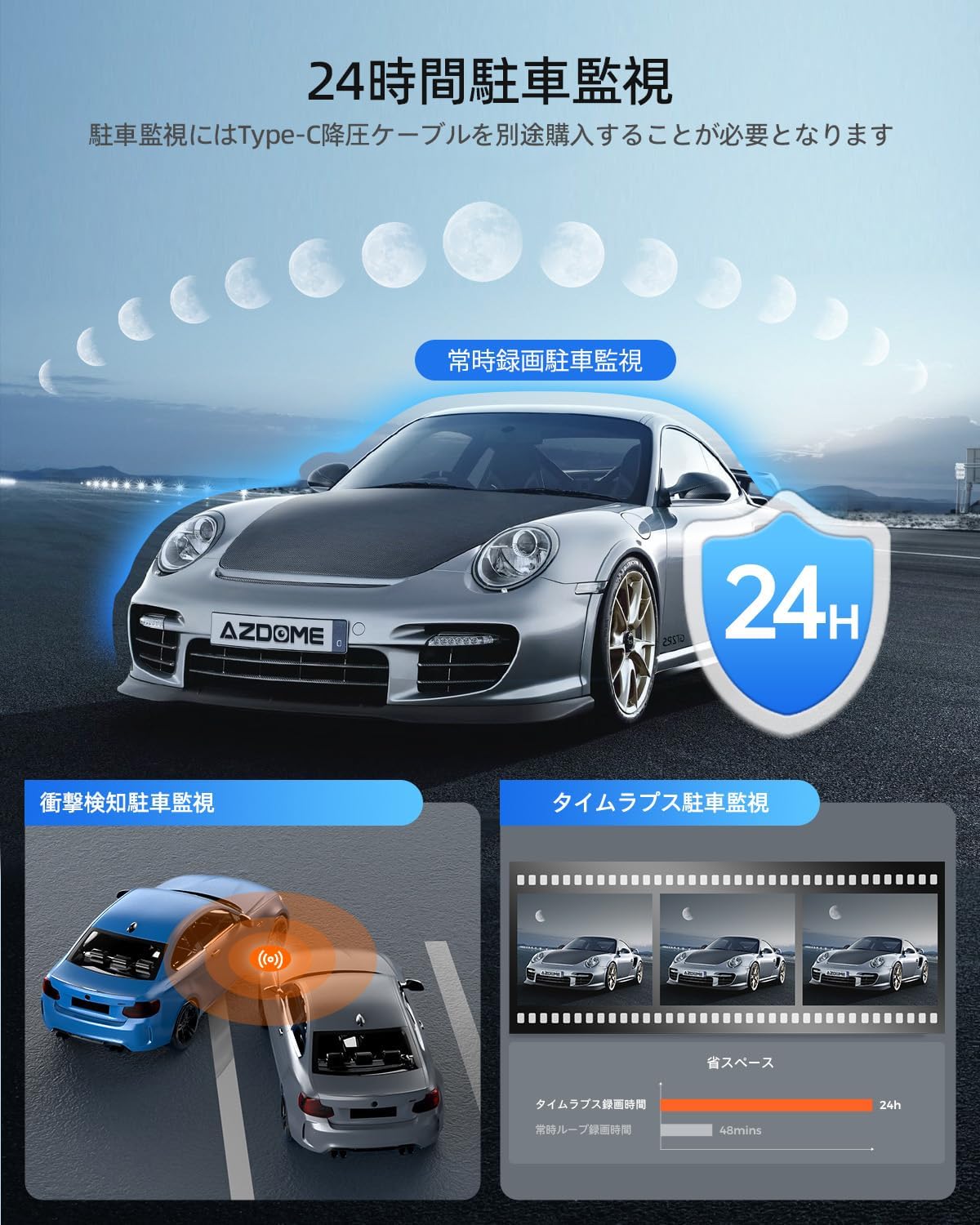
Figure 8: The M330 offers various parking surveillance modes for continuous vehicle protection.
5.5 Supercapacitor
The M330 uses a supercapacitor instead of a traditional lithium battery. This provides enhanced safety and durability, especially in extreme temperatures (-20°C to 70°C), eliminating concerns about battery leakage or explosion. Supercapacitors also offer a longer lifespan and faster charging capabilities.

Figure 9: Supercapacitor technology ensures long life, high temperature resistance, and environmental safety.
6. Itọju
6.1 SD Card Management
- The M330 supports Micro SD cards up to 128GB (Class 10, U3, A2 speed rating recommended). A memory card is not included with the product.
- Format the SD card regularly (e.g., once a month) using the AZDOME app or the dash cam's settings to ensure optimal performance and prevent data corruption.
- Use high-quality, reputable brand SD cards to avoid recording issues.
6.2 Ninu
- Wipe the camera lens with a soft, lint-free cloth to ensure clear video quality.
- Clean the exterior of the dash cam with a dry or slightly damp asọ. Maṣe lo awọn kemikali lile.
7. Laasigbotitusita
7.1 Dash Cam Not Powering On
- Check if the power cable is securely connected to both the dash cam and the vehicle's cigarette lighter socket.
- Rí i dájú pé ihò iná sígá ọkọ̀ náà ń gba agbára. Ṣe ìdánwò pẹ̀lú ẹ̀rọ mìíràn tí ó bá ṣeé ṣe.
- Verify that the power adapter provides 5V/2.5A output.
7.2 Recording Issues (e.g., no recording, corrupted files)
- Ensure a compatible Micro SD card (Class 10, U3, A2) is inserted correctly.
- Format the SD card using the AZDOME app or dash cam settings.
- If the issue persists, try a different, high-quality SD card.
- Check if loop recording is enabled and if the G-sensor sensitivity is set appropriately.
7.3 WiFi Connection Problems
- Ensure the dash cam's WiFi is enabled.
- Confirm your smartphone is within 3 meters of the dash cam.
- Restart both the dash cam and your smartphone, then try connecting again.
- Ensure mobile data is turned off on your smartphone when connecting to the dash cam's WiFi.
8. Awọn pato
| Brand | AZDOME |
| Nọmba awoṣe | M330 |
| Ipinnu fidio | 1080P HD kikun |
| Atẹle Iwon | 0.96 inches |
| Viewigun igun | 170 iwọn |
| Ibi ipamọ | Supports Micro SD card up to 128GB (Class 10, U3, A2 recommended) |
| Orisun agbara | Supercapacitor |
| Asopọmọra | WiFi ti a ṣe sinu |
| Pataki Awọn ẹya ara ẹrọ | 24-hour Parking Surveillance, WDR, Night Vision, G-Sensor, Loop Recording |
| Ọna Iṣakoso | App |
| Iṣagbesori Iru | Alamora |
| Ọja Mefa | 10D x 5W x 5H cm |
| Iwọn Ọja | 0.26 kg |
| Àwọ̀ | Dudu |
9. Atilẹyin ọja ati Support
AZDOME M330 Dash Cam wa pẹlu 1-odun atilẹyin ọja from the date of purchase. This warranty covers manufacturing defects and ensures reliable operation of your device.
For any questions, concerns, or technical support regarding your product, please contact AZDOME customer service. Our team is dedicated to providing prompt assistance.
Please refer to your purchase documentation or the official AZDOME webojula fun pato olubasọrọ awọn alaye.


