
KRUX KRX0137
ENDORFY Krux Qara 60% Mechanical Keyboard User Manual
Awoṣe: KRX0137
Ọrọ Iṣaaju
This manual provides comprehensive instructions for the setup, operation, maintenance, and troubleshooting of your ENDORFY Krux Qara 60% Mechanical Keyboard. Please read this manual thoroughly before using the product to ensure proper functionality and longevity.
Ọja Pariview
The ENDORFY Krux Qara 60% is a compact mechanical gaming keyboard designed for performance and portability. It features Outemu Red Mechanical Switches, zone RGB backlighting, and a durable construction.
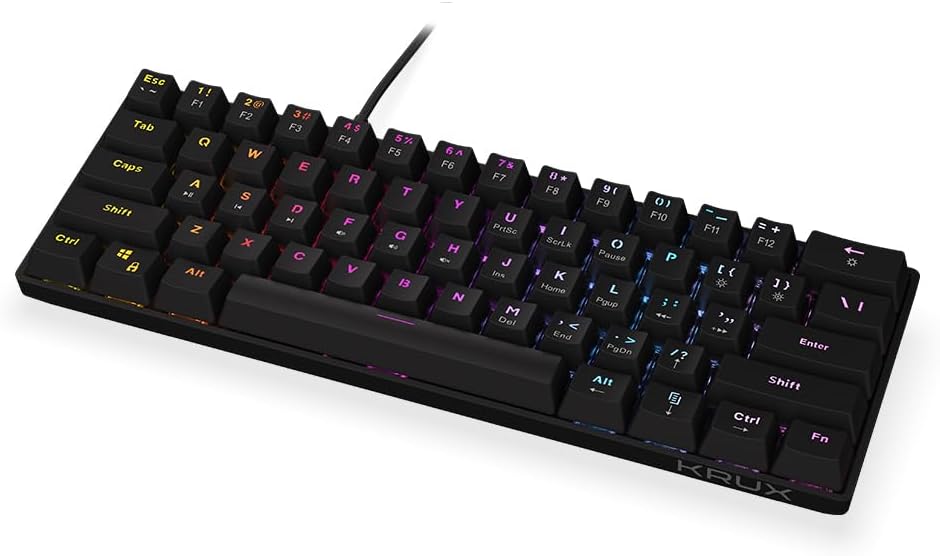
Nọmba 1: Iwaju view of the ENDORFY Krux Qara 60% Mechanical Keyboard, showcasing its compact 60% layout and vibrant RGB zone backlighting. The keyboard features black keycaps with white legends.

Nọmba 2: Top-down perspective of the keyboard, highlighting the keycap layout and the integrated USB-A cable connection point at the top center.

Nọmba 3: Ẹyìn view of the keyboard, showing the product label with model information (KRX0137) and certification marks. The two adjustable feet are visible in their folded position.
Package Awọn akoonu
Rii daju pe gbogbo awọn nkan wa ṣaaju ki o to tẹsiwaju pẹlu iṣeto:
- ENDORFY Krux Qara 60% Mechanical Keyboard
- USB cable (integrated)
- Afowoyi Olumulo (iwe-ipamọ yii)
Ṣeto
- Ṣii silẹ: Fi ìṣọ́ra yọ kọ̀ǹpútà àti àwọn ohun èlò mìíràn rẹ̀ kúrò nínú àpótí náà.
- Asopọmọra: Connect the integrated USB-A cable from the keyboard to an available USB port on your computer (PC, Linux, Mac).
- Fifi sori Awakọ: The keyboard is plug-and-play and typically does not require additional drivers for basic functionality. Your operating system should automatically recognize the device.
- Ibi: Place the keyboard on a stable, flat surface. You may adjust the keyboard height using the foldable feet located on the underside for ergonomic comfort.

Nọmba 4: Apa view illustrating the keyboard's profile and the adjustable feet in their extended position, providing an elevated typing angle.
Awọn ilana Iṣiṣẹ
Ipilẹ Išẹ
The keyboard functions as a standard QWERTY input device. All alphanumeric keys, symbols, and basic modifiers (Shift, Ctrl, Alt) operate as expected.
Function Key Combinations (Fn Layer)
Due to its 60% compact layout, many standard keyboard functions are accessed via the Fn key in combination with other keys. The secondary functions are typically printed on the front or side of the keycaps.
- Fn + Number Row (F1-F12): Accesses F1 through F12 functions. For example, fn+1 fún F1.
- Fn + P, [, ]: Multimedia controls (Play/Pause, Previous Track, Next Track).
- Fn + ;, ', /: Volume controls (Mute, Volume Down, Volume Up).
- Fn + Yipada ọtun: Arrow keys (Up, Down, Left, Right).
- Fn + M, <, >: Home, End, PgUp, PgDn.
- Fn + I, K, L: Insert, Home, Page Up.
- Fn + U, J, H: Print Screen, Scroll Lock, Pause Break.
Backlight Iṣakoso
The keyboard features zone RGB backlighting. Use the following combinations to control the lighting:
- Fn + \|: Yi lọ nipasẹ awọn ipo ina ẹhin.
- Fn + Wọle: Satunṣe imọlẹ backlight.
- Fn + Right Ctrl: Yi awọ ẹhin pada.
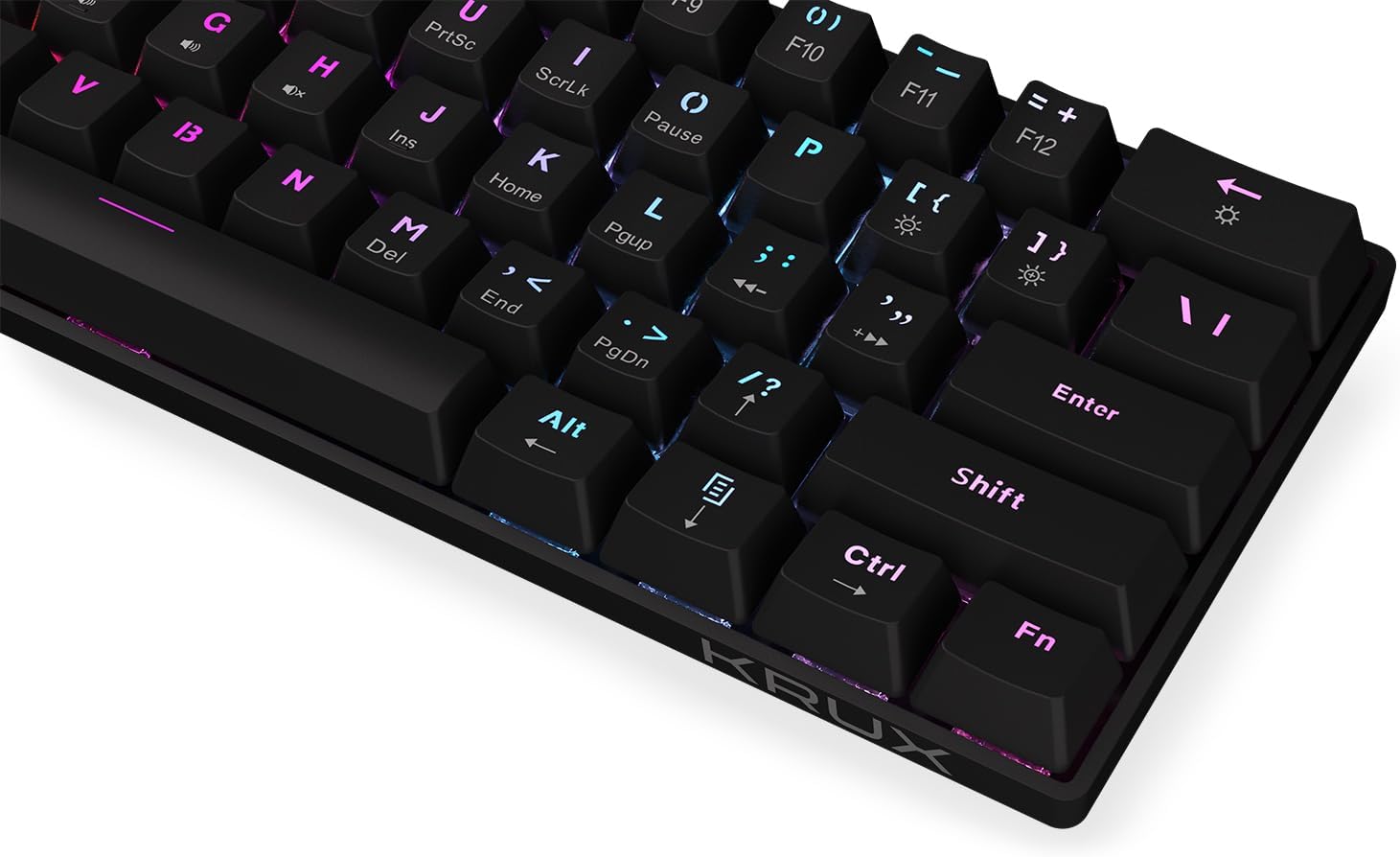
Nọmba 5: A sunmọ-soke view of the keycaps, demonstrating the RGB backlighting effect and the secondary functions printed on the front of some keys.
Itoju
Regular maintenance helps prolong the life of your keyboard:
- Ninu: Use a soft, dry cloth to wipe the surface of the keyboard. For dust and debris between keycaps, use compressed air. Avoid liquid cleaners directly on the keyboard.
- Idasonu: In case of liquid spills, immediately disconnect the keyboard from your computer. Turn it upside down to drain liquid and allow it to dry completely before reconnecting. Do not use a hairdryer as excessive heat can damage components.
- Ibi ipamọ: Tọju keyboard ni itura, aye gbigbẹ kuro lati orun taara ati awọn iwọn otutu to gaju.
Laasigbotitusita
| Isoro | Owun to le Fa | Ojutu |
|---|---|---|
| Keyboard ko fesi | Asopọ USB alaimuṣinṣin, ibudo USB ti ko tọ, aṣiṣe eto. | Rii daju pe okun USB ti sopọ ni aabo. Gbiyanju ibudo USB ti o yatọ. Tun kọmputa rẹ bẹrẹ. |
| Awọn bọtini kii ṣe iforukọsilẹ tabi titẹ-meji | Eruku/ẹgbin lábẹ́ ideri bọtini, aṣiṣe iyipada naa ko ṣiṣẹ. | Use compressed air to clean around the affected key. If problem persists, contact support. |
| Imọlẹ backlight ko ṣiṣẹ tabi ko duro deede | Backlight setting, software glitch. | Tẹ Fn + Wọle to adjust brightness. Cycle through modes with Fn + \|. Restart computer. |
| Fn key combinations not working | Incorrect key combination, software conflict. | Refer to the "Operating Instructions" section for correct combinations. Ensure no conflicting software is running. |
Awọn pato
- Awoṣe: KRX0137
- Iru Àtẹ bọ́tìnnì: Kííbọọ̀dù eré ìdárayá ẹ̀rọ 60%
- Awọn iyipada: Outemu Red Mechanical Switches
- Imọlẹ ẹhin: Zone RGB
- Asopọmọra: Ti firanṣẹ USB-A
- Awọn iwọn: 29.1 x 10.1 x 3.9 cm (11.46 x 3.98 x 1.54 inches)
- Ìwúwo: 506 g (1.11 lbs)
- Awọn ọna ṣiṣe ibaramu: Windows 10, Mac OS X 10.12 Sierra, Linux
- Awọn eroja to wa: USB cable (integrated)
Atilẹyin ọja ati Support
For warranty information and technical support, please refer to the official KRUX webaaye tabi kan si alagbata agbegbe rẹ. Jeki ẹri rira rẹ fun awọn iṣeduro atilẹyin ọja.
Olupese: Krux
Webojula: www.krux.tech (Note: This is a placeholder link, please refer to the official manufacturer's website for accurate support information.)
Ask a question about this manual
Ask about setup, troubleshooting, compatibility, parts, safety, or missing instructions. Manuals+ will review the question and use this page’s manual context to help answer it.