
1. Ifihan ati Loriview
Welcome to the XNANO X7A Smart Projector user manual. This document provides essential information for setting up, operating, and maintaining your new projector. The XNANO X7A is designed to deliver a high-quality viewing experience with its native 1080p resolution, 1000 ANSI lumens brightness, and integrated Google TV system. Enjoy seamless access to your favorite streaming services, advanced auto-correction features, and versatile connectivity options.

Figure 1: XNANO X7A Smart Projector with included remote control.
2. Key Awọn ẹya ara ẹrọ
- Integrated Google TV System: Officially licensed with pre-installed apps like Netflix, YouTube, Prime Video, and Disney+.
- Imọlẹ giga & ipinnu: 1000 ANSI lumens and native 1080p resolution, supporting 8K/4K video decoding.
- Auto Focus & Auto Keystone Correction: Automatic image adjustment for quick and clear setup.
- Ilọsiwaju Asopọmọra: Dual-band 5G/2.4G WiFi, Bluetooth 5.0, built-in Chromecast, HDMI, USB, and AV ports.
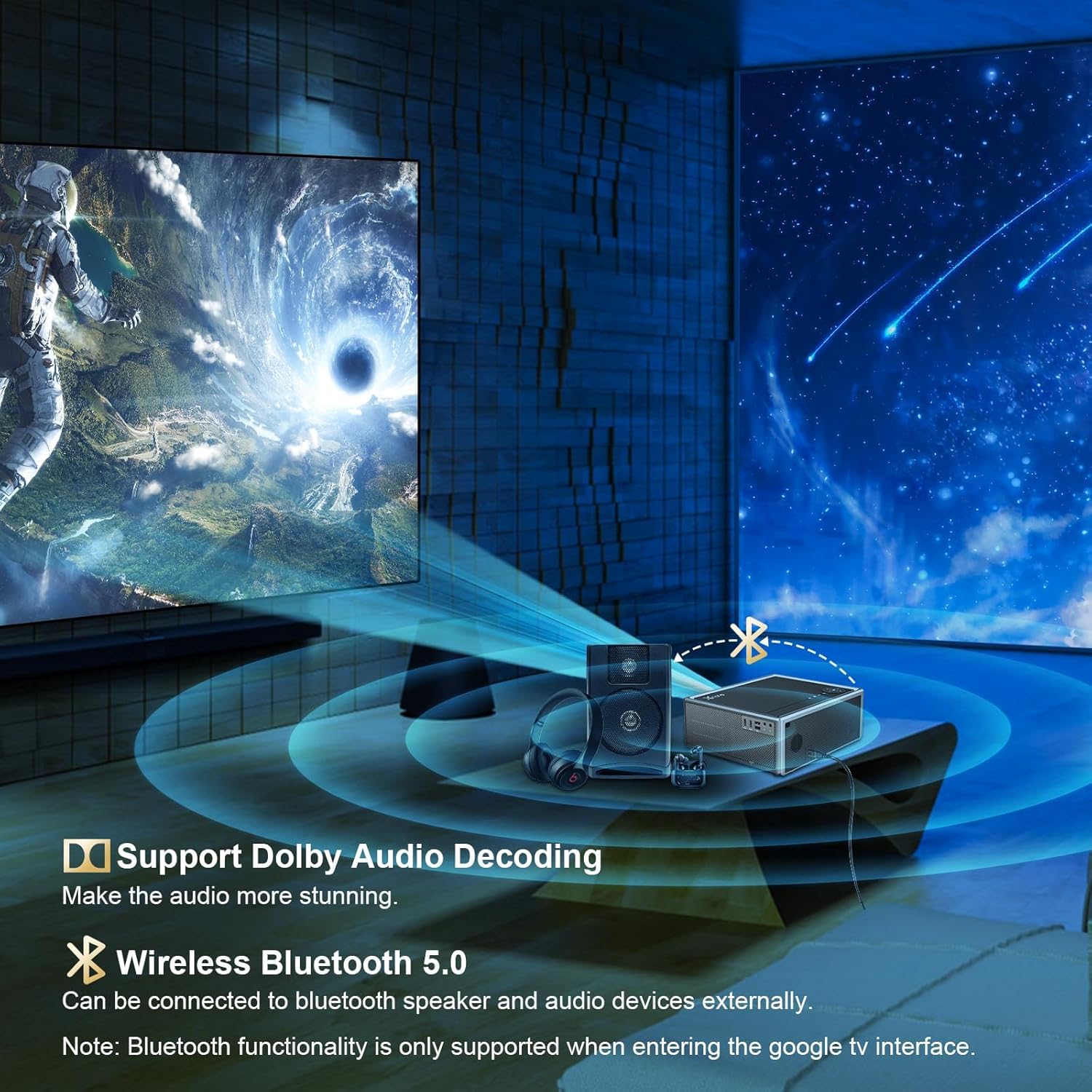
- Dolby Audio & Voice Assistant: Dual 5W stereo speakers and voice control via the remote in Google TV mode.
3. Ohun ti o wa ninu Apoti
- XNANO X7A Smart Projector
- Okun agbara
- Isakoṣo latọna jijin
The projector also comes with a padded backpack for portability, along with cleaning tools and a user manual.
Fidio 1: Unboxing ati ibẹrẹ ti pariview of the XNANO X7A projector and its accessories, including the carrying case and cables.
4. Ti ara Loriview ati Ports
The XNANO X7A features a sleek design with intuitive controls and comprehensive connectivity options. The top panel includes basic navigation buttons for direct control, while the rear panel houses all input/output ports.
olusin 2: Ẹyìn view of the XNANO X7A projector highlighting the various input and output ports.
- Awọn ibudo HDMI (x2): Connect external devices such as game consoles, TV sticks, laptops, or DVD players.
- Awọn ibudo USB-A (x2): For connecting USB flash drives, external hard drives, or powering compatible devices.
- Iṣawọle AV: Connect older devices using an AV cable.
- Audio Out (3.5mm jack): So awọn agbekọri ita tabi awọn agbohunsoke.
- Iṣagbewọle agbara: Connect the provided power cord.
- Àwọn bọ́tìnì ìṣàkóso (Pánẹ́lì òkè): Power, menu, input selection, and navigation controls.
- Adjustable Foot (Bottom): Allows for slight height adjustment to optimize projection angle.
Video 2: Detailed look at the projector's physical features, including top controls, rear ports, and bottom adjustment.
5. Eto Itọsọna
5.1 Ibẹrẹ Agbara Lori
- Place the projector on a stable, flat surface or mount it as desired.
- So okun agbara pọ si pirojekito ati iṣan agbara kan.
- Press the power button on the top panel or remote control to turn on the projector.
- The projector will automatically adjust focus and keystone correction. If needed, manual adjustments can be made in the settings.
Video 3: Demonstration of initial power-on sequence and automatic focus adjustment.
5.2 Awọn ẹrọ Nsopọ
The XNANO X7A offers multiple ways to connect your content sources:
- HDMI: Connect your device to one of the HDMI ports. Select the corresponding HDMI input from the projector's menu.
- USB: Insert a USB drive into a USB-A port. Use the File Manager app in the Google TV interface to browse and play media.
- Wi-Fi (5G/2.4G): Connect the projector to your home Wi-Fi network via the settings menu. This enables access to streaming apps and Chromecast.
- Bluetooth 5.0: Pair Bluetooth speakers or headphones through the Bluetooth settings in the Google TV system for enhanced audio.
- Chromecast: Utilize the built-in Chromecast function to cast content wirelessly from your phone, tablet, or laptop.

Figure 3: Visual guide to connecting various devices to the XNANO X7A projector.
6. Awọn ilana Iṣiṣẹ
6.1 Smart GTV System
The XNANO X7A runs on an integrated Google TV system, providing a user-friendly interface for accessing entertainment:
- Lilọ kiri: Use the remote control's directional pad and OK button to navigate through the Google TV home screen.
- Awọn ohun elo: Pre-installed apps like Netflix, YouTube, Prime Video, and Disney+ are readily available. Log in with your existing accounts.
- Oluranlọwọ ohun: Press the dedicated Voice Assistant button on the remote (when connected via Bluetooth in GTV mode) to use voice commands for searching content or controlling the projector.
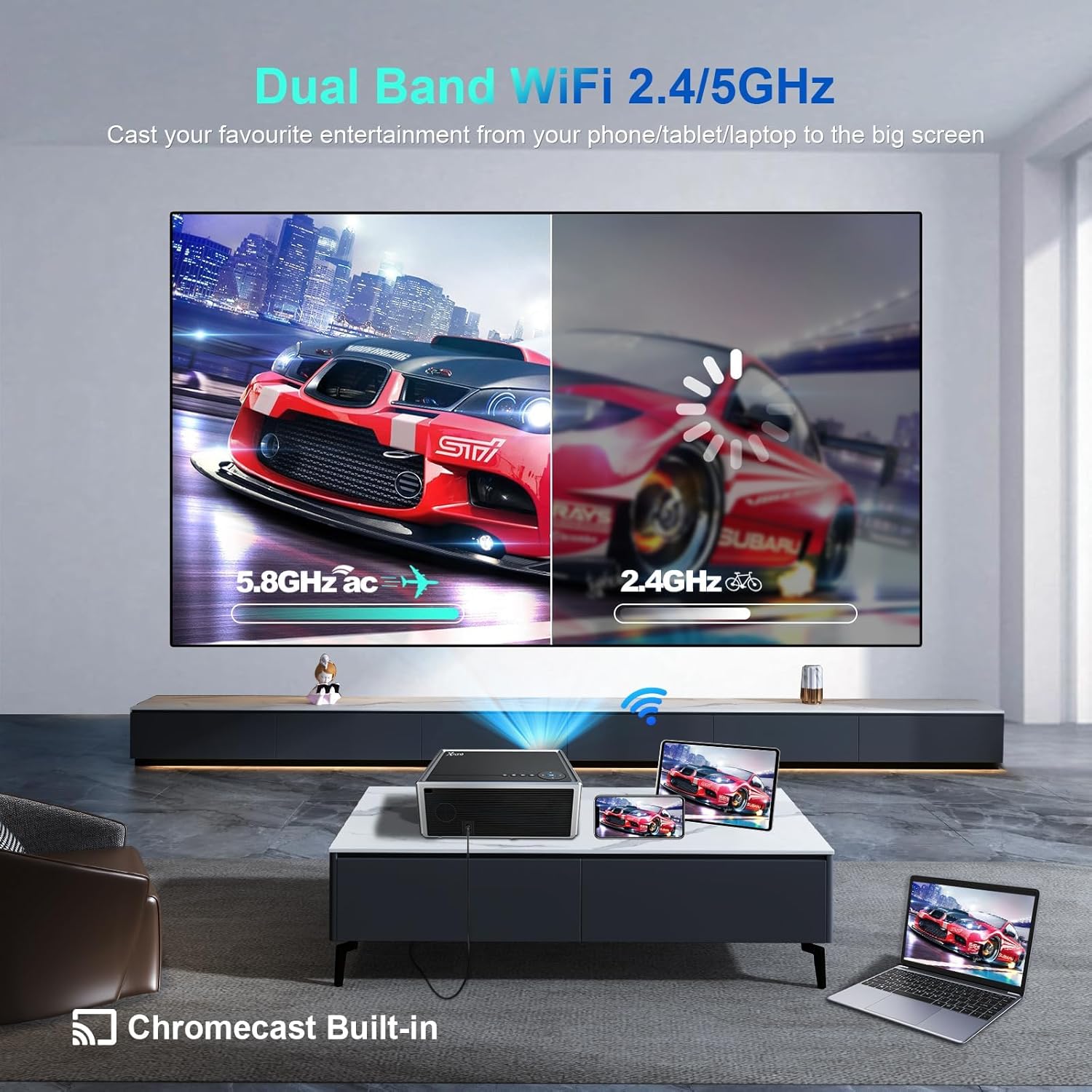
Figure 4: Google TV interface with remote control demonstrating voice assistant functionality.
6.2 Auto Focus & Auto Keystone Correction
The projector is equipped with intelligent features for optimal image display:
- Idojukọ aifọwọyi: Upon power-on or movement, the projector automatically adjusts the focus for a clear image within a sensing distance of 55-157 inches.
- Atunse Keystone Aifọwọyi: This feature is disabled by default. To enable it, navigate to the projector's settings menu. It automatically corrects distorted images caused by angled projection.

Figure 5: Visual representation of the auto focus and 4-point keystone correction features.
6.3 Screen Adjustment (Zoom)
To adjust the size of the projected image without moving the projector:
- Access the projector's settings menu.
- Locate the 'Zoom' or 'Screen Size' option.
- Adjust the value to increase or decrease the image size. The projector supports screen sizes from 50 to 300 inches.
6.4 Eto ohun
The XNANO X7A provides flexible audio options:
- Awọn Agbọrọsọ ti A ṣe sinu: The projector includes dual 5W stereo speakers with Dolby Audio support for a complete home theater experience.
- Ohun afetigbọ Bluetooth: Connect external Bluetooth speakers or headphones for enhanced sound. This functionality is supported when in the Google TV interface.
- Ohun Jade: Use the 3.5mm audio jack to connect wired headphones or external sound systems.
Video 4: Demonstration of the projector's audio quality and Bluetooth connectivity.
7. Awọn oju iṣẹlẹ lilo
The XNANO X7A is versatile and suitable for various environments:
- Cinema ile: Enjoy movies and shows on a large screen indoors.
- Idaraya ita gbangba: Pipe fun awọn alẹ fiimu ẹhin tabi awọn apejọ ita gbangba.
- Ere: Connect game consoles via HDMI for an immersive gaming experience.
- Business & Education: Ideal for presentations in meeting rooms or classrooms.

Figure 6: The XNANO X7A projector in different usage environments.
8. Itọju
To ensure the longevity and optimal performance of your XNANO X7A projector:
- Fifọ lẹnsi: Use the provided cleaning tools (or a soft, lint-free cloth) to gently clean the projector lens. Avoid abrasive materials.
- Ajọ eruku: Regularly check and clean the dust filter to prevent overheating and maintain image quality. Refer to the full manual for specific instructions on accessing and cleaning the filter.
- Ibi ipamọ: When not in use, store the projector in its padded backpack in a cool, dry place to protect it from dust and physical damage.
9. Laasigbotitusita
If you encounter issues with your XNANO X7A projector, try the following solutions:
- Aworan blurry: Ensure the projector is within the optimal sensing distance (55-157 inches) for auto focus. If the issue persists, check for dust on the lens or enable/disable auto keystone correction in settings.
- Ko si Ohun: Verify that the volume is not muted and is set to an audible level. Check Bluetooth connections for external speakers or ensure wired audio devices are properly connected to the Audio Out port.
- Awọn oran Asopọmọra: For Wi-Fi, ensure the projector is connected to a stable network. For HDMI/USB, confirm cables are securely connected and the correct input source is selected.
- Iṣakoso Latọna jijin Ko Dahun: Ensure the remote's batteries are fresh. For voice assistant functionality, confirm the remote is paired via Bluetooth in the Google TV system.
10. Awọn pato
| Ẹya ara ẹrọ | Sipesifikesonu |
|---|---|
| Brand | XNANO |
| Nọmba awoṣe | X7A |
| Imọlẹ | 1000 ANSI Lumens |
| Ipinnu abinibi | 1920 x 1080p |
| Video Decoding Support | 8K/4K |
| Eto isesise | Android OS GTV (Google TV) |
| Asopọmọra | 5G/2.4G WiFi, Bluetooth 5.0, HDMI (x2), USB (x2), AV, Audio Out |
| Pataki Awọn ẹya ara ẹrọ | Auto Focus, Auto Keystone Correction, Built-in Chromecast, Dolby Audio, Voice Assistant |
| Ibi ipamọ | 16GB |
| Ọja Mefa | 11.8 x 9.96 x 4.6 inches |
| Iwọn Nkan | 5.73 iwon |
11. Atilẹyin ọja ati Support
XNANO is committed to providing high-quality products and excellent customer service.
- Akoko atilẹyin ọja: The XNANO X7A projector comes with a 12-month warranty from the date of purchase.
- Oluranlowo lati tun nkan se: Lifetime after-sales technical service is available. For any inquiries or assistance, please contact XNANO customer support.
- Pada: Enjoy a 30-day return policy without reason.

Figure 7: XNANO customer support and warranty details.