
Ọrọ Iṣaaju
This manual provides detailed instructions for the setup, operation, maintenance, and troubleshooting of your TECPHILE B102D Bluetooth Wireless Keyboard with Multi-Touch Trackpad. Please read this manual thoroughly before using the product to ensure optimal performance and longevity.

Image: The TECPHILE B102D Bluetooth Wireless Keyboard, showcasing its compact design and backlit keys.
Package Awọn akoonu
Jẹrisi pe gbogbo awọn ohun kan wa ninu package:
- 1x TECPHILE B102D Bluetooth Wireless Keyboard
- 1x USB Ngba agbara USB
- 1x Itọsọna olumulo (iwe yii)
Ṣeto
1. Ngba agbara si Keyboard
Before initial use, fully charge the keyboard. Connect the provided USB charging cable to the keyboard's USB-C port and the other end to a 5V 1A power adapter (not included) or a computer's USB port. The charging indicator light will illuminate during charging and turn off when fully charged.
Disclaimer: Kindly use the device with a 5V 1A power adapter only. This will improve the lifespan of your gear and its batteries.

Image: Close-up of the keyboard's USB-C charging port, indicating its location for power connection.
2. Pairing with Devices (Multi-Device Connectivity)
The TECPHILE B102D keyboard can connect to up to three devices simultaneously via Bluetooth.
- Mu Ipo Pipọ ṣiṣẹ: Turn on the keyboard. Press and hold the Fn key along with either Q, W, tabi E for 3-5 seconds until the Bluetooth indicator light flashes. This indicates the keyboard is in pairing mode for the selected device slot.
- Mu Bluetooth ṣiṣẹ lori Ẹrọ Rẹ: On your computer, tablet, or smartphone, go to Bluetooth settings and turn on Bluetooth.
- Yan Kííbọọ̀dù: Look for "TECPHILE B102D" or a similar name in the list of available Bluetooth devices and select it to connect.
- Jẹrisi Asopọmọra: Once connected, the Bluetooth indicator light on the keyboard will stop flashing and remain solid for a moment, then turn off.
- Tun fun Awọn Ẹrọ Afikun: To pair with a second or third device, repeat steps 1-3, using a different Fn + Q/W/E combination for each new device.

Image: Visual guide demonstrating how to pair the keyboard with multiple devices using Fn+Q/W/E keys.
3. Ibamu
The TECPHILE B102D keyboard is widely compatible with various operating systems and devices, including:
- Windows (2000 and later)
- macOS
- iOS (iPad, iPhone)
- iPadOS
- Android
- ChromeOS

Image: Illustration showing the keyboard's compatibility with various operating systems and device types.
Awọn ilana Iṣiṣẹ
1. Ìtẹ̀wé ìpìlẹ̀
The keyboard features a standard QWERTY layout. Simply type as you would on any other keyboard.
2. Páádì Ìfọwọ́kàn Onípọ̀lọ́pọ̀
The integrated trackpad supports various gestures for navigation and control:
- Fọwọba ika ẹyọkan: Titẹ-osi.
- Tẹ ika meji: Tẹ-ọtun.
- Yi lọ Ika Meji: Yi lọ si oke/isalẹ tabi si osi/ọtun.
- Additional gestures may be supported depending on your operating system.

Image: Diagram illustrating the left and right click functionality of the large trackpad.
3. Iṣakoso Backlight
The keyboard features 7-color backlighting with adjustable brightness.
- Yi Awọ: Tẹ awọn RGB key (often combined with the light bulb icon) to cycle through the 7 available colors.
- Ṣatunṣe Imọlẹ: Use the dedicated brightness keys (often combined with the light bulb icon and up/down arrows) to increase or decrease backlight intensity.
- Tan/Pa: Press the backlight key to toggle the backlight on or off.
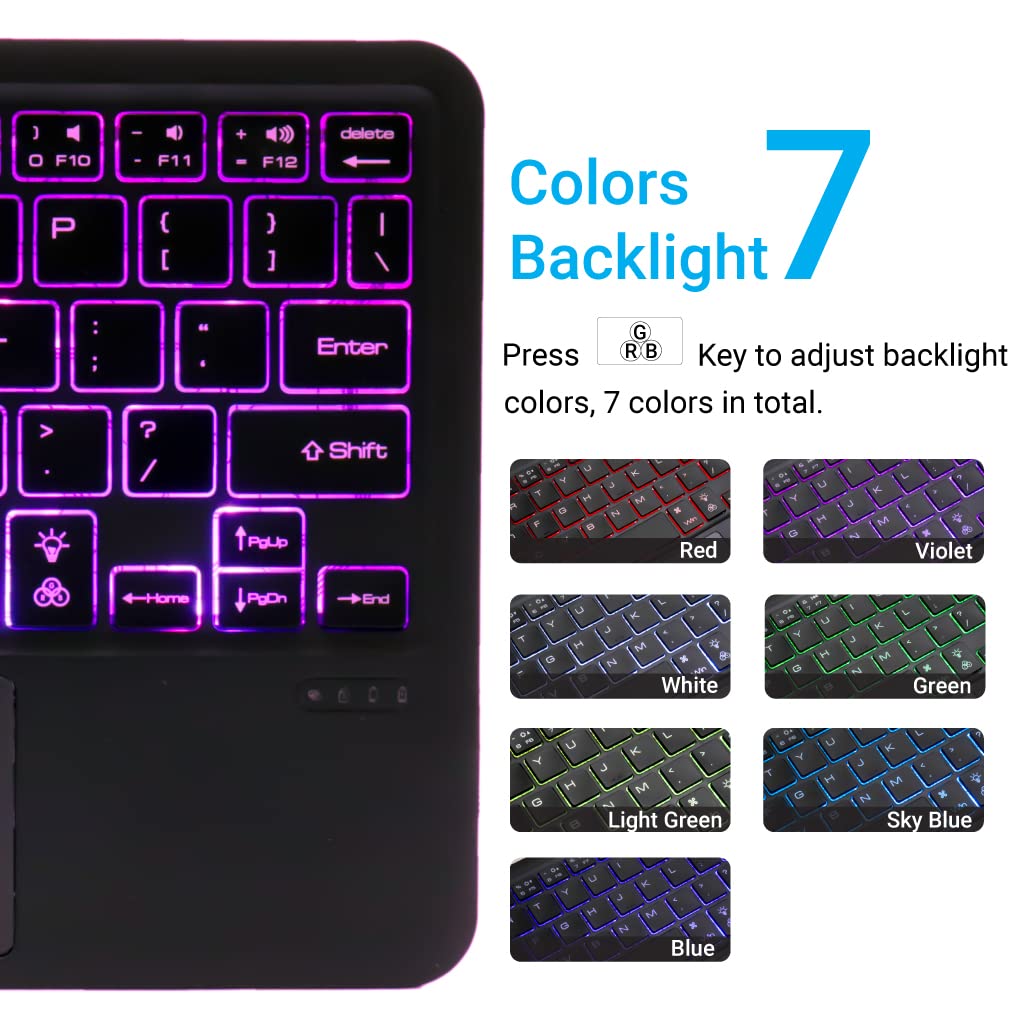
Image: Display of the 7 different backlight colors available on the keyboard.
4. Yipada Laarin awọn ẹrọ ti a ti sopọ
To switch between the three paired devices, simply short press the Fn key along with the corresponding device key (Q, W, tabi E).
- Tẹ Fn + Q to switch to Device 1.
- Tẹ Fn + W to switch to Device 2.
- Tẹ Fn + E to switch to Device 3.

Image: Visual guide for connecting and seamlessly switching between multiple paired devices.
5. Awọn bọtini iṣẹ
The keyboard includes a full set of function and media keys. These keys often require pressing the Fn key simultaneously with the desired function key to activate their secondary functions (e.g., volume control, media playback).
Itoju
1. Ninu
Láti nu keyboard náà, fi pẹ̀lẹ́pẹ̀lẹ́ nu ojú rẹ̀ pẹ̀lú ohun rírọ̀, d.amp, lint-free cloth. Avoid using harsh chemicals, abrasive cleaners, or excessive moisture, as these can damage the keyboard's finish or internal components.
2. Itọju batiri
- Always use a 5V 1A power adapter for charging to prevent battery damage and ensure optimal lifespan.
- Yago fun gbigba agbara si batiri ni kikun nigbagbogbo.
- Tí o bá ń fi keyboard pamọ́ fún ìgbà pípẹ́, gba agbára rẹ̀ sí nǹkan bí 50% kí o sì tọ́jú rẹ̀ sí ibi tí ó tutù tí ó sì gbẹ.
3. Ibi ipamọ
Store the keyboard in a dry environment, away from extreme temperatures, direct sunlight, and humidity. When not in use, it is recommended to turn off the keyboard to conserve battery life.
Laasigbotitusita
| Isoro | Owun to le Fa | Ojutu |
|---|---|---|
| Káàdì kìí tan. | Batiri kekere. | Charge the keyboard using the provided USB-C cable and a 5V 1A power adapter. |
| Ko le sopọ nipasẹ Bluetooth. | Keyboard not in pairing mode; Bluetooth off on device; device already connected to 3 keyboards. | Ensure keyboard is in pairing mode (Fn + Q/W/E for 3-5s). Check device's Bluetooth settings. Forget previous connections if necessary. |
| Trackpad ko fesi. | Software issue; trackpad disabled. | Restart the keyboard and the connected device. Ensure trackpad is not accidentally disabled (check function keys). |
| Imọlẹ afẹyinti ko ṣiṣẹ. | Backlight turned off; low battery. | Press the backlight key to turn it on. Charge the keyboard. |
| Keys are unresponsive or delayed. | Low battery; interference; distance from device. | Charge the keyboard. Move closer to the connected device. Reduce potential wireless interference. |
Awọn pato
- Brand: TECPHILE
- Awoṣe: B102D
- Asopọmọra: Bluetooth
- Ìfilélẹ̀ Keyboard: QWERTY
- Awọn ẹya pataki: Multi-Touch Trackpad, 7-Color Backlit, Multi-Device Connectivity (up to 3), USB-C Rechargeable
- Batiri: 1 x Litiumu Ion (pẹlu)
- Awọn iwọn ọja: 25 x 1 x 15 cm (L x W x H)
- Ìwọ̀n Nkan: 300 g
- Ohun elo: Ṣiṣu
- Awọn ọna ṣiṣe ibaramu: Windows, macOS, iOS, iPadOS, Android, ChromeOS

Image: Diagram showing the ultra-slim profile and dimensions of the keyboard (24.7 cm x 15 cm x 0.5 cm).
Atilẹyin ọja ati Support
TECPHILE products are designed for reliability and performance. For warranty information, please refer to the warranty card included with your purchase or visit the official TECPHILE website. For technical support or further assistance, please contact TECPHILE customer service through the contact details provided on the product packaging or the official webojula.