
DBPOWER W32
DBPOWER W32 Projector User Manual
Awoṣe: W32
1. Ifihan
O ṣeun fun riraasing the DBPOWER W32 Projector. This manual provides essential information for the safe and efficient operation of your device. Please read it thoroughly before use and keep it for future reference.
Package Awọn akoonu
Daju pe gbogbo awọn ohun kan wa ninu package rẹ:
- DBPOWER W32 Projector
- Isakoṣo latọna jijin
- Okun agbara
- Okun HDMI
- AV Cable
- Afowoyi Olumulo (iwe-ipamọ yii)
- Iga Atunṣe dabaru

2. Eto
2.1 Ibi
Place the projector on a stable, flat surface. Ensure adequate ventilation around the device. For optimal viewing, project onto a smooth, light-colored wall or a projector screen.

2.2 Asopọ agbara
- Connect the power cord to the projector's power input.
- Pulọọgi opin miiran ti okun agbara sinu iṣan agbara kan.
- Tẹ bọtini agbara lori pirojekito tabi isakoṣo latọna jijin lati tan-an.
2.3 Idojukọ ati Atunse Keystone
Adjust the focus ring on the projector lens until the image is clear. Use the keystone correction dial to correct any trapezoidal distortion, ensuring a rectangular image.

3. Awọn ilana Iṣiṣẹ
3.1 Awọn ẹrọ Nsopọ
The DBPOWER W32 Projector supports various input sources:
- HDMI: Connect to laptops, game consoles (PS3/PS4, X-Box, Switch), TV sticks (Fire TV, Roku Stick), and other HDMI-enabled devices.
- USB: So awọn awakọ USB pọ fun ṣiṣiṣẹsẹhin media.
- TI: Connect to DVD players or older devices using the included AV cable.
- Kaadi TF: Fi kaadi TF sii fun ṣiṣiṣẹsẹhin media taara.

3.2 Asopọmọra Alailowaya (WiFi ati Bluetooth)
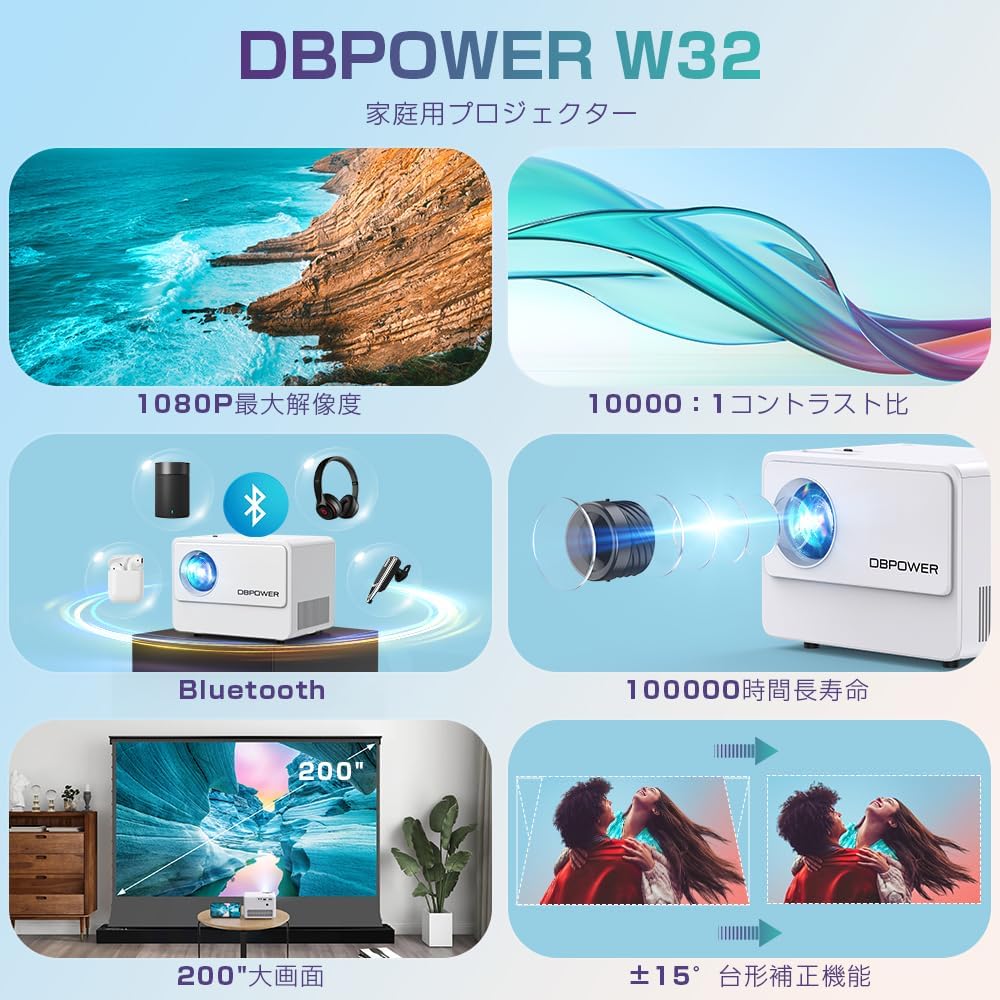
The projector features built-in WiFi and Bluetooth for seamless wireless connections.
WiFi Screen Mirroring (iOS/Android)
- Select "Screen" from the input source menu to enter the mirroring interface.
- Ensure your iOS/Android device and the projector are connected to the same WiFi network.
- On your iOS device, enable Screen Mirroring and select "DBPOWER-XXXXXX" from the detected devices.
- On your Android device, enable Cast/Wireless Display and select "DBPOWER-XXXX" from the detected devices.

Bluetooth Audio Asopọ
Connect external Bluetooth speakers or headphones for an enhanced audio experience.
- Go to the projector's Bluetooth settings.
- Mu Bluetooth ṣiṣẹ lori pirojekito.
- Fi ẹrọ ohun afetigbọ Bluetooth rẹ sinu ipo sisọpọ.
- Select your device from the list on the projector to connect.
3.3 Audio wu
The projector has two built-in speakers for basic audio. For a more immersive experience, connect external audio devices via Bluetooth or the 3.5mm audio jack.

4. Itọju
4.1 Ninu awọn lẹnsi
Use a soft, lint-free cloth specifically designed for optical lenses to clean the projector lens. Do not use abrasive cleaners or solvents.
4.2 Air Filter Cleaning
Regularly check and clean the air filter to ensure proper ventilation and prevent overheating. Refer to the diagram below for the location of the air vents.

4.3 Ibi ipamọ
When not in use for extended periods, store the projector in a cool, dry place, away from direct sunlight and excessive dust. Use the original packaging or a protective case.
5. Laasigbotitusita
| Isoro | Owun to le Fa | Ojutu |
|---|---|---|
| Ko si aworan han | Power cable not connected; Incorrect input source selected; Device not connected properly. | Check power connection; Select correct input source (HDMI, USB, AV); Ensure cables are securely connected. |
| Aworan ti ko dara | Focus not adjusted; Keystone not adjusted. | Adjust the focus ring; Adjust the keystone correction dial. |
| Ko si ohun | Volume too low; External audio device not connected or selected; Muted. | Increase volume; Check external audio connections/Bluetooth pairing; Unmute the projector. |
| Isakoṣo latọna jijin ko ṣiṣẹ | Batteries dead; Obstruction between remote and projector; Remote sensor blocked. | Replace batteries; Remove obstructions; Ensure remote is pointed at the projector's IR sensor. |
| Gbigbona pupọ | Afẹ́fẹ́ tí a dí; Lílo fún ìgbà pípẹ́ ní àyíká gbígbóná. | Ensure vents are clear; Operate in a well-ventilated area; Allow projector to cool down. |
6. Awọn pato
| Ẹya ara ẹrọ | Ẹ̀kúnrẹ́rẹ́ |
|---|---|
| Brand | DBPOWER |
| Nọmba awoṣe | W32 |
| Ọja Mefa | 14.9 x 11 x 10.4 cm |
| Iwọn Nkan | 970 g |
| Imọlẹ | 10000 Lumens (equivalent to 300 ANSI Lumens) |
| Ipinnu abinibi | 1920 x 1080 pixels (1080P) |
| Ipinnu atilẹyin | Titi di 4K |
| Ipin Itansan | 10,000:1 |
| Lamp Igbesi aye | ≥100,000 wakati |
| Asopọmọra Technology | Bluetooth, WiFi, HDMI, USB, AV, TF Card |
| Iṣeduro Lilo | Ile Itage |
| Pataki Awọn ẹya ara ẹrọ | 4K compatible, Bluetooth, Built-in Speaker, Keystone Correction, WiFi |


7. Atilẹyin ọja ati Support
DBPOWER provides a 12-month warranty from the date of purchase. This warranty covers initial defects and natural failures under normal use. For any issues, including exchanges or returns, please contact our customer support.
Onibara Support
- 24-hour quick response service
- 12-osu didara lopolopo
- 30-day return validity period
- Dedicated customer support always available
For direct support, you can scan the QR code below to add us on LINE or visit our official store page.

Please note: Customer support is closed on Saturdays, Sundays, and public holidays, as well as during year-end/New Year, Golden Week, and Obon holidays.