
Yitouniu YTU021
Yitouniu Zigbee 2-Channel DC 7-32V Smart Relay Switch Module
Model: YTU021
Ọrọ Iṣaaju
The Yitouniu Zigbee 2-Channel DC 7-32V Smart Relay Switch Module (Model YTU021) is a versatile smart home device designed for controlling various appliances. It supports Zigbee 3.0 protocol, allowing integration with compatible Zigbee gateways and smart assistants like Amazon Alexa and Google Home. This module offers three distinct working modes: Inching, Self-Lock, and Interlock, providing flexibility for different automation needs. Its compact design and broad voltage compatibility make it suitable for a wide range of DIY smart home projects.
Alaye Aabo
- Ensure all power is disconnected before installation or wiring to prevent electric shock.
- Installation should be performed by qualified personnel or under the supervision of an expert.
- Daju pe voltage and current ratings for your application to avoid damage to the device or connected appliances.
- Ma ṣe fi ẹrọ naa han si ọrinrin tabi iwọn otutu to gaju.
- Ẹrọ naa jẹ apẹrẹ fun lilo inu ile nikan.
Package Awọn akoonu
- 1 x Zigbee Smart Switch Module
- 1 x Afowoyi Itọsọna Gẹẹsi
- 1 x Apoti apoti
Awọn pato
| Olupese | Yitouniu |
| Nọmba apakan | AYTU021 |
| Nọmba Awoṣe Nkan | YTU021 |
| Iwọn Nkan | 2.12 iwon |
| Ọja Mefa | 4.69 x 1.46 x 1.1 inches |
| Àwọ̀ | Funfun |
| Voltage | DC/AC 7-32V, USB 5V |
| O pọju. Lọwọlọwọ | 10A |
| Ilana Alailowaya | Zigbee 3.0 |
| Igbohunsafẹfẹ RF | 433.92MHz (for RF control) |
Atokọ fifi sori ẹrọ tẹlẹ
Before proceeding with installation, ensure the following:
- A 2.4GHz WiFi network is available (5G networks are not supported).
- Your mobile device runs Android version 4.0 or above.
- If your wireless router has MAC address filtering enabled, disable it temporarily during the pairing process.
- A Zigbee gateway (hub) is required and not included with this module. Ensure the gateway is powered on and within close proximity during pairing.
Ṣíṣeto ati Waya
Ọja Pariview
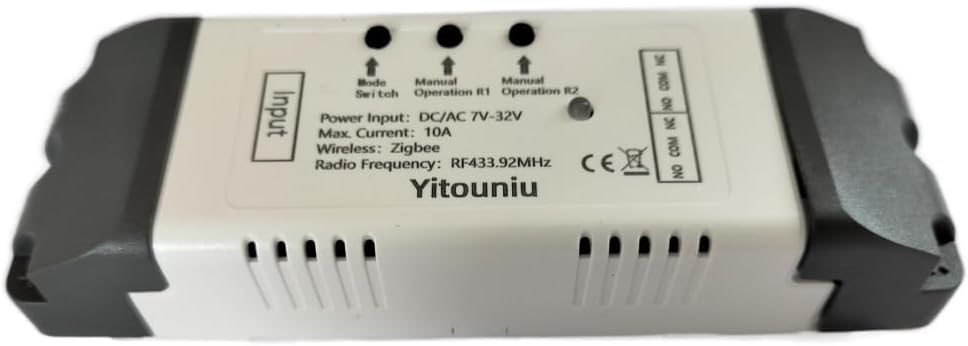
This image displays the Yitouniu Zigbee 2-Channel Smart Relay Switch Module. It shows the input terminals for power, the mode switch button, manual operation buttons for relays R1 and R2, and the output terminals (NO, COM, NC) for connecting appliances. The device is housed in a white casing with ventilation slots.

Aworan yii pese alaye kan view of the module's internal circuit board with key components labeled. It highlights the 'Model switch button', 'Manual switch' buttons, 'Network indicator' (red light), 'RF Pairing indicator' (blue light), and the 'Relay' components. Input terminals for DC 7-32V and USB 5V are shown, along with output terminals (NC, COM, NO) for connecting external devices.
Awọn aṣayan Ipese Agbara
A le ṣe agbara module naa nipasẹ awọn ọna meji:
- DC/AC 7-32V: Connect your power source to the 'Input DC/AC 7-32V' terminals.
- USB 5V: Connect a 5V USB power adapter to the micro USB port.
Wiring Diagrams for Operating Modes
The module supports three operating modes: Inching (Momentary), Self-Lock, and Interlock. The wiring for connected appliances will vary based on the chosen mode and application.

This image illustrates typical wiring configurations. The top diagram shows an Ipo Interlock connection for a motor, where the module controls the motor's direction (e.g., upload/download). The middle diagram shows a Three-Wire Motor Connection in Interlock Mode, detailing how to connect a 220V motor for directional control. The bottom diagram demonstrates an Appliance Connection in Self-lock Mode for AC 220V lights, where each relay acts as an independent on/off switch.
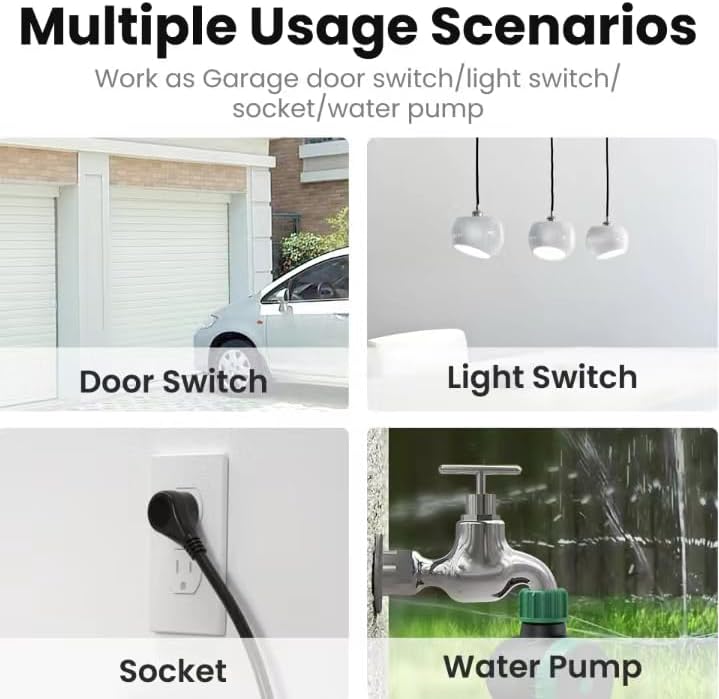
This diagram specifically shows a Self-locking mode wiring example for a single light bulb. The input power is DC 7-32V, and the light bulb is connected to the relay's output terminals, allowing it to be toggled on or off independently.
Pairing with Zigbee Gateway
This module requires a Zigbee gateway (hub) for smart control. Ensure your Zigbee gateway is set up and ready for device pairing.

This image emphasizes that a Tuya Zigbee Hub is required to connect and manage multiple Zigbee smart devices, including this relay module, within your smart home ecosystem.
- Ṣe igbasilẹ ohun elo naa: Install the Tuya Smart or Smart Life app on your smartphone.
- Sopọ si Ibudo: Ensure your Zigbee gateway is connected to your home network.
- Tẹ Ipo Sisopọ: Power on the Yitouniu module. Press and hold the 'Mode Switch' button for approximately 5 seconds until the network indicator light blinks, indicating it's in pairing mode.
- Fi Ẹrọ sinu App: Open the Tuya Smart or Smart Life app, navigate to your Zigbee gateway, and select 'Add Sub Device' or 'Wa fun devices'. The app should detect the module.
- Jẹrisi Isopọpọ: Follow the on-screen prompts to complete the pairing process. Once successfully paired, the network indicator light will stop blinking.

This visual guide outlines the quick setup process: 1. Download the Alexa/SmartThings app. 2. Connect to your Alexa/SmartThings hub. 3. The Yitouniu 2CH Smart Switch module. 4. Add devices within the app.
Awọn ọna ṣiṣe
The Yitouniu Smart Relay Switch Module offers three distinct operating modes:
- Self-Lock Mode: In this mode, each relay acts as a standard on/off switch. A single command (or button press) toggles the relay's state (ON to OFF, or OFF to ON). This is ideal for controlling lights or other appliances that require a persistent state.
- Inching (Momentary) Mode: When activated, the relay turns ON for a preset duration (e.g., 1 to 3600 seconds) and then automatically turns OFF. This mode is commonly used for applications like garage door openers, where a brief pulse is needed to trigger an action.
- Ipò Interlock: This mode ensures that only one relay can be ON at any given time. If one relay is activated, any other active relay will automatically turn OFF. This is useful for controlling devices with mutually exclusive states, such as motor direction (forward/reverse) or fan speed selection.
You can switch between these modes using the 'Mode Switch' button on the device or through the connected smart home app, depending on the specific gateway and app features.
Smart Iṣakoso Awọn ẹya ara ẹrọ
Iṣakoso ohun
The module is compatible with Amazon Alexa and Google Assistant, allowing for hands-free voice control of connected appliances. Once integrated with your Zigbee gateway and linked to your voice assistant, you can use commands like:
- "Alexa, tan ina gareji."
- "Ẹ kú Google, pa afẹ́fẹ́ náà."
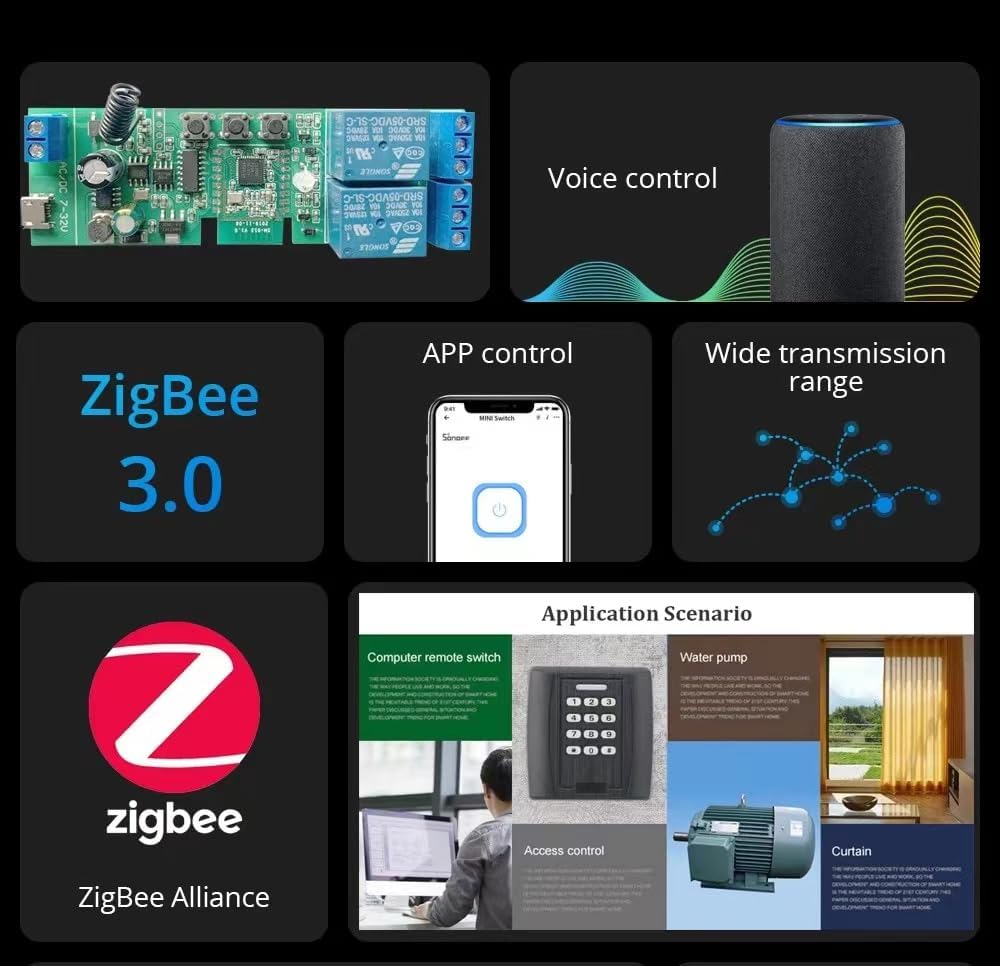
This image highlights key features including Zigbee 3.0 compatibility, voice control integration with smart speakers, app control via a smartphone, and the wide transmission range offered by Zigbee networks.
App Control and Scheduling
Manage your connected appliances remotely using the Tuya Smart or Smart Life app. Features include:
- Tan/PA Latọna jijin: Control devices from anywhere.
- Titele ipo: View ipo gidi-akoko ti awọn ẹrọ rẹ ninu ohun elo naa.
- Awọn aago: Set countdown, scheduled, or cycle timers for automated operation.
- Awọn iwoye Smart: Create custom automation rules based on conditions like departure/home mode, temperature, humidity, or other Zigbee product interactions.
RF Iṣakoso
The module includes a built-in 433MHz RF receiver, allowing it to be controlled by compatible 433MHz learning code remote controls (not included).
Itoju
The Yitouniu Smart Relay Switch Module is designed for low maintenance. To ensure optimal performance and longevity:
- Jeki ẹrọ naa di mimọ ati ofe kuro ninu eruku.
- Avoid exposing it to direct sunlight or high humidity.
- Lokọọkan ṣayẹwo awọn asopọ onirin lati rii daju pe wọn wa ni aabo.
- Ensure your Zigbee gateway firmware and smartphone app are updated to the latest versions for best compatibility and features.
Laasigbotitusita
- Ẹrọ ko so pọ:
- Ensure the Zigbee gateway is powered on and within range.
- Confirm the module is in pairing mode (blinking network indicator).
- Check if your router's MAC filtering is disabled.
- Verify you are using a 2.4GHz WiFi network for the gateway.
- No response from voice control:
- Ensure the module is successfully paired with your Zigbee gateway and linked to Alexa/Google Home.
- Ṣayẹwo asopọ intanẹẹti rẹ.
- Verify the device name in the Alexa/Google Home app matches your voice command.
- Appliance not turning ON/OFF:
- Check all wiring connections for security and correctness according to the chosen operating mode.
- Verify the power supply to the module and the connected appliance.
- Ensure the module is receiving commands from the app or voice assistant.
Atilẹyin

This image provides information on how to contact customer support. For assistance, please visit your 'Orders' page, locate your Yitouniu order, and click the 'Contact Seller' button. This method ensures quick access to your order details for efficient problem resolution.