
1. Ifihan
This manual provides essential instructions for the installation, operation, and maintenance of your PureLink Vuelogic VB200 Huddle Space Videobar. Please read this manual thoroughly before using the product to ensure proper functionality and to prevent damage.
The PureLink Vuelogic VB200 is an all-in-one conferencing solution designed for huddle spaces and small to medium meeting rooms. It integrates a 4K camera, multiple microphones, and stereo speakers to provide a comprehensive audio and video experience.
2. Alaye Aabo
Ṣe akiyesi awọn iṣọra ailewu atẹle lati ṣe idiwọ ibajẹ si ẹrọ ati rii daju aabo olumulo:
- Ma ṣe fi ẹrọ naa han si omi, ọrinrin, tabi awọn iwọn otutu to gaju.
- Yago fun gbigbe ẹrọ naa si nitosi awọn orisun ooru tabi ni imọlẹ orun taara.
- Lo oluyipada agbara nikan ti a pese pẹlu ẹrọ naa.
- Ma ṣe gbiyanju lati ṣii tabi tun ẹrọ naa funrararẹ. Tọkasi gbogbo iṣẹ si oṣiṣẹ oṣiṣẹ.
- Rii daju pe fentilesonu to dara ni ayika ẹrọ lakoko iṣẹ.
3. Ọja Ipariview
The PureLink Vuelogic VB200 combines a high-quality camera, microphone array, and speakers into a single, compact unit for streamlined video conferencing.
3.1. Package Awọn akoonu
Jẹrisi pe gbogbo awọn ohun kan wa ninu package:
- PureLink Vuelogic VB200 Videobar
- Adapter agbara
- Okun USB
- Àmì ìfisílé (tí ó bá wà pẹ̀lú rẹ̀)
- Quick Bẹrẹ Itọsọna

Figure 3.1: The retail packaging for the PureLink Vuelogic VB200 Videobar, indicating it is an all-in-one conferencing solution.

Nọmba 3.2: Alaye view of the product packaging, showing the model number VL-VB200 and UPC 4251364736913.
3.2. Device irinše
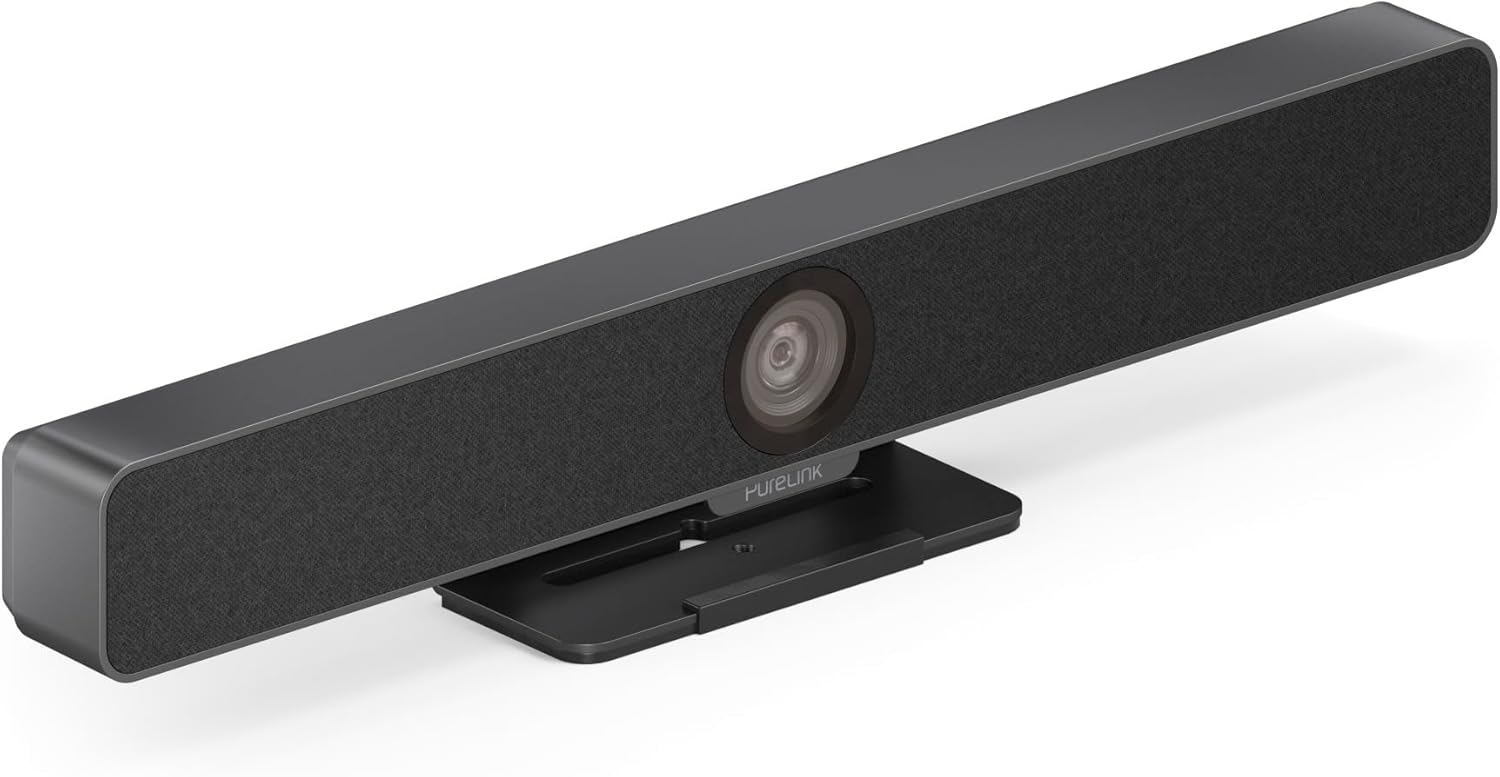
olusin 3.3: Iwaju view of the PureLink Vuelogic VB200 Huddle Space Videobar, showcasing the integrated camera and speaker grille.

olusin 3.4: Iwaju ati ki o ru views of the videobar. The rear view displays the power input, USB-C port, and other connectivity options.
- Iwaju: Integrated 4K camera, speaker grille, PureLink branding.
- Ẹyìn: Power input, USB-C port for data and power, HDMI output (if applicable), mounting points.
4. Eto
Follow these steps to set up your PureLink Vuelogic VB200 Videobar:
- Ibi: Position the videobar on a stable surface, such as a table or monitor, ensuring the camera has a clear view of the meeting participants. The integrated stand allows for flexible placement.
- Asopọ agbara: Connect the provided power adapter to the videobar's power input and then to a wall outlet.
- Asopọ USB: Connect the videobar to your computer using the supplied USB-C cable. The device is plug-and-play and should be recognized automatically by your operating system.
- Optional HDMI Connection: If your setup requires video output to a display, connect an HDMI cable from the videobar's HDMI output (if available) to your display.
- Ìmọ̀ Sọ́fítíwèèjì: Once connected, your computer's operating system (Windows, macOS, etc.) should detect the device. You may need to select the "PureLink Vuelogic VB200" as your preferred camera, microphone, and speaker in your video conferencing application settings (e.g., Zoom, Microsoft Teams, WebEx).

Figure 4.1: The videobar positioned on a surface, demonstrating its flexible mounting options for various work environments.
5. Awọn ilana Iṣiṣẹ
The PureLink Vuelogic VB200 is designed for ease of use with popular video conferencing platforms.
5.1. Bíbẹ̀rẹ̀ Ìpàdé kan
- Ensure the videobar is connected and powered on.
- Open your preferred video conferencing application (e.g., Zoom, Microsoft Teams, WebEx, Google Meet, Skype, Slack, GoToMeeting).
- In the application's audio and video settings, select "PureLink Vuelogic VB200" as your camera, microphone, and speaker device.
- Start or join your meeting.

Figure 5.1: The videobar is compatible with leading communication platforms such as Zoom, Slack, GoToMeeting, Google Hangouts, Skype, Microsoft Teams, and Google Meet.
5.2. Key Awọn ẹya ara ẹrọ
- Dídára Fídíò 4K: The 120° wide-angle lens captures sharp, high-resolution video, suitable for small to medium rooms.
- Intelligent Auto Framing and Tracking: The camera automatically adjusts its frame to keep all participants visible and can track the active speaker, ensuring optimal framing during dynamic meetings.
- High-Quality Audio Capture: Equipped with 4 MEMS digital microphone arrays, offering a 3-5m range and 180° coverage. Features like Acoustic Echo Cancellation (AEC), Automatic Gain Control (AGC), and Automatic Noise Suppression (ANS) ensure clear communication.
- Hi-Fi Stereo Speakers: Two 3W stereo speakers with bass boost provide clear and powerful audio output for an immersive sound experience.
6. Itọju
To ensure the longevity and optimal performance of your videobar:
- Ninu: Use a soft, dry cloth to clean the exterior of the device. For the camera lens, use a lens cleaning cloth and solution specifically designed for optics. Do not use abrasive cleaners or solvents.
- Ibi ipamọ: Nigbati o ko ba wa ni lilo fun awọn akoko ti o gbooro sii, fi ẹrọ naa pamọ si ibi ti o tutu, ibi gbigbẹ kuro lati orun taara.
- Awọn imudojuiwọn famuwia: Periodically check the PureLink webAaye fun eyikeyi awọn imudojuiwọn famuwia ti o wa lati rii daju pe ẹrọ rẹ ni awọn ẹya tuntun ati awọn ilọsiwaju iṣẹ.
7. Laasigbotitusita
If you encounter issues with your PureLink Vuelogic VB200, refer to the following common problems and solutions:
| Isoro | Owun to le Fa | Ojutu |
|---|---|---|
| No video output / Camera not detected | Loose USB connection, incorrect software settings, driver issue. |
|
| No audio from speakers / Microphone not working | Incorrect audio settings, muted device. |
|
| Auto-framing not functioning correctly | Poor lighting, obstruction, software glitch. |
|
8. Awọn pato
| Ẹya ara ẹrọ | Ẹ̀kúnrẹ́rẹ́ |
|---|---|
| Brand | PureLink |
| Nọmba awoṣe | VL-VB200 |
| Awọn iwọn | 20.47 x 7.87 x 5.12 inches |
| Iwọn | 2.2 iwon |
| Àwọ̀ | Dudu |
| Ipinnu Yaworan fidio | 4K |
| Sun-un Optical | 5x |
| Fọto sensọ Technology | CMOS |
| Pataki Awọn ẹya ara ẹrọ | Auto Framing and Tracking |
| Gbohungbohun Iru | 4 MEMS Digital Microphone Arrays |
| Gbohungbohun Ibiti | 3-5m, 180° coverage |
| Audio Awọn ẹya ara ẹrọ | AEC, AGC, ANS |
| Awọn agbọrọsọ | Two 3W Stereo Speakers with Bass Boost |
| Asopọmọra Technology | HDMI, USB |
| Atilẹyin Audio kika | AAC, MP3 |
| Ni atilẹyin ọna kika fidio | MP4 |
| Ibamu | Windows, macOS, Zoom, WebEx, Tencent Meeting, Teams, etc. |
9. Atilẹyin ọja ati Support
PureLink products are designed for reliability and performance. For specific warranty information, please refer to the warranty card included with your product or visit the official PureLink webojula.
For technical support, troubleshooting assistance, or to inquire about service, please contact PureLink customer support through their official channels. Keep your purchase receipt and product model number (VL-VB200) handy when contacting support.
Official PureLink Webojula: www.purelink.de