
1. Ifihan
The DOREMiDi MPC-20 is a versatile MIDI pedal converter designed to expand the pedal capabilities for musical instruments. It automatically detects various types of pedals, addressing situations where the number of available pedals is insufficient during performance. The MPC-20 offers both MIDI DIN and USB MIDI outputs, making it suitable for diverse performance setups.
2. Key Awọn ẹya ara ẹrọ
- Automatic Pedal Detection: Automatically identifies various types of musical instrument pedals.
- Multiple Pedal Inputs: Features 4 pedal connectors, supporting up to 4 expression pedals or 8 switch pedals (4 dual switch pedals).
- Ibamu gbooro: Compatible with positive polarity expression pedals, reverse polarity expression pedals, sustain pedals, and electronic drum hi-hats.
- Dual MIDI Outputs: Equipped with MIDI DIN (five-pin) and USB MIDI outputs for flexible connectivity.
- Apẹrẹ Iwapọ: Measures 3.46 x 2.8 x 1.5 inches and weighs 8.8 ounces.
3. Ọja Ipariview
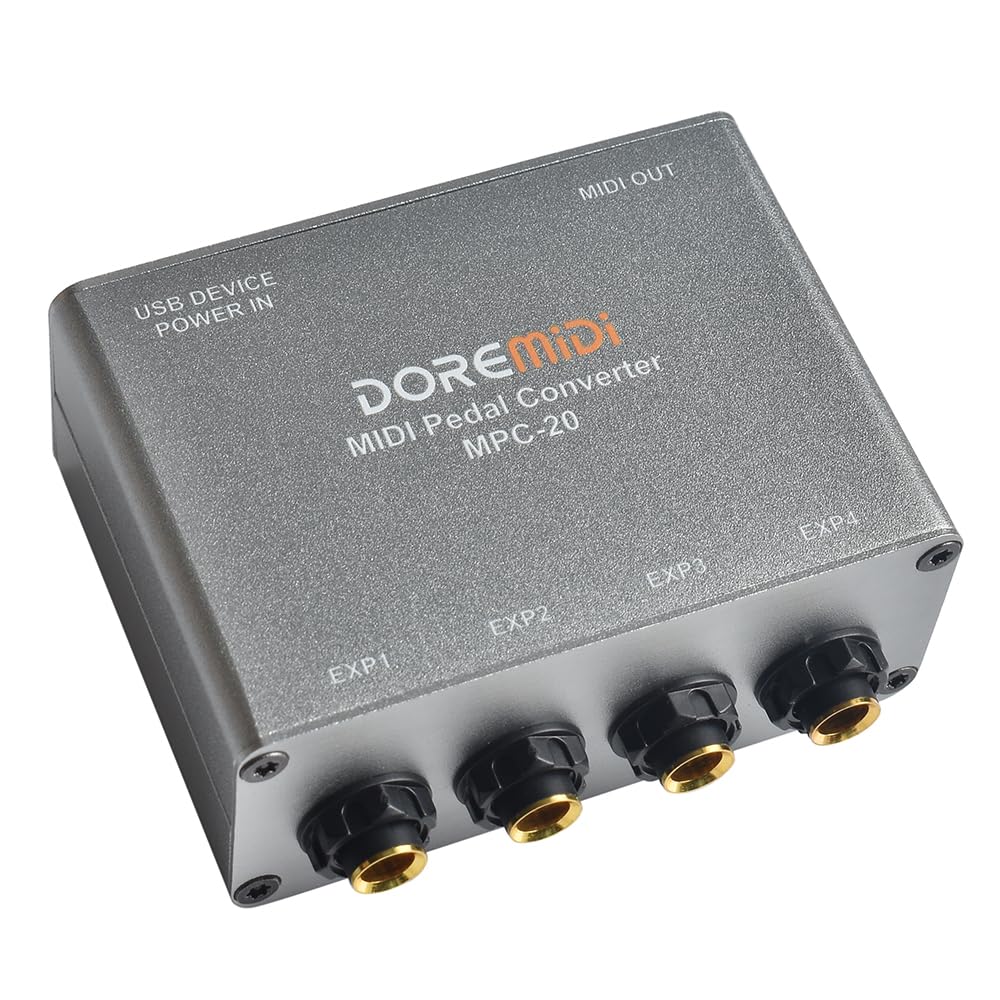
Nọmba 1: Oke-isalẹ view of the DOREMiDi MPC-20 MIDI Pedal Converter. This image highlights the USB DEVICE POWER IN port, MIDI OUT port, and the four expression pedal input jacks labeled EXP1, EXP2, EXP3, and EXP4.
Nọmba 2: Contents of the DOREMiDi MPC-20 package, including the converter unit, a USB cable for power and data, and the instruction manual.
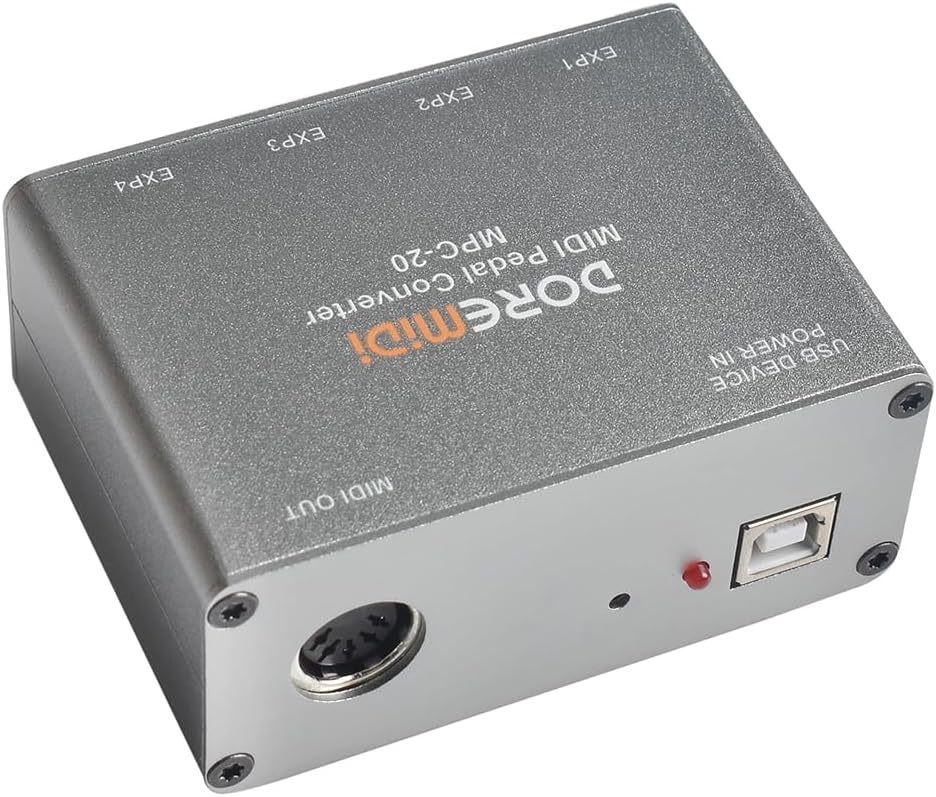
Nọmba 3: Labeled diagram of the MPC-20 ports. (1) EXP1-EXP4 pedal inputs, (2) USB DEVICE POWER IN, (3) Update Key (button), (4) MIDI OUT.
4. Eto ati awọn isopọ
- So awọn Pedals: Connect your expression pedals, sustain pedals, dual-switch pedals, or electronic drum hi-hats to the EXP1, EXP2, EXP3, and EXP4 input jacks on the MPC-20. The MPC-20 automatically detects the pedal type.
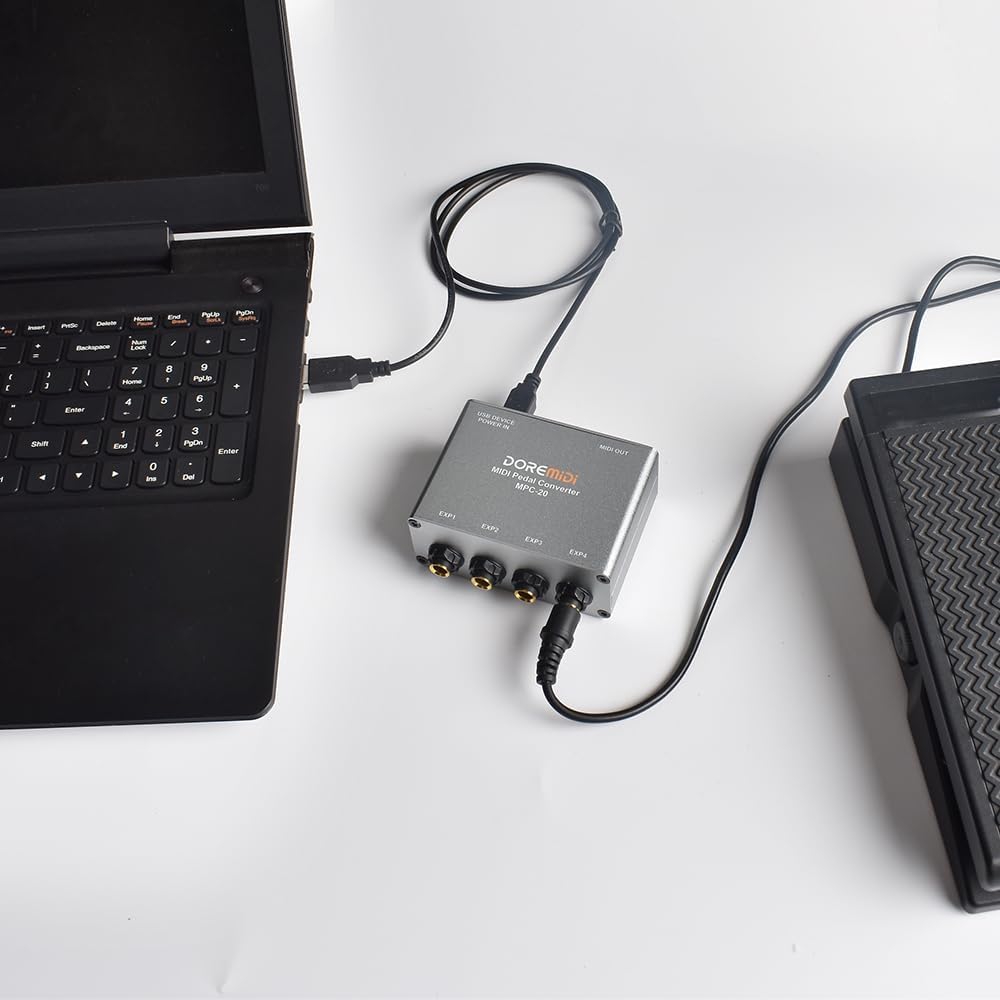
- Asopọ agbara ati okun USB: Connect the MPC-20 to a computer or a USB power adapter using the USB DEVICE POWER IN port. This provides power to the unit and enables USB MIDI communication.

Nọmba 4: MPC-20 connected to a laptop via USB for power and MIDI data, with an expression pedal connected to one of its inputs.
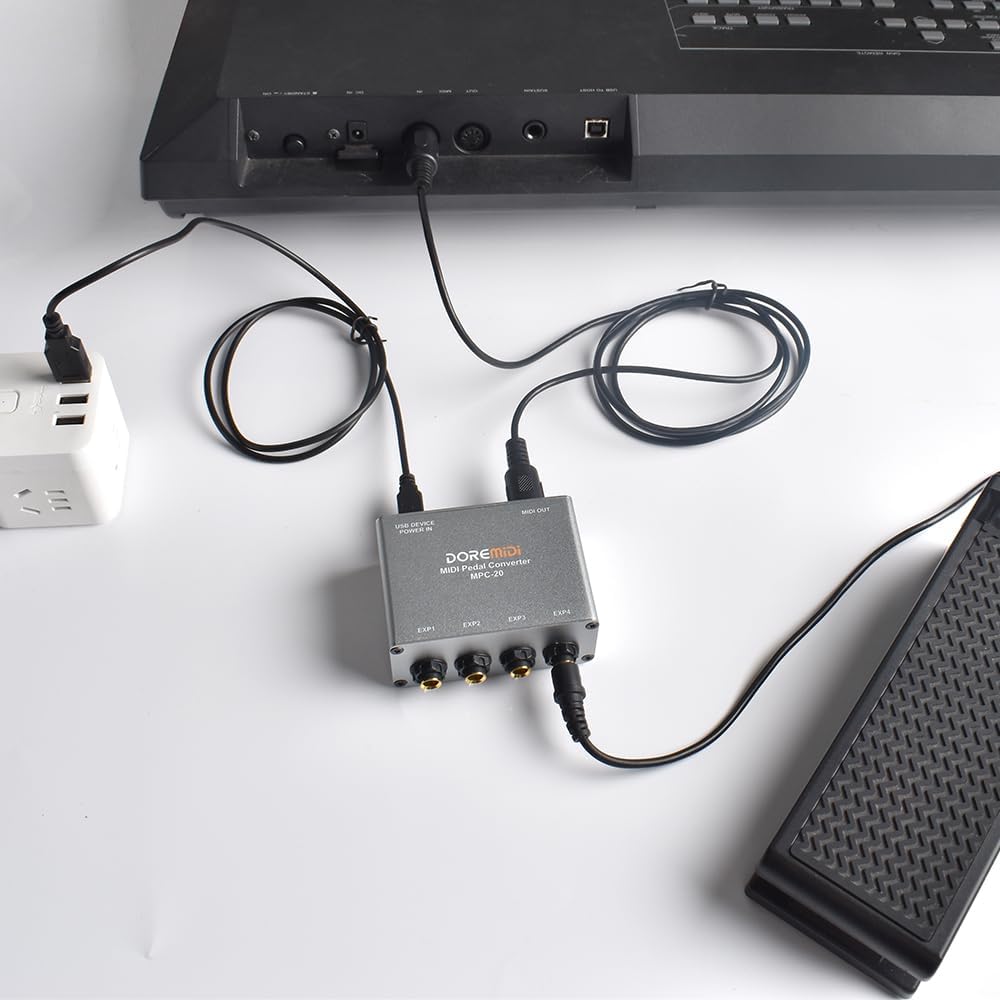
- MIDI DIN Output (Optional): If connecting to a device with a traditional 5-pin MIDI input, use a standard MIDI cable to connect the MPC-20's MIDI OUT port to your MIDI device's MIDI IN port.
Nọmba 5: MPC-20 connected to a keyboard via MIDI DIN output, and powered by a USB wall adapter.
- Fifi sori ẹrọ awakọ (Windows): If your Windows computer does not recognize the MPC-20, it may be installing the necessary driver. If issues persist, please refer to the DOREMiDi website for the latest drivers and firmware update instructions.
5. Isẹ
Once connected, the MPC-20 converts the physical input from your pedals into MIDI messages. These messages are then sent to your connected computer or MIDI device via USB or MIDI DIN. The specific function of each pedal (e.g., volume, modulation, sustain) will depend on how your receiving MIDI device or software is configured to interpret the incoming MIDI messages.
- Expression Pedals: Typically send Continuous Controller (CC) messages, allowing for real-time control over parameters like volume, wah, or modulation.
- Sustain Pedals: Send MIDI Note On/Off messages or CC messages (e.g., CC 64 for sustain) to control sustain functions on keyboards or synthesizers.
- Dual-Switch Pedals: Each switch can be configured to send distinct MIDI messages, often used for program changes, tap tempo, or other on/off functions.
For advanced configuration, such as assigning specific MIDI channels or CC numbers to each pedal input, you may need to use the dedicated software provided by DOREMiDi. Refer to the software's documentation for detailed instructions.
6. Itọju
- Jeki ẹrọ naa di mimọ ati ofe kuro ninu eruku. Lo asọ asọ ti o gbẹ fun mimọ.
- Yago fun ṣiṣafihan ẹrọ naa si awọn iwọn otutu to gaju, ọriniinitutu, tabi oorun taara.
- Má ṣe gbìyànjú láti tú tàbí ṣe àtúnṣe ẹ̀rọ náà, nítorí èyí yóò sọ àtìlẹ́yìn náà di òfo, ó sì lè fa ìbàjẹ́.
- Rii daju pe gbogbo awọn isopọ wa ni aabo ṣaaju lilo.
7. Laasigbotitusita
- Ẹrọ Ko ṣe idanimọ nipasẹ Kọmputa:
- Ensure the USB cable is securely connected to both the MPC-20 and your computer.
- Gbiyanju ibudo USB ti o yatọ lori kọnputa rẹ.
- For Windows users, check the DOREMiDi website for the latest USB COM drivers and installation instructions.
- Restart your computer and the MPC-20.
- No MIDI Output:
- Verify that your pedals are correctly connected to the EXP inputs.
- Check the MIDI connections (USB or DIN) to your receiving device.
- Ensure the receiving MIDI device or software is correctly configured to receive MIDI messages on the appropriate channel and controller numbers.
- If using the DOREMiDi configuration software, ensure the settings are correctly applied and saved to the device.
- Inconsistent Pedal Response / Dropouts:
- Ensure the power supply is stable. If using a USB hub, try connecting directly to the computer or using a powered hub.
- Check the condition of your pedal cables. Faulty cables can cause intermittent issues.
- Verify that the pedals themselves are functioning correctly.
- Consider updating the MPC-20 firmware if available. Refer to the DOREMiDi website for firmware updates and instructions. Note that firmware updates often require specific software.
- Awọn ọran Iṣeto Software:
- Always download the newest version of the DOREMiDi configuration software from the official webojula.
- If the software interface is unclear, consult the software's specific documentation or online resources.
- Ensure the software can communicate with the MPC-20. Sometimes, a firmware update through the software itself is required before full functionality is achieved.
8. Awọn pato
| Ẹya ara ẹrọ | Ẹ̀kúnrẹ́rẹ́ |
|---|---|
| Nọmba awoṣe | MPC-20 |
| Awọn iwọn | 3.46 x 2.8 x 1.5 inches (88 x 73 x 38 mm) |
| Iwọn Nkan | 8.8 iwon (0.25 kilo) |
| Asopọmọra Technology | USB |
| Nọmba ti awọn ikanni | 16 (MIDI) |
| Awọn ẹrọ ibaramu | Keyboard, Laptop, Personal Computer |
| Eto isesise | Windows (driver may be required) |
| Awọn igbewọle efatelese | 4 (supports expression, sustain, dual-switch, hi-hat) |
| MIDI Outputs | MIDI DIN (5-pin), USB MIDI |
9. Atilẹyin ọja ati Support
For warranty information, technical support, or to download the latest drivers and firmware, please visit the official DOREMiDi webojula. Tọju iwe-ẹri rira rẹ bi ẹri rira fun awọn iṣeduro atilẹyin ọja.
Olupese: Shenzhen Huashi Technology Co., Ltd.
Adirẹsi: 5D, Phase II, Huangjiang Industrial Park, Liuyue Community, Henggang Street, Baoan District, Shenzhen
Ilu isenbale: Ṣe lati orilẹ-ede Ṣaina