
Ọrọ Iṣaaju
The IHSENO Mini WiFi Relay Smart Switch is an intelligent device designed to integrate your lighting and other electrical appliances into a smart home system. It operates on 2.4GHz WiFi and is controlled via the Tuya Smart Life App, allowing for remote management, scene customization, and voice control through platforms like Alexa and Google Home. Its compact design enables installation in various electrical boxes, facilitating the automation of your home environment.
Alaye Aabo
Before installation or operation, please read and understand all safety instructions. Improper installation can lead to electric shock or fire. This device is designed for indoor use only. Ensure the power supply is disconnected before any wiring work. Installation should be performed by a qualified electrician or in accordance with local electrical codes. The device is certified for safety (FCC, CE, RoHS) and features fireproof material.

Image: Safety and Certification details for the IHSENO Mini WiFi Smart Switch, highlighting compliance with FCC, CE, and RoHS standards, and indicating fireproof material construction.
Ọja Awọn ẹya ara ẹrọ
- Mini WiFi Smart Switch: Compact design for easy installation in standard electrical boxes.
- Tuya Smart Life App Control: Manage devices remotely, create intelligent scene linkages with other Tuya devices.
- Customizable Scene Modes: Set specific lighting or appliance configurations for various activities (e.g., Reading, Movie).
- Iṣakoso ohun: Ibamu pẹlu Alexa ati Google Assistant fun iṣẹ ọwọ laisi ọwọ.
- Intelligent Timing: Schedule automatic on/off times for energy saving and convenience.
- 2-Way Control Support: Designed to work with existing 2-way switch setups.
- Family Sharing Function: Share control permissions with family members through the app.
Awọn pato

Image: Detailed product specifications for the IHSENO Mini WiFi Smart Switch, including electrical ratings, dimensions, and supported application.
| Olupese | IHSENO |
| Iwọn | 1.6*1.6*0.8 inches (approx. 41x20x41mm) |
| Àwọ̀ | Funfun |
| Ohun elo | Copper (internal components), PC V0 (housing) |
| Nkan Package opoiye | 2 |
| Yipada Iru | 1-ọna |
| Iṣagbesori Iru | Ògiri Ògiri |
| Iyipada Yipada | Titari Bọtini |
| Alailowaya Iru | WiFi 2.4G |
| Iṣawọle | AC 100-240V 50 / 60Hz 16A Max |
| Abajade | AC 100-240V 50 / 60Hz 16A Max |
| Ibamu App | Smart Life (Support iOS & Android) |
Eto ati fifi sori
Ohun ti o wa ninu Apoti
Your package includes two (2) IHSENO Mini WiFi Relay Smart Switches and this instruction manual.
Awọn aworan onirin
Pataki: Ensure the power supply is completely disconnected at the circuit breaker before attempting any wiring. Input and output connections cannot be reversed. Consult a qualified electrician if you are unsure about any wiring procedures.

Image: Wiring Method 1 - Direct connection. This diagram illustrates connecting the smart switch directly between the mains power supply and a lamp. L-out and N-out connect to the lamp, while L-in and N-in connect to the mains. Input and output cannot be reversed.

Image: Wiring Method 2 - With a 1-way switch. This diagram shows how to integrate the smart switch with a traditional 1-way wall switch. The lamp connects to L-out/N-out, mains to L-in/N-in, and the 1-way switch connects to the S1 and S2 terminals on the smart switch. Input and output cannot be reversed.

Image: Wiring Method 3 - With a 2-way switch. This diagram details connecting the smart switch in a 2-way control setup. The lamp connects to L-out/N-out, mains to L-in/N-in, and the 2-way switch connects to the S1, S2, and L-in terminals of the smart switch. Input and output cannot be reversed.
App Installation and Device Pairing
- Ṣe igbasilẹ ohun elo naa: Wa fun "Tuya Smart" or "Smart Life" in your smartphone's app store (iOS or Android) and install the application.
- Forukọsilẹ/Wọle: Ṣí àpù náà kí o sì forúkọ sílẹ̀ fún àkọọ́lẹ̀ tuntun tàbí kí o wọlé pẹ̀lú èyí tó wà tẹ́lẹ̀.
- Fi ẹrọ kun:
- Ensure your smart switch is powered on and in pairing mode (usually indicated by a rapidly blinking light). If not, refer to the device's reset instructions (typically pressing a button for 5 seconds).
- Nínú àpù náà, tẹ àmì "+" (nígbà gbogbo ní igun ọ̀tún òkè) láti fi ẹ̀rọ tuntun kún un.
- Select "Electrical" or "Switch (Wi-Fi)" from the device list.
- Follow the on-screen prompts to connect the device to your 2.4GHz WiFi network.
- Once connected, you can rename the device for easier identification.
Awọn ilana Iṣiṣẹ
Remote Control via Tuya Smart Life App
Once paired, you can control your smart switch from anywhere with an internet connection using the Tuya Smart Life App. This includes turning devices on/off, checking status, and managing settings.
Image: Illustration of WiFi remote control, demonstrating how a smartphone connected to the internet can control the smart switch and connected devices from any location.

Image: App Remote Control in action, showing a user controlling a floor lamp via the Smart Life application on their smartphone.
Iṣakoso Ohun pẹlu Alexa ati Ile Google
Integrate your smart switch with Amazon Alexa or Google Assistant for convenient voice control. Follow the instructions in your Alexa or Google Home app to link your Tuya Smart Life account.
- Fun Alexa: Open the Alexa app, go to "Skills & Games," search for "Smart Life," enable the skill, and link your account. Discover devices.
- Fun Ile Google: Open the Google Home app, tap "+", select "Set up device" > "Works with Google," search for "Smart Life," link your account.
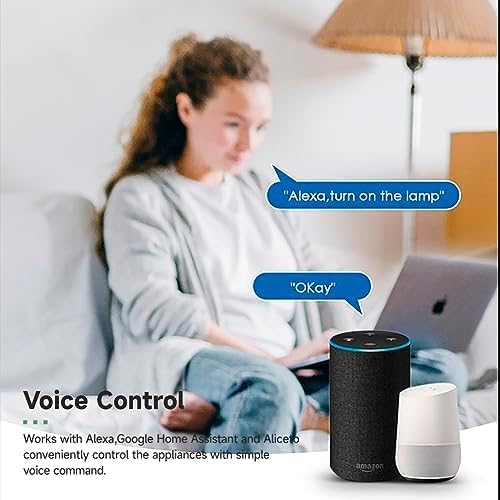
Image: Voice Control demonstration, showing a user interacting with an Amazon Echo and Google Home Mini to turn on a lamp lilo awọn pipaṣẹ ohun.
Customizing Scene Modes
The Tuya Smart Life App allows you to create custom scenes that activate multiple devices with a single command or condition. For example, a "Movie Night" scene could dim lights and turn on entertainment systems.
- In the Tuya Smart Life App, navigate to the "Smart" or "Scenes" section.
- Tap to create a new scene.
- Define the conditions (e.g., manual tap, time, device status) and the actions (e.g., turn on/off switch, set brightness).
- Save your scene.
Intelligent Timing and Scheduling
Set schedules for your devices to operate automatically, enhancing convenience and energy efficiency.
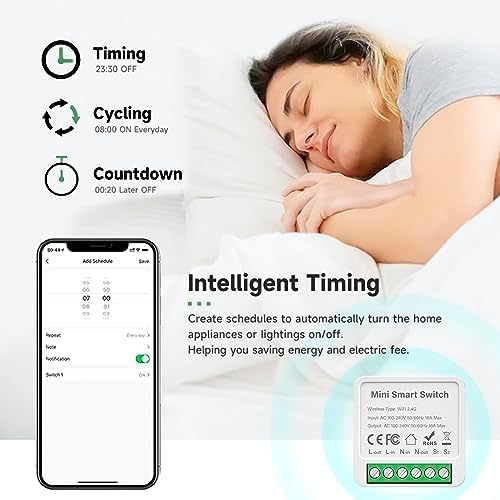
Image: Intelligent Timing features, illustrating the app's capabilities for setting schedules, cycling, and countdown timers to automate home appliances and lighting.
- From the device control interface in the app, look for "Schedule," "Timer," or "Countdown" options.
- Set desired on/off times, repeat cycles, or countdown durations.
- Jẹrisi ati fi awọn eto rẹ pamọ.
2-Way Control Functionality
The smart switch supports 2-way control, allowing you to maintain functionality with existing multi-location switch setups. Refer to the wiring diagrams in the Setup section for proper installation.

Image: Support for 2-way control, showing a wiring schematic for connecting the smart switch with two parallel switches to control a single light fixture.
Pipin Išė
Share control of your smart devices with family members. This allows multiple users to manage the smart switch from their own Tuya Smart Life accounts.

Image: Sharing function overview, demonstrating how control permissions for smart devices can be shared among family members via the app.
- In the app, select the device you wish to share.
- Go to the device settings (usually an icon in the top right corner).
- Look for "Share Device" or "Device Sharing" and follow the prompts to add family members.
Itoju
The IHSENO Mini WiFi Relay Smart Switch requires minimal maintenance. Keep the device clean and free from dust. Do not attempt to open or repair the device yourself, as this will void the warranty and could pose a safety risk. Ensure the device is kept in a dry environment and away from extreme temperatures.
Laasigbotitusita
- Ẹ̀rọ náà kò sopọ̀ mọ́ WiFi:
- Ensure your WiFi network is 2.4GHz. The device does not support 5GHz WiFi.
- Check that your WiFi password is correct.
- Gbe ẹrọ naa sunmọ si olulana WiFi rẹ.
- Reset the smart switch (refer to app instructions for specific reset procedure, usually holding a button for 5 seconds) and try pairing again.
- Device unresponsive in app:
- Daju pe foonuiyara rẹ ni asopọ intanẹẹti ti nṣiṣe lọwọ.
- Check if the smart switch has power and its indicator light is on.
- Restart the Tuya Smart Life App.
- If the issue persists, try restarting your WiFi router.
- Iṣakoso ohun ko ṣiṣẹ:
- Ensure your Tuya Smart Life account is correctly linked to Alexa or Google Home.
- Check the device name in the Alexa/Google Home app; it should match what you are saying.
- Verify your voice assistant device is online and functioning correctly.
- Physical switch not working after installation:
- Double-check all wiring connections against the provided diagrams. Ensure L-in, N-in, L-out, N-out, S1, and S2 are correctly connected.
- Rii daju pe ipese agbara wa ni titan.
Atilẹyin ọja ati Support
IHSENO is committed to providing quality products and customer satisfaction. If you encounter any issues or have questions regarding your Mini WiFi Relay Smart Switch, please contact our customer service team. We aim to respond to all inquiries within 24 hours.
For support, please refer to the contact information provided with your purchase or visit the official IHSENO webojula.