
EasySMX 9101
EasySMX 9101 Wireless Controller User Manual
Awoṣe: 9101
1. Ifihan
Thank you for choosing the EasySMX 9101 Wireless Controller. This manual provides detailed instructions on how to set up, operate, and maintain your controller to ensure an optimal gaming experience. Please read this manual thoroughly before use and keep it for future reference.
2. Ọja Ipariview
2.1 Package Awọn akoonu
- EasySMX 9101 Wireless Controller
- 2.4G USB olugba
- USB-C Ngba agbara Cable
- Itọsọna olumulo
2.2 Adarí Layout

Figure 1: EasySMX 9101 Wireless Controller with key components labeled.
The EasySMX 9101 controller features a standard gamepad layout designed for comfortable and intuitive control. Key components include:
- Left Joystick (R3): For movement and camera control. Press down for R3 button.
- Pádì ìtọ́sọ́nà (D-Pad): Fún ìtẹ̀síwájú ìtọ́sọ́nà tó péye.
- Right Joystick (R3): For camera control or specific in-game actions. Press down for R3 button.
- Àwọn Kọ́kọ́rọ́ Iṣẹ́ (A, B, X, Y): Awọn bọtini iṣe deede.
- LB/RB Buttons: Left and Right Bumper buttons.
- LT/RT Buttons: Left and Right Trigger buttons.
- Bọtini Turbo: Activates/deactivates turbo function for rapid firing.
- Bọtini Pada: Typically used for menu navigation or specific in-game functions.
- Bọtini Ibẹrẹ: A maa n lo o fun idaduro awọn ere tabi wiwọle si akojọ aṣayan.
- Ibudo gbigba agbara: USB-C port for charging the controller.
- LED Indicators (LED 1, 2, 3, 4): Indicate connection status, player number, and charging status.
3. Eto
3.1 Gbigba agbara Adarí
Before first use, fully charge the controller. Connect the supplied USB-C cable to the controller's charging port and the other end to a USB power source (e.g., PC, USB wall adapter). The LED indicators will show charging status and turn off or change color when fully charged.
3.2 Wireless Connection (2.4G Receiver)
The EasySMX 9101 uses 2.4G wireless technology for a stable connection.
- Insert the 2.4G USB receiver into an available USB port on your device (PC, PS3, Android TV Box).
- Tan oluṣakoso naa nipa titẹ bọtini Ile.
- The controller will automatically attempt to connect to the receiver. The LED indicators will blink during pairing and become solid once connected.

Figure 2: Wireless connection setup using the 2.4G USB receiver.
3.3 Asopọ Onirin
The controller can also be used in wired mode, which is required for Nintendo Switch compatibility.
- Connect the USB-C cable to the controller's charging port.
- Connect the other end of the USB-C cable to a USB port on your device.
- The controller will automatically switch to wired mode and be recognized by your device.
3.4 Connecting to Specific Devices

Figure 3: EasySMX 9101 Wireless Controller compatibility across multiple platforms.
- PC (Windows): Insert the 2.4G USB receiver into a USB port. The system will automatically install the necessary drivers.
- PS3: Insert the 2.4G USB receiver into a USB port on the PS3 console.
- Android Mobile/Tablet/TV Box: Ensure your Android device supports OTG (On-The-Go) function. Use an OTG adapter (not included) to connect the 2.4G USB receiver to your device.
- Nintendo Switch/Switch Lite/Switch OLED: The controller works in wired mode only. Connect the controller to the Switch dock or console (with an adapter if needed) using the USB-C cable.
4. Awọn ilana Iṣiṣẹ
4.1 Turbo Išė
The Turbo function allows for rapid, continuous pressing of a button without repeatedly pressing it manually. To activate Turbo:
- Tẹ mọlẹ Turbo bọtini.
- While holding Turbo, press the action button (A/B/X/Y, LB/RB, LT/RT) you wish to assign the Turbo function to.
- Release both buttons. The assigned button will now have Turbo enabled.
To deactivate Turbo for a specific button, repeat the process: hold Turbo and press the assigned action button again.
4.2 Meji Gbigbọn
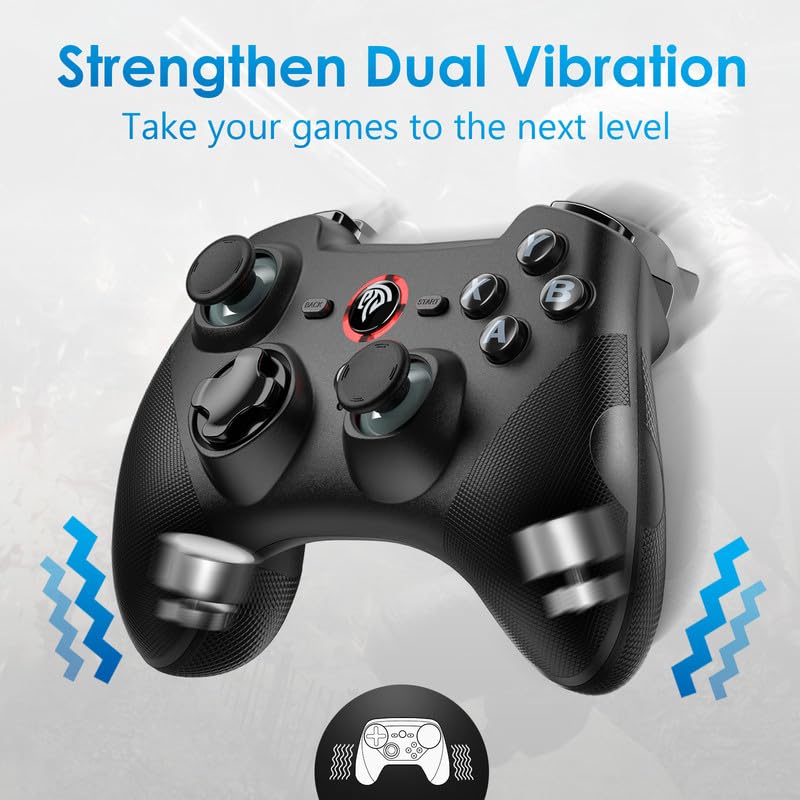
Figure 4: Illustration of the dual vibration motors within the controller.
The controller features built-in asymmetrical motors that provide dual vibration feedback, enhancing immersion by simulating in-game actions like bumps, shocks, and gunshots. The intensity of the vibration may vary depending on the game and platform.
4.3 Iṣakoso agbara
The controller is equipped with a 600mAh rechargeable battery, providing up to 12 hours of playing time on a single charge. To conserve battery life, the controller has an automatic shut-off function. If there is no activity for approximately 5 minutes, the controller will automatically power off. To reactivate, press the Home button.
5. Itọju
- Ninu: Lo aṣọ rírọrùn tí ó gbẹ láti nu ohun èlò ìdarí náà. Má ṣe lo àwọn kẹ́míkà líle tàbí àwọn ohun èlò ìpalára.
- Ibi ipamọ: Tọju olutọju naa ni itura, aye gbigbẹ kuro lati orun taara ati awọn iwọn otutu to gaju.
- Itọju Batiri: Yago fun gbigba agbara si batiri ni kikun nigbagbogbo. Gba agbara si oludari nigbagbogbo, paapaa ti ko ba si ni lilo, lati ṣetọju ilera batiri.
- Mimu: Yẹra fún fífi olùdarí náà sílẹ̀ tàbí kí o fi sí àwọn ipa líle, nítorí pé èyí lè ba àwọn ẹ̀yà ara inú jẹ́.
6. Laasigbotitusita
| Oro | Owun to le Fa | Ojutu |
|---|---|---|
| Adarí kò sopọ̀ mọ́ alailowaya. | Receiver not properly inserted; controller not powered on; interference; low battery. | Ensure receiver is fully inserted. Turn on controller. Move closer to receiver. Charge controller. Try a different USB port. |
| Red light around center button blinks continuously. | Indicates low battery or charging in progress, even if near full charge. | This is normal behavior for some charge states. Ensure controller is fully charged. If it persists, it may be a minor visual quirk. |
| Gbigbọn kò ṣiṣẹ́. | Game does not support vibration; vibration feature disabled in game settings; driver issue. | Check game settings for vibration options. Ensure game supports vibration. Reinstall controller drivers on PC if necessary. |
| Controller not recognized by Android device. | OTG function not enabled/supported; faulty OTG adapter. | Ensure your Android device supports OTG and that the function is enabled in settings. Try a different OTG adapter. |
| Adarí ge asopọ nigbagbogbo. | Low battery; too far from receiver; wireless interference. | Charge controller. Reduce distance to receiver. Minimize other 2.4G wireless devices nearby. |
7. Awọn pato
- Awoṣe: EasySMX 9101
- Asopọmọra: 2.4G Alailowaya, Ti firanṣẹ (USB-C)
- Ibamu: PC (Windows), PS3, Android (5.0+ with OTG), Smart TV, TV Box, Nintendo Switch/Switch Lite (Wired only)
- Batiri: 600mAh Litiumu-dẹlẹ gbigba agbara
- Àkókò eré: Titi di wakati 12
- Gbigbọn: Dual Asymmetrical Motors
- Awọn iwọn: Isunmọ 6.69 x 5.2 x 3.03 inches
- Ìwúwo: Isunmọ 11.4 iwon
8. Atilẹyin ọja ati Support
The EasySMX 9101 Wireless Controller comes with an 18-month warranty from the date of purchase. This warranty covers manufacturing defects and issues arising from normal use. It does not cover damage caused by misuse, accidents, unauthorized modifications, or improper maintenance.
For technical support, warranty claims, or any questions regarding your EasySMX product, please contact EasySMX customer service through the retailer's platform or the official EasySMX webAaye ayelujara. Jọwọ mu iwe-ẹri rira rẹ ati nọmba awoṣe ọja ti o ṣetan nigbati o ba kan si atilẹyin.
Awọn iwe aṣẹ ti o jọmọ - 9101
 |
EasySMX KC-8236 Wireless Gamepad User Manual User manual for the EasySMX KC-8236 wireless gamepad, detailing setup, connection to PC, PS3, Android, vibration settings, turbo functions, and charging. |
 |
EasySMX 9100Pro Ti firanṣẹ Game Adarí olumulo olumulo Iwe afọwọkọ olumulo fun EasySMX 9100Pro oluṣakoso ere onirin, ṣe alaye awọn ẹya ọja, awọn aṣayan Asopọmọra fun PC, PS3, ati Android, iṣẹ-ṣiṣe bọtini Turbo, ati awọn iṣọra ailewu pataki. |
 |
ESM-9110 Wireless Game Controller User Manual and Setup Guide User manual for the EASYSMX ESM-9110 Wireless Game Controller. Includes setup instructions for PC, Nintendo Switch, PS3, and Android, button customization, turbo function, joystick calibration, and troubleshooting tips. |
 |
Itọsọna olumulo Alailowaya EasySMX T37 Itọsọna olumulo fun EasySMX T37 Alailowaya Alailowaya, ṣe alaye awọn ọna asopọ, awọn ẹya ara ẹrọ, laasigbotitusita, ati awọn pato fun lilo pẹlu Nintendo Yipada, Android, ati Windows. |
 |
Ìwé Ìtọ́sọ́nà àti Ìtọ́sọ́nà Olùlò àti Olùdarí ESM-9100 Onírin Eré Onígbèsè EasySMX Ìtọ́sọ́nà tó péye fún EasySMX ESM-9100 Wired Game Controller, tó ní àwọn ìlànà pàtó, àwọn ọ̀nà ìsopọ̀ fún PC, PS3, àti Android, àwọn ètò bọ́tìnì turbo, ìdánwò bọ́tìnì, àti àwọn ìbéèrè tó ń fa ìṣòro. |
 |
EasySMX 9013Pro Wireless Game Controller User Guide Comprehensive user guide for the EasySMX 9013Pro wireless game controller, detailing features like Hall Effect triggers, programmable back buttons, and multiple connection methods for PC, Switch, Android, and iOS. |
Ask a question about this manual
Ask about setup, troubleshooting, compatibility, parts, safety, or missing instructions. Manuals+ will review the question and use this page’s manual context to help answer it.