
Ọrọ Iṣaaju
This manual provides comprehensive instructions for the setup, operation, maintenance, and troubleshooting of your HEXGAMING ULTRA ONE Wireless Controller. This controller is designed for use with Xbox Series X|S, Xbox One, and Windows 7/8/10, offering advanced features such as remappable back buttons, digital hair triggers, and interchangeable thumbsticks.
1. Eto
1.1 Package Awọn akoonu
- HEXGAMING ULTRA ONE Wireless Controller
- 6-in-1 Interchangeable Thumbsticks (various heights and designs)
- Itọsọna olumulo
Akiyesi: The controller does not include a USB cable or batteries. Batteries (AA) are required for wireless operation.

Image: Contents of the HEXGAMING ULTRA ONE Controller package, including the controller, interchangeable thumbsticks, and the product box.
1.2 Adarí Loriview
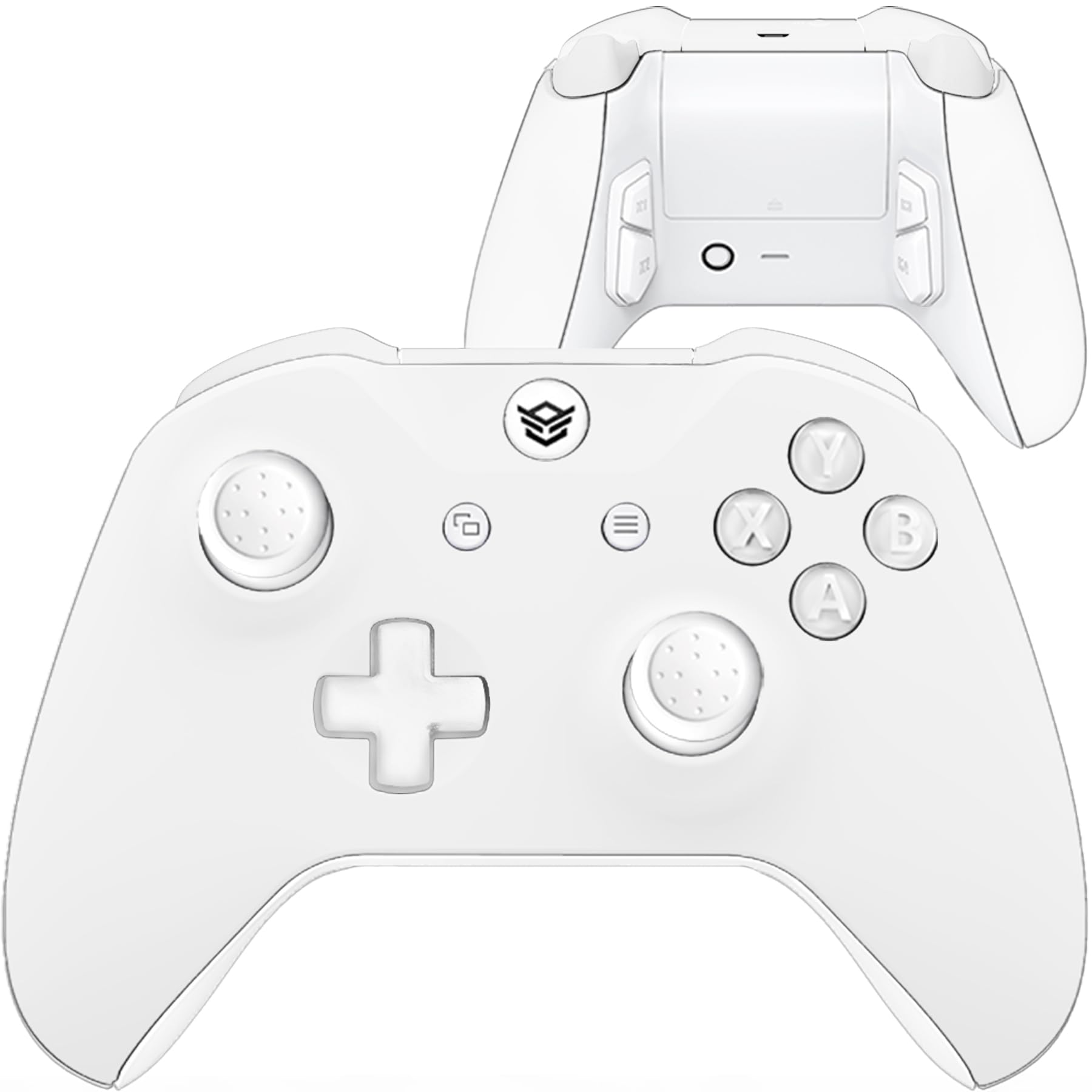
Aworan: Iwaju view of the HEXGAMING ULTRA ONE Wireless Controller.

Aworan: Pada view of the HEXGAMING ULTRA ONE Wireless Controller, highlighting the remappable back buttons.
1.3 Nsopọ Adarí
The HEXGAMING ULTRA ONE controller supports both wireless and wired connections.
Wireless Connection (Xbox Consoles & PC)
- Insert fresh AA batteries into the controller's battery compartment.
- Press and hold the Xbox button on the controller to turn it on.
- Press the Pair button on your Xbox console or PC wireless adapter.
- Press and hold the Pair button on the top of the controller until the Xbox button flashes rapidly.
- Once the Xbox button on the controller glows solid, the connection is established.
Wired Connection (PC)
Connect a compatible USB-C cable (not included) from the controller to your PC. The controller will automatically be recognized and can be used for gameplay.
2. Awọn ilana Iṣiṣẹ
2.1 Remappable Back Buttons
The controller features four remappable back buttons (P1, P2, P3, P4) and supports up to 6 different remapping profiles. Awọn wọnyi Profiles allow you to assign various controller inputs to the back buttons for enhanced gameplay flexibility.
Available Mapping Options:
- Awọn bọtini A, B, X, Y
- R3 (Right Stick Click), L3 (Left Stick Click)
- UP, DOWN, LEFT, RIGHT on the D-pad
- LB (Left Bumper), RB (Right Bumper)
- LT (Left Trigger), RT (Right Trigger)
Refer to the official HEXGAMING guide at hexgaming.com/guide for detailed instructions on how to set up and switch between remapping profiles.

Image: Diagram showing the remappable back buttons and profile ina Atọka.
2.2 Interchangeable Thumbsticks
The controller includes a 6-in-1 interchangeable thumbstick system, allowing you to customize your control experience. This system offers 3 different heights and 2 ergonomic thumb grip designs (domed or concave).
Thumbstick Types:
- Concave Regular: Designed for quicker movement.
- Concave Long: Provides higher accuracy.
- Domed Medium: Offers a balanced feel.
- Domed Long: For extended reach and precision.
To change a thumbstick, gently pull the current thumbstick upwards to remove it, then align and push down the desired thumbstick until it clicks into place.

Image: Available interchangeable thumbstick options.
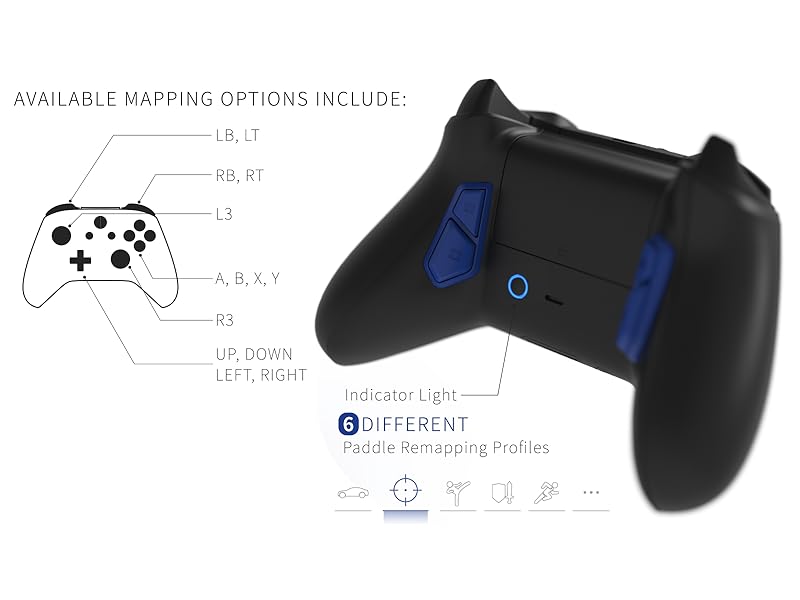
Image: Comparison of concave regular and concave long thumbsticks.
2.3 Digital Trigger Mechanisms (Hair Triggers)
The ULTRA ONE controller features digital trigger mechanisms that reduce the triggers' active distance to approximately 1.5mm. This allows for quicker response times in games where rapid trigger presses are crucial.
Akiyesi: Due to the reduced travel distance, these digital triggers may not be ideal for games that require analog trigger input, such as some racing games where partial trigger presses control acceleration.

Image: Illustration of the 1.5mm active distance for digital triggers.
3. Itọju
3.1 Cleaning Awọn ilana
To maintain the appearance and functionality of your controller, follow these cleaning guidelines:
- Clean the plastic surfaces with a wipe dampened with less than 70% alcohol.
- After cleaning, place the controller in a well-ventilated area to dry completely.
- Maṣe ṣe spray water or alcohol directly onto the product surface.
- Maṣe ṣe use any other organic solvents for cleaning, as they may damage the controller's finish.

Image: Visual guide for cleaning plastic products.
4. Laasigbotitusita
4.1 Asopọ Oran
- No Power/Not Connecting: Ensure fresh AA batteries are correctly inserted or connect the controller via a USB-C cable.
- Asopọmọra Laarin: Try re-pairing the controller with your console or PC. Ensure there are no significant obstructions or sources of wireless interference between the controller and the receiver.
- PC Connection Problems: Verify that your PC's Bluetooth or wireless adapter drivers are up to date. Try connecting with a different USB port or cable.
4.2 Button or Trigger Malfunctions
- Sticking Buttons/Triggers: Check for any visible debris or foreign objects around the buttons or triggers. Gently clean the area as per the maintenance instructions.
- Unresponsive Input: Ensure the controller is properly connected and powered. If using remappable buttons, verify the profile eto.
If troubleshooting steps do not resolve the issue, please contact HEXGAMING customer support for further assistance.
5. Awọn pato
| Orukọ awoṣe | ULTRA ONE Wireless Controller |
| ASIN | B0CGRJ33FV |
| Ibamu | Xbox Series X|S, Xbox One, Windows 7/8/10 |
| Ọja Mefa | 6.97 x 6.89 x 2.87 inches |
| Iwọn Nkan | 8.5 iwon |
| Olupese | HEXGAMING |
| Ọjọ Akọkọ Wa | Oṣu Kẹjọ Ọjọ 28, Ọdun 2023 |
6. atilẹyin ọja Information
The HEXGAMING ULTRA ONE Wireless Controller is covered by a manufacturer's warranty. For specific details regarding warranty duration, coverage, and claims process, please refer to the official HEXGAMING webaaye tabi kan si atilẹyin alabara wọn taara.
Extended protection plans may be available for purchase separately from various retailers. These plans are distinct from the manufacturer's warranty.
7. Atilẹyin
For additional assistance, frequently asked questions, and video guides, please visit the official HEXGAMING support resources:
- Knowledge Base and Video Guides: hexgaming.com/guide
- Awọn Ibeere Nigbagbogbo (FAQ): hexgaming.com/faq
You can also reach out to HEXGAMING customer service through their webaaye fun atilẹyin ti ara ẹni.