
DOOGEE U9KIDS
DOOGEE U9 Kid Tablet User Manual
Model: U9KIDS
1. Ifihan
Welcome to the DOOGEE U9 Kid Tablet user manual. This guide provides comprehensive instructions for setting up, operating, maintaining, and troubleshooting your new tablet. The DOOGEE U9 is a 10-inch HD tablet designed specifically for children aged 3-7, featuring Android 13, robust memory and storage, a long-lasting battery, and eye protection technology to ensure a safe and engaging digital experience.

Image 1.1: The DOOGEE U9 Kid Tablet, showcasing its protective pink case with a bunny-shaped stand and a colorful display.
2. Alaye Aabo
Please read all safety instructions carefully before using the tablet to ensure safe and proper operation. Keep this manual for future reference.
- Ewu Gbigbọn: Keep small parts away from young children. The tablet case and stand are designed for child safety, but supervision is always recommended.
- Aabo Batiri: Do not attempt to replace the battery yourself. Use only the original charger and cable provided. Do not expose the tablet to extreme temperatures or direct sunlight.
- Itọju iboju: The screen is fragile. Avoid dropping the tablet or placing heavy objects on it. Use a soft, lint-free cloth for cleaning.
- Ifihan omi: This tablet is not waterproof. Avoid exposure to water or other liquids.
- Idaabobo Oju: The tablet features TÜV SÜD Blue Light Certification for eye protection. Encourage children to take regular breaks from screen time.
- Afẹfẹ: Ensure proper ventilation when using the tablet. Do not cover the tablet with blankets or pillows, especially during charging or heavy use.
3. Package Awọn akoonu
Jẹrisi pe gbogbo awọn ohun kan wa ninu package:
- DOOGEE U9 Kid Tablet (with pre-installed protective case)
- USB-C Ngba agbara Cable
- Adapter agbara
- Afowoyi Olumulo (iwe-ipamọ yii)
- Kaadi atilẹyin ọja (ti o ba wulo)
4. Ọja Ipariview
4.1. Awọn ẹya ara ẹrọ ati Awọn ẹya ara ẹrọ
The DOOGEE U9 Kid Tablet is designed with durability and child-friendliness in mind. It features a robust protective case and intuitive controls.
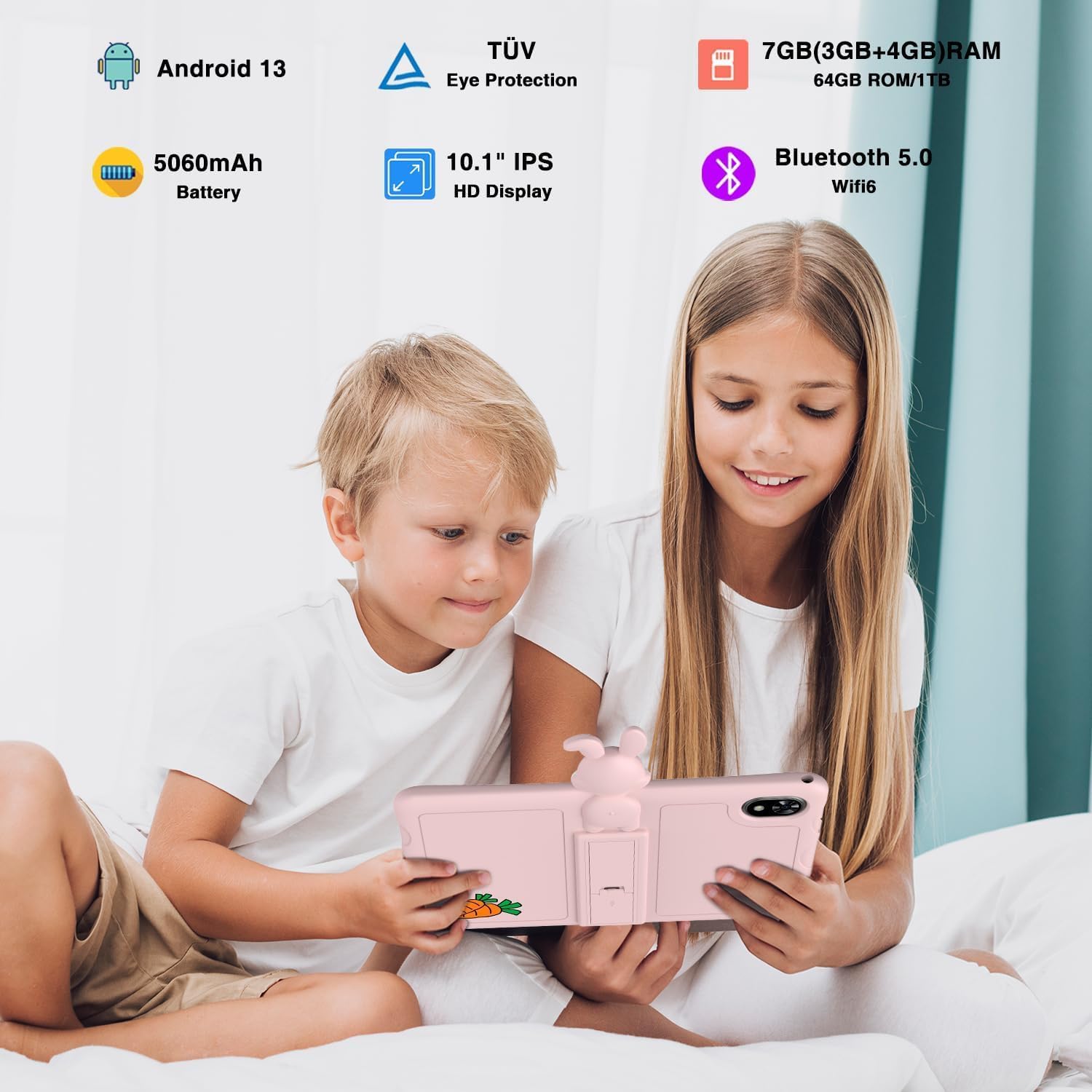
Image 4.1: Children enjoying the DOOGEE U9 Kid Tablet, illustrating its key features.
- Ifihan: 10.1-inch HD IPS screen, optimized for comfortable viewing with TÜV SÜD Blue Light Certification.
- Awọn kamẹra: Equipped with dual cameras (5MP rear, 2MP front) for capturing photos and video calls.
- Awọn ibudo: Includes a USB-C port for charging and data transfer, and a 3.5mm headphone jack.
- Awọn iṣakoso: Power button and volume rocker located on the side for easy access.
- Ọran Idaabobo: Comes with a durable, child-friendly silicone case with an integrated kickstand for hands-free viewing.
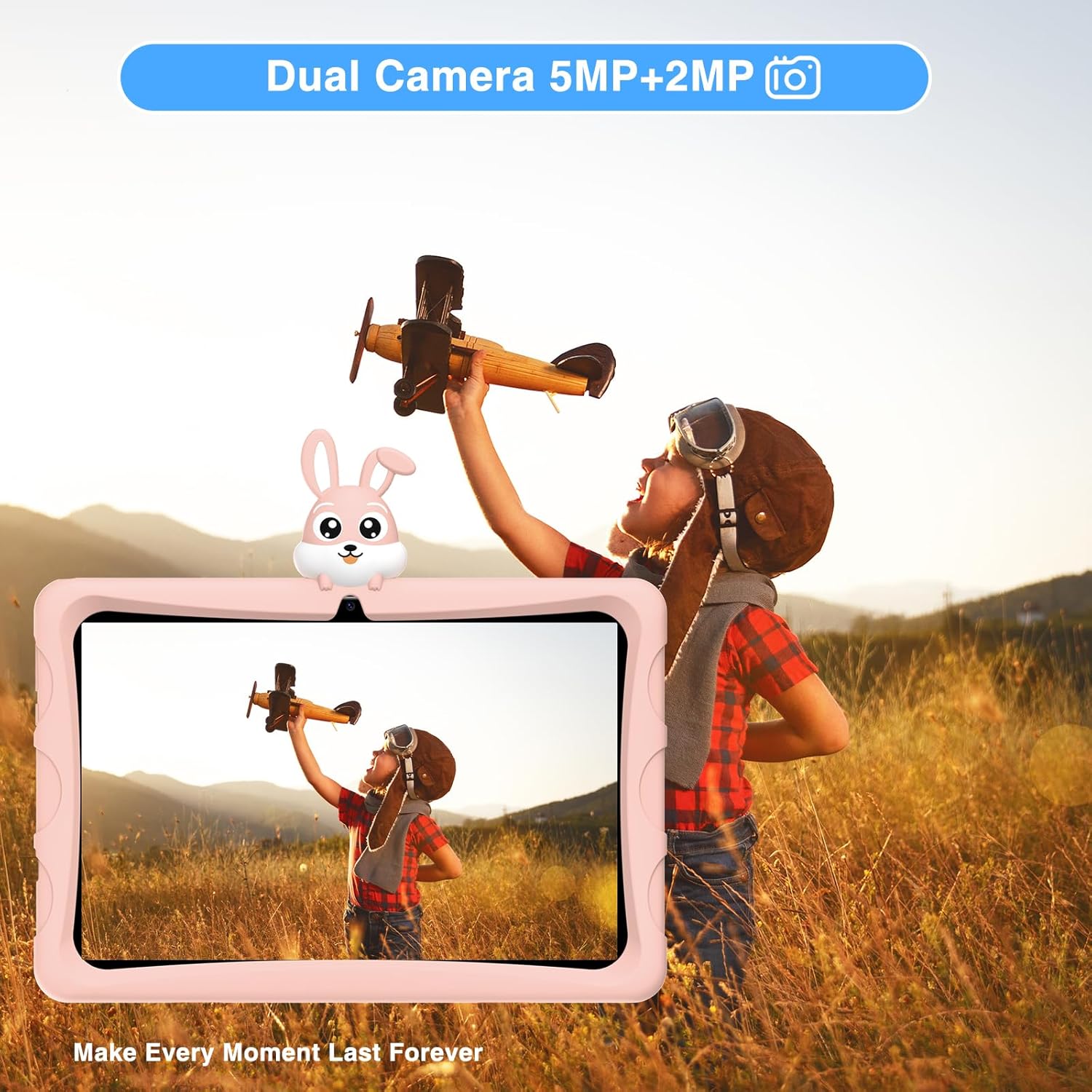
Image 4.2: The tablet's dual camera system, suitable for capturing memories.

Image 4.3: Highlighting the tablet's 10.1-inch IPS HD display for clear visuals.

Image 4.4: The tablet's eye protection features, certified by TÜV Rheinland.
4.2. Ọja Video Loriview
Watch this official product video for a visual guide to the DOOGEE U9 Kid Tablet's features and design.
Fidio 4.1: Ifihan fidio ọja osise kanasing the features and design of the DOOGEE U9 Kid Tablet, including its protective case, display, and educational content.
5. Eto
5.1. Gbigba agbara akọkọ
Before first use, fully charge the tablet. Connect the USB-C cable to the tablet's charging port and the other end to the power adapter. Plug the adapter into a wall outlet. The charging indicator will show the charging status. The tablet features a 5060mAh battery for extended use.
5.2. Agbara Lori ati Iṣeto ni ibẹrẹ
- Tẹ mọlẹ Bọtini agbara until the DOOGEE logo appears.
- Tẹle awọn itọnisọna loju iboju lati yan ede rẹ, sopọ si nẹtiwọki Wi-Fi, ki o si ṣeto akọọlẹ Google rẹ.
- Configure parental controls and child profiles as desired. The tablet runs on Android 13, offering enhanced privacy and user management features.

Image 5.1: The tablet runs on the latest Android 13, providing a secure and user-friendly experience.
6. Ṣiṣẹ tabulẹti
6.1. Lílọ kiri lórí Android 13
The DOOGEE U9 operates on Android 13, offering an intuitive interface. Swipe down from the top for quick settings and notifications. Use gestures or the navigation bar for home, back, and recent apps.
6.2. Kids' Learning and Entertainment
The tablet comes pre-loaded with a variety of educational and entertainment applications suitable for children. These apps are designed to be engaging and promote learning.

Image 6.1: The tablet features a curated selection of apps tailored for children's learning and play.

Image 6.2: A wide range of free learning applications are available for children.
6.3. Media Consumption with Widevine L1
The DOOGEE U9 supports Widevine L1, allowing for high-definition streaming from popular platforms like Disney+, Hulu, Amazon Prime Video, HBO Max, and YouTube Kids. This ensures a premium viewing experience for your child's favorite content.
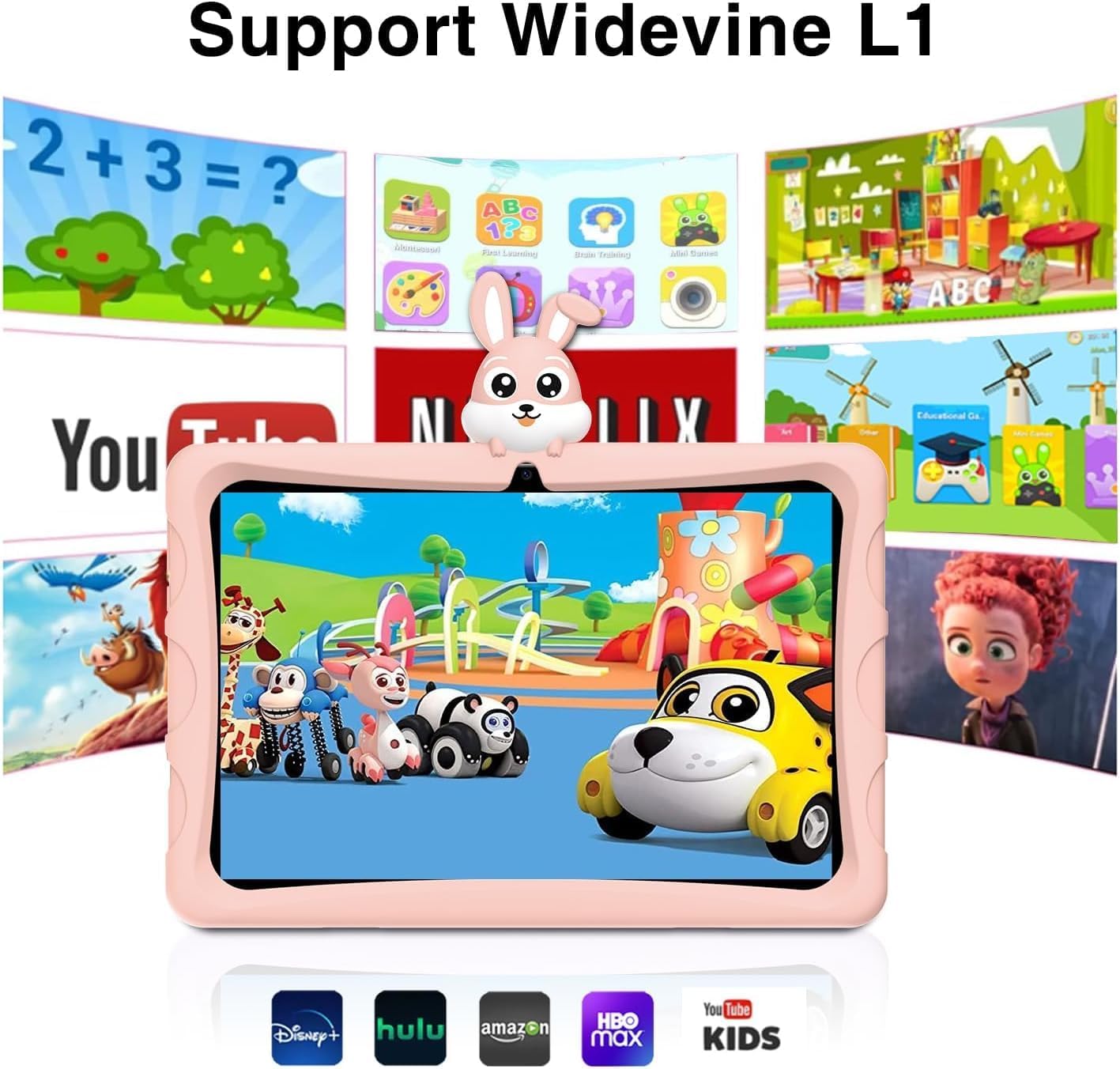
Image 6.3: Widevine L1 support enables high-quality streaming from popular services.

Image 6.4: Enjoy high-definition content with Widevine L1 certification.
7. Itọju
Proper maintenance ensures the longevity and optimal performance of your DOOGEE U9 Kid Tablet.
- Ninu: Use a soft, dry, lint-free cloth to clean the screen and tablet body. For stubborn smudges, slightly dampen aṣọ pẹlu omi. Yago fun lilo awọn kẹmika lile tabi awọn ohun elo abrasive.
- Ibi ipamọ: Tọju tabulẹti ni itura, aye gbigbẹ kuro lati orun taara ati awọn iwọn otutu to gaju.
- Itọju Batiri: To prolong battery life, avoid fully discharging the tablet frequently. Charge it regularly, but do not leave it plugged in for extended periods after it's fully charged.
- Awọn imudojuiwọn sọfitiwia: Periodically check for system updates in the tablet's settings to ensure you have the latest features and security patches.
8. Laasigbotitusita
If you encounter issues with your DOOGEE U9 Kid Tablet, refer to the following common problems and solutions:
| Isoro | Owun to le Fa | Ojutu |
|---|---|---|
| Tabulẹti kii yoo tan | Batiri kekere; Eto naa kuna | Charge the tablet for at least 30 minutes. If still unresponsive, press and hold the Power button for 10-15 seconds to force a restart. |
| O lọra išẹ | Ọ̀pọ̀lọpọ̀ àwọn àpù ló ń ṣiṣẹ́; Ibi ìpamọ́ díẹ̀; Sọ́fítíwètì tó ti pẹ́ jù | Close unused apps. Clear cache. Uninstall unnecessary apps. Check for system updates. |
| Awọn oran asopọ Wi-Fi | Incorrect password; Router issue; Tablet Wi-Fi disabled | Ensure Wi-Fi is enabled and password is correct. Restart your Wi-Fi router. Forget and reconnect to the network on the tablet. |
| Awọn ohun elo kọlu tabi didi | App specific bug; Insufficient RAM | Force close the app and reopen. Clear the app's cache and data in settings. Update the app. If persistent, consider uninstalling and reinstalling. |
9. Awọn pato
Detailed technical specifications for the DOOGEE U9 Kid Tablet:
| Ẹya ara ẹrọ | Sipesifikesonu |
|---|---|
| Nọmba awoṣe | U9KIDS |
| Iwọn Ifihan | 10.1 inches |
| Eto isesise | Android 13 |
| Iranti (Ramu) | 7GB (3GB+4GB virtual) |
| Ibi ipamọ (ROM) | 64 GB (A le faagun soke titi di 1TB nipasẹ kaadi TF) |
| isise | Quad Core (Integrated GPU within RK3562 Processor) |
| Agbara Batiri | 5060mAh Litiumu polima (pẹlu) |
| Alailowaya Asopọmọra | Wi-Fi 6 (802.11ax), Bluetooth 5.0 |
| Awọn kamẹra | Dual Camera (5MP Rear, 2MP Front) |
| Awọn iwọn (LxWxH) | 24.53 x 16.33 x 0.99 inches |
| Iwọn Nkan | 2.9 iwon |
| Pataki Awọn ẹya ara ẹrọ | TÜV SÜD Blue Light Certification, Widevine L1 Support, OTG |
| Ibiti ọjọ ori (Apejuwe) | Omode |

Image 9.1: The tablet's memory and storage capabilities for smooth performance.
10. Atilẹyin ọja ati Support
DOOGEE products are covered by a limited warranty. Please refer to the warranty card included in your package for specific terms and conditions. For technical support, product inquiries, or warranty claims, please contact DOOGEE customer service through their official webojula tabi alagbata ti o ti ra ọja naa.
For more information, visit the official DOOGEE store: Ile itaja DOOGEE lori Amazon.
Ask a question about this manual
Ask about setup, troubleshooting, compatibility, parts, safety, or missing instructions. Manuals+ will review the question and use this page’s manual context to help answer it.