
Ọrọ Iṣaaju
This manual provides detailed instructions for the setup, operation, and maintenance of your Tuya S18 Smart WiFi Universal IR Remote Control. This device allows you to control various infrared-enabled home appliances, such as televisions, air conditioners, and fans, through a smartphone application and voice commands via smart assistants like Amazon Alexa and Google Home.
Ọja Pariview
Awọn ẹya:
- Universal IR Control: Controls a wide range of infrared devices including TVs, air conditioners, set-top boxes, fans, and more.
- Asopọmọra WiFi: Connects to your home WiFi network for remote control from anywhere.
- Ohun elo Iṣakoso: Manage devices and settings through the Tuya Smart Life application on your smartphone.
- Iṣakoso ohun: Compatible with Amazon Alexa, Google Home, and Yandex Alice for hands-free operation.
- Apẹrẹ Iwapọ: Small and unobtrusive, designed to blend into any home environment.
- Ko nilo Eto: Simplifies setup with pre-programmed IR codes and learning function.
Kini o wa ninu apoti:
- Tuya S18 Smart WiFi Universal IR Remote Control device
- USB Power Cable (Note: Power adapter is NOT included)
- Iwe afọwọkọ olumulo (iwe yii)

Image: The retail packaging for the Tuya S18 Smart WiFi Universal IR Remote Control, showing the device and its key features.

Image: The Tuya S18 device with its dimensions (40mm diameter) and the 1-meter USB cable. A coin is shown for scale. Note: Power adapter is not included.
Awọn ilana iṣeto
- Agbara Tan: Connect the Tuya S18 device to a 5V/1A USB power adapter (not included) using the provided USB cable. The device will power on and a blue indicator light may flash.
- Ṣe igbasilẹ Ohun elo: Download the "Smart Life" or "Tuya Smart" app from your smartphone's app store (available on iOS and Android).
- Forukọsilẹ/Wọle: Ṣí àpù náà kí o sì forúkọ sílẹ̀ fún àkọọ́lẹ̀ tuntun tàbí kí o wọlé pẹ̀lú èyí tó wà tẹ́lẹ̀.
- Fi ẹrọ kun:
- Nínú àpù náà, tẹ àmì "+" ní igun ọ̀tún òkè láti fi ẹ̀rọ tuntun kún un.
- Yan "Iṣakoso Latọna jijin Gbogbogbo" tabi "Iṣakoso Latọna jijin IR" lati inu akojọ awọn ẹrọ.
- Follow the on-screen instructions to connect the device to your 2.4GHz Wi-Fi network. Ensure your phone is connected to the same 2.4GHz Wi-Fi network during setup.
- The indicator light on the S18 will flash rapidly during pairing and become solid blue once connected.
- Add IR Appliances:
- Once the S18 is added, select it in the app.
- Tap "Add Remote Control" or similar option.
- Choose the type of appliance you want to control (e.g., TV, Air Conditioner, Set-Top Box, Fan).
- Select the brand of your appliance. The app will attempt to find a matching IR code library.
- Test the controls. If they work, save the remote. If not, try other codes or use the DIY learning function (refer to app for detailed DIY instructions).

Image: A visual representation of the Tuya S18 connecting to various IR devices (TV, A/C, Speaker, STB, Fan) and integrating with Amazon Alexa and Google Assistant for voice control.
Awọn ilana Iṣiṣẹ
Controlling Devices via App:
- Ṣí àpù Smart Life/Tuya Smart.
- Select the Tuya S18 device.
- Choose the specific appliance you wish to control (e.g., "Living Room TV").
- Use the virtual remote control interface in the app to operate your device (e.g., change channels, adjust volume, set AC temperature).
- You can also set up schedules and automation routines within the app for enhanced control.
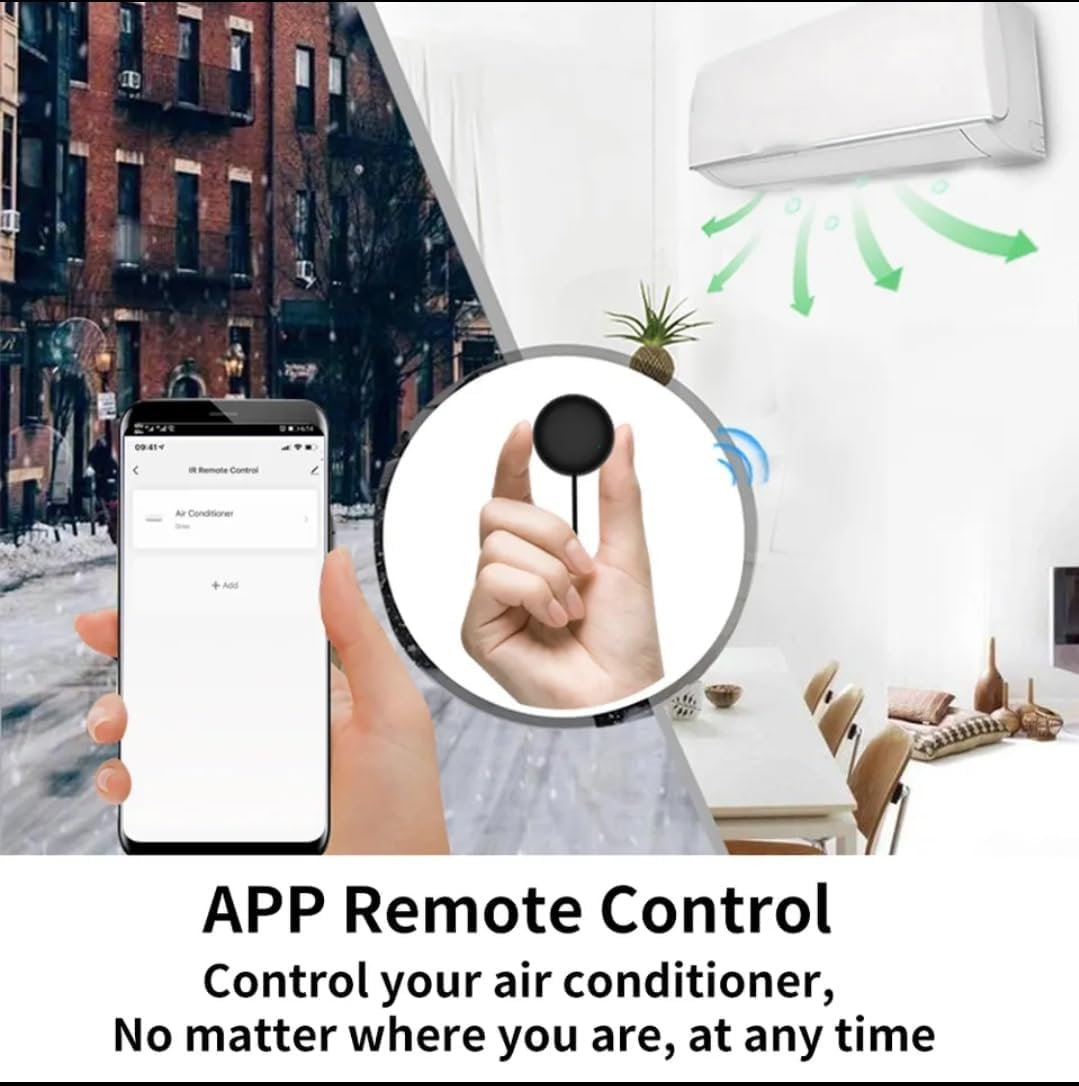
Image: A smartphone displaying the Smart Life app interface, showing how to control an air conditioner remotely from anywhere.
Iṣakojọpọ Iṣakoso ohun:
The Tuya S18 is compatible with popular voice assistants. To enable voice control:
- Awọn akọọlẹ ọna asopọ: In your Amazon Alexa, Google Home, or Yandex Alice app, search for the "Smart Life" or "Tuya Smart" skill/service.
- Mu Ogbon ṣiṣẹ: Enable the skill and link your Smart Life/Tuya Smart account using your app credentials.
- Ṣawari Awọn ẹrọ: Once linked, ask your voice assistant to "discover devices."
- Awọn pipaṣẹ ohun: You can now use voice commands to control your IR appliances. Example:
- "Alexa, tan TV."
- "Ẹ kú àárọ̀ Google, ẹ ṣètò iwọ̀n AC sí ìwọ̀n 24."
- "Yandex, turn off the fan."

Image: Demonstrates the Tuya S18's compatibility with Amazon Alexa, Google Home, and Yandex Alice for voice-controlled operation of TV, STB, AC, and fans.

Image: Highlights the extensive IR code library, covering over 98% of IR devices such as TVs, air conditioners, STBs, fans, and lighting.
Itoju
- Ninu: Mu ẹrọ naa nu pẹlu asọ ti o gbẹ. Ma ṣe lo awọn olutọpa omi tabi awọn ohun elo abrasive.
- Ibi: Ensure the device is placed in a central location within the room, with a clear line of sight to the appliances it controls, as infrared signals require direct line of sight.
- Agbara: Keep the device continuously powered for uninterrupted smart control.
Laasigbotitusita
| Oro | Owun to le Fa | Ojutu |
|---|---|---|
| Ẹrọ ko sopọ si Wi-Fi. | Incorrect Wi-Fi password, 5GHz network, or device too far from router. |
|
| IR appliance not responding. | No clear line of sight, incorrect IR code, or device not powered. |
|
| Iṣakoso ohun ko ṣiṣẹ. | Smart Life/Tuya Smart skill not enabled or accounts not linked. |
|
Awọn pato
| Nọmba awoṣe | S18 |
| Brand | Tuya |
| Asopọmọra Technology | Infrared (IR), Wi-Fi (2.4GHz) |
| Awọn ẹrọ ibaramu | TV, Air Conditioner, Set-Top Box, Fan, and other IR-controlled appliances |
| Pataki Awọn ẹya ara ẹrọ | No programming needed, App Control, Voice Control (Alexa, Google Home, Yandex Alice) |
| Àwọ̀ | Multi-color (typically black) |
| Agbara Input | 5V/1A (via Micro USB) |
Atilẹyin ọja ati Support
Specific warranty information for the Tuya S18 Smart WiFi Universal IR Remote Control is not provided in this document. Please refer to the product packaging or contact your retailer for details regarding warranty coverage and customer support. For technical assistance, you may also visit the official Tuya Smart Life website or app support section.