
1. Ọja Ipariview
The Contixo K102 is a 10-inch Android Kids Tablet designed for educational and entertainment purposes. It features a 1.5 GHz Quad-Core Processor, 2GB RAM, and 32GB of internal storage, expandable up to 128GB via microSD. The tablet comes with a durable kid-proof case, a built-in kickstand, and a stylus. It includes pre-installed educational apps and offers full access to Google services with parental controls.
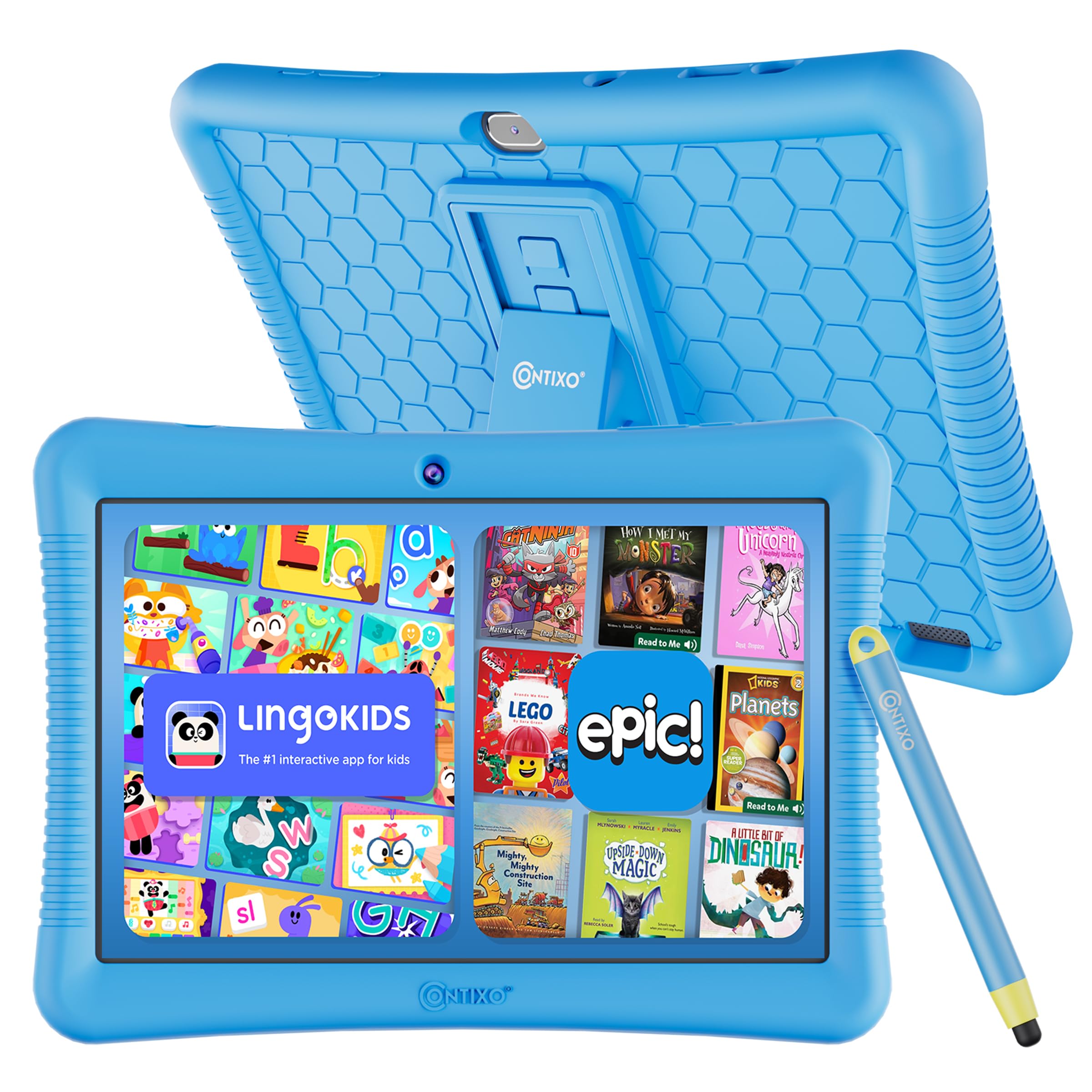
Figure 1: Contixo K102 Kids Tablet with its protective case.
2. Ni ibẹrẹ Oṣo
2.1 Unboxing and First Charge
Upon unboxing your Contixo K102 tablet, ensure all components are present: the tablet, kid-proof case, stylus, and charging cable. Before first use, fully charge the tablet. A full charge typically takes approximately 2.5 hours. For optimal battery health, it is recommended to charge the device overnight before initial setup.
2.2 Agbara Lori ati Iṣeto ni ibẹrẹ
Press and hold the power button located on the side of the tablet until the Contixo logo appears. Follow the on-screen prompts to select your language, connect to a Wi-Fi network, and set up a Google account. A Google account is required for the tablet to function and access the Google Play Store.
2.3 Installing the Kid-Proof Case
The tablet comes with a soft silicone kid-proof case designed to protect against drops and bumps. Carefully insert the tablet into the case, ensuring all ports and buttons align with the case cut-outs. The built-in kickstand can be extended for hands-free viewing.

Figure 2: The Contixo K102 tablet secured in its shockproof case with the kickstand deployed.
3. Ṣiṣẹ tabulẹti
3.1 Lilọ kiri ati Interface
The Contixo K102 operates on the Android platform, offering an intuitive touchscreen interface. Swipe left or right to navigate between home screens, tap icons to open applications, and use pinch-to-zoom gestures for images and web pages. The included stylus can be used for more precise input, especially for drawing or writing applications.
3.2 Accessing Educational Content
The tablet comes pre-loaded with over 14 kid-friendly educational apps and creativity tools from the Contixo Academy. These include games for math, reading, writing, coding, music, and problem-solving. Additionally, the tablet supports Google Kids Space, which provides a personalized experience based on your child's interests, allowing them to discover, create, and learn.

Figure 3: The tablet screen showing the Lingokids application, offering interactive learning activities.
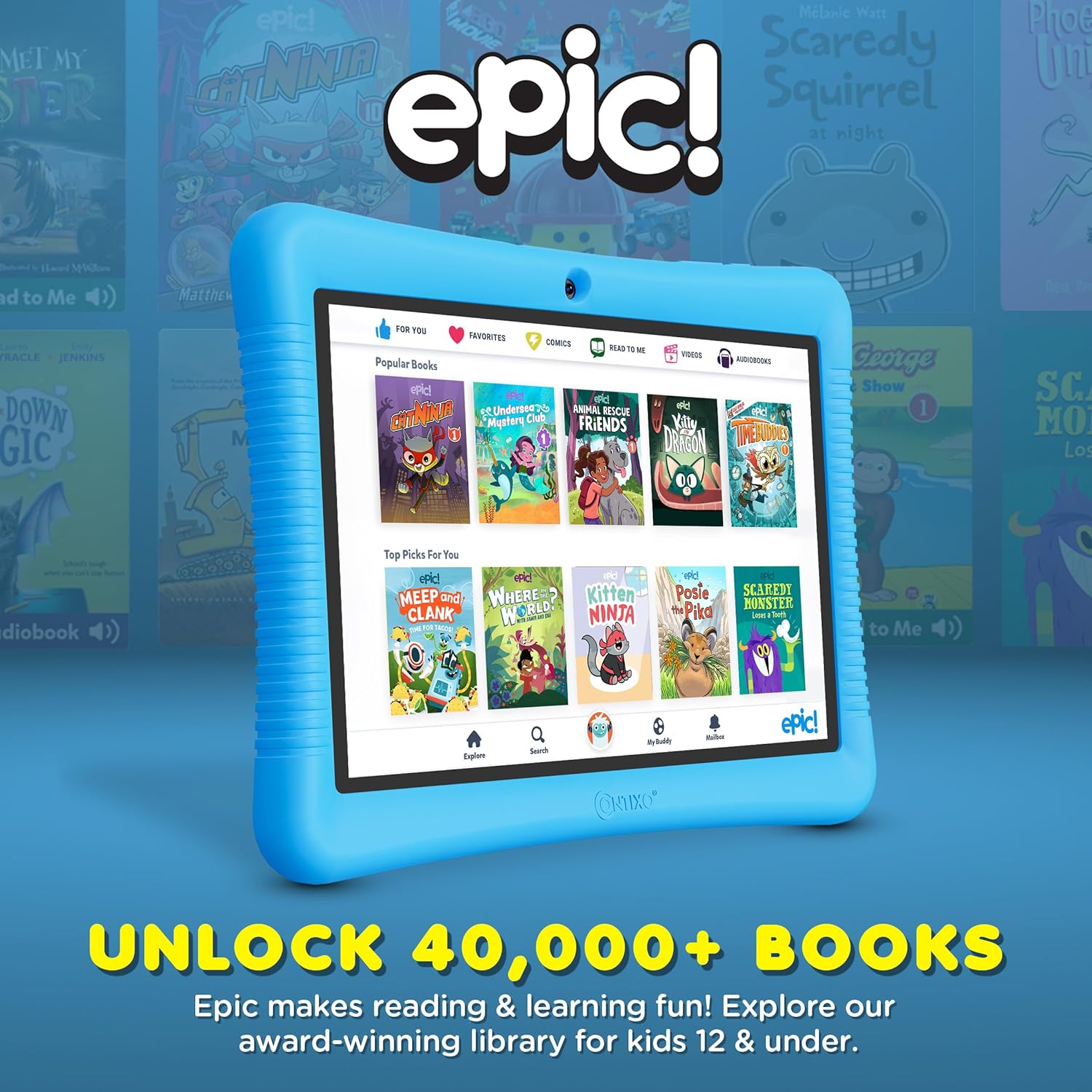
Figure 4: The tablet screen displaying the Epic! app, providing access to a library of over 40,000 books.
3.3 Lilo Kamẹra
The tablet is equipped with both front and rear cameras. To access the camera, tap the camera icon on the home screen or app drawer. Children can take photos and videos, which are saved to the tablet's gallery.
3.4 Sisisẹsẹhin fidio
The Contixo K102 supports various video formats and can play content from pre-installed apps, downloaded files, or streaming services (with parental approval). The 10-inch IPS display provides a clear viewiriri iriri.
Video 1: An official Contixo video highlighting the features of the Kids Tablet, including educational content and family connectivity.
Video 2: An official Contixo video showcasing the K102 as an ultimate learning kids tablet, emphasizing its educational capabilities.
4. Awọn iṣakoso obi
The Contixo K102 integrates with Google Kids Space and Family Link, providing robust parental control features. These tools allow parents to manage screen time, filter websites, apps, and videos, and prevent in-app purchases. Parents can approve or deny app downloads from the Google Play Store directly from their own device.
- Aago Iboju iboju: Set daily limits for tablet usage.
- Sisẹ akoonu: Dínà ààyè sí àwọn ohun tí kò yẹ webojula ati awọn ohun elo.
- App Approvals: Grant or deny permission for app downloads and purchases.
- Àwọn Góńgó Ẹ̀kọ́: Focus on specific learning content.

Figure 5: Illustration of parental control features, including screen time management and content filtering.
5. Itọju ati Itọju
5.1 Ninu tabulẹti
To clean the tablet screen, use a soft, lint-free cloth. For stubborn smudges, slightly dampen the cloth with water or a screen-safe cleaning solution. Avoid harsh chemicals or abrasive materials. The silicone case can be wiped clean with a damp asọ ati ìwọnba ọṣẹ.
5.2 batiri Itọju
The tablet is equipped with a 5000 mAh Lithium Polymer battery, providing up to 10 hours of use. To prolong battery life, avoid extreme temperatures and do not allow the battery to fully drain frequently. Use the provided charging cable for optimal charging. The average battery life is rated for 12 months under normal usage conditions.
5.3 Storage and Protection
Always keep the tablet in its kid-proof case to protect it from accidental drops and impacts. The case features raised edges for screen protection and reinforced corners. Store the tablet in a cool, dry place away from direct sunlight and moisture.
6. Laasigbotitusita
6.1 Tablet Not Powering On or Charging
- Ensure the charging cable is securely connected to both the tablet and a working power adapter.
- Gbiyanju okun gbigba agbara ti o yatọ ati ohun ti nmu badọgba lati ṣe akoso awọn ẹya ẹrọ ti ko tọ.
- Tí bátìrì náà bá ti gbẹ pátápátá, ó lè gba ìṣẹ́jú díẹ̀ kí àmì ìgbara náà tó fara hàn.
- If the screen remains black but the charging icon appears, a hard reset might be necessary. Consult the Contixo support website for specific instructions on performing a hard reset for your model.
6.2 Slow Performance or App Crashes
- Pa awọn ohun elo ti ko lo ti nṣiṣẹ ni abẹlẹ.
- Nu àkójọ àwọn ohun èlò tí a sábà máa ń lò kúrò.
- Rii daju pe sọfitiwia tabulẹti ti wa ni imudojuiwọn.
- If performance issues persist, consider performing a factory reset (back up important data first).
6.3 Wi-Fi Asopọmọra Oran
- Ensure Wi-Fi is enabled on the tablet.
- Tun olulana Wi-Fi rẹ bẹrẹ.
- Forget the network on the tablet and reconnect.
- Ṣayẹwo boya awọn ẹrọ miiran le sopọ si nẹtiwọki Wi-Fi kanna.
6.4 Sound Volume Too Loud
Some users have reported the lowest volume setting being excessively loud. If this is an issue, consider using child-safe headphones with volume limiting features for a more comfortable listening experience.
7. Awọn alaye ọja
| Ẹya ara ẹrọ | Ẹ̀kúnrẹ́rẹ́ |
|---|---|
| Brand | Contixo |
| Orukọ awoṣe | Fọwọkan |
| Nọmba awoṣe | K102 |
| Agbara Ibi ipamọ Iranti | 32 GB (expandable to 128GB via microSD) |
| Ramu Memory sori ẹrọ | 2 GB |
| Iwon iboju | 10 inches |
| Ipinnu Ifihan ti o pọju | 1280 x 800 awọn piksẹli (IPS) |
| Eto isesise | Android |
| Iyara isise | 1.6 GHz Quad-core (Allwinner) |
| Agbara Batiri | 5000 Milionuamp Awọn wakati (Polima litiumu) |
| Batiri Apapọ Life | 12 osu |
| Alailowaya Technology | Bluetooth, Wi-Fi (802.11n) |
| Asopọmọra Technology | Wi-Fi |
| Lapapọ Awọn ibudo USB | 1 (Iru-C) |
| Apejuwe kamẹra | Front and Rear (8 MP Rear) |
| Nkan Dimensions L x W x Sisanra | 10"L x 7.2"W x 0.75"Th |
| -Itumọ ti Media | 80+ Disney Storybooks & Stickers, Kid-Proof Case with Kickstand & Stylus |
8. Atilẹyin ọja ati Support
8.1 Atilẹyin ọja to lopin
The Contixo K102 tablet comes with a limited warranty. For specific terms and conditions, please refer to the warranty information included with your product packaging or visit the official Contixo website. This warranty typically covers manufacturing defects but may not cover accidental damage.
8.2 Onibara Support
For technical assistance, troubleshooting, or warranty claims, please contact Contixo customer support. Contact information can usually be found on the Contixo website or in the product documentation. It is recommended to have your model number (K102) and proof of purchase ready when contacting support.
Contixo strives for 100% customer satisfaction and aims to provide outstanding support throughout your product's lifecycle.