
1. Ifihan
This manual provides comprehensive instructions for the installation, operation, and maintenance of your CORN 1300Mbps USB Wifi Adapter. This device offers high-speed dual-band wireless connectivity for your computer, supporting both 2.4GHz and 5.8GHz frequencies.

Image: The CORN 1300Mbps USB Wifi Adapter featuring its rotatable 5dBi antenna, capable of 90 and 360-degree adjustments for optimal signal reception.
2. Package Awọn akoonu
Jọwọ rii daju pe gbogbo awọn nkan ti a ṣe akojọ rẹ si isalẹ wa ninu package rẹ:
- 1300Mbps USB WiFi Adapter
- One Detachable 5dBi Antenna
- Itọsọna olumulo
- CD Awakọ
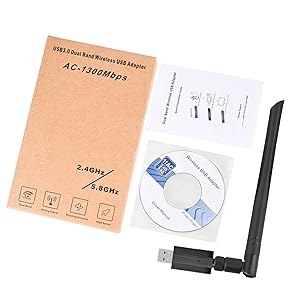
Image: Contents of the product package, showing the USB WiFi adapter, detachable antenna, user manual, and driver CD.
3. Key Awọn ẹya ara ẹrọ
- Dual Band 802.11ac: Supports up to 1300Mbps Wi-Fi speeds (867Mbps on 5GHz and 400Mbps on 2.4GHz) for reduced latency during streaming and gaming.
- Detachable 5dBi Antenna with Beamforming+ Technology: High-gain, long-range antenna designed to improve connectivity even in areas with weak signals.
- USB 3.0 Iyara Giga: Offers data transfer rates up to 5.8Gbps, which is 10 times faster than USB 2.0, ensuring maximum throughput and a stable internet connection. It is also backward compatible with USB 2.0 and 1.1 devices.
- Ibamu gbooro: Compatible with Windows 11/10/8/8.1/7/Vista/XP/2000 and Mac OS 10.9-10.15. (Note: Not compatible with Mac OS 11.1 or newer versions, Linux, or TV operating systems).
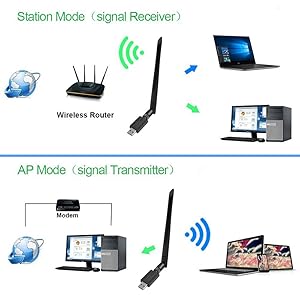
Image: Illustration of the 5dBi high gain antenna's enhanced signal penetration and coverage, demonstrating its ability to transmit through obstacles.

Image: Details on the secure technology, highlighting the 5dBi oxygen-free copper antenna for stable signal and WPS (Wi-Fi Protected Setup) for one-key encryption.

Image: A visual comparison demonstrating the superior speed of USB 3.0 (5120Mbps) compared to USB 2.0 (480Mbps).
4. Eto Itọsọna
4.1 Fifi sori ẹrọ Hardware
- Gently attach the 5dBi antenna to the USB Wifi Adapter by screwing it into the connector.
- Plug the USB Wifi Adapter into an available USB 3.0 port on your computer. For optimal performance, use a USB 3.0 port if available.

Image: The USB Wifi Adapter connected to a laptop, illustrating its compact design and antenna.
4.2 Driver fifi sori
The installation process varies depending on your operating system:
- Fun Windows 11/10: No drivers are required. The adapter is plug-and-play. Your system should automatically detect and install the necessary drivers.
- For Windows 8/8.1/7/Vista/XP/2000 and Mac OS 10.9-10.15:
- Insert the provided CD Driver into your computer's CD-ROM drive.
- Tẹle awọn ilana loju iboju lati fi awọn awakọ sii.
- If your computer does not have a CD-ROM drive, please visit the CORN support website (if available) to download the latest drivers.
- Lẹhin fifi sori ẹrọ, tun bẹrẹ kọmputa rẹ ti o ba ṣetan.
5. Awọn ilana Iṣiṣẹ
5.1 Nsopọ si Wi-Fi nẹtiwọki
- Once the adapter is installed and drivers are recognized, open your computer's network settings.
- Locate the list of available wireless networks.
- Select your desired Wi-Fi network (SSID) and click 'Connect'.
- Tẹ bọtini aabo nẹtiwọki (ọrọ igbaniwọle) ti o ba ṣetan.
- The adapter will connect to the network, and you should have internet access.
5.2 Iṣẹ́ Ìbánisọ̀rọ̀ Méjì
The adapter supports both 2.4GHz and 5.8GHz (often displayed as 5GHz) frequency bands. You can choose the band that best suits your needs:
- Iwọn 2.4GHz: Offers wider coverage and better penetration through walls, suitable for general browsing and devices further from the router.
- Iwọn 5.8GHz: Provides faster speeds and less interference, ideal for high-bandwidth activities like online gaming and HD video streaming, especially when closer to the router.
5.3 Operating Modes (Station Mode & AP Mode)
The adapter can function in two primary modes:
- Station Mode (Signal Receiver): The adapter acts as a client, connecting your computer to an existing wireless router to access the internet. This is the most common use case.
- AP Mode (Signal Transmitter): The adapter can create a Wi-Fi hotspot, allowing other devices to connect to your computer's internet connection. This requires specific software configuration on your computer.
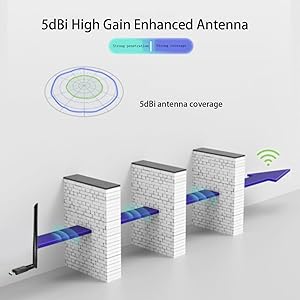
Image: A diagram illustrating the two operational modes: Station Mode, where the adapter receives Wi-Fi from a router, and AP Mode, where it transmits Wi-Fi from a modem-connected computer.
6. Itọju
To ensure the longevity and optimal performance of your CORN USB Wifi Adapter, follow these maintenance guidelines:
- Jeki ohun ti nmu badọgba di mimọ ati ofe kuro ninu eruku. Lo asọ asọ ti o gbẹ fun mimọ.
- Yago fun ṣiṣafihan ohun ti nmu badọgba si awọn iwọn otutu to gaju, ọriniinitutu, tabi oorun taara.
- Má ṣe ju ohun tí a fi ń ṣe àgbékalẹ̀ náà sílẹ̀ tàbí kí o fi jìjì ara rẹ hàn.
- Ensure the antenna is securely attached but do not overtighten.
- When not in use for extended periods, consider unplugging the adapter.
7. Laasigbotitusita
If you encounter issues with your CORN USB Wifi Adapter, please refer to the following common solutions:
- Ko si Wi-Fi Asopọmọra:
- Rii daju pe ohun ti nmu badọgba ti wa ni edidi ni aabo sinu ibudo USB kan.
- Verify that the drivers are correctly installed (refer to Section 4.2).
- Check if your computer's Wi-Fi is enabled.
- Tun kọmputa rẹ ati olulana alailowaya rẹ bẹrẹ.
- Iyara Ayelujara ti o lọra:
- Ensure you are connected to the appropriate Wi-Fi band (5GHz for faster speeds, if available).
- Sunmọ olulana alailowaya rẹ lati mu agbara ifihan dara si.
- Ṣayẹwo fun kikọlu lati awọn ẹrọ itanna miiran.
- Ṣe àtúnṣe firmware ti olulana rẹ.
- Adapter Not Recognized / Driver Issues:
- Try plugging the adapter into a different USB port, preferably a USB 3.0 port.
- Reinstall the drivers from the provided CD or the manufacturer's webojula.
- Ensure your operating system is supported (Mac OS 11.1+ and Linux are not supported).
- Check Device Manager (Windows) or System Information (Mac) to see if the adapter is listed without errors.
- Asopọmọra Laarin:
- Adjust the antenna's position for better signal reception.
- Rii daju pe ko si awọn idena ti ara laarin ohun ti nmu badọgba ati olulana.
- Check for conflicting network adapters or software.
8. Awọn pato
| Nọmba awoṣe | 5Bdi-1200Mbps USB wifi adapter |
| Ni wiwo Hardware | USB 3.0 |
| Data Gbigbe Oṣuwọn | 1300 Megabits fun iṣẹju keji (Mbps) |
| Data Link Ilana | IEEE 802.11ac |
| Awọn ẹgbẹ Igbohunsafẹfẹ | 2.4GHz, 5.8GHz |
| Anfani Eriali | 5 dBi |
| Awọn ẹrọ ibaramu | Laptop, Desktop, PC |
| OS atilẹyin | Windows 11/10/8/8.1/7/Vista/XP/2000, Mac OS 10.9-10.15 |
| Ọja Mefa | 0.75 x 0.49 x 0.06 inches (Adapter body) |
| Iwọn Nkan | 2.4 iwon |
| Àwọ̀ | Dudu |
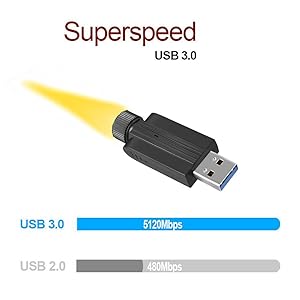
Image: Detailed dimensions of the USB Wifi Adapter, including the USB connector width, adapter body length, and total length with the antenna.
9. atilẹyin ọja Information
Specific warranty details for this product may vary by region and retailer. Please refer to the warranty card included in your package or contact your point of purchase for detailed warranty terms and conditions.
10. Onibara Support
For further assistance, technical support, or inquiries regarding your CORN 1300Mbps USB Wifi Adapter, please contact the retailer or manufacturer directly. Refer to the product packaging or the manufacturer's official webojula fun alaye olubasọrọ.