
1. Ifihan
This manual provides comprehensive instructions for the GBC Dual System Programmable Remote Control, Model 8023389739271. This universal remote is designed to control up to four different audio/video devices, offering flexible programming options and broad compatibility with various brands. Please read this manual carefully before use to ensure proper setup and operation.
2. Ọja Ipariview
2.1. Awọn ẹya ara ẹrọ
- Dual System Programming: Program the remote using an infrared (IR) programmer (e.g., JL1970, sold separately) or via a 3.5mm audio cable connected to a PC or any device with an audio output.
- Iṣakoso ẹrọ pupọ: Capable of controlling up to four different devices, including TVs, Satellite receivers, Pay TV boxes, Digital Terrestrial Television (DTT) decoders, DVD players, VCRs, HI-FI systems, PlayStation 2, and Xbox consoles.
- Ibamu gbooro: Works with all major TV brands, including Smart TVs such as Samsung, LG, Sony, Philips, Panasonic, Akai, Hisense, Toshiba, Telefunken, Haier, Sharp, Hitachi, and TCL.
- Idaduro Iranti: The programmed codes are retained even when batteries are replaced.
- Iṣẹ ṣiṣe ti o ni kikun: Controls all essential functions including Menu, AV input, Teletext, Color, and dedicated buttons for popular streaming services.
2.2. Isakoṣo Iṣakoso Layout
The GBC Dual System Remote Control features a standard layout with clearly labeled buttons for ease of use. Below is an illustration of the remote control and a description of its key sections.
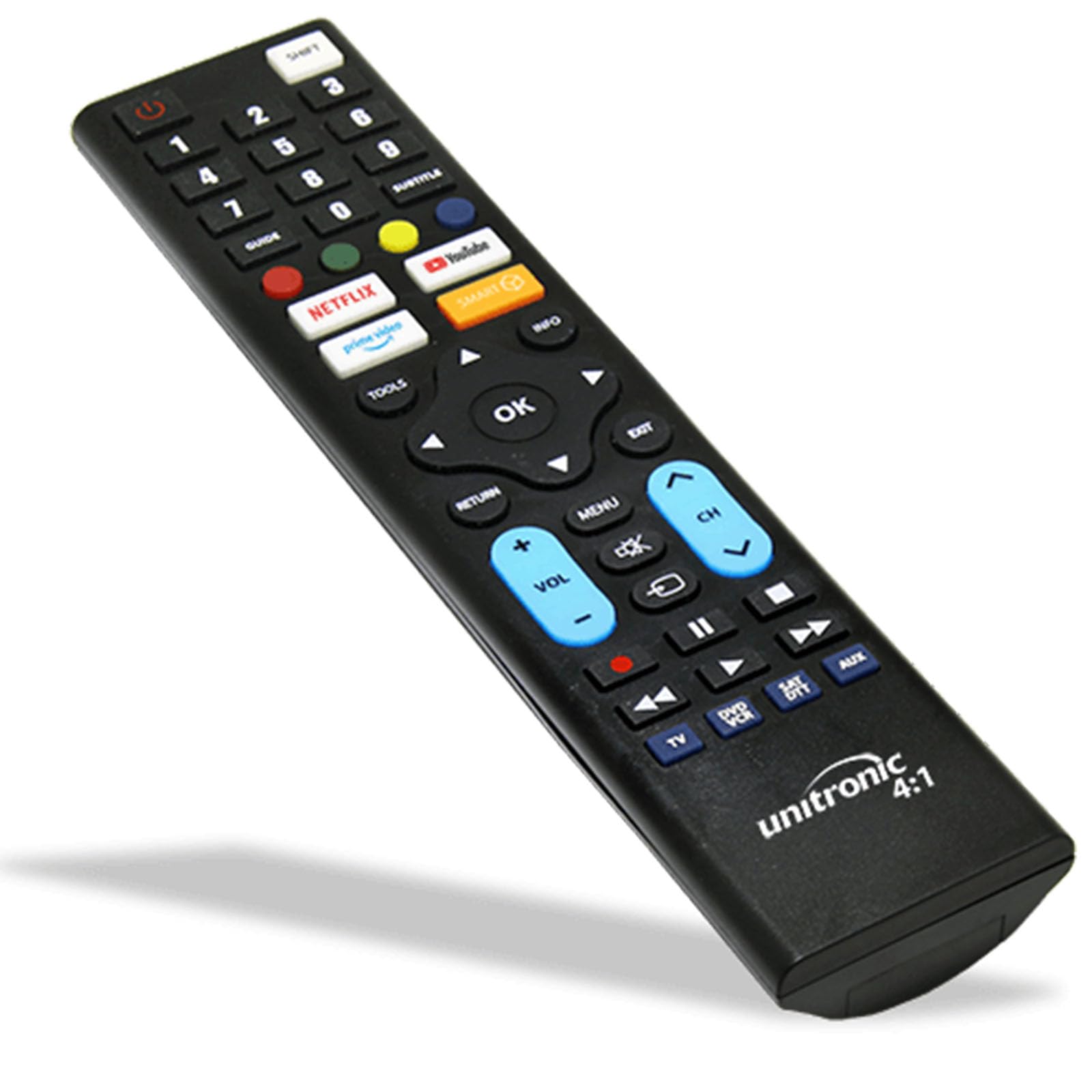
Image: GBC Dual System Programmable Remote Control. The remote is black with various buttons for power, numbers, device selection (TV, DVD/VCR, SAT/DTT, AUX), navigation, volume, channel, and dedicated streaming service buttons (Netflix, YouTube, Amazon Prime Video).
- Bọtini agbara: Located at the top left, used to turn devices on/off.
- Device Selection Buttons: Red oval buttons on the right side (TV, DVD/VCR, SAT/DTT, AUX) to select the device you wish to control.
- Nọmba bọtini foonu: Buttons 0-9 for channel selection and data input.
- Akopọ Lilọ kiri: Central "OK" button surrounded by directional arrows (Up, Down, Left, Right) for menu navigation.
- Iwọn didun ati Iṣakoso ikanni: Dedicated buttons for adjusting volume (VOL +/-) and changing channels (CH +/-).
- Awọn idari Sisisẹsẹhin: Buttons for Play, Pause, Stop, Fast Forward, Rewind, Next Track, Previous Track.
- Awọn bọtini ohun elo TV ọlọgbọn: Dedicated buttons for quick access to popular streaming services like Netflix, YouTube, and Amazon Prime Video.
- Awọn bọtini iṣẹ miiran: Includes buttons for Menu, AV input, Teletext, and other specific functions.
3. Eto
3.1. Fifi sori batiri
- Wa yara batiri ni ẹhin isakoṣo latọna jijin.
- Ifaworanhan ṣii ideri kompaktimenti batiri.
- Insert two (2) AAA 1.5V batteries, ensuring correct polarity (+ and -) as indicated inside the compartment.
- Pa ideri batiri naa ni aabo.
- Note: The remote control retains its programming even when batteries are removed or replaced.
3.2. Siseto Iṣakoso Latọna jijin
The GBC Dual System Remote Control can be programmed using two methods:
Method 1: Programming with an IR Programmer (e.g., JL1970)
This method requires a dedicated IR programmer (such as the JL1970, sold separately) and specific software. Refer to the instructions provided with your IR programmer for detailed steps. This method is typically used by technicians or for advanced programming needs.
Method 2: Programming via 3.5mm Audio Cable
This method allows programming the remote control using an audio output from a PC or any device with a 3.5mm headphone jack. This eliminates compatibility issues with operating systems (Windows, macOS, Linux).
- Obtain a 3.5mm audio cable (not included).
- Connect one end of the audio cable to the 3.5mm programming port on the remote control (refer to the remote's specific port location, usually on the side or top).
- Connect the other end of the audio cable to the headphone jack of your PC or audio output device.
- Access the GBC programming software or web interface (specific details for this software are not provided in the product description, typically found on the manufacturer's webaaye).
- Follow the on-screen instructions within the programming software to select your device brand and model, and transfer the codes to the remote control.
- Once programming is complete, disconnect the audio cable.
Pre-programmed Option: If you purchased the remote pre-programmed, ensure you provided the exact brand and model of your television (found on the back of the TV) to the seller. In this case, no further programming should be required for the specified device.
4. Awọn ilana Iṣiṣẹ
After successful programming, follow these steps to operate your devices:
- Yan Ẹrọ: Press the corresponding device selection button (e.g., TV, DVD / VCR, SAT/DTT, AUX) at the top right of the remote. The indicator light (if present) may illuminate to confirm selection.
- Titan/Apapa: Tẹ awọn AGBARA bọtini lati tan tabi pa ẹrọ ti a yan.
- Aṣayan ikanni: Use the numeric keypad (0-9) to enter channel numbers directly, or use the CH+ / CH- awọn bọtini lati ọmọ nipasẹ awọn ikanni.
- Iṣakoso iwọn didun: Lo awọn VOL+ / VOL- awọn bọtini lati ṣatunṣe iwọn didun. Tẹ awọn IKU bọ́tìnì láti pa ohùn náà lẹ́nu mọ́.
- Lilọ kiri akojọ aṣayan: Lo awọn bọtini itọka itọsọna (UP, SILE, OSI, OTO) to navigate menus, and press OK lati jẹrisi awọn yiyan.
- Àṣàyàn Ìwọlé/Orísun: Lo awọn AV or ÀWỌN Ọ̀RỌ̀ button (if programmed) to switch between different video inputs (e.g., HDMI 1, HDMI 2).
- Awọn ohun elo TV Smart: Tẹ awọn bọtini pataki fun Netflix, YouTube, Amazon NOMBA Video, etc., to launch these applications directly on your Smart TV.
- Awọn iṣẹ ṣiṣiṣẹsẹhin: For DVD/VCR or other media players, use the ERE, DÁYÉ, DURO, FF (Yára síwájú), REW (Rewind) buttons.
5. Itọju
- Rirọpo Batiri: Replace batteries when the remote's response becomes sluggish or the indicator light (if any) fails to illuminate. Always use two new AAA 1.5V batteries. As noted, programming is retained during battery changes.
- Ninu: Clean the remote control with a soft, dry cloth. Do not use liquid cleaners or abrasive materials, as these can damage the surface or internal components.
- Ibi ipamọ: Tọju isakoṣo latọna jijin ni aaye gbigbẹ, kuro lati orun taara ati awọn iwọn otutu to gaju.
6. Laasigbotitusita
| Isoro | Owun to le Fa | Ojutu |
|---|---|---|
| Latọna jijin ko ṣiṣẹ ẹrọ naa. |
|
|
| Diẹ ninu awọn iṣẹ ko ṣiṣẹ. |
|
|
| Remote indicator light does not flash. |
|
|
7. Awọn pato
| Brand | GBC |
| Nọmba awoṣe | 8023389739271 |
| Asopọmọra Technology | Infurarẹẹdi (IR) |
| Awọn ẹrọ Atilẹyin ti o pọju | 4 |
| Awọn ẹrọ ibaramu | TV, SAT, Pay TV, DTT, DVD, VCR, HI FI, PS2, Xbox |
| Pataki Ẹya | Dual System Programmable |
| Nọmba ti Awọn bọtini | Multiple (including numeric, navigation, volume, channel, and dedicated app buttons) |
| Batiri Iru | 2x AAA 1.5V (included) |
| Àwọ̀ | Dudu |
| Idaduro Iranti | Yes, codes are retained during battery replacement. |
8. Atilẹyin ati Atilẹyin ọja
For technical assistance, programming inquiries, or warranty information, please contact the seller or manufacturer directly. Refer to your purchase documentation for specific contact details.
A product information sheet (PDF) from the supplier may be available for additional details. Please check the product listing or manufacturer's website for downloadable resources.


