
Ọja Pariview
The PAPIFEED Pet Camera Indoor Security Cam (Model B0CLZQ75K8) is designed to monitor your pets, babies, or home with advanced features. It offers 1080 HD video, 2-way audio, night vision, motion tracking, and is compatible with Alexa and Google Assistant. The camera supports both 2.4GHz and 5GHz WiFi networks for flexible connectivity.
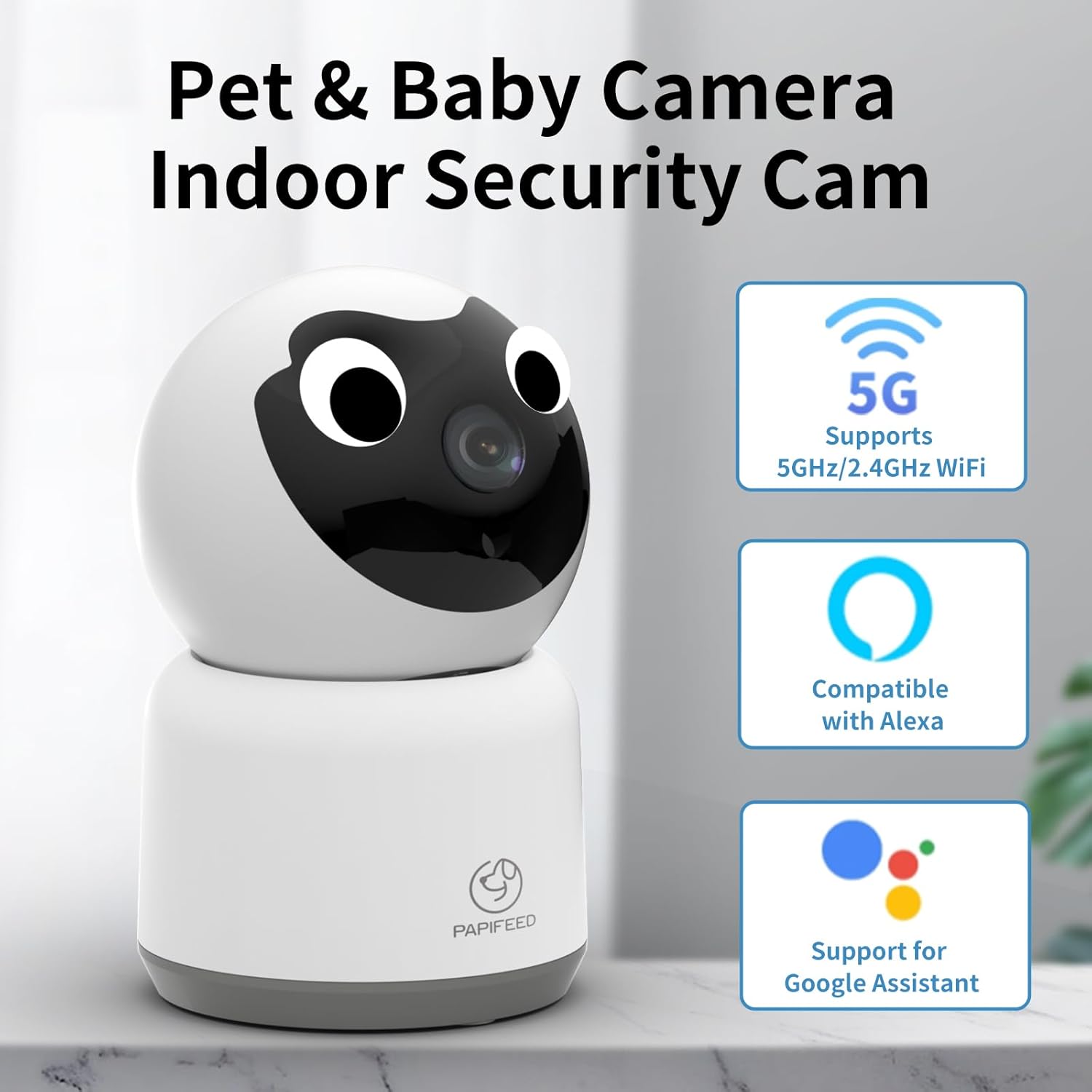
Image: PAPIFEED Pet Camera highlighting 5GHz/2.4GHz WiFi, Alexa, and Google Assistant compatibility.
Key Awọn ẹya ara ẹrọ
- Fídíò HD 1080P: Provides clear and detailed video monitoring.
- Iṣẹ-ṣiṣe Pan & Tilt: Offers 360° horizontal rotation and 110° vertical tilt for comprehensive coverage.
- WiFi-Band Meji: Supports both 2.4GHz and 5GHz networks for stable connection.
- Audio Ọna Meji: Enables real-time communication with pets or family members.
- Ìran IR Alẹ́ Tí A Ti Mu Dára Síi: Ṣe idaniloju hihan kedere ni awọn ipo ina kekere.
- Iwari išipopada & Titele: Automatically detects and tracks movement, sending alerts to your phone.
- Awọn aṣayan ipamọ: Supports up to 128GB Micro SD card (not included) for local storage and offers cloud storage options.
- Iṣọkan Ile Smart: Ni ibamu pẹlu Amazon Alexa ati Google Iranlọwọ.

Image: Visual representation of the PAPIFEED Pet Camera's key features.
Eto Itọsọna
1. Asopọ agbara
Connect the camera to a power source using the provided power adapter. The indicator light will turn on. Wait approximately 15 seconds until you hear a prompt tone and the camera rotates, indicating it's ready for network connection.
Akiyesi: When waiting for connection, the indicator light flashes quickly and makes a prompt tone. Once connected, the indicator light is always on, and no prompt tone is heard.
Video: PAPIFEED Camera WIFI Connection Guidance. This video demonstrates the power-on sequence and initial connection steps for the camera.
2. App Download ati fifi sori
Download the "Smart Life" app from your mobile phone's app store. Ensure your phone's Bluetooth and WLAN are enabled.
3. Device Pairing (QR Code Method)
- Open the "Smart Life" app and tap "Add Device".
- Select "Camera & Lock" then "Smart Camera (Dual Band)".
- Check the box confirming the indicator light is flashing quickly and a prompt tone is heard, then click "Next".
- Tẹ akọọlẹ WiFi rẹ ati ọrọ igbaniwọle sii.
- A QR code will appear on your phone screen. Face your phone's QR code towards the camera lens, keeping a distance of 15-20cm. Move slowly from near to far until you hear a "drop" sound, indicating a successful scan.
- Confirm you heard the prompt. The camera will then connect. Connection is successful when the indicator light is always on and the prompt tone disappears.
4. Device Pairing (WiFi Mode Method)
- From the "Reset the device" screen in the app, click the button in the upper right corner and select "WiFi Mode".
- Select "AP Mode".
- Enter your WiFi account and password, then click "Next".
- Connect your mobile phone to the camera's hotspot, typically named "SmartLife-XXXX".
- Return to the app and select "Confirm hot spot connection, next".
- The camera will then connect. Connection is successful when the indicator light is always on and the prompt tone disappears.
Awọn ilana Iṣiṣẹ
Gbe View ati Pan / Pulọọgi Iṣakoso
Once connected, access the live video feed through the Smart Life app. You can remotely control the camera's pan (horizontal) and tilt (vertical) movements to view different areas of the room. The camera offers 350° horizontal and 110° vertical vision.

Image: Multi-view live feed from the camera, illustrating its pan and tilt functionality.
Ona Meji Audio
Use the two-way audio feature to speak through the camera and hear responses. This is ideal for comforting pets or communicating with family members remotely.

Image: Demonstrating the two-way audio communication feature.
Alẹ Iranran
The camera is equipped with enhanced IR night vision, providing clear black and white video even in complete darkness.

Image: Comparison of day and night vision, highlighting the camera's night vision clarity.
Wiwa išipopada ati Titele
Enable motion detection to receive real-time alerts on your phone when movement is detected. The camera can also track moving subjects within its field of view.

Image: Motion tracking and alert notification on a smartphone.
Awọn aṣayan ipamọ
The camera supports local storage via a Micro SD card (up to 128GB, not included) for continuous 24/7 recording. Cloud storage is also available as an option, providing encrypted video storage.

Image: Storage options for the camera, including cloud and SD card.
Awọn aṣayan fifi sori ẹrọ
The PAPIFEED Pet Camera offers versatile installation options to suit your needs:
- Iduro: Gbe kamẹra sori ilẹ alapin bi tabili tabi selifu.
- Iṣagbede ogiri: Securely mount the camera to a wall for an elevated view.
- Iṣagbesori aja: Install the camera on the ceiling for a wide, overhead perspective.

Image: Various installation methods for the camera.
Awọn pato
| Ẹya ara ẹrọ | Ẹ̀kúnrẹ́rẹ́ |
|---|---|
| Brand | PAPIFEED |
| Awoṣe | B0CLZQ75K8 |
| Ipinnu Yaworan fidio | 1080p, 2K |
| Asopọmọra Technology | Ailokun (Wi-Fi) |
| Imọ-ẹrọ Ibaraẹnisọrọ Alailowaya | Wi-Fi (2.4GHz & 5GHz dual-band) |
| Pataki Ẹya | Phone App Control, 2-Way Audio, Night Vision, Motion Sensor, Works with Alexa & Google Assistant, HD Resolution |
| inu ile / ita gbangba Lilo | Ninu ile |
| Orisun agbara | Okun Itanna |
| Adarí Iru | Android (and iOS via Smart Life app) |
| Fọọmù ifosiwewe | Dome |
| Awọn iwọn Nkan L x W x H | 3 x 3 x 5 inches |
| Iwọn Nkan | 11.7 iwon |
| Max SD Kaadi Support | 128GB |
Itoju
To ensure optimal performance and longevity of your PAPIFEED Pet Camera, follow these maintenance guidelines:
- Ninu: Gently wipe the camera lens and exterior with a soft, dry cloth. Avoid using harsh chemicals or abrasive materials.
- Ibi: Rii daju pe a gbe kamẹra naa si ipo iduroṣinṣin, kuro lati orun taara, awọn iwọn otutu to gaju, ati ọrinrin.
- Awọn imudojuiwọn sọfitiwia: Regularly check the Smart Life app for firmware updates to ensure your camera has the latest features and security enhancements.
Laasigbotitusita
If you encounter issues with your PAPIFEED Pet Camera, refer to the following common troubleshooting steps:
- Awọn oran Asopọmọra:
- Ensure your WiFi network is stable and within range.
- Verify that you have entered the correct WiFi password.
- Check if the camera's indicator light is flashing quickly (waiting for connection) or solid (connected).
- Try restarting the camera and your router.
- Confirm your phone's Bluetooth and WLAN are enabled during setup.
- Ko si fidio/Didara ti ko dara:
- Ṣayẹwo iyara asopọ intanẹẹti rẹ.
- Rii daju pe lẹnsi kamẹra jẹ mimọ ati ainidilọwọ.
- Verify the camera is powered on and connected to the network.
- Awọn Iṣoro Ohun-orin Ọna Meji:
- Ṣayẹwo awọn eto iwọn didun lori foonu rẹ ati laarin ohun elo naa.
- Ensure there is no interference near the camera's microphone or speaker.
- Iwari išipopada Ko Ṣiṣẹ:
- Verify motion detection settings are enabled in the Smart Life app.
- Adjust sensitivity settings if necessary.
- Atunto Kamẹra: If issues persist, locate the reset button (often near the SD card slot) and press and hold it for several seconds until the camera resets. Then, attempt to re-pair the device.
Atilẹyin ọja ati Support
PAPIFEED provides a professional after-sales team and customer service. If you have any questions or encounter issues with your product, please contact PAPIFEED customer support directly. The store offers free product replacement or returns/refunds as part of its quality assurance.
For further assistance, please refer to the contact information provided with your product packaging or visit the official PAPIFEED webojula.