
1. Ifihan
This manual provides comprehensive instructions for the setup, operation, and maintenance of your Macally BTBLERGO2A Backlit Bluetooth Ergonomic Keyboard. Designed for Mac and iOS users, this keyboard combines ergonomic comfort with versatile connectivity and practical features.
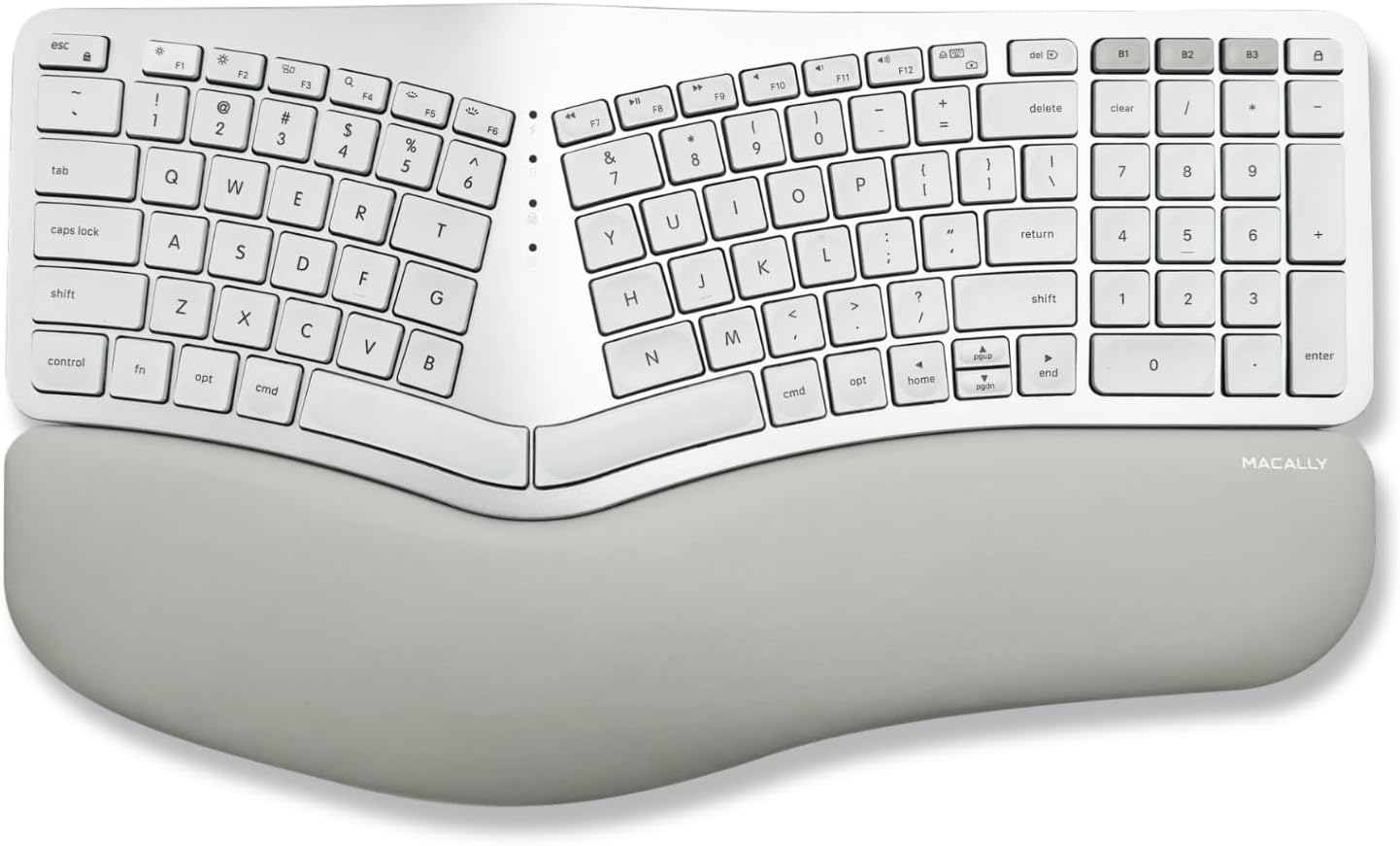
Image: The Macally BTBLERGO2A Backlit Bluetooth Ergonomic Keyboard, featuring a split design and integrated wrist rest.
2. Key Awọn ẹya ara ẹrọ
- Apẹrẹ Pipin Ergonomic: Features a posture-friendly shape, split key layout, and padded wrist support to promote natural typing posture and reduce strain.
- Adjustable Kickstands: Equipped with 4 adjustable kickstands to customize the keyboard angle for optimal comfort.
- Clear Backlit Keys: White LED backlighting with 3 brightness settings (Off, Low, Mid, High) for visibility in various lighting conditions.
- Multi-Sync Bluetooth Connectivity: Seamlessly pair and switch between up to 3 Apple Bluetooth devices, including MacBook, iPad, iMac, and iPhone.
- Mac-Specific Layout: 100-key MacOS layout with 13 dedicated shortcuts for enhanced productivity.
- Batiri gbigba agbara: Built-in 2000 mAh rechargeable battery for extended use, with a USB-C charging cable included.
- Scissor Switch Keys: Provides a tactile and responsive typing experience similar to a MacBook.
Fidio: Ipariview of the Macally BTBLERGO2A keyboard, highlighting its ergonomic design, multi-device connectivity, and backlit keys. This video demonstrates the keyboard's features and how it integrates into a Mac ecosystem.

Image: The keyboard's design is centered around user comfort, promoting proper typing posture.

Image: Illustration of the sloped 2-zone configuration, designed to allow arms to type in a more natural position.

Image: Close-up of the integrated padded wrist cushion, designed to help alleviate wrist strain and pressure during typing.
3. Eto Itọsọna
3.1 Ngba agbara si Keyboard
Before initial use, fully charge your keyboard. Connect the included USB-C charging cable to the keyboard's charging port and to a USB power source (e.g., computer USB port, USB wall adapter). The charging indicator light will show charging status.

Image: The USB-C charging port located on the side of the keyboard, with a charging cable connected.

Image: Illustration indicating the keyboard's rechargeable battery and USB-C charging capability.
3.2 Sisopọ Bluetooth
- Rí i dájú pé keyboard náà ti gba agbára àti pé ó ti ń ṣiṣẹ́. Switch agbára náà sábà máa ń wà ní ẹ̀gbẹ́ tàbí ẹ̀yìn keyboard náà.
- On your Mac or iOS device, go to Eto Eto (tabi Awọn ayanfẹ eto) > Bluetooth and ensure Bluetooth is enabled.
- Press and hold one of the Bluetooth channel keys (B1, B2, or B3) on the keyboard for 3-5 seconds until its indicator light starts blinking rapidly. This indicates pairing mode.
- On your device, select "Macally BTBLERGO2A" from the list of available Bluetooth devices.
- Tẹle eyikeyi awọn ilana loju iboju lati pari ilana sisopọ. Ina Atọka lori bọtini itẹwe yoo di mimọ nigbati a ba so pọ ni aṣeyọri.
- Repeat for up to two additional devices using the other Bluetooth channel keys (B2, B3).

Image: Visual representation of the keyboard connecting via Bluetooth to a MacBook, iPad, and iPhone, demonstrating its multi-device capability.
3.3 Siṣàtúnṣe Keyboard igun
The keyboard features 4 adjustable kickstands on its underside. Gently pull out the desired kickstands to raise the keyboard to your preferred typing angle. Ensure all four kickstands are extended for stability if you choose to use them.

Image: The underside of the keyboard showing the four adjustable kickstands that allow users to customize the typing angle.
4. Awọn ilana Iṣiṣẹ
4.1 Yipada Laarin Awọn ẹrọ
To switch between paired Bluetooth devices, simply press the corresponding Bluetooth channel key (B1, B2, or B3). The keyboard will automatically connect to the selected device within a few seconds.
4.2 Adjusting Backlight Brightness
The keyboard features adjustable backlighting. Use the dedicated backlight control keys (usually F5 and F6 or similar icons) to cycle through the brightness levels: Off, Low, Mid, and High. Refer to the keyboard's function row for specific key assignments.

Image: The keyboard with its clear white backlighting illuminated in a dark environment, showcasing visibility.

Image: Close-up of the clear white backlit keys, illustrating the three brightness settings for various lighting conditions.
4.3 MacOS Shortcut Keys
The keyboard includes 13 dedicated MacOS shortcut keys for quick access to common functions such as brightness control, volume control, media playback, and Mission Control. These keys are designed to integrate seamlessly with your Apple ecosystem.

Image: The keyboard layout highlighting its Mac-specific keys and 13 Apple shortcuts for improved workflow.
5. Itọju
- Ninu: Use a soft, lint-free cloth to wipe the keyboard surface. For stubborn dirt, slightly dampen asọ pẹlu omi tabi a ìwọnba, ti kii-abrasive regede. Yago fun ọrinrin pupọ.
- Ibi ipamọ: Tọju keyboard ni itura, aye gbigbẹ kuro lati orun taara ati awọn iwọn otutu to gaju.
- Itọju Batiri: Lati pẹ igbesi aye batiri, yago fun gbigba agbara ni kikun ti keyboard nigbagbogbo. Gba agbara rẹ nigbagbogbo, paapaa ti ko ba lo fun awọn akoko gigun.
- Yago fun Idasonu: Jeki awọn olomi kuro ni keyboard lati ṣe idiwọ ibajẹ si awọn paati inu.
6. Laasigbotitusita
| Isoro | Owun to le Fa | Ojutu |
|---|---|---|
| Kííbọọ̀dù kò so/sopọ̀ mọ́ ara wọn. | Bluetooth is off on device; keyboard battery low; keyboard not in pairing mode; interference. | Ensure Bluetooth is on. Charge keyboard. Put keyboard into pairing mode (hold B1/B2/B3). Move closer to device. Turn off other Bluetooth devices. |
| Àwọn kọ́kọ́rọ́ kò dáhùn tàbí wọ́n ń dá ìtẹ̀síwájú dúró. | Low battery; out of range; software issue; physical obstruction. | Charge keyboard. Move closer to device. Restart device and keyboard. Check for debris under keys. |
| Imọlẹ afẹyinti ko ṣiṣẹ. | Backlight turned off; low battery. | Press backlight control keys (F5/F6) to increase brightness. Charge keyboard. |
| Ko le yipada laarin awọn ẹrọ. | Devices not properly paired to respective channels. | Re-pair devices to the correct B1, B2, B3 channels. Ensure devices' Bluetooth is active. |
7. Awọn pato
- Awoṣe: BTBLERGO2A
- Asopọmọra: Bluetooth
- Awọn ẹrọ ibaramu: 3 Mac and iOS/iPadOS devices
- Ifilelẹ bọtini: 100-key MacOS Layout with 13 shortcuts
- Iru bọtini: Scissor Yipada
- Imọlẹ ẹhin: White LED, 3 brightness levels
- Batiri: 2000 mAh Rechargeable Lithium-ion
- Ibudo gbigba agbara: USB-C
- Awọn iwọn: 17.95 x 12.17 x 1.97 inches (Apapọ)
- Ìwúwo: 3.14 iwon (Nkan)
- Olupese: Mace Group Inc / Macally Peripherals
8. Atilẹyin ọja ati Support
Macally products are designed for reliability and performance. For warranty information and technical support, please refer to the official Macally webojula tabi kan si wọn onibara iṣẹ taara. Tọju iwe-ẹri rira rẹ fun awọn ẹtọ atilẹyin ọja.
Atilẹyin Ayelujara: www.macally.com/support