
Ọrọ Iṣaaju
The Strich BT-FP2 is a wireless page turner pedal designed to enhance your musical performance or presentation by providing hands-free control over digital content. This device allows musicians, presenters, and other users to effortlessly navigate through sheet music, lyrics, chords, or presentation slides on their mobile phones, tablets, or computers via Bluetooth connectivity. By eliminating the need to use your hands for page turning, you can maintain focus on your instrument or presentation, ensuring a smooth and uninterrupted experience.
Ṣeto
Package Awọn akoonu
Ṣaaju ki o to bẹrẹ, jọwọ rii daju pe gbogbo awọn nkan wa ninu package:
- Strich BT-FP2 Wireless Page Turner Pedal
- Ngba agbara USB
Ngba agbara si Ẹrọ
The BT-FP2 pedal features a built-in rechargeable Lithium-ion battery. For optimal performance, fully charge the device before its first use.
- Connect the provided charging cable to the charging port on the pedal.
- So opin keji okun gbigba agbara pọ mọ adapter agbara USB deede (ko si ninu rẹ) tabi ibudo USB ti kọnputa kan.
- The charging indicator light will illuminate. Once fully charged, the light may change color or turn off, depending on the model.
- A full charge provides up to 20 hours of continuous use.
Sisopọ pẹlu Ẹrọ Rẹ
The Strich BT-FP2 uses Bluetooth for wireless connectivity with your mobile phone, tablet, or computer. It is compatible with both Apple iOS and Android platforms.
- Ensure the BT-FP2 pedal is charged and powered on. The power switch is typically located on the central unit.
- On your mobile device or computer, navigate to the Bluetooth settings.
- Mu Bluetooth ṣiṣẹ ki o wa awọn ẹrọ to wa.
- Select "BT-FP2" from the list of discovered devices to initiate the pairing process.
- Once paired, the device's Bluetooth indicator light will confirm a successful connection. The operating range is up to 10 meters (33 feet).

Nọmba 1: Iwaju view of the Strich BT-FP2 pedal, showing the two foot pedals and the central control panel with various buttons and indicator lights. This view is useful for identifying the power switch and pairing buttons.
Awọn ilana Iṣiṣẹ
Awọn iṣẹ ipilẹ
The BT-FP2 pedal features two foot pedals, allowing for intuitive control of your digital content.
- Pedal osi: Typically used for moving backward (e.g., previous page, previous slide).
- Pedal Ọtun: Typically used for moving forward (e.g., next page, next slide).
- Awọn bọtini ipo: The central control panel includes buttons to switch between different operating modes, which may emulate various keyboard commands (e.g., page up/down, left/right arrow keys). Refer to your application's settings for optimal configuration.
Ibamu ohun elo
The pedal is compatible with a wide range of applications that support external keyboard or Bluetooth input for navigation. Supported software includes, but is not limited to, GarageBand and CAKEWALK. For other applications, check their settings for options to assign keyboard shortcuts to page turning or navigation functions.

Nọmba 2: The Strich BT-FP2 pedal shown in a usage scenario, connected to a device via a red cable (likely for charging or wired connection, though primarily wireless). This image illustrates the pedal's compact design and how it might appear during use.

Nọmba 3: A sunmọ-soke view of a foot pressing one of the pedals on the Strich BT-FP2. This demonstrates the hands-free operation and the ergonomic design for foot control, highlighting its practical application during a performance.
Itoju
Proper care and maintenance will extend the life of your Strich BT-FP2 pedal.
- Ninu: Use a soft, dry cloth to clean the surface of the pedal. Avoid using abrasive cleaners or solvents, as they may damage the finish.
- Ibi ipamọ: Tọ́jú pedal náà sí ibi tí ó tutù tí ó sì gbẹ, tí kò sí ibi tí oòrùn lè tàn dé àti ibi tí ó gbóná janjan.
- Itọju Batiri: To maintain battery health, avoid fully discharging the battery frequently. If storing for an extended period, charge the battery to approximately 50% every few months.
- Ifihan omi: This device is not waterproof. Avoid exposure to liquids to prevent damage.
Laasigbotitusita
If you encounter issues with your Strich BT-FP2 pedal, refer to the following common problems and solutions:
- Ẹrọ ko ṣiṣẹ lori:
- Ensure the battery is charged. Connect the charging cable and allow it to charge for at least 30 minutes.
- Rii daju pe iyipada agbara wa ni ipo 'ON'.
- Ko le so pọ nipasẹ Bluetooth:
- Make sure the pedal is powered on and within the 10-meter range of your device.
- Turn off and on Bluetooth on your mobile device or computer.
- Gbagbe ẹrọ naa lati awọn eto Bluetooth rẹ ki o gbiyanju lati tun so pọ.
- Ensure no other devices are actively connected to the pedal.
- Pedal not responding in application:
- Check if the pedal is successfully paired with your device.
- Verify the application settings to ensure it supports external input or keyboard shortcuts for navigation.
- Try switching the operating mode on the pedal using the central buttons to see if a different mode is compatible with your application.
- Restart the application and/or your mobile device.
- Igbesi aye batiri kukuru:
- Rii daju pe ẹrọ naa ti gba agbara ni kikun ṣaaju lilo.
- Battery life can vary based on usage and environmental conditions.
- If the issue persists, the battery may need replacement (contact support).
Awọn pato
Detailed technical specifications for the Strich BT-FP2 Wireless Page Turner Pedal:
| Ẹya ara ẹrọ | Ẹ̀kúnrẹ́rẹ́ |
|---|---|
| Nọmba awoṣe | BT-FP2 |
| Asopọmọra Technology | Bluetooth |
| Awọn ẹrọ ibaramu | PC, Kọǹpútà alágbèéká, Foonuiyara, Tabulẹti |
| Software atilẹyin | GarageBand, CAKEWALK (and others supporting keyboard input) |
| Iye awọn bọtini/awọn pedal | 2 |
| Batiri Iru | 1 Lithium-ion (pẹlu) |
| Igbesi aye batiri | Titi di wakati 20 |
| Alailowaya Ibiti | Ti o to awọn mita 10 |
| Iwọn Nkan | 420 g |
| Package Mefa | 21.3 x 19.2 x 4.2 cm |
| Pataki Ẹya | Compact, Portable |
| Olupese | Strich |
| Ilu isenbale | China |
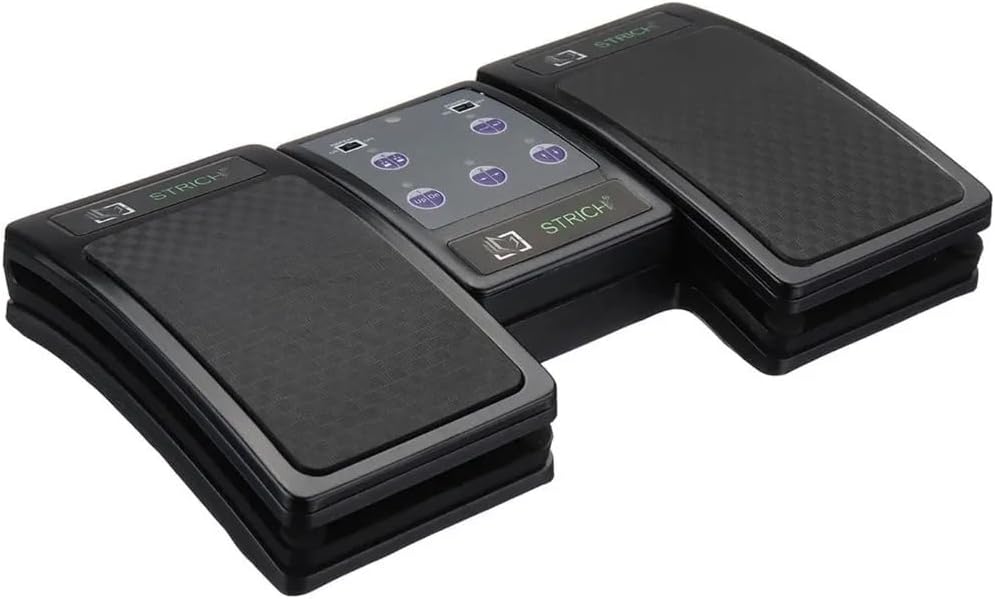
Nọmba 4: An angled top-down view of the Strich BT-FP2 pedal, showcasing its overall design and footprint. This image provides a comprehensive look at the product's physical characteristics.
Atilẹyin ọja ati Support
Fún àlàyé nípa àtìlẹ́yìn tàbí ìrànlọ́wọ́ ìmọ̀ ẹ̀rọ, jọ̀wọ́ wo àwọn ìwé tí a pèsè pẹ̀lú ohun tí o rà tàbí kí o kan sí olùtajà/olùpèsè taara. Pa ẹ̀rí ìrajà rẹ mọ́ fún èyíkéyìí ẹ̀tọ́ àtìlẹ́yìn.